
On-device AI on your Mac: which OneMacTools features use Apple Intelligence
OneMacTools' on-device AI runs on your Mac with frameworks Apple ships in macOS: Vision reads text, faces and objects, Apple's speech recognition transcribes, the Translation framework translates offline, Natural Language spots names and languages, and Apple Intelligence's on-device model writes summaries, notes and answers. Most AI tools work on any supported Mac; a few need Apple Intelligence turned on. Your files are never uploaded.
On this page
- What “on-device AI” means in OneMacTools
- Which Apple frameworks each tool uses
- Which AI tools need Apple Intelligence turned on?
- Languages for OCR, transcription and translation
- Model downloads: what macOS fetches the first time
- How fast is on-device AI on a Mac?
- Privacy: nothing is uploaded
- Ways to run AI tools without opening the app
- Tools mentioned on this page
- Questions
What “on-device AI” means in OneMacTools
Every AI feature in OneMacTools uses models that are already part of macOS, or that Apple downloads to your Mac the first time you need them. There's no OneMacTools server, no account and no API key. When you drop a scanned contract on Extract Text or a 40-minute interview on Transcribe, the file is opened and processed on your Mac, and the result is saved in a new folder next to your other results (by default in ~/Downloads/OneMacTools). The originals are never changed.
The tools live in the On-device AI category in the sidebar, but on-device AI also powers tools in other categories: Remove Background and Passport Photo Maker in Images, Auto Subtitles in Video, Redact PDF in PDF, and Ask (⌘K), which understands plain-English requests. This page explains which Apple framework each family of tools uses, what changes when Apple Intelligence is off, which downloads macOS may make, and what to expect from speed. For the steps and options of a single tool, open its tool page; for how Ask works, see Ask: natural-language commands.
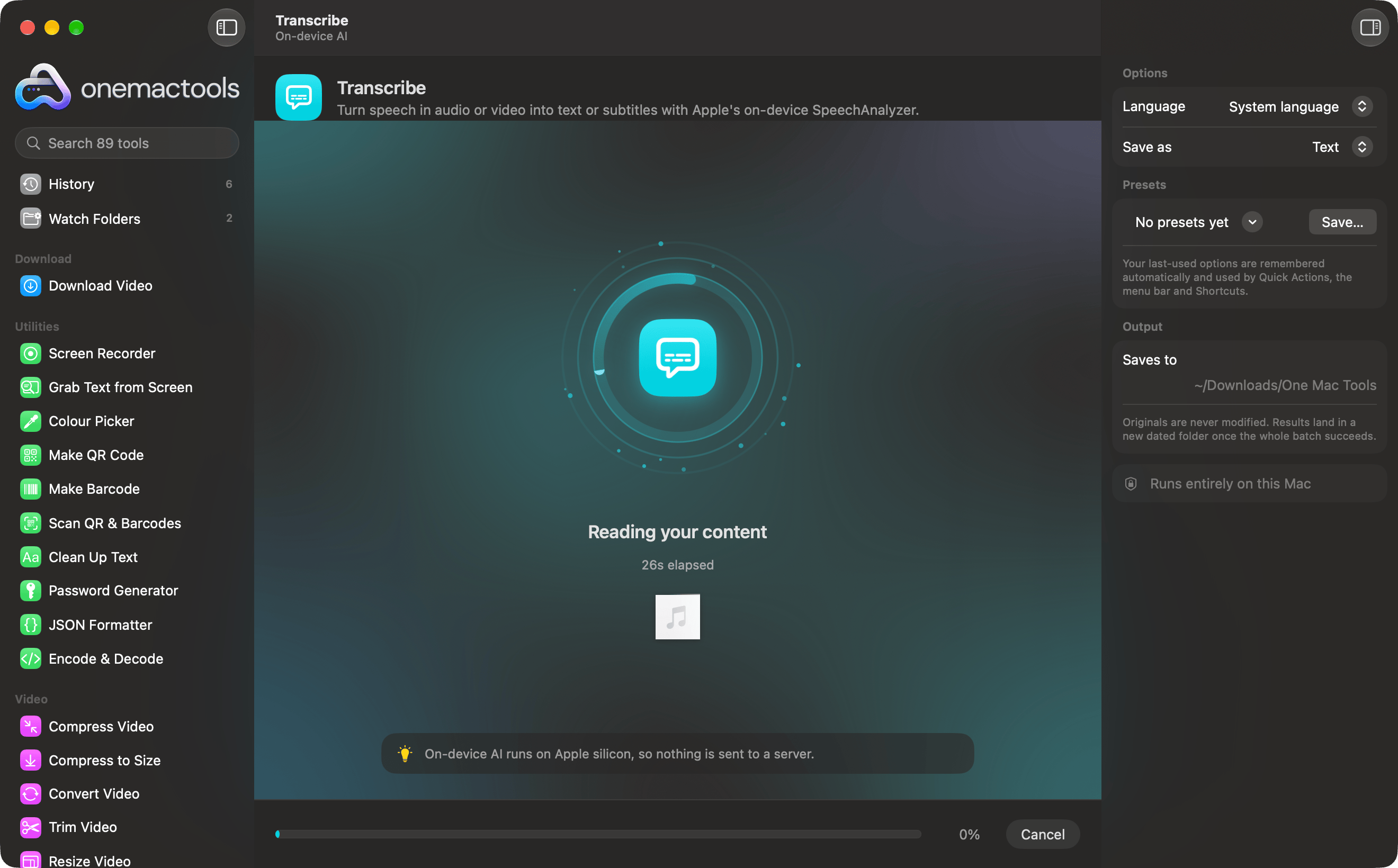
While an AI tool works, the processing screen shows what it's doing (“Reading your content”), the time elapsed and a Cancel button. The inspector on the right says Runs entirely on this Mac.
Which Apple frameworks each tool uses
OneMacTools doesn't ship its own large models. It builds on five parts of macOS, each good at one job:
| Apple framework | What it does | Tools that use it |
|---|---|---|
| Vision (text recognition) | Reads printed and handwritten text in photos, screenshots and scanned pages, detecting the language automatically | Extract Text, Make PDF Searchable, Grab Text from Screen, Redact PDF, Redact Images, Smart Rename, Receipts to Spreadsheet, Business Card to Contact, Ask a Document |
| Vision (document reading) | Finds tables in a page and rebuilds them row by row and cell by cell | Tables to Spreadsheet, PDF to Markdown & HTML |
| Vision (image analysis) | Recognises what's in a photo, finds faces and people, cuts out the subject, and compares how alike two photos look | Auto-Tag Photos, Alt Text & Captions, Remove Background, Blur Faces & Text, Passport Photo Maker, Social Media Image Resizer, Circle Crop, Duplicate Finder's similar photos |
| Speech (SpeechAnalyzer) | Turns speech in audio and video into timed text | Transcribe, Auto Subtitles, Meeting Notes, Record Meeting, Dictate Anywhere |
| Translation and Natural Language | Translates offline with downloaded languages; detects a text's language; recognises names, places and organisations | Translate, Redact Text for AI |
| Apple Intelligence (Foundation Models) | Apple's on-device language model: writes summaries, notes, names, answers and rewrites | Summarize, Rewrite, Quiz & Flashcards, Ask a Document, Meeting Notes, Record Meeting, Smart Rename, Receipts to Spreadsheet, Alt Text & Captions, Business Card to Contact, Dictate Anywhere's tidying, Ask (⌘K) |
The AI Image Upscaler is a sixth case: it uses Apple's super-resolution scaler, which runs on the Neural Engine, to enlarge pictures 2× or 4×.
Which AI tools need Apple Intelligence turned on?
Apple Intelligence is the only part that has to be switched on separately (in System Settings › Apple Intelligence & Siri) and that needs a Mac that supports it. OneMacTools checks whether its on-device model is ready each time a tool runs, and does one of three things:
Needs Apple Intelligence
These tools exist to write text, so they stop with a message (“Apple Intelligence isn't available on this Mac right now… Turn it on in System Settings.”) when it's off: Summarize, Rewrite and Quiz & Flashcards.
Best with Apple Intelligence, still useful without it
| Tool | With Apple Intelligence | Without it |
|---|---|---|
| Smart Rename | A short descriptive title written from the file's content, plus its date | Names come from the text and dates inside each file |
| Receipts to Spreadsheet | Date, vendor, category, tax, total and currency read by the model | Values read with text rules; the result tells you to check them |
| Alt Text & Captions | Concise alt text (under 125 characters) or a caption with hashtags | A description built from Vision's findings, such as the objects, people and words it saw |
| Business Card to Contact | Tells a person's name from a company name more reliably | Emails, phones, websites and addresses by detectors; name, title and company by simple rules |
| Ask a Document | A written answer from the most relevant passages, with the passages underneath | The passages that best match your question, without a written answer |
| Meeting Notes | Transcript plus notes: summary, key decisions, action items, open questions | The transcript only, with a note saying why |
| Record Meeting | Recording, transcript labelled You and Others, and notes | Recording and transcript; notes are skipped |
| Dictate Anywhere | Optional tidying removes “um”s and false starts | Dictation works; tidying is unavailable |
Works on any supported Mac
Everything that uses only Vision, Speech, Translation or Natural Language works whether Apple Intelligence is on or off: Extract Text, Transcribe, Auto Subtitles, Translate, Tables to Spreadsheet, Auto-Tag Photos, Remove Background, Blur Faces & Text, the redaction tools and the rest of the first table.
Languages for OCR, transcription and translation
Each framework supports its own set of languages:
- Text recognition detects the language automatically and applies language correction, so you don't pick a language in Extract Text or Make PDF Searchable.
- Transcription (Transcribe, Auto Subtitles, Meeting Notes, Record Meeting, Dictate Anywhere) has a Language menu: System language, English (US), English (UK), English (India), Spanish, French, German, Italian, Portuguese, Japanese, Korean and Chinese. If Apple's on-device recogniser doesn't support the language you chose, the tool stops before it starts with “On-device transcription doesn't support … yet.” Record Meeting checks this before recording, not after an hour-long call.
- Translation detects the source language and offers 12 targets in Translate to: English, Spanish, French, German, Italian, Portuguese, Japanese, Korean, Chinese (Simplified), Hindi, Arabic and Russian. Subtitle files keep their numbering and timings; only the spoken lines are translated.
- Apple Intelligence writes in the languages Apple supports for it on your Mac.
Model downloads: what macOS fetches the first time
Some Apple models aren't on every Mac until they're needed. These downloads come from Apple, not from OneMacTools, and your files are never sent with them:
| Feature | What's downloaded | How |
|---|---|---|
| Transcription | The speech model for the language you picked | Automatically, the first time you transcribe in that language |
| Translate | The pair of languages (for example French → English) | By you, in System Settings › General › Language & Region › Translation Languages. If a pair is supported but not downloaded, Translate tells you exactly which one to add |
| AI Image Upscaler | Apple's super-resolution model, a few tens of MB | Automatically, the first time you upscale |
| Apple Intelligence | Apple's on-device language model | By macOS, after you turn Apple Intelligence on |
Vision's text model is already on your Mac but takes a moment to load the first time (up to about 20 seconds), so OneMacTools starts loading it while you're still choosing files.
How fast is on-device AI on a Mac?
Speed depends on the job and your Mac, but a few rules hold:
- Text recognition handles a page in moments. Extract Text uses a PDF's own text when a page has some (the Use a PDF's own text when it has some option, on by default), which is faster and exact; only scanned pages go through OCR.
- Transcription reports progress as it goes, so you see how far through a long recording it is. Videos have their sound pulled out first.
- Apple Intelligence's model has a small context window. Summarize and Meeting Notes split long text into parts of about 6,000 characters, summarise each, then combine them, which is why a 200-page report takes longer than a 5-page memo. Rewrite works a few paragraphs at a time for the same reason.
- Ask a Document reads up to 60 pages of each PDF and passes only the best-matching passages to the model; Smart Rename reads just the first pages, because that's where titles and dates are.
- AI Image Upscaler works on tiles and runs on the Neural Engine. On a Mac where Apple's scaler isn't available it uses a careful standard resize instead and tells you so.
To see the Neural Engine at work, open Mac Health, whose Heat tab shows GPU and Neural Engine use. Every AI job can run in the background like any other; see Batch processing and progress.
Privacy: nothing is uploaded
On-device AI is the reason OneMacTools can read your passport, payslips or a client call without a privacy trade-off. The frameworks above run on your Mac, the results are written to your disk, and OneMacTools contains no analytics. The only network activity connected to AI is Apple's own model downloads described above. The full list of what does go online is on Mac app permissions and privacy and on the Privacy page.
If you connect an AI assistant such as Claude over MCP, that's different: the assistant runs outside OneMacTools, so OneMacTools asks you before handing it a document's text. See MCP server for Claude, Cursor and Codex.
Ways to run AI tools without opening the app
Several AI tools are also Finder Quick Actions: Extract Text, Smart Rename, Transcribe, Tables to Spreadsheet, Make PDF Searchable and Auto Subtitles. Right-click files in Finder and choose them under Quick Actions; they use your last-used options. See Finder Quick Actions. You can also run them from a watch folder, for example to rename every scan that lands in a folder, or from the Shortcuts app.
Tools mentioned on this page
Questions
Does OneMacTools' AI work offline?
Yes. Text recognition, transcription, translation and Apple Intelligence all run on your Mac. The only time you need the internet is for Apple's one-time model downloads, such as a transcription language or a translation language pair.
Do I need Apple Intelligence to use the AI tools?
Only for Summarize, Rewrite and Quiz & Flashcards. Smart Rename, Receipts to Spreadsheet, Alt Text & Captions, Business Card to Contact, Ask a Document and Meeting Notes still work without it, with simpler results. OCR, transcription, translation and image tools don't use it at all.
Why does Summarize say Apple Intelligence isn't available when it's turned on?
macOS may still be downloading the model, or your Mac or region may not support Apple Intelligence. Check System Settings › Apple Intelligence & Siri and wait for the download to finish, then run the tool again.
Is on-device transcription as accurate as cloud services?
Apple's SpeechAnalyzer is accurate for clear speech in the supported languages and returns timings for subtitles. Picking the right language in the Language menu, rather than leaving System language, makes the biggest difference for recordings in another language.
Does OneMacTools use ChatGPT or another cloud AI?
No. The app contains no cloud AI service and no API key. Every model it uses is Apple's and runs on your Mac.
Why is Translate asking me to download languages?
Apple's Translation framework only works with language pairs installed on your Mac. Add them in System Settings › General › Language & Region › Translation Languages; the error tells you which pair is missing.
Which Mac do I need for on-device AI?
OneMacTools needs macOS 26 or later, and the Vision, Speech and Translation tools work on any Mac that runs it. Apple Intelligence features need a Mac that supports Apple Intelligence, with it turned on.
