
Check your Mac's battery health, cycle count and power draw
To check battery health on a Mac, open Mac Health's Battery tab in OneMacTools. It shows the charge, time left or until full, the power draw or charging rate in watts, battery health as a percentage of its original capacity and the charge cycle count. It also lists the apps using the most power right now, each app's share since you unplugged, and the batteries of connected Bluetooth devices such as AirPods, keyboards and mice.
On this page
- How to check battery health on Mac
- Every figure in the Battery card
- Which apps are using your battery
- AirPods, keyboard and mouse batteries
- When your Mac won't sleep: the Awake tab
- Battery history, trends and alerts
- How Mac Health compares with macOS's battery settings
- Tools mentioned on this page
- Questions
How to check battery health on Mac
- Open OneMacTools and choose Mac Health.
- Choose the Battery tab.
- Read Health and Charge cycles in the Battery card. The line underneath puts health in plain words, for example “Holds 89% of the charge it held when new.”
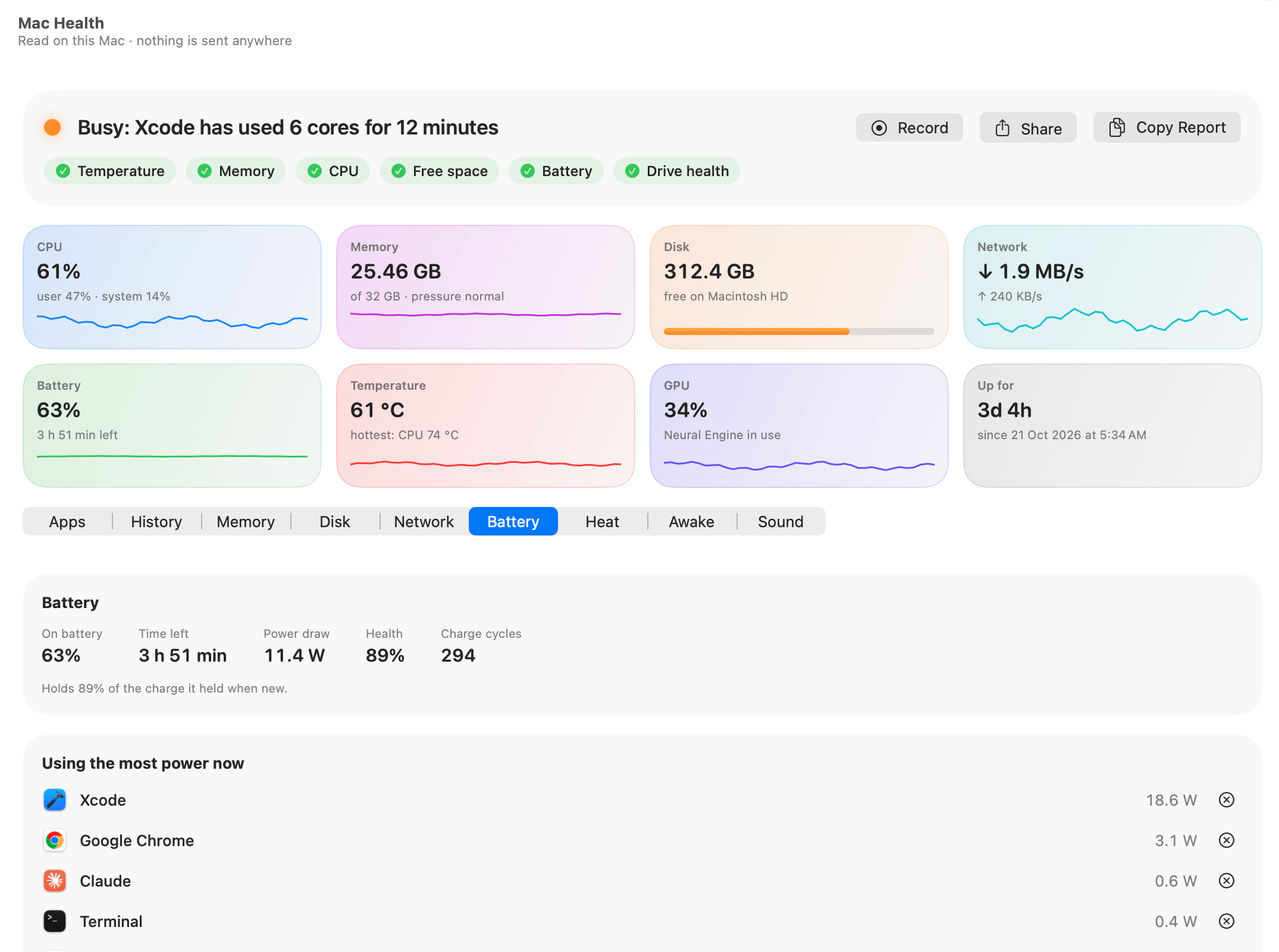
The Battery tile at the top of Mac Health shows the charge and time left wherever you are in the app. The Battery check under the headline adds the health in its pop-up, for example “63% · holds 89% of its original charge”.
On a Mac without a battery (an iMac, Mac mini, Mac Studio or Mac Pro), the card says “This Mac runs on mains power; it has no battery.” The Bluetooth devices card still works there.
If you're here because the battery runs down too fast, the What's draining my Mac's battery? guide gives the short answer. This page explains every figure on the tab.
Every figure in the Battery card
| Label | What it shows |
|---|---|
| On battery / Plugged in / Charging | The charge level, labelled with the power state. |
| Time left / Until full | On battery, how long the charge should last at the current rate; while charging, how long until full. Shows Estimating… until macOS has worked it out, usually a few minutes after you plug in or unplug. |
| Power draw / Charging at | Watts going out of the battery, or into it while charging, to one decimal place. |
| Health | How much charge the battery holds compared with when it was new. |
| Charge cycles | How many full charges the battery has had. Two half charges count as one cycle. |
Figures appear only when macOS supplies them, so an older or replaced battery may show fewer.
What does battery health mean?
Health is the battery's present full capacity as a share of its design capacity. A battery that shows 89% holds 89% of the charge it held new, so a full charge lasts about that much less. Batteries wear with charge cycles and age; that's normal.
Low battery warnings
On battery at 20% or less, the headline says “Battery at 18%: plug in soon” with an orange dot; at 10% or less it turns red. The built-in alert The battery is at 10% or less sends a notification too (see alerts). None of these fire while you're plugged in.
Which apps are using your battery
The Battery tab answers that two ways, right now and since you unplugged.
Using the most power now
This card lists up to eight apps drawing more than 0.05 W at this moment, with their watts and a quit menu. Power is macOS's own energy accounting for each process, added up per app, so Chrome's helpers count under Chrome. The same figure is the Power column in the Apps tab, which you can sort by. As a rough guide, a build in Xcode can draw well over 10 W while a chat app idles below 1 W.
Since you unplugged
While you're on battery, a card at the top of the tab reads “Since you unplugged at 10:12”, with how much charge you've used in how long, for example “45% used in 4 h 30 min”. Below it, up to six apps each get a bar and a percentage: their share of the energy apps used since you unplugged.
This card comes from Mac Health's history, which records the Mac every 30 seconds while OneMacTools is running. If history is switched off, or OneMacTools wasn't running since you unplugged, the card doesn't appear. Keep Settings › History › Record Mac Health history on and turn on Open OneMacTools at login to make sure it's always there.
Ask in plain words
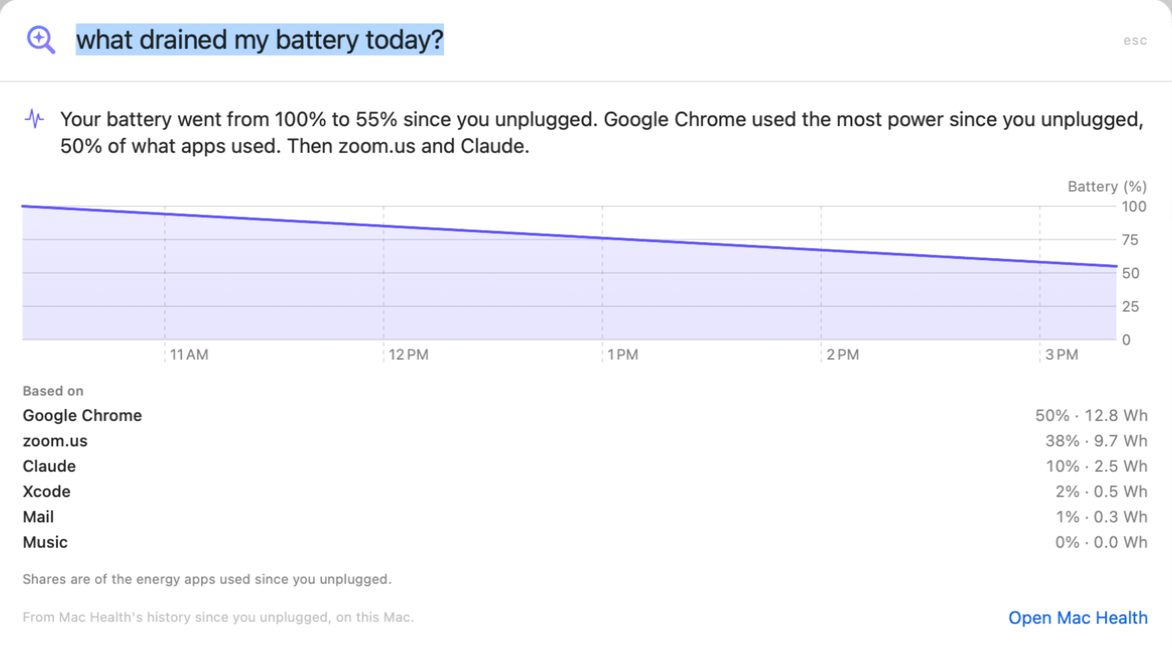
You can also ask, from Ask (⌘K): “what drained my battery today?”. The answer gives the drop since you unplugged, the apps that used the most energy with their share and watt-hours, and a battery chart, all from history on your Mac. See Ask about your Mac.
AirPods, keyboard and mouse batteries
The Bluetooth devices card lists every connected device that reports a battery level: AirPods and other headphones, Magic Keyboard, Magic Mouse and Magic Trackpad, each with a matching icon. Devices with several batteries show each one, so AirPods can list their parts separately. A level at 20% or below turns red. The list refreshes about once a minute while Mac Health is reading.
If nothing is listed, the card says “No connected device is reporting a battery level.” Some third-party devices don't share their battery with macOS, so they won't appear.
When your Mac won't sleep: the Awake tab
A battery that drains overnight or with the lid open usually means something is keeping the Mac awake. Mac Health's Awake tab lists every process holding sleep off, whether it “keeps the Mac awake” or only “keeps the display on”, how long it's been doing so, and the reason it gave, such as a call, a download or a playing video.
If you want the opposite, to keep the Mac awake through a long download, use Keep Awake, also in the menu bar icon's menu.
Battery history, trends and alerts
Mac Health keeps the battery's story as well as its present:
- History chart: on laptops, Mac Health › History shows a Battery chart in percent for the range you choose, from 1 hour up to the whole history you keep. Click any point to see which apps were busiest then.
- Top apps by Power: in History, set the Top apps picker to Power to see which apps used the most energy over the range, in watt-hours.
- Drain trend: when this week and last week each have at least two hours on battery, and the average draw changed by a quarter or more, Where things are heading says so: “The battery drains 40% faster than last week”, with the watts before and after, or “The battery lasts longer than last week”.
- Your own alerts: in Settings › Alerts › Add Alert…, choose Any app or A particular app and Power above a number of watts for some minutes, or The Mac and Battery below a percentage.
All of this is covered in performance history and alerts.
For a live battery figure without opening the app, add the Battery readout to the menu bar. It turns red when you're on battery at 20% or less. The dropdown adds the time left or until full. See the menu bar system monitor.
How Mac Health compares with macOS's battery settings
macOS shows battery health in System Settings › Battery, and Activity Monitor has an Energy tab with each app's energy impact. Mac Health brings those together on one screen and adds:
- Power per app in watts, with helpers counted under their app, instead of a unitless “energy impact” score.
- The charge cycle count next to health, without digging through System Information.
- Each app's share of the battery since you unplugged, recorded while you work.
- Bluetooth device batteries on the same screen.
- A week-on-week drain trend, low-battery and per-app power alerts, and plain-English answers in Ask.
Mac Health only reads the battery. It doesn't change charging limits or any power settings.
Tools mentioned on this page
Questions
How do I check my MacBook battery cycle count?
Open OneMacTools › Mac Health › Battery. The Battery card shows Charge cycles next to Health, without opening System Information.
What battery health percentage is bad on a Mac?
Apple suggests a service when health falls below 80%. Mac Health adds that note to the Battery card below 80%, turns the Battery check orange and mentions it in the headline.
Why does Time left say Estimating?
macOS needs a few minutes of steady use after you plug in or unplug before it can estimate the time left or until full. Mac Health shows Estimating… until then.
Why is the Since you unplugged card missing?
It only appears while you're on battery, and it's built from Mac Health's history. If history is off, or OneMacTools wasn't running since you unplugged, there's nothing to show. Turn on Open OneMacTools at login in Settings › History.
Does OneMacTools limit charging to protect the battery?
No. Mac Health reads battery figures only and doesn't change how your Mac charges. macOS's own Optimised Battery Charging handles that.
Can I see my AirPods battery on my Mac?
Yes. The Bluetooth devices card on the Battery tab lists connected AirPods, keyboards, mice and trackpads that report a battery level, with each part listed separately when the device has more than one.
