
Batch processing files on Mac: progress, cancelling and finished jobs
To batch process files on Mac with OneMacTools, drop as many files as you like on a tool and run it once. While the job runs, a progress screen shows a ring with the percentage, the current stage, time elapsed and left, thumbnails of your files and a tip. Results are saved together only when the whole batch succeeds, and jobs started outside the window send a notification when they're done.
On this page
How to batch process files on a Mac
Almost every OneMacTools tool is a batch tool. You don't switch on a batch mode: add 1 file or 200, and the tool runs over all of them in one job.
- Open the tool, for example Convert Images.
- Drop all the files at once (or a mix of files from different folders), or use Choose Files… and select several.
- Set the options once; they apply to every file.
- Press ⌘↩ or click the main button.
- When it's done, every result is in one dated folder in Downloads › OneMacTools.
Tools that combine files rather than processing each one, such as Merge PDFs or Photo Collage, use all the files in the order shown in the list. For batches you repeat, such as every new screenshot or every WhatsApp photo, a Watch Folder runs the tool on each new file automatically, and Finder Quick Actions run a batch on files you select without opening the app.
Compared with Finder's built-in Quick Actions or Preview's export, the difference is that OneMacTools applies the full set of options to every file, never overwrites the originals, and keeps a record of each batch in History.
What the progress screen shows
If a job takes more than a third of a second, the tool's input area fades into the processing screen. Instant jobs skip it so it doesn't flash.
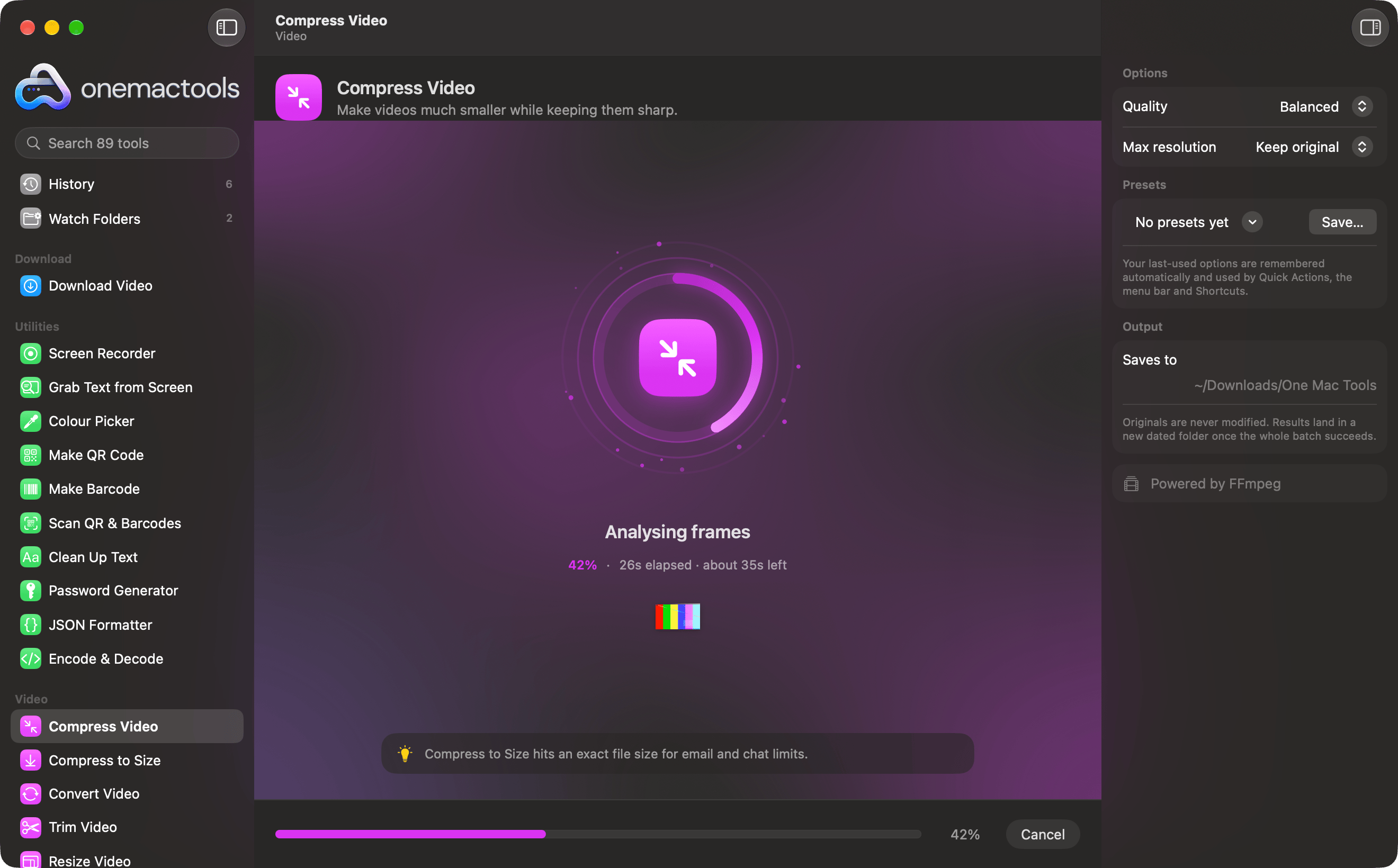
| Part | What it tells you |
|---|---|
| Background | A slowly moving gradient in the tool's colour (purple for video, red for PDF, and so on). |
| Progress ring | Fills around the tool's icon as the job advances. When a tool can't yet tell how far along it is, a short arc circles instead until it can. |
| Stage | What's happening now, in large text, such as “Analysing frames” or “Writing the PDF”. |
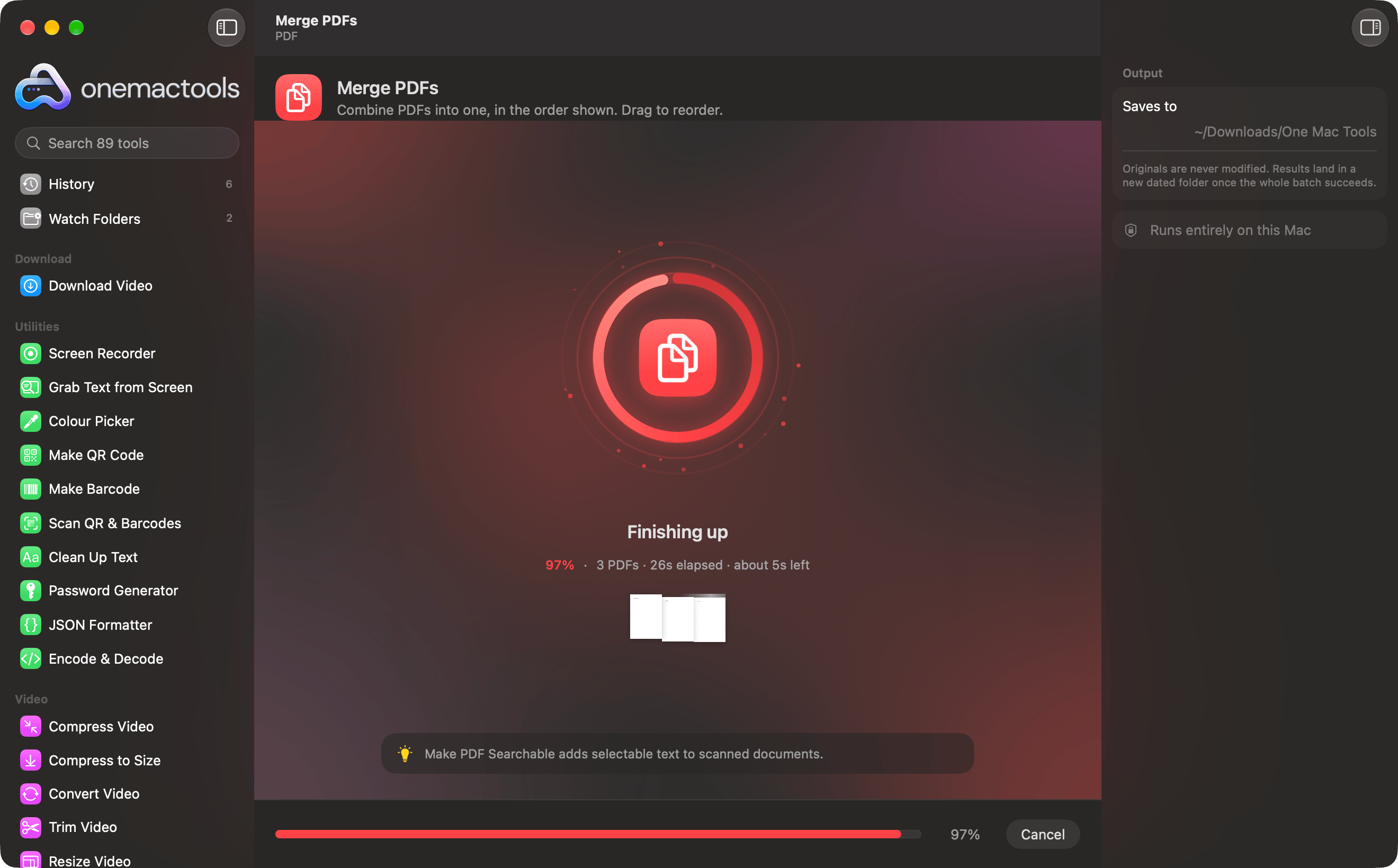
| Figures | The percentage, the number of files (“3 PDFs”), time elapsed, and “about 35s left” once there's enough to estimate from. |
| Thumbnails | The first five files being worked on, as Quick Look thumbnails (video frames, photos, first pages), with “+12” for the rest. |
| Tip | A rotating tip about the category or the app, changing every seven seconds. |
| Footer | A progress bar with the percentage, and Cancel. |
The time left appears only after the first few seconds and once the job is past about 4%, because estimates before that are guesses. It's rounded to the nearest 5 seconds under a minute, and to 15 seconds above.
With Reduce Motion on (System Settings › Accessibility › Display), the screen keeps still: no moving gradient, ripples or orbiting dots, just the ring, the text and the progress updating.
What does each stage mean?
The stage line follows the real progress when the tool reports it: the final stage, “Finishing up”, appears from 95%. When a tool doesn't report progress, the middle stages rotate every few seconds so you can see it's still working.
| Category | Stages, in order |
|---|---|
| Video | Reading your video · Analysing frames · Encoding · Optimising for playback · Finishing up |
| Audio | Reading the audio · Analysing the waveform · Processing · Encoding · Finishing up |
| Images | Opening your images · Analysing pixels · Applying changes · Encoding · Finishing up |
| Opening the document · Reading pages · Processing pages · Writing the PDF · Finishing up | |
| On-device AI | Loading the on-device model · Reading your content · Thinking · Writing results · Finishing up |
| Download | Fetching the page · Finding the best quality · Downloading · Merging audio and video · Finishing up |
| Files | Scanning your files · Processing · Writing results · Finishing up |
| Utilities | Getting ready · Working on it · Finishing up |
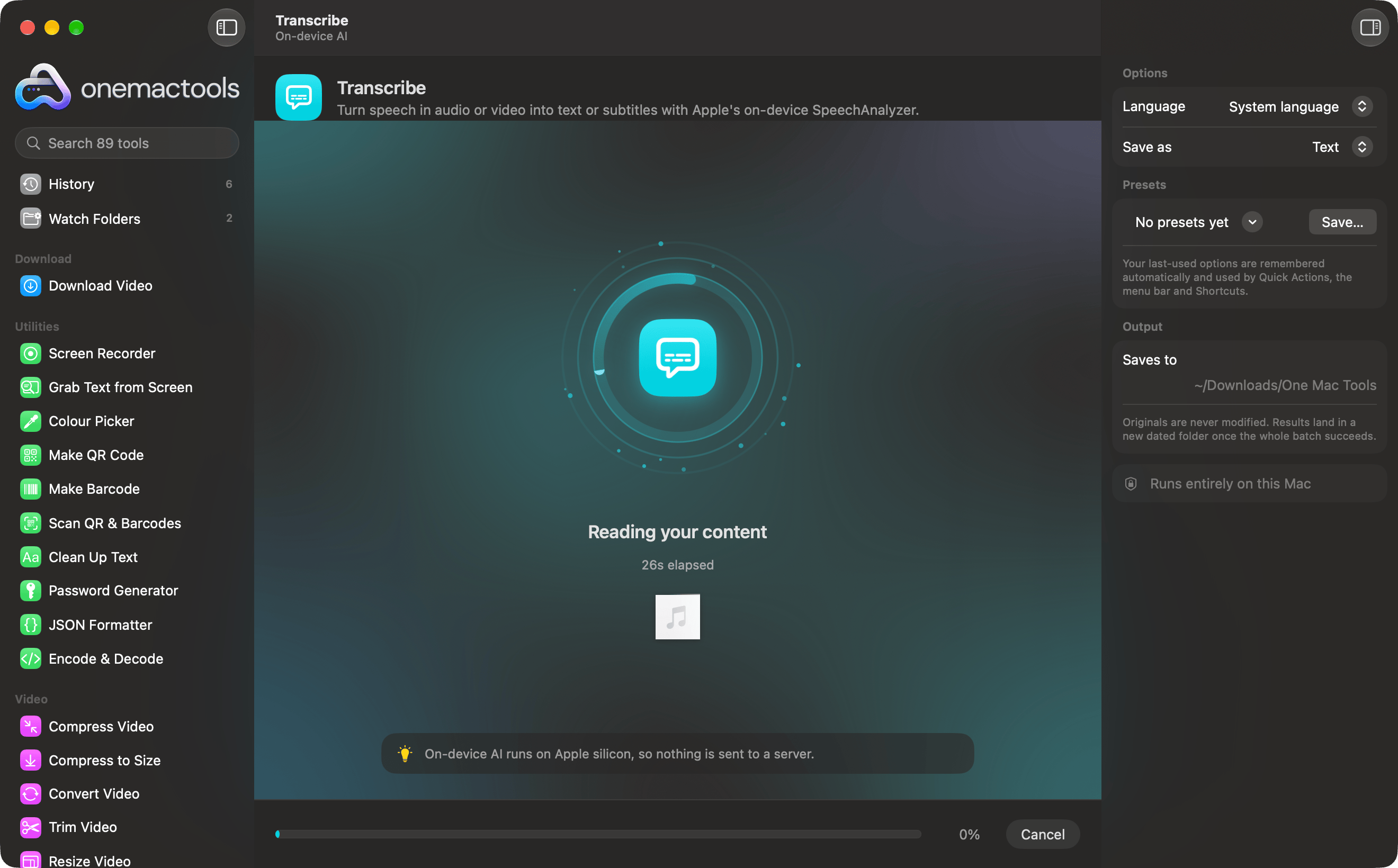
On-device AI tools such as Transcribe often can't say how long they'll take until the model has loaded, so you may see elapsed time and a circling arc for a while before a percentage appears. That's normal; the first run of a language can also wait for macOS to download its speech model.
How to cancel a job
Click Cancel in the footer. The job stops, the processing screen closes, and the tool goes back to ready with your files and options still in place, so you can change a setting and run it again.
Because results are written to a temporary folder and moved into place only at the end, cancelling leaves nothing behind: no partial folder in Downloads › OneMacTools and no half-written files. A cancelled job isn't recorded in History.
Jobs started from Finder, the menu bar, Shortcuts or a Watch Folder run in the background and don't have a Cancel button in the window. They usually finish quickly; quitting OneMacTools stops any still running, again without leaving partial results.
When the job finishes
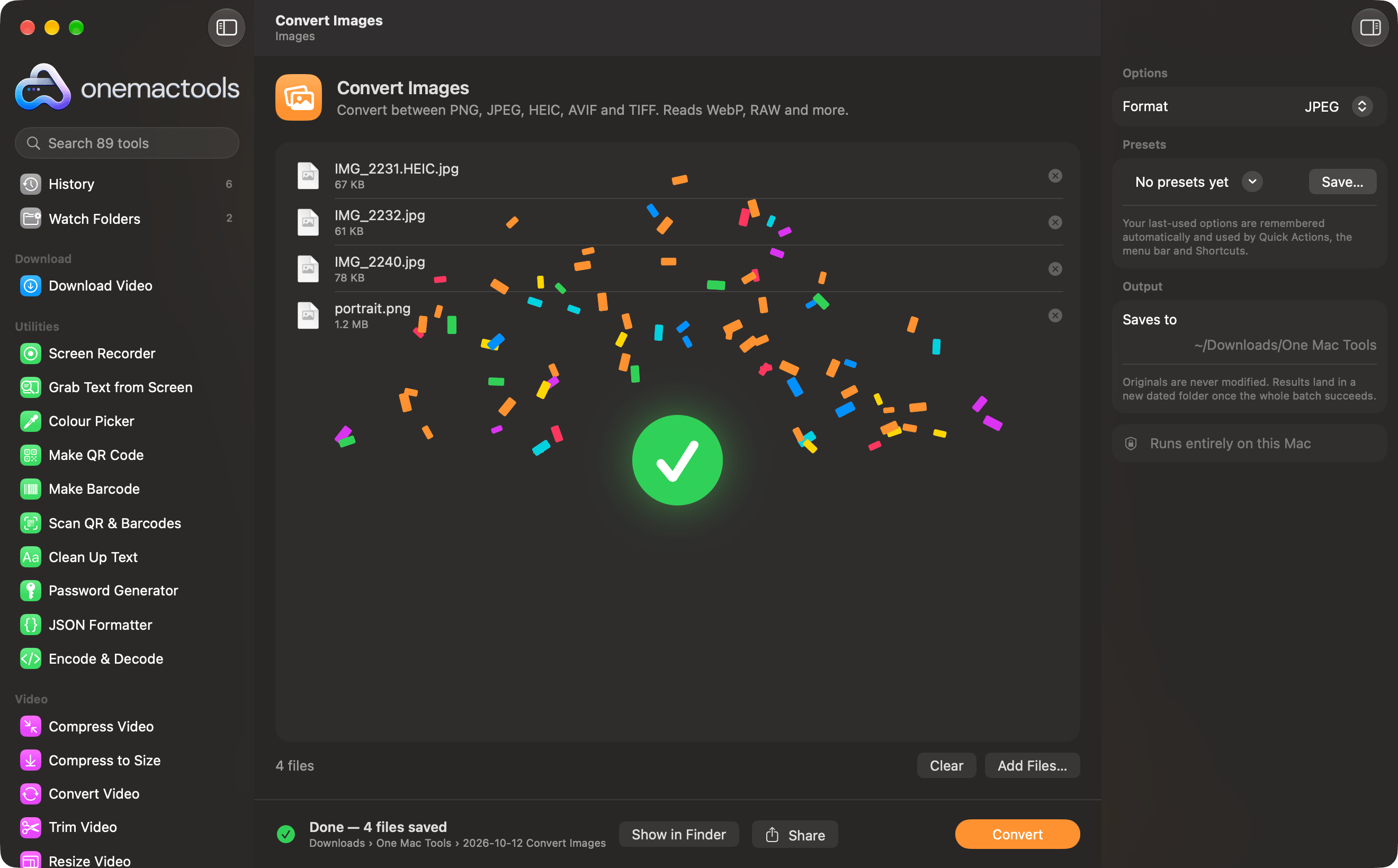
The footer changes to a green check and a summary: “Done — 4 files saved” with the folder's location, or the tool's own result such as “Done — 24.6 MB, under 25 MB” or “Redacted 4 items on 1 page”. Next to it are Preview, Show in Finder and Share. Tools that pick a colour show the colour itself instead of a check.
The finish celebration
Jobs that took at least a second and a half end with a short burst of confetti and a large check mark over the tool, for about two seconds. It doesn't block anything; you can click straight through it. It's skipped for quick jobs and when Reduce Motion is on.
If you'd like the results folder to open in Finder every time, turn on Settings › Output › Open the folder when a job finishes. How to use OneMacTools tools explains how the folder is named and what to do with the results next.
What happens when a file in a batch fails?
OneMacTools treats a batch as one job: either every file succeeds and the folder appears, or nothing is saved. You never get a results folder with some files missing and no explanation.
When something goes wrong, the footer shows an orange warning triangle with the reason, which you can select and copy. Common reasons are a damaged or password-protected file, a format the helper can't read, a full disk, or a missing permission. When a System Settings page fixes it (Screen Recording, for example), an Open Settings button goes straight there.
- Read the message; it usually names the file or the problem.
- Remove the problem file with its ⊗ button, or fix the cause (free space, grant the permission, install FFmpeg).
- Run the tool again. Your other files and options are still loaded.
Failed jobs are recorded in History with “Failed —” and the reason in orange, so you can find the message again later. If a failure keeps happening, see troubleshooting.
Running several jobs, and notifications
Jobs started outside the main window run in the background, alongside whatever you're doing in the app:
- Finder Quick Actions (right-click › Quick Actions › “OMT: …”)
- Files dropped on the menu bar icon and run from its menu
- The Shortcuts app's Run OneMacTools Tool action
- Watch Folders, which run on each new file
- AI assistants connected over MCP, after you click Allow
Several of these can run at the same time. While any are running, the OneMacTools menu bar icon turns into an hourglass, and it switches back when they're all done. Finder and menu bar jobs use the options you last used for that tool in the app.
When a background job finishes, a notification shows the tool's name and the result, such as “4 files saved — Downloads › OneMacTools › Convert Images – 2026-10-12 at 09.41.20”. Click the notification to open the results folder. If it failed, the notification says “Convert Images failed” with the reason. macOS asks for permission to show notifications the first time; turn them off with Settings › Anywhere on your Mac › Notify me when background jobs finish.
Jobs you start in the window itself don't send a notification, because you can see them finish. Every job, from every source, lands in History.
Tools mentioned on this page
Questions
How many files can I process at once in OneMacTools?
There's no fixed limit; drop as many as the tool can take. Large batches simply take longer, and the progress screen shows the file count and time left. For very large video batches, make sure the results drive has room for every output.
Can I keep using OneMacTools while a job runs?
Yes. You can browse other screens and tools, and background jobs from Finder, the menu bar, Shortcuts and Watch Folders run alongside. The menu bar icon shows an hourglass while background jobs are running.
Why does the progress ring just spin without a percentage?
Some jobs can't tell how far along they are at first, especially on-device AI tools loading their model or downloads fetching a page. The ring circles until the tool reports progress, and elapsed time keeps counting so you can see it's working.
Will cancelling a job leave half-converted files?
No. Results are written to a temporary folder and only moved to Downloads › OneMacTools when the whole batch succeeds, so cancelling leaves nothing behind and your originals are untouched.
If one file in a batch fails, are the others saved?
No. A batch is all or nothing, so you never get a folder with files silently missing. The error names the problem; remove or fix that file and run the batch again with the rest still loaded.
How do I turn off the confetti when a job finishes?
Turn on Reduce Motion in System Settings › Accessibility › Display. OneMacTools then skips the celebration and keeps the progress screen still. The celebration only appears for jobs that took over a second and a half anyway.
How do I know when a Finder Quick Action has finished?
OneMacTools sends a notification with the result and where it was saved; click it to open the folder. The menu bar icon shows an hourglass until it's done, and the job appears in History with a Finder badge.
