
Check your Mac's CPU temperature, fan speed, GPU and Neural Engine
The Heat tab in Mac Health is a Mac CPU temperature monitor and fan speed check in one. It shows the CPU, hottest CPU sensor, GPU, SSD and battery temperatures, each fan's speed in rpm, how busy the GPU and Neural Engine are, and, most importantly, whether macOS is slowing your Mac down to keep cool. It reads the sensors only and never changes fan speeds.
On this page
Where to find temperatures and fans
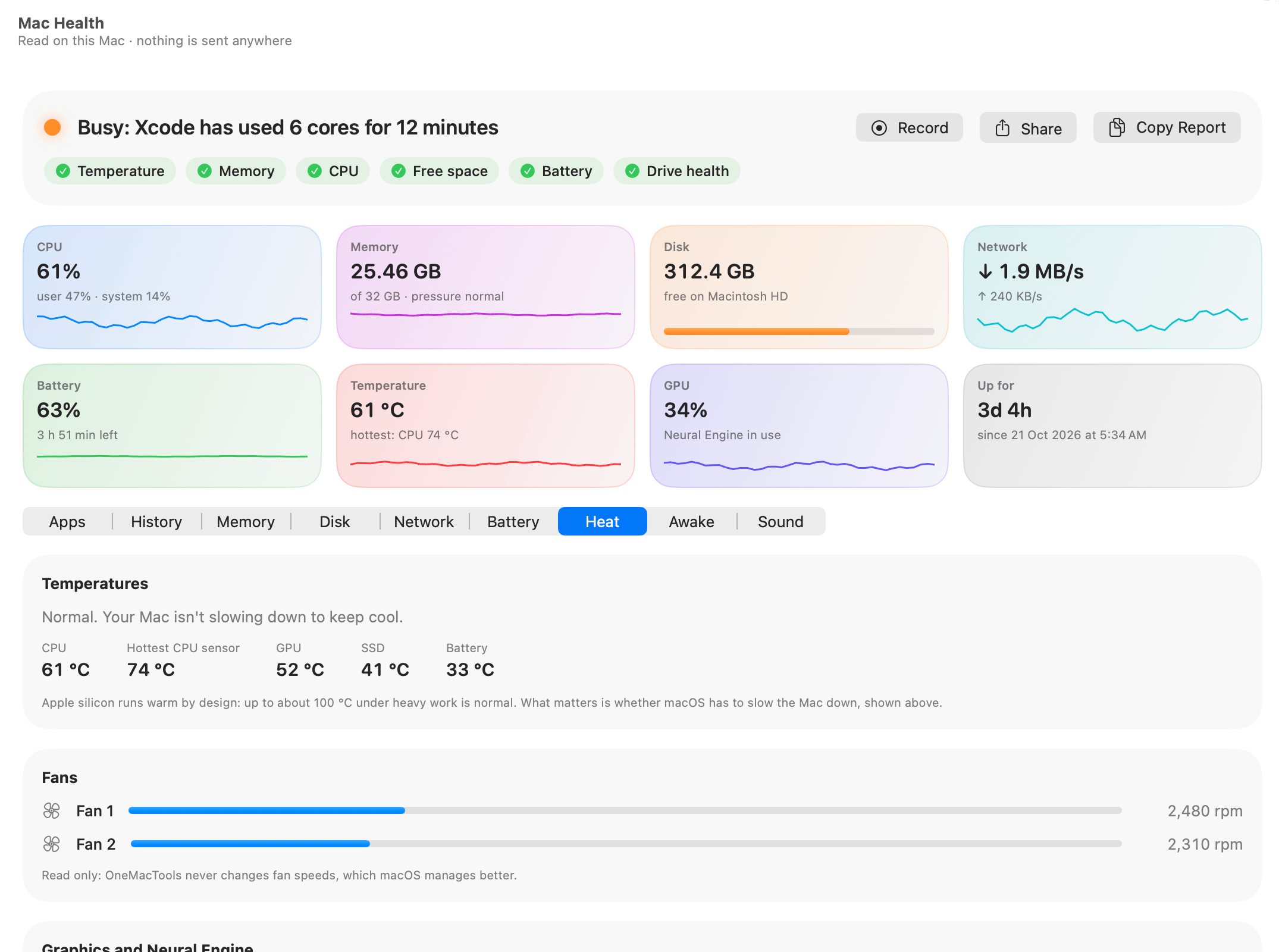
Open Mac Health and choose the Heat tab. It has four cards: Temperatures, Fans, Graphics and Neural Engine and Working hardest. The Temperature and GPU tiles at the top of Mac Health show the short version all the time, whichever tab you're on.
Temperatures are shown in your region's unit unless you choose otherwise under Settings › Appearance › Temperatures in: Your region's unit, Celsius (°C) or Fahrenheit (°F). The setting applies everywhere: the tile, this tab, History's chart, the menu bar and alerts' messages.
For the wider picture of what's slowing your Mac (memory, disk and CPU as well as heat), see the Mac Health overview.
Is my Mac too hot? What the thermal state means
The first line of the Temperatures card is the one that matters. It isn't Mac Health's opinion: it's macOS's own judgement of whether it has to slow the Mac down to keep it cool. There are four states:
| What the card says | What it means |
|---|---|
| Normal. Your Mac isn't slowing down to keep cool. | Everything is fine, whatever the numbers below say. |
| Warm, but nothing is being slowed down. | Warmer than usual, with no effect on speed yet. |
| Hot: macOS is slowing things down to keep cool. These apps are working hardest. | Thermal throttling has started. The text turns red, and Working hardest shows the cause. |
| Very hot: macOS is slowing everything down. Quit what you don't need. | Heavy throttling. Quitting the busiest apps is the quickest fix. |
When the state is Hot or Very hot, the Temperature check at the top of Mac Health turns orange or red, and the headline becomes “Running hot”, naming the hottest part and the app using the most CPU, for example “Running hot: CPU 96 °C, Xcode is using 6 cores”.
A busy kernel_task in the Apps tab is often a sign of heat rather than a problem in itself: it's the core of macOS, and it uses CPU time on purpose to hold other work back when the Mac is too hot.
Which temperature sensors Mac Health reads
Below the thermal state, the card shows up to five figures in °C or °F:
| Figure | What it is |
|---|---|
| CPU | The average across the CPU's sensors. This is the figure on the Temperature tile and in the menu bar. |
| Hottest CPU sensor | The single hottest CPU sensor. Shown only when it's at least 3 degrees above the average, so you can see one hot cluster of cores. |
| GPU | The average of the graphics chip's sensors. |
| SSD | The internal drive's temperature. |
| Battery | The battery's temperature, on laptops. |
Which sensors a Mac has differs by chip. The first time Mac Health runs on a Mac, it finds that Mac's sensors once and remembers the list for that model and version of macOS, then reads only those. Sensors that report nonsense (a sensor that isn't fitted can read 0 or 7 °C) are ignored. If none can be read, the card says “This Mac's temperature sensors couldn't be read.”
The Temperature tile at the top also tells you which part is hottest overall, for example “hottest: CPU 74 °C”, comparing the CPU's hottest sensor, the GPU, the SSD and the battery.
How to check Mac fan speed
The Fans card lists each fan as Fan (when there's only one) or Fan 1, Fan 2 and so on, with its speed in rpm. When the Mac reports a fan's minimum and maximum speeds, a bar shows how fast it's spinning between the two; the bar turns red above 80% of its range. A MacBook Pro working hard might show two fans at around 2,400 rpm with bars well under half.
Fan speeds are read only. As the card says, “OneMacTools never changes fan speeds, which macOS manages better.” If you want the fans quieter, reduce the work: the Working hardest card at the bottom of the tab lists the five apps using the most CPU (at least 5% of a core), each with a quit menu.
Macs without fans
A MacBook Air has no fans. On these Macs the card says “No fans: this Mac cools passively, so it slows itself down a little when hot instead.” That's why the thermal state at the top of the tab is the better guide on a fanless Mac: it tells you when that slowing down has started. If a Mac does have fans but doesn't report them, you'll see “Fan speeds aren't available on this Mac.”
GPU and Neural Engine use
The Graphics and Neural Engine card shows:
- GPU: how busy the graphics chip is, as a percentage.
- Neural Engine: In use or Idle. The Neural Engine runs on-device AI such as dictation, Live Text, photo search and local models. macOS shows whether it's working, not how hard or for which app, so Mac Health can't break it down further.
- The apps using the GPU most right now (those at 1% or more), with their share.
When on-device AI is working, including OneMacTools' own on-device AI features, this is where you'll see the Neural Engine switch to In use, and the GPU tile at the top reads “Neural Engine in use”.
Power in watts for each chip
With the optional admin helper installed (Settings › Admin Helper), the card adds CPU power, GPU power, Neural Engine power and Memory power in watts. Some versions of macOS keep the CPU, Neural Engine and memory counters still even with admin rights; then only the GPU's power is shown, and the card explains why. Without the helper it says that power in watts needs the admin helper.
Temperature over time, alerts and the menu bar
The Heat tab shows the present. For the past, open Mac Health › History: when temperatures have been recorded you'll find a CPU temperature chart, and when the GPU or Neural Engine has been used, GPU and Neural Engine in use (as a percentage of the time) charts too. Click any point to see which apps were busiest then. See performance history and alerts.
Heat alerts come in two kinds:
- The Mac stays hot for 5 minutes is built in and on by default. It fires when macOS's thermal state stays at Hot or above, and names the app working hardest.
- You can add your own in Settings › Alerts › Add Alert…: choose The Mac, then CPU temperature (in °C), GPU (in %) or Heat (1 warm, 2 hot, 3 very hot), a value and how many minutes it must last.
To keep an eye on heat without opening anything, add the Temperature readout to the menu bar. It shows the CPU temperature as a short figure such as “61°”, with a small graph drawn between 30 °C and 110 °C, and turns red when the Mac is hot enough to slow down. The menu bar dropdown also shows the hottest part. See the menu bar system monitor.
What to do when your Mac runs hot
Mac Health tells you what's causing the heat. Here's how to use it:
- Look at the first line of the Temperatures card. If it says Normal or Warm, nothing is being slowed down and there's nothing to fix.
- If it says Hot or Very hot, check Working hardest at the bottom of the tab, or sort the Apps tab by CPU.
- Quit or pause what you don't need right now. A runaway browser tab shows up in Chrome's expanded row under Tabs.
- If heat comes from the GPU (games, video exports, local AI models), the GPU list in Graphics and Neural Engine names the app.
- If heat keeps coming back at the same time of day, open History, choose 7 days and click the spikes in the CPU temperature chart to see which apps were behind them.
For a long video export or a build, press Record before you start. Mac Health then reads the Mac every second, including temperature and GPU, and shows you the peak and the app behind it when you stop.
Questions
What is a normal CPU temperature for a Mac?
On Apple silicon, up to about 100 °C under heavy work is normal and by design. Rather than judging the number, look at the first line of the Heat tab: it says whether macOS is actually slowing the Mac down to keep cool.
Can OneMacTools change my Mac's fan speed?
No. Fan speeds are shown read only, because macOS manages them better. To make the fans quieter, reduce the work: the Working hardest card lists the apps using the most CPU.
Why doesn't Mac Health show fans on my MacBook Air?
The MacBook Air has no fans; it cools passively and slows itself down a little when hot. Mac Health says so in the Fans card, and the thermal state line tells you when that slowing down has begun.
What is thermal throttling on a Mac?
It's macOS lowering the speed of the chip to keep it from getting too hot. Mac Health shows it as Hot or Very hot in the Heat tab, turns the Temperature check orange or red, and can alert you when it lasts five minutes.
Can I see which app is using the Neural Engine?
No. macOS only says whether the Neural Engine is working, not how hard or for which app. Mac Health shows In use or Idle, and with the admin helper its power in watts on supported macOS versions.
How do I show the CPU temperature in the menu bar?
Open Settings › Menu Bar Readouts and turn on Temperature. Choose Value, Graph or Both; it turns red when the Mac is hot enough to slow down.
