
OneMacTools Home: your Mac’s storage, downloads and next steps on one screen
OneMacTools Home is the first screen you see: free space, the size of your Downloads folder, how much Mac Clean Up could free and the jobs you ran this week, followed by Clean Up cards, your downloads grouped by where they came from, and shelves of recent downloads and screenshots. Every file on a shelf has a one-click next step, such as Compress to 25 MB for a big screen recording or Convert to JPEG for an iPhone photo.
On this page
How to open Home
Home opens when you launch OneMacTools. To get back to it, click Today at the top of the sidebar, or choose Go › Home from the menu bar (⇧⌘H). The screen is titled Home; in the Classic theme it’s titled Today and starts with a set of tiles instead (see below).
Home reads what’s on your Mac each time you open it and again whenever you switch back to OneMacTools from another app, so a file you’ve just downloaded appears without you doing anything. The Refresh button in the toolbar reads everything again on demand.
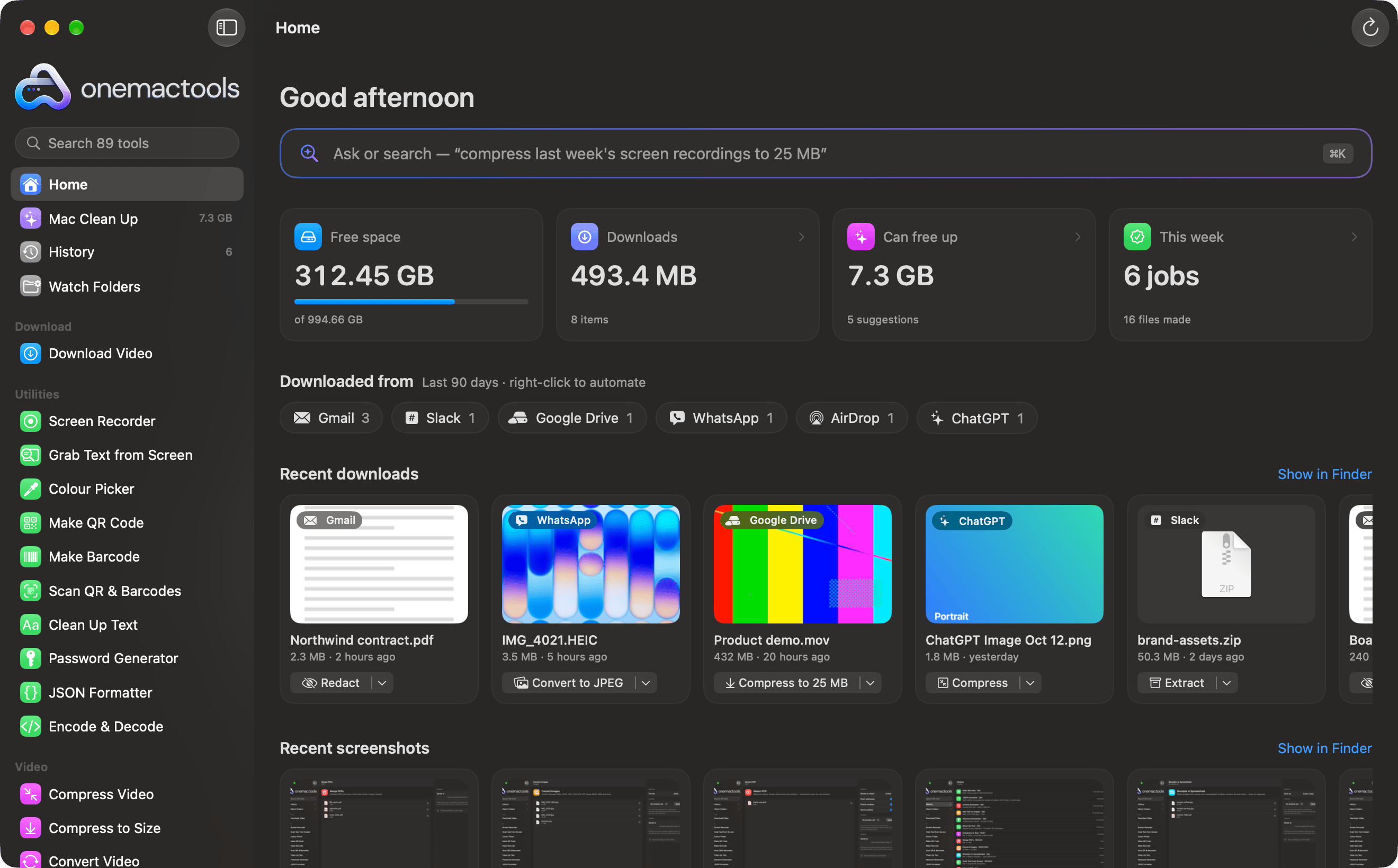
Nothing on Home changes your files. Every number and card is a way into another screen: Mac Clean Up, Downloaded From, History or a tool with your files already loaded.
What the four numbers at the top mean
Under the greeting and the Ask bar are four tiles. Three of them open something when you click them.
| Tile | What it shows | Click it to |
|---|---|---|
| Free space | Space available on your startup disk, “of” the disk’s total size, with a bar for how full it is. The bar turns orange when the disk is more than 90% full. | Nothing; it’s a reading only. |
| Downloads | The total size of the files at the top level of your Downloads folder, and how many items there are. | Open Downloads in Finder. |
| Can free up | What Mac Clean Up found that you could clear, and how many suggestions that is. Before the first scan it reads Scan, then Scanning… while it works. | Open Mac Clean Up (and start a scan if none has run). |
| This week | Jobs you ran in the last seven days and how many files they made. Failed jobs and Clean Up moves aren’t counted. | Open History. |
The free space figure is the space macOS says is available for important use, which includes space it can clear on its own (purgeable caches and the like). That’s why it can be higher than a tool that only counts empty blocks.
The bar above the tiles reads Ask or search and shows an example such as “compress last week’s screen recordings to 25 MB”. Clicking it opens Ask, the same panel as ⌘K anywhere in the app. It’s covered in Ask in plain English.
Clean Up cards on Home
When the background scan finds something, a Clean Up row appears with “You could free up …” beside it and a Review All link that opens Mac Clean Up. Below it is one card per kind of suggestion: Old installers, Big videos, Old screenshots, Duplicate copies, Similar photos, Forgotten downloads and any others the scan found.
Each card shows the space that group takes, how many items are in it and small thumbnails of the first three files. Clicking a card opens Mac Clean Up scrolled to that group with its list already open, so you can tick and untick files before anything moves. Nothing is moved to the Trash from Home itself.
While the scan is still running you’ll see “Looking for things to clean up…” with the step it’s on. If the scan finds nothing, the row simply isn’t shown. The full list of groups, and what each one looks for, is in Mac Clean Up.
Downloads grouped by where they came from
The Downloaded from row shows a chip for each place your downloads in the last 90 days came from, such as Gmail 3, ChatGPT 1, WhatsApp 1 or AirDrop 1, busiest first, up to twelve chips. OneMacTools reads this from the “where from” details macOS saves with every download; nothing is uploaded to work it out.
- Click a chip to open Ask with “from Gmail” (or that source) already typed, so you can add what you want: “from Gmail pdfs this week”.
- Right-click a chip for Find Files From … (the same as clicking) and, for known services, Automate Files From …, which opens a new Watch Folder rule for your Downloads folder with that source already chosen. For example, convert every photo that arrives from WhatsApp to JPEG.
- See All Sources opens the full Downloaded From screen, which covers every download rather than only the last 90 days.
Automating a source is explained in Watch Folders.
Recent downloads and screenshots, each with a next step
Two shelves scroll sideways under the sources. Recent downloads shows the 14 newest files at the top level of your Downloads folder. Recent screenshots shows up to 16 of your latest screenshots, read from wherever macOS saves them (the Desktop unless you changed the location with the Screenshot app). The screenshots shelf only appears if you have any. Each shelf has Show in Finder on the right to open that folder.
Each file card shows a thumbnail, a badge for where the file came from (for example Gmail), its name, its size and when it arrived (“2.4 MB · 3 hours ago”). Under that is a button with the most useful next step for that file. Click the button to open that tool with the file loaded and the right options already set; click the small arrow beside it for the other suggestions, plus Open With… and Show in Finder.
What each kind of file suggests
| File | Suggestions, best first |
|---|---|
| Video or screen recording | Compress to 25 MB (only when it’s over 25 MB), Compress, Add Subtitles, Make a GIF (one file under 200 MB), Transcribe |
| Screenshot | Beautify, Copy Text, Redact, Mockup, Shrink (to HEIC) |
| HEIC photo | Convert to JPEG, Remove Background |
| Other image | Compress, Remove Background |
| Redact, Summarise, Compress (only over 5 MB), Sign | |
| Audio | Transcribe, Convert |
| Zip, RAR, 7z, tar or gz archive | Extract |
| Word, Pages, RTF, ODT, text, Markdown or HTML | Convert to PDF, Summarise |
A suggestion only appears if the tool really accepts that file, so you never land in a tool that can’t open it. A 1.4 GB screen recording, for example, gets Compress to 25 MB, which opens Compress Video to Size with the 25 MB email target chosen. An iPhone photo gets Convert to JPEG, which opens Convert Images with JPEG selected.
Other things you can do with a card
- Click the thumbnail for Quick Look; double-click to open the file in its usual app.
- Drag the thumbnail into another app, a Finder window or a tool.
- Hover over an image or PDF to show Copy Text, which reads the text in it on your Mac and copies it to the clipboard.
- Right-click for Quick Look, Open, Show in Finder, Copy Text and Open With a Tool…, which lists every tool that takes the file.
Below the shelves, Your recent tools lists up to eight tools you’ve used lately, newest first, so you can get back to them in one click.
Home in the Classic theme (Today)
Themes change how Home looks as well as its colours. In the Classic theme the greeting, the four numbers and the Clean Up cards are replaced by Today: a date, “Good afternoon. What are we making?”, and a set of tiles.
| Tile | What it does |
|---|---|
| Drop anything | Drop a file (or click Choose Files…) to see every tool that works with it. “Or press ⌘K to ask in your own words.” |
| Mac Health | Rings for battery, disk and memory use. Click to open Mac Health. |
| This week | Jobs this week, files made, and a small bar for each of the last seven days. Click to open History. |
| Mac Clean Up | What you can safely clear and the three biggest groups, with Scan, Review & Clear or Open Clean Up. |
| Video, PDF, Images, On-device AI | Shortcuts to those categories’ tools. |
| Pick up where you left off | Your last three jobs. |
The Downloaded from chips and the recent downloads and screenshots shelves follow underneath, exactly as in the other themes. Switching themes is covered in Themes.
The weekly Mac report
Home tells you about today; the weekly report tells you about the past seven days. It’s a one-page PDF titled “Your Mac this week”, built on your Mac from Mac Health’s own history. Nothing is sent anywhere, and the page says so at the bottom.
What’s in it
- How many hours were recorded, average and peak CPU (with the day and hour of the peak), and peak memory against your Mac’s total, including how long memory was under pressure.
- Free space and how much it changed this week, data written to disk, hours on battery with average power, CPU temperature, GPU use and SSD wear, where your Mac reports them.
- What Mac Clean Up could free, if a scan has run, and how many alerts fired.
- Where things are heading: trends worth knowing about.
- Four short lists: Busiest (CPU), Most memory, Most power and Most network, plus the last eight alerts.
How to get one
- Open Mac Health and choose the History tab.
- Click Export and choose Weekly Report as PDF… or Weekly Report as CSV…, then pick where to save it.
- To get one automatically, open Settings › History and turn on Save a weekly report every Monday. It’s off by default.
With the automatic report on, the previous week’s PDF is saved to a Weekly Reports folder inside OneMacTools’ output folder on Monday from 9:00 (or the next time OneMacTools runs), and a notification says “Your weekly Mac report is ready”. It needs Record Mac Health history to be on, because that history is what the report is made from. History and alerts are explained in Performance history and alerts.
Sharing what you freed
After you move files to the Trash in Mac Clean Up, the confirmation banner has a Share button. It makes a 1200 × 630 image that says how much you freed, ready for a post: choose Dark or Light, then Copy Image, Save to Downloads (into OneMacTools’ output folder) or Share…. The card shows totals only: no file names. Mac Health and the internet speed test make the same kind of card.
Home is part of the Your Mac screens described on Your Mac. For a general walk-through of getting space back, see How to free up space on a Mac.
Tools mentioned on this page
Questions
Why does Home show different free space from System Settings?
Home shows the space macOS reports as available for important use, which counts space macOS can purge on its own, such as old caches. System Settings › General › Storage may round differently or be measured at another moment. Click Refresh on Home to read it again.
Does Home scan my whole Mac every time I open it?
No. Home reads the top level of your Downloads folder, your latest screenshots and the disk’s free space, which takes a moment. The fuller Clean Up scan runs once per launch, quietly and at low priority, and leaves the slow photo comparison until you open Mac Clean Up.
Why isn’t my newest download on the Recent downloads shelf?
The shelf shows files at the top level of Downloads, so a file inside a subfolder won’t appear. Downloads still in progress (.download, .crdownload, .part files) are left out until they finish. Home refreshes when you switch back to OneMacTools, or click Refresh.
Can I hide the Clean Up cards from Home?
There’s no switch to hide them, but they only appear when the background scan finds something worth clearing. Once you’ve cleared or reviewed a group in Mac Clean Up, its card goes. In the Classic theme the cards are replaced by a single Mac Clean Up tile.
Where do my screenshots on Home come from?
From the folder macOS saves screenshots to: the Desktop by default, or the location you chose in the Screenshot app’s Options menu. OneMacTools recognises screenshots by their name and by the flag macOS adds to screen captures.
Is anything on Home uploaded to work out where my downloads came from?
No. The source comes from details macOS stores with each download on your Mac: the address it came from and the app that saved it. OneMacTools reads them locally. See the privacy page for what the app does and doesn’t send.
