
Summarize documents on Mac with on-device AI
Get the short version of long documents from Apple Intelligence's on-device model.
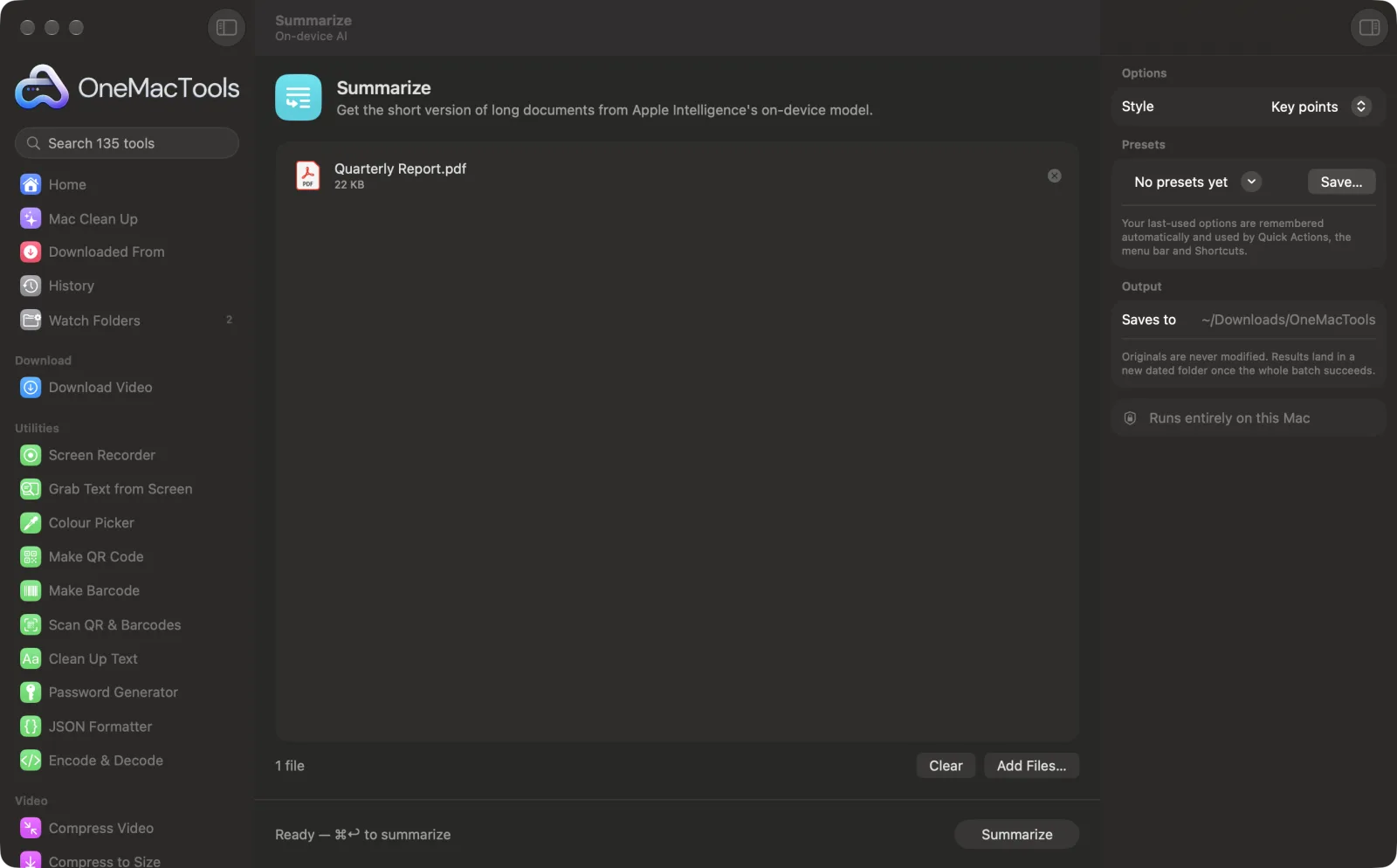
Summarize on a Mac
Screenshots from the app, using sample files.
How to use Summarize
- 1
Drop your documents
Add PDFs, Word documents, RTF, HTML, Markdown, text or subtitle files onto Summarize. Each gets its own summary.
- 2
Choose a style
In the right-hand panel, set Style to Key points, Short paragraph or Detailed.
- 3
Click Summarize
Apple Intelligence's on-device model reads the document. Long documents are summarised in sections, and those summaries are then combined.
- 4
Read the summary
It's saved as “<document> summary.txt” in a new dated folder in Downloads › OneMacTools. Open it with the Preview (eye) button or Show in Finder.
What Summarize does
Summarise PDFs, Word documents and text as key points, a short paragraph or a detailed summary with headings. Long documents are summarised in sections and then combined.
Needs Apple Intelligence turned on in System Settings. It runs on-device, so your text never leaves your Mac.
Great for
- Get the gist of a long report
- Summarise research papers
- Prepare a briefing
Options explained
- Style
- Key points, the default, gives 5–8 concise bullet points. Short paragraph gives a single short paragraph, good for an email or a briefing. Detailed gives a longer summary with headings and bullet points, for reports you need to follow section by section.
Best practices
- Scanned PDFs have no text to summarise. Run them through Make PDF Searchable or Extract Text first.
- Very long documents are summarised from summaries of each part, so small details can drop out. Choose Detailed to keep more of them, or use Ask a Document for one specific fact.
- Check figures, dates and names against the document before you quote or forward a summary. The model is told never to invent facts, but it can still get things wrong.
- To focus on one chapter, take those pages out with Extract Pages and summarise just them.
- Summaries are plain text, so they paste cleanly into an email or a document.
Works with
- In
- PDFs that contain text, Word (.docx), RTF, HTML, Markdown, plain text and SRT subtitle files.
- Out
- A plain-text summary (.txt) for each document, named “<document> summary”.
- Summarize needs Apple Intelligence turned on; it doesn't run without it.
- Scanned PDFs need their text recognised first.
- Long documents are summarised in sections, then combined.
Questions about Summarize
How do I summarise a PDF on a Mac?
Drop the PDF onto Summarize, choose a style and click Summarize. The summary is written by Apple Intelligence's on-device model and saved as a text file.
Can it summarise a scanned PDF?
Not directly, because a scan has no text in it. Run it through Make PDF Searchable or Extract Text first, then summarise the result.
How long a document can it summarise?
There's no fixed limit. Long documents are split into sections of about 6,000 characters, each is summarised, and the summaries are combined, so a long report just takes longer.
Which summary style should I choose?
Key points for a quick scan, Short paragraph for an email or a briefing, and Detailed when you need the structure of a long report with headings.
Will the summary be accurate?
It sticks closely to the document, but AI can drop or blur a detail. Check any numbers, dates or names before you rely on them.
Can I summarise several documents at once?
Yes. Drop them all in. Each document gets its own summary file; they aren't merged into one.
Can it summarise a Word document?
Yes. Word (.docx), RTF, HTML, Markdown and plain-text files all work, as well as PDFs.
Does Summarize upload my files?
No. Summarize runs entirely on your Mac, so your files never leave it and it works offline.
Will Summarize change my original files?
No. Results are saved as new files in a dated folder in Downloads › OneMacTools, and your originals are left exactly as they were unless you turn on an option that says otherwise.
Does Summarize need Apple Intelligence?
Yes. It uses Apple Intelligence's on-device model, so turn Apple Intelligence on in System Settings. Your text is processed on your Mac and never uploaded.
Do this next
Ask a question about PDFs, scans or documents and get an answer from what they say.
Quiz & FlashcardsMake multiple-choice questions or flashcards from a PDF or document, on your Mac.
TranslateTranslate documents and subtitles offline with Apple's downloadable languages.
Related On-device AI tools
Read text out of photos, screenshots and scanned PDFs with Apple's Vision framework.
Smart RenameGive scans, screenshots and photos real names from what's inside them.
Receipts to SpreadsheetRead receipts and invoices into a spreadsheet of dates, vendors, tax and totals.
Alt Text & CaptionsWrite accessible descriptions for images, for websites, documents and social posts.
TranscribeTurn speech in audio or video into text or subtitles with Apple's on-device speech recognition.
Meeting NotesTurn a meeting recording into a transcript plus notes with decisions and action items.

Summarize, plus 134 more.
One app. One price.
All 135 tools for $29, once. 14-day money-back guarantee.