9ways to look after your Mac

Your Mac, looked after

The tools in OneMacTools work on files you choose. Your Mac works on the Mac itself: finding space you can safely get back, showing what's slowing it down, what your AI agents left running, what AI apps keep, and where every download came from.

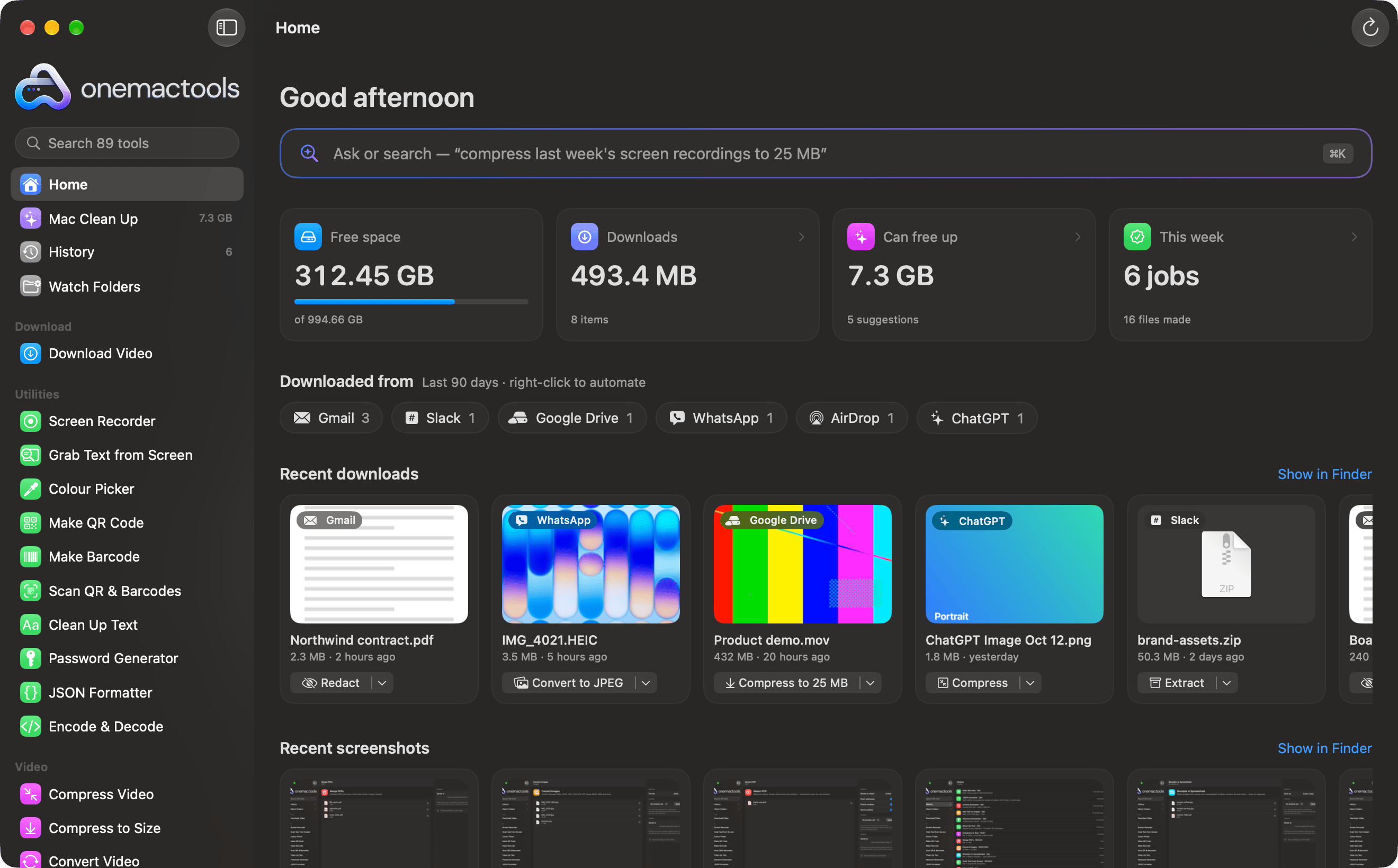
OneMacTools Home: free space, Downloads, Clean Up cards for installers, big videos, screenshots, duplicates and similar photos, and downloads grouped by source
1Mac Clean Up

Gigabytes back, safely.

Old installers, forgotten downloads, old screenshots, big videos, caches, Xcode data and apps you haven't opened in months, each in its own card.

  • Shrink instead: compress big videos and screenshots rather than lose them
  • A storage bar that explains System Data, with a review of what's inside
  • Everything goes to the Trash; Put Back from History in one click
⇧⌘KMac Clean Up
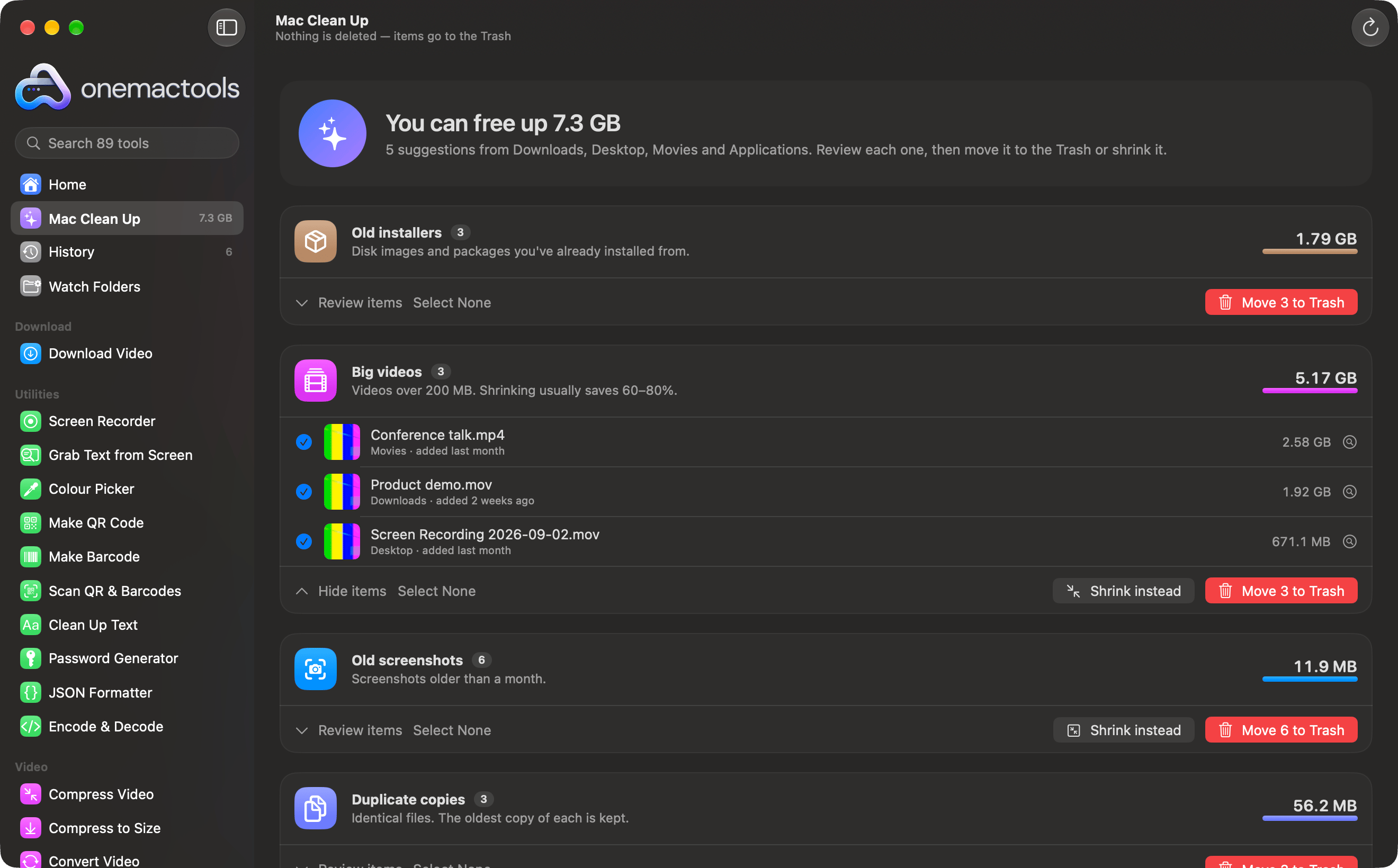
OneMacTools Mac Clean Up listing old installers, big videos, old screenshots and duplicates, with Shrink instead and Move to Trash
2Mac Health

Why is it slow? Now you know.

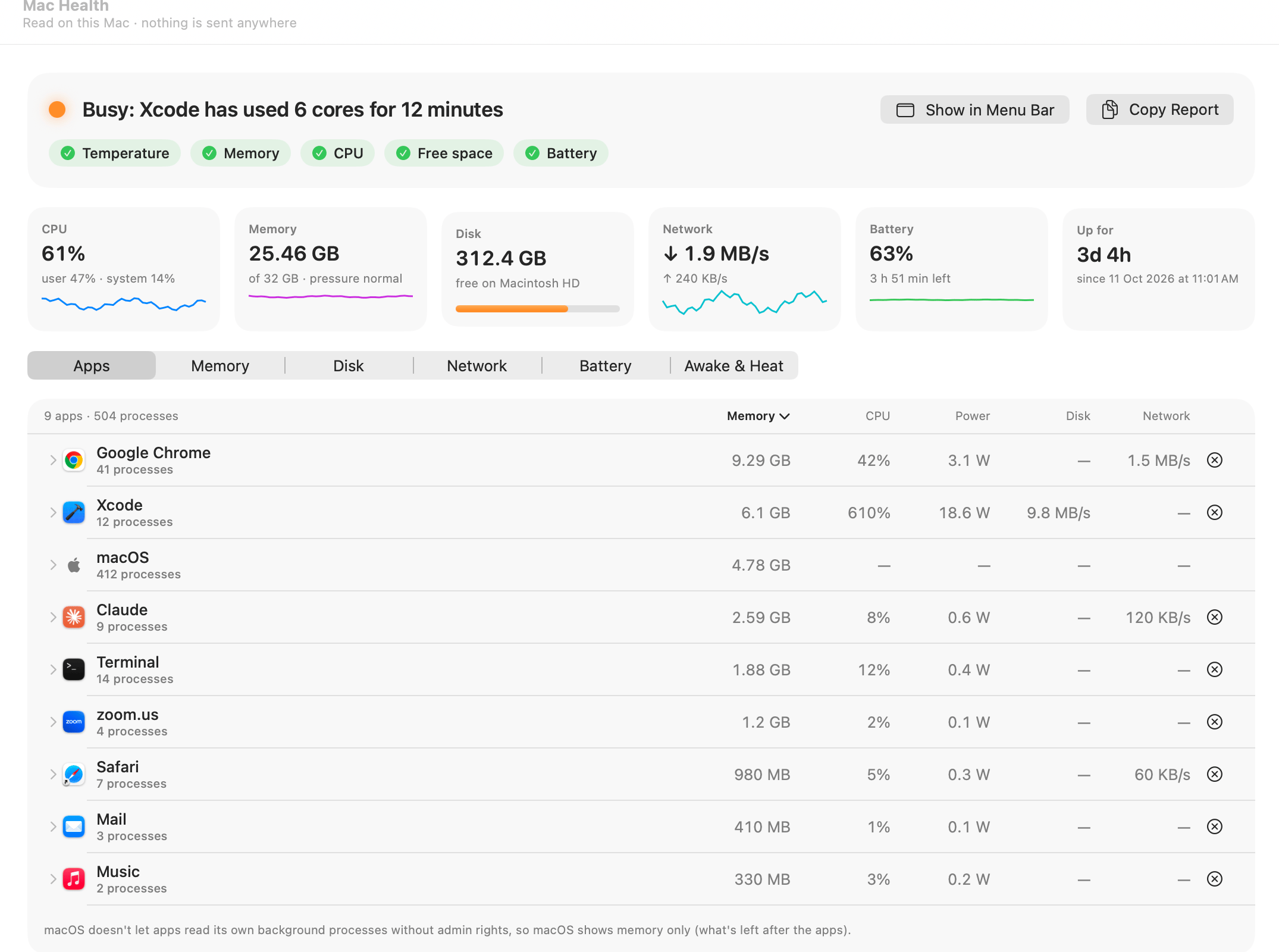
One row per app, with Chrome's dozens of helper processes counted under Chrome, and one line at the top that names the problem: “Busy: Xcode has used 6 cores for 12 minutes.”

  • Memory, CPU, power, disk and network for every app; quit with a confirmation
  • Battery health and cycles, AirPods and mouse batteries, and what's keeping the Mac awake
  • Live readings in the menu bar, turning red under strain, with a ⌃⌥⌘M dropdown
OneMacTools Mac Health: “Busy: Xcode has used 6 cores for 12 minutes”, CPU, memory, disk, network, battery and uptime, and one row per app with memory, CPU, power, disk and network
3History & alerts

What happened while you were away.

Up to a year of history for the Mac and every app, alerts when something misbehaves, and questions answered in plain words: “what drained my battery today?”

  • Click any spike to see the apps behind it; top apps and hour by hour
  • Alerts with Quit… and Mute; your own rules, like “Chrome above 8 GB for 5 minutes”
  • Where the battery went since you unplugged, and CSV export for your spreadsheets
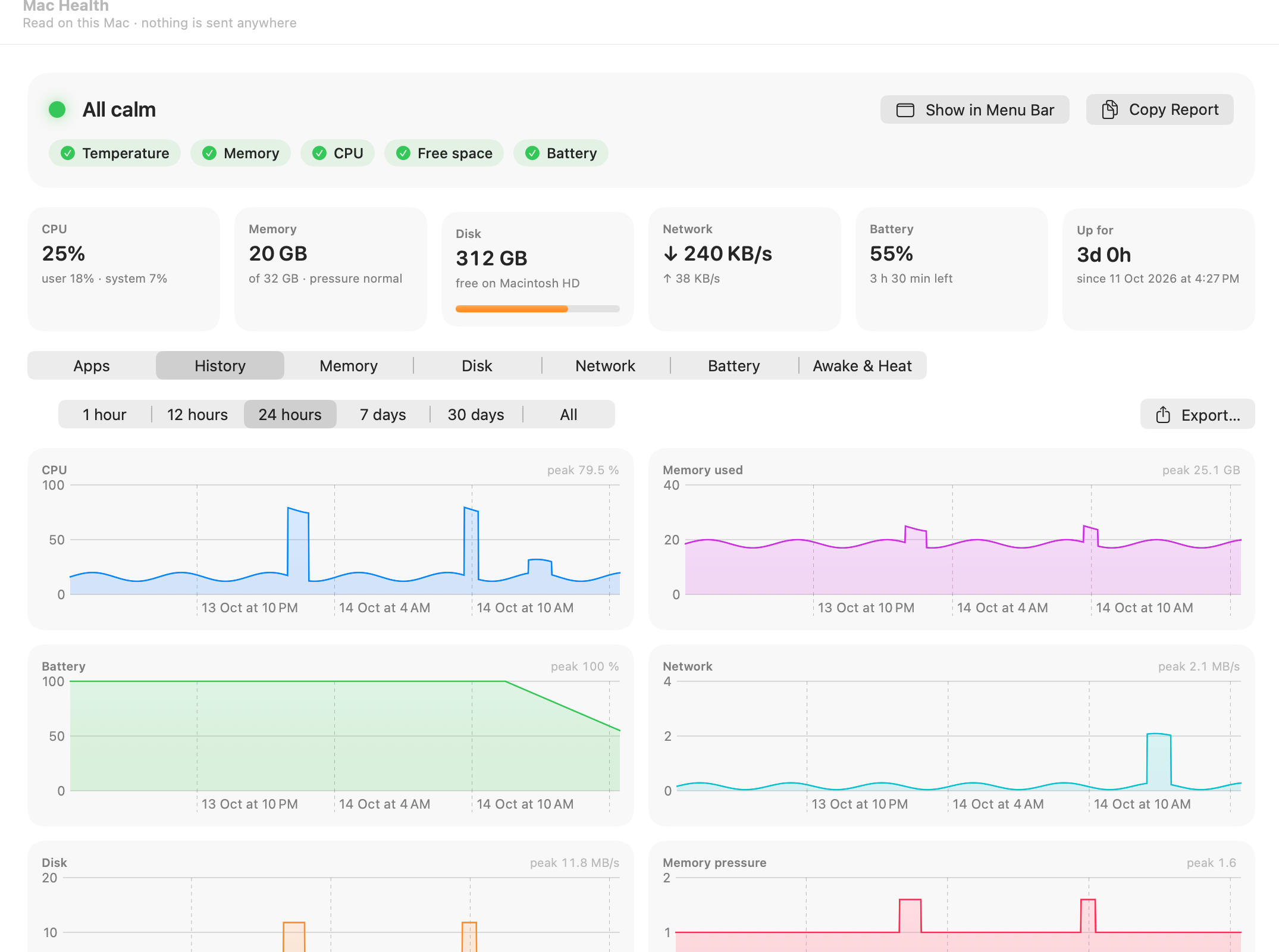
Mac Health History: 24 hours of CPU, memory, battery, network, disk and memory pressure, with an Xcode build and a Zoom call standing out
4Dev & Agents

What your agents left running.

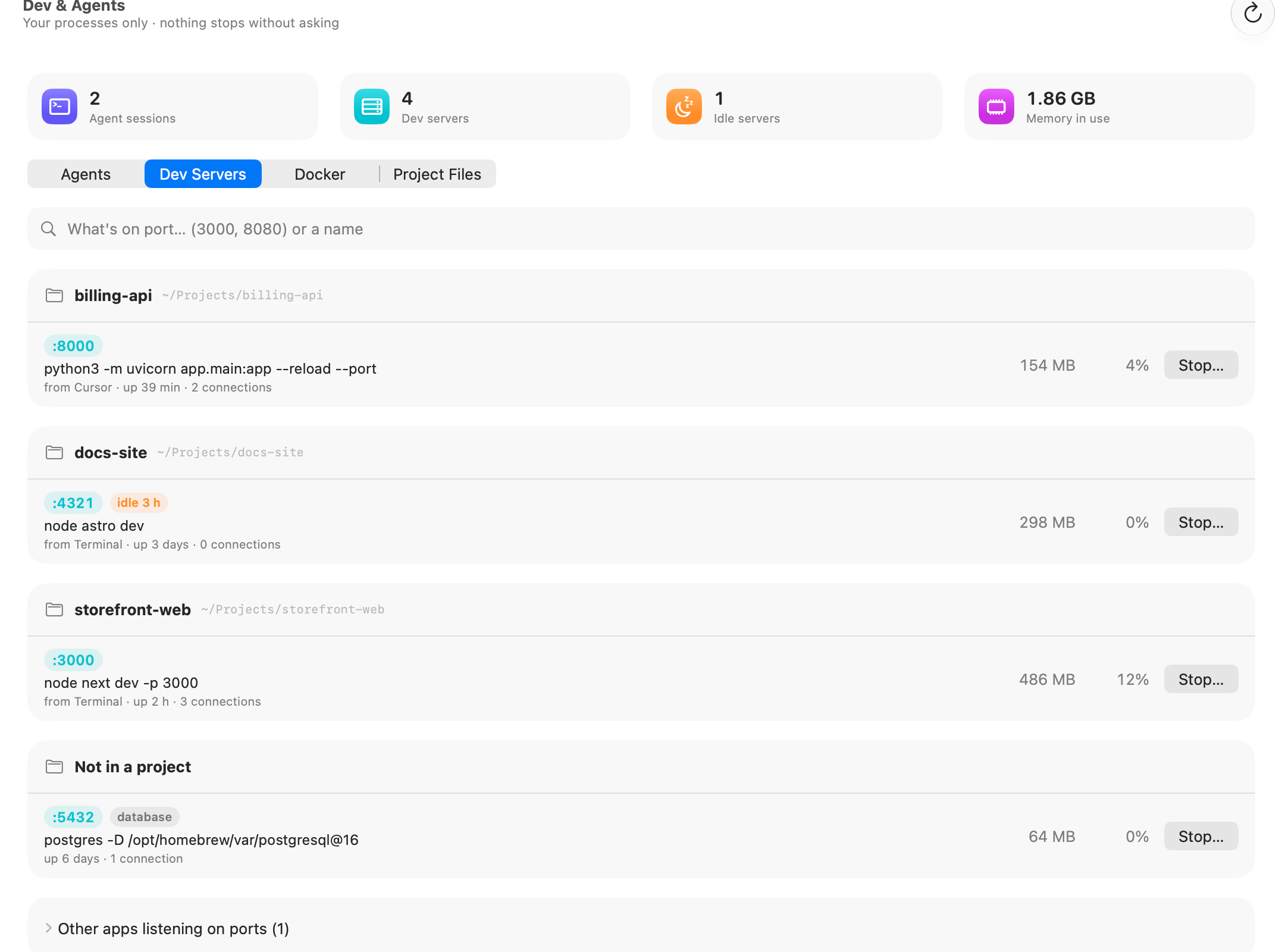
Every Claude Code, Codex and Gemini CLI session with everything it started, dev servers grouped by project with their ports, Docker, and the build folders in your projects.

  • “What's on port 3000?” answered, idle servers flagged, Stop asks first
  • A watchdog for runaway processes: notify, or stop after the time you set
  • Old node_modules, .next and target folders cleared in one go, with Put Back
OneMacTools Dev & Agents: dev servers grouped by project with their ports, an idle Astro server flagged, a Postgres database, and Stop buttons
5AI assistants

Your AI can ask. You decide.

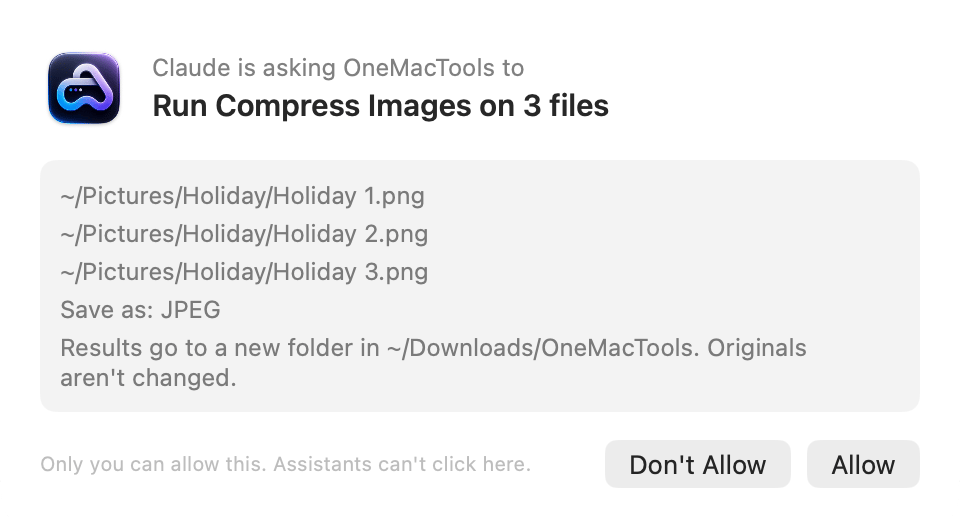
Claude, Claude Code, Cursor and Codex can use OneMacTools over MCP: read Mac Health, ports, agents and storage, find files, and run any of the tools — after you click Allow.

  • One click adds OneMacTools to each assistant, with a backup of its settings
  • Reading is free; every action opens a window here and waits for you
  • Runs on your Mac over a local connection: no port is opened, nothing is uploaded
OneMacTools asking: Claude is asking OneMacTools to run Compress Images on 3 files, with Don't Allow and Allow buttons
6AI Space

What your AI tools left behind.

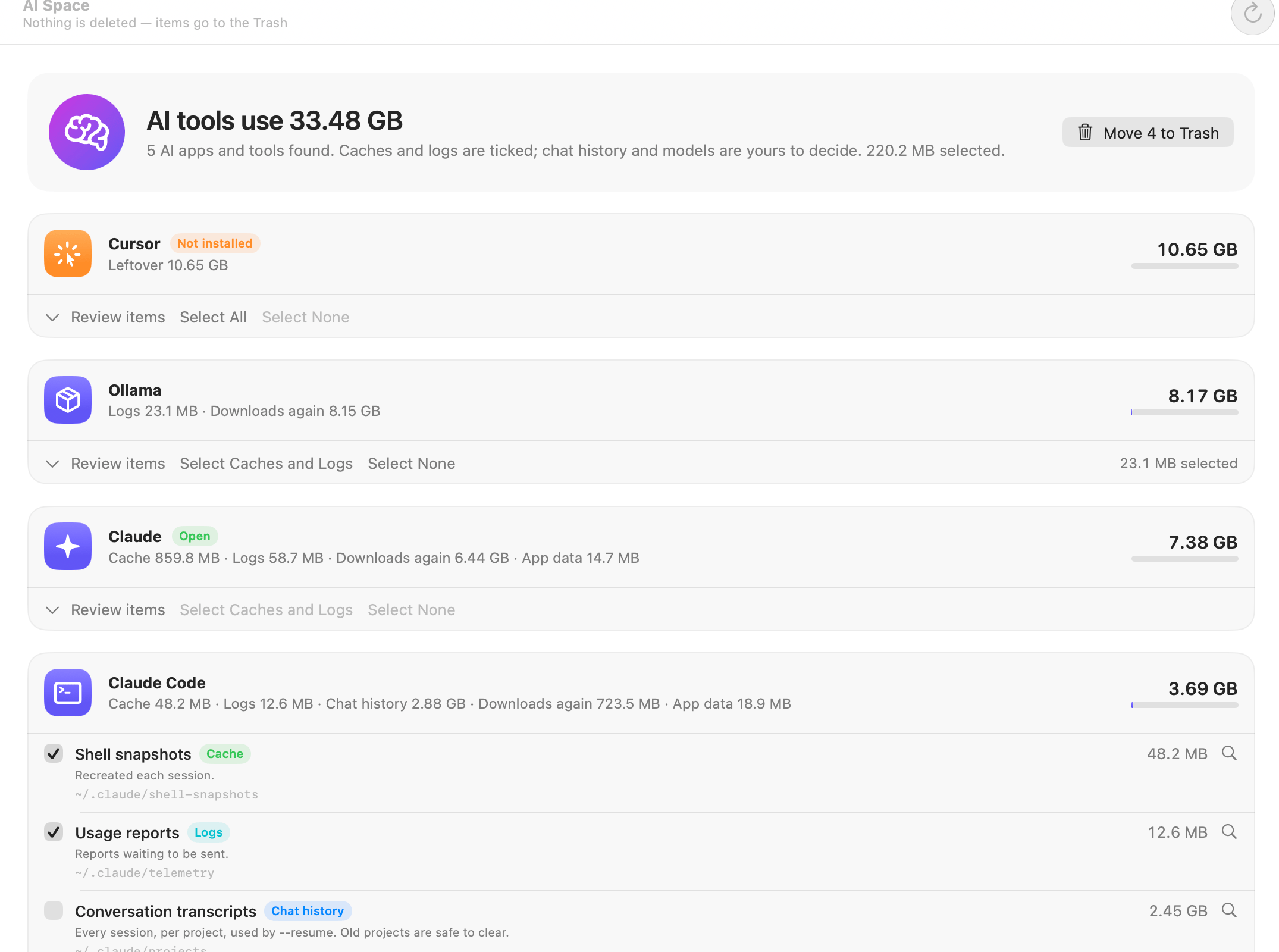
Cursor, Claude, Claude Code, ChatGPT, Codex, Copilot, Ollama, LM Studio and Hugging Face keep caches, logs, chats and models. See them all, app by app.

  • Every folder labelled: cache, logs, chat history, models or settings
  • Caches and logs ticked for you; chats and models are your call
  • Finds the gigabytes left behind by AI apps you've already deleted
⇧⌘IAI Space
OneMacTools AI Space listing Cursor (not installed), Ollama, Claude and Claude Code with their caches, logs, chat history and models, caches and logs ticked
7Duplicates

One copy is plenty.

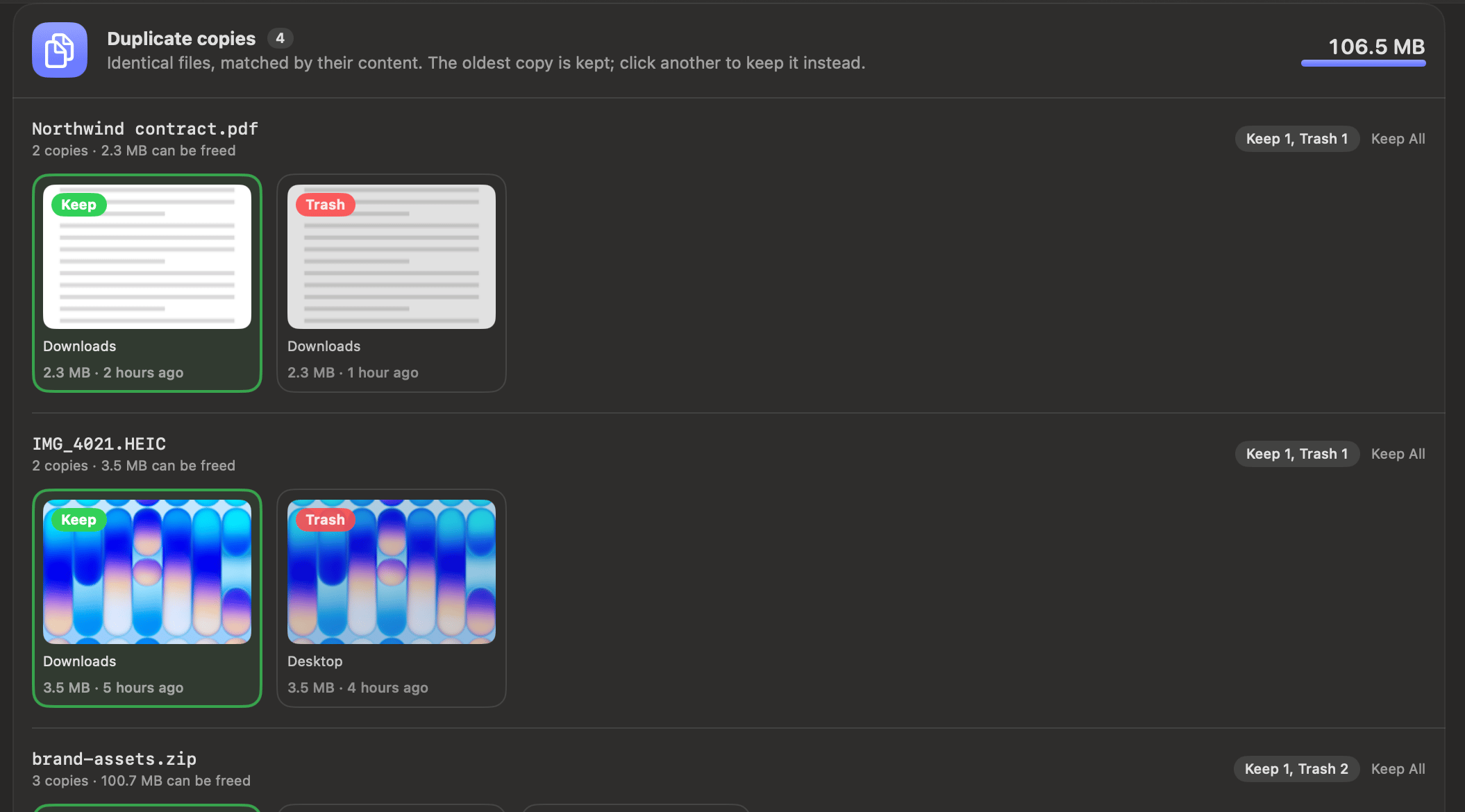
Identical files matched by their content, and look-alike photos matched with Apple's Vision.

  • See exactly how much you'll free up
  • We pick a copy to keep. Click another to change it
  • iCloud-only files are skipped, so nothing gets downloaded
⇧⌘DDuplicates
OneMacTools duplicate review: each set of identical files as thumbnails labelled Keep or Trash
8Downloaded From

Remember where it came from.

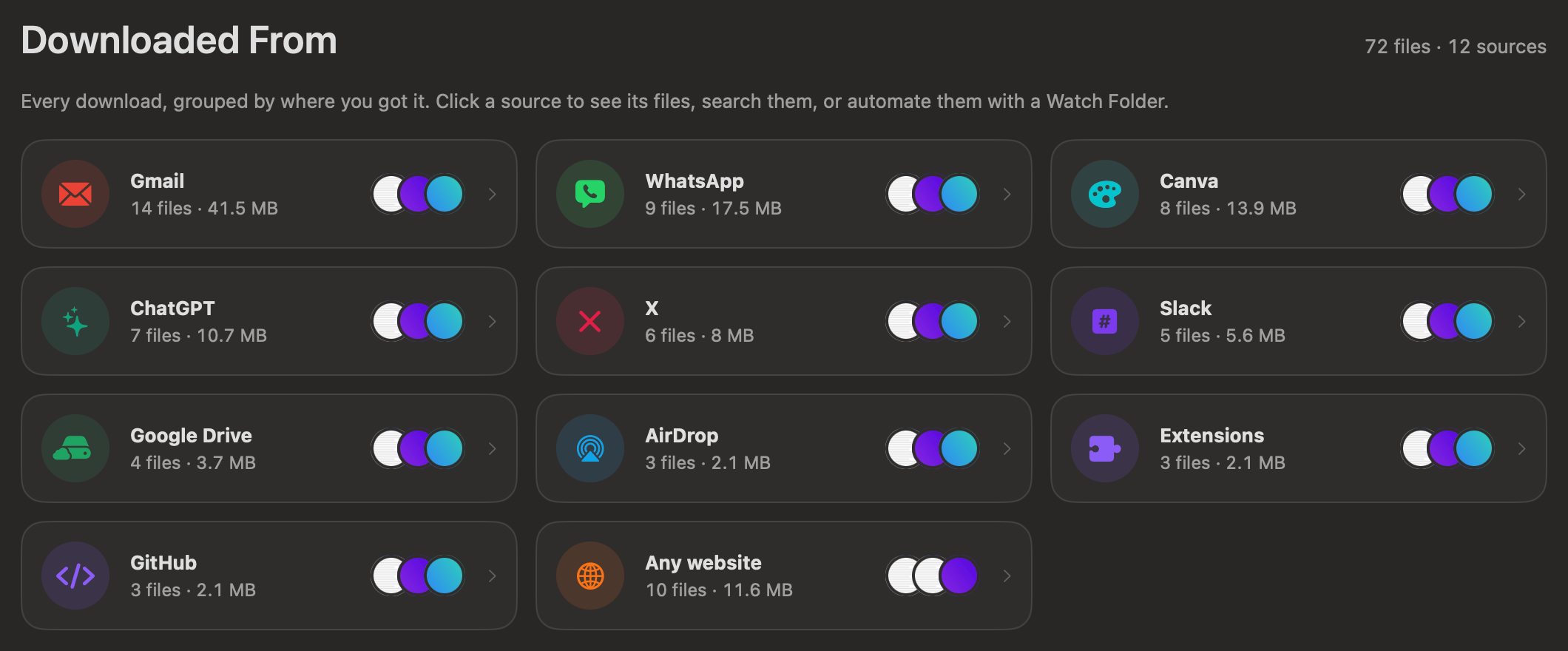
Every download, grouped by Gmail, WhatsApp, ChatGPT, Canva, X, Slack, AirDrop, extensions or any website.

  • Find the invoice by remembering the email, not the file name
  • Open a source's files straight in the right tool
  • Automate a source: every WhatsApp photo, converted to JPEG
⇧⌘JDownloaded From
OneMacTools Downloaded From page with cards for Gmail, WhatsApp, Canva, ChatGPT, X, Slack, Google Drive, AirDrop, Extensions, GitHub and any website
9Watch Folders

Set it once. It keeps working.

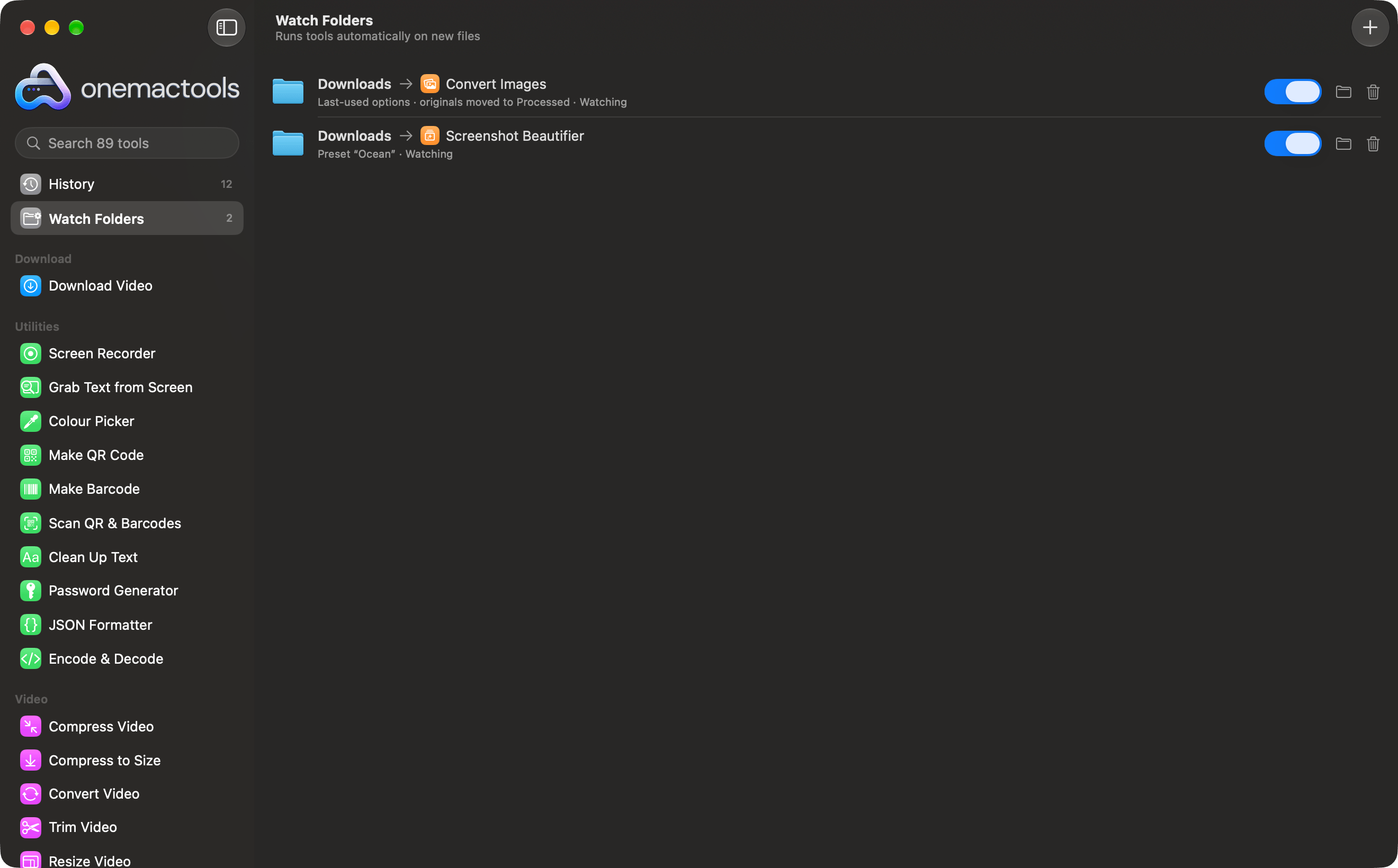
Pick a folder and a tool, and every new file that lands there is processed automatically.

  • Convert every HEIC photo to JPEG, or beautify every screenshot
  • Half-finished downloads are skipped; files already there are left alone
  • Originals can be moved into a Processed folder
OneMacTools Watch Folders with two automatic rules

Nothing is deleted behind your back

  1. 1

    You see it first

    Every folder and file is listed with its size and what it is, and Show in Finder is always one click away.

  2. 2

    Only safe things are ticked

    Caches, logs and leftovers from deleted apps. Your chats, photos, settings and backups are never picked for you.

  3. 3

    It goes to the Trash

    Nothing is erased. History keeps a Put Back button until you empty the Trash yourself.

Questions about Your Mac

What is in Your Mac?

Your Mac is the part of OneMacTools that looks after the files and space on your Mac, rather than working on files you choose: Mac Clean Up (with Duplicates, the System Data review and Explore Disk), Mac Health, Dev & Agents, AI Space, Downloaded From and Watch Folders. They sit together in the sidebar under Your Mac.

Is Mac Clean Up safe?

Yes. Nothing is deleted outright: files go to the Trash, and History has a Put Back button. Duplicates are matched by their content, you choose which copy to keep, look-alike photos are never ticked for you, and files stored only in iCloud are skipped so nothing gets downloaded. For big videos and old screenshots you can choose Shrink instead.

How does Duplicates decide which copy to keep?

Identical files are matched by their content, not their names, and OneMacTools suggests keeping the oldest copy. Click any other copy to keep that one instead. Look-alike photos (bursts, edits and re-saved copies, found with Apple's Vision) suggest keeping the largest, and are never ticked for you.

What does the System Data review show?

macOS lumps a lot into System Data. OneMacTools splits it into parts you can recognise, and for App data and Everything else it lists each folder with what it is: leftovers from apps you've deleted, caches that rebuild themselves, old iPhone and iPad backups, Docker and simulator disks. Only leftovers, caches and old backups can be moved to the Trash; everything else is explained and can be shown in Finder.

What is Mac Health?

Mac Health shows what each app costs your Mac: memory, CPU, power, disk and network, with every helper process counted under the app that started it, so Chrome is one row instead of forty. A line at the top names any problem and the app behind it, like “Busy: Xcode has used 6 cores for 12 minutes” or “Memory is tight: Chrome is using 9 GB”. It also shows memory by type, every drive's free space, battery health and cycle count, the batteries of connected AirPods, keyboards and mice, and which apps are keeping the Mac awake. Copy Report puts it all on the clipboard as text.

Can Mac Health quit apps by itself, or slow my Mac down?

It never quits anything by itself. Quit asks first and lets the app save your work; Force Quit asks again. macOS's own processes are never offered. It only reads figures while Mac Health, a menu bar readout or its dropdown is showing, and it reads them on your Mac: nothing is sent anywhere.

Can I see CPU and memory in the menu bar?

Yes. In Mac Health click Show in Menu Bar, or choose readouts in Settings › Menu Bar Readouts: CPU, memory, free disk space, network and battery, each as a number, a small graph or both, in the order you like, with a compact size for smaller screens. A reading turns red when the CPU is above 90%, memory is under pressure, the disk is nearly full or the battery is low. Click one, or press ⌃⌥⌘M from any app, for every figure and the busiest apps.

Does Mac Health keep a history?

Yes. While OneMacTools is running it records a reading every 30 seconds — the Mac's CPU, memory, disk, network, battery and heat, and each app's share — kept per minute for two days and per hour after that, for 30 days by default (up to a year in Settings › History). The History tab charts it; click any spike to see the apps behind it, see the top apps and the heaviest app hour by hour, or export it as CSV. Turn on Open at Login to keep it recording after a restart. It's one file on your Mac, and Delete History clears it.

What alerts does OneMacTools send?

When an app keeps the CPU busy for 10 minutes, keeps growing in memory, writes heavily to disk or uses the network heavily, and when memory pressure stays high, the disk is nearly full, the battery is low or the Mac runs hot. Each alert names the app, with Quit… (it still asks first) and Mute This App buttons, and repeats at most once an hour. You can switch each off, and add your own in Settings › Alerts — for example “Chrome above 8 GB for 5 minutes” or “free disk below 20 GB”.

Can I ask questions about my Mac?

Yes, in Ask (⌘K): “what drained my battery today?”, “what slowed my Mac down this morning?”, “what used the network yesterday?”, “what is mdworker?”. The answer comes from Mac Health's history on your Mac, worded by Apple Intelligence when it's on, with the figures and a chart underneath so you can check it. AI assistants connected over MCP can ask the same questions.

What is Dev & Agents?

Dev & Agents shows what developers and AI agents leave running. Agents lists every Claude Code, Codex, Gemini CLI, Aider, Cursor Agent and opencode session with its project folder, how long it has run and everything it started. Dev Servers groups your running servers by project with their ports (search “what's on port 3000?”) and flags ones that have sat idle. Docker shows containers and the space images and build caches take, with a clean-up for each. Project Files lists node_modules, .next, Rust target, Python environments and other build folders — only when the file that rebuilds them is beside them. Stopping and clearing always asks first.

Can Claude, Cursor or Codex use OneMacTools?

Yes, over MCP, once you turn it on in Settings › AI Assistants (it's off until you do). One click adds OneMacTools to Claude Desktop, Claude Code, Cursor or Codex, after backing up their settings file. Assistants can then read Mac Health, dev servers, agent sessions, Docker, AI Space and storage, and find files in plain words. To run a tool, quit an app, stop a process or container, or move files to the Trash, they have to ask: OneMacTools opens a window showing exactly what will happen, and nothing runs until you click Allow.

What does the runaway-process watchdog do?

Every 30 seconds it checks your own developer processes — dev servers, scripts and what AI agents start, never macOS or an app with a window. It sends a notification with a Stop button when one uses a full core for 10 minutes, grows by a gigabyte in an hour, or sits idle on a port for a day. In Settings you can let it stop busy processes after 15 minutes to an hour and idle servers after 1 to 7 days; until you do, it only tells you.

What is Explore Disk?

In Mac Clean Up's storage panel, Explore Disk shows every folder by size, biggest first, starting at your home folder or any drive, and you can open any folder to go deeper. Each one is labelled Yours, App data, Cache, Build files, Apps or macOS. Only your own files, caches and build folders can be moved to the Trash from there, after a confirmation.

What is AI Space?

AI Space (⇧⌘I) shows what AI apps and tools keep on your Mac: Cursor, Claude, Claude Code, ChatGPT and Codex, Windsurf, VS Code and Copilot, Perplexity, Gemini CLI, Zed, Ollama, LM Studio, Hugging Face models and more. Each folder is labelled as a cache, logs, chat history, models that download again, or the app's own settings, with its size, so you can see where the gigabytes went.

Is it safe to clear AI caches and chat history?

Caches and logs are rebuilt automatically, so they're ticked for you. Chat history and downloaded models are never ticked: clearing them removes those conversations from the app, or means downloading the model again. Settings and sign-in are never offered, an app's caches can't be cleared while it's open, and everything goes to the Trash with Put Back in History. Folders left by AI apps you've already deleted are shown as leftovers.

How does OneMacTools know where a file was downloaded from?

macOS keeps a note of the web address (and the app) each download came from. OneMacTools reads it to group your files under Gmail, WhatsApp, ChatGPT, Canva, X, Slack, AirDrop, browser extensions or the website, on the Downloaded From page (⇧⌘J). You can automate a source with a Watch Folder, for example converting every WhatsApp photo to JPEG.

What are Watch Folders?

Pick a folder and a tool, and every new file that lands in that folder is processed automatically, for example converting every HEIC photo to JPEG or beautifying every screenshot. Files that were already there are left alone, half-finished downloads are skipped, and originals can be moved into a Processed folder.

Stop hunting for tools.
Start with one.

All 135 tools for $29, once. 14-day money-back guarantee.