
Convert receipts to Excel on Mac
Read receipts and invoices into a spreadsheet of dates, vendors, tax and totals.
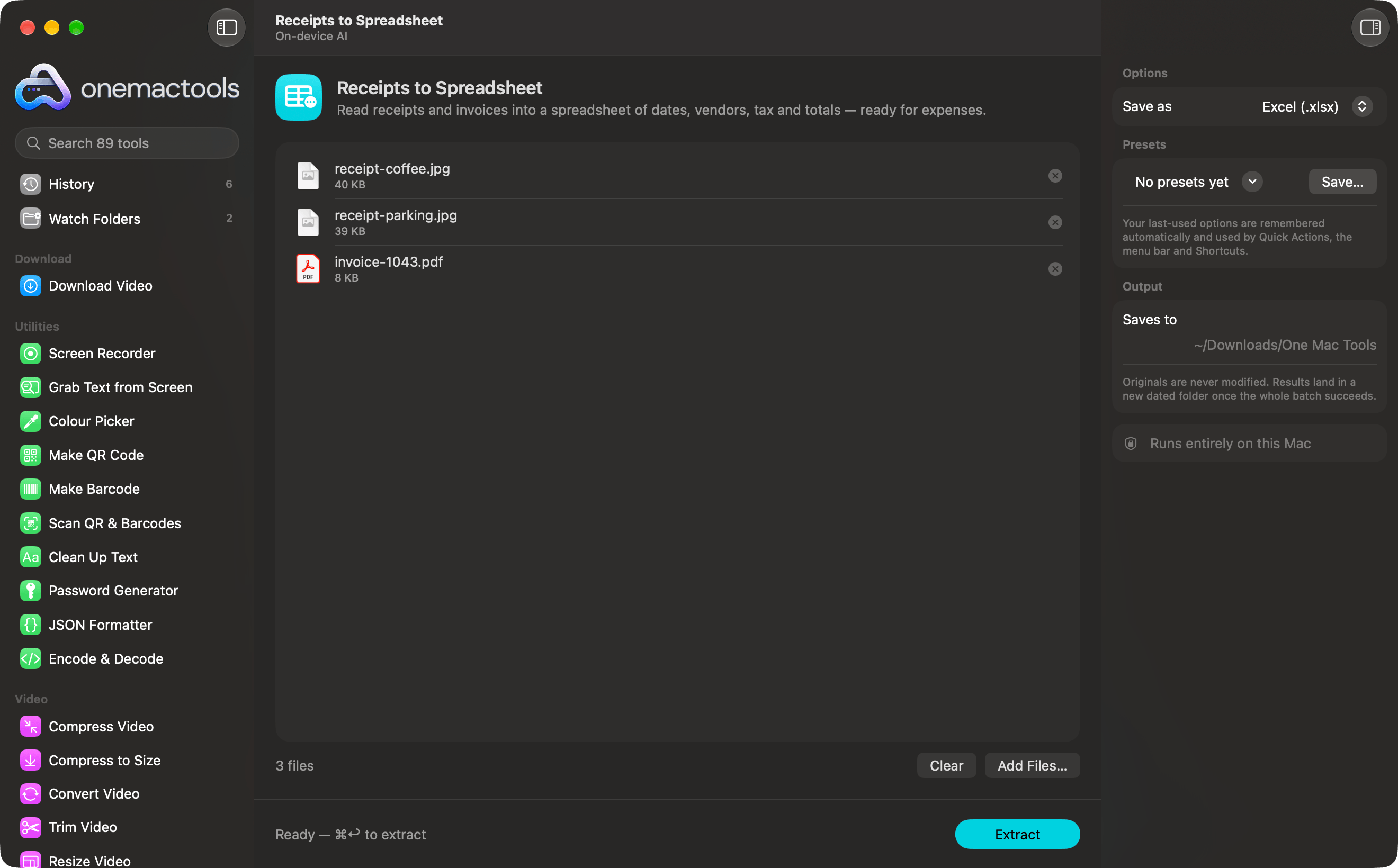
Three steps. That's it.
- 1
Drop your files
Drag files onto Receipts to Spreadsheet, choose them with Choose Files, or right-click them in Finder.
- 2
Choose the options
Set what you need in the options panel, such as save as excel (.xlsx) or csv. Your choices are remembered for next time.
- 3
Get the result
The result lands in a new dated folder in Downloads › OneMacTools. Your originals are never changed.
What Receipts to Spreadsheet does
Drop photos or PDFs of receipts and get an Excel or CSV file with the date, vendor, category, tax, total and currency of each, plus totals per currency. Values are read on your Mac.
Uses Apple Intelligence on-device when it's on, and falls back to on-device text recognition when it's off.
Options
Great for
- Prepare an expense report
- Track spending for taxes
- Hand receipts to a bookkeeper
Questions about Receipts to Spreadsheet
Does Receipts to Spreadsheet upload my files?
No. Receipts to Spreadsheet runs entirely on your Mac, so your files never leave it and it works offline.
Will Receipts to Spreadsheet change my original files?
No. Results are saved as new files in a dated folder in Downloads › OneMacTools, and your originals are left exactly as they were unless you turn on an option that says otherwise.
Does Receipts to Spreadsheet need Apple Intelligence?
It uses Apple Intelligence's on-device model when it's turned on, for the best results. When it's off, OneMacTools falls back to on-device text recognition and rules, and tells you.
Related On-device AI tools
Read text out of photos, screenshots and scanned PDFs with Apple's Vision framework.
Ask a DocumentAsk a question about PDFs, scans or documents and get an answer from what they say.
Smart RenameGive scans, screenshots and photos real names from what's inside them.
Alt Text & CaptionsWrite accessible descriptions for images, for websites, documents and social posts.
TranscribeTurn speech in audio or video into text or subtitles with Apple's on-device speech recognition.
Meeting NotesTurn a meeting recording into a transcript plus notes with decisions and action items.

Receipts to Spreadsheet, plus 88 more.
One app. One price.
All 89 tools for $29, once. 14-day money-back guarantee.