
Translate documents offline on Mac
Translate documents and subtitles offline with Apple's downloadable languages.
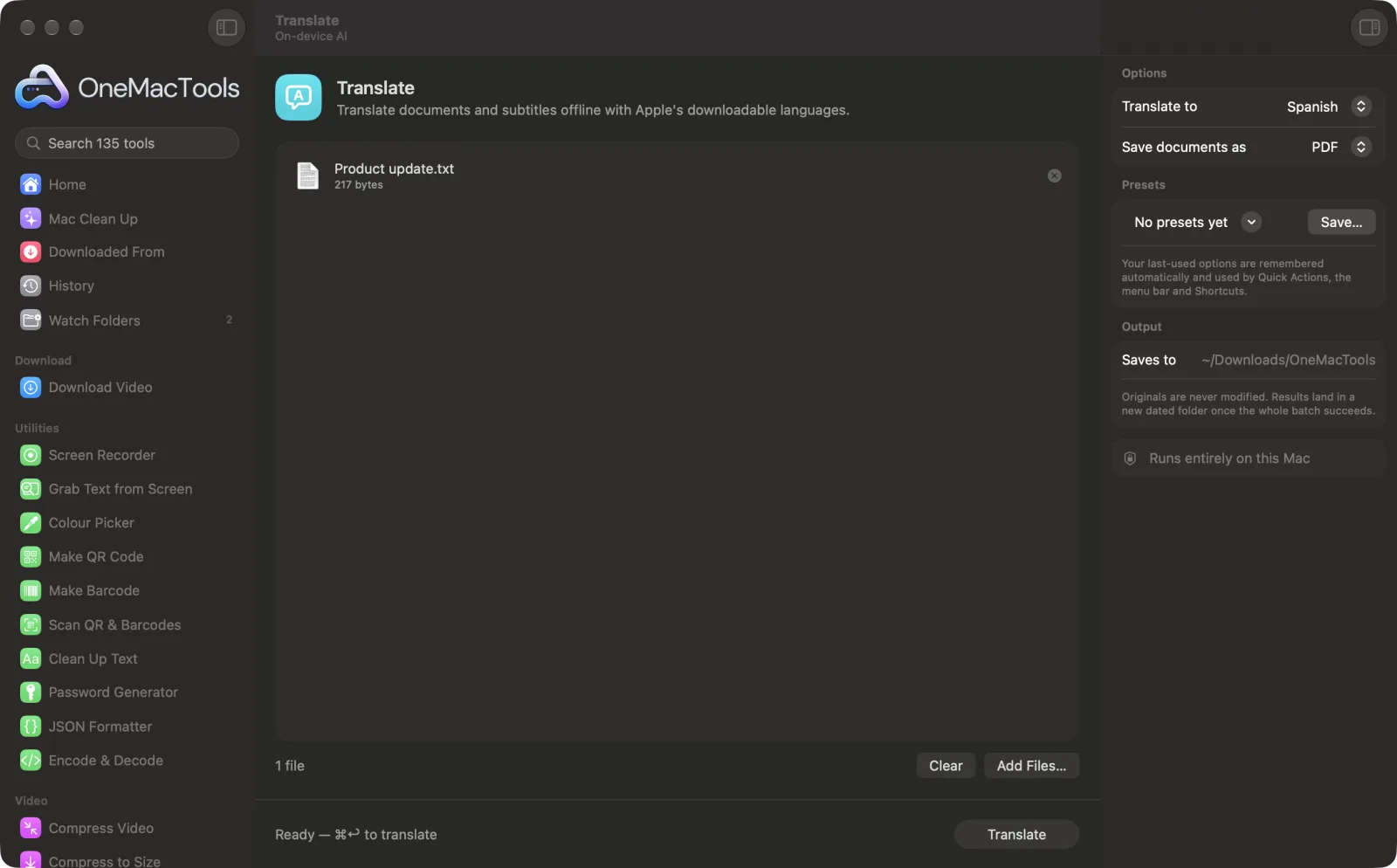
Translate on a Mac
Screenshots from the app, using sample files.
How to use Translate
- 1
Drop documents or subtitles
Add text files, Word documents, PDFs, RTF, HTML, Markdown or SRT subtitle files onto Translate.
- 2
Choose the language
In the right-hand panel, set Translate to the language you want. The language of each document is detected for you.
- 3
Choose how to save documents
Set Save documents as to PDF or Text. Subtitles are always saved as .srt.
- 4
Click Translate
Apple's on-device translation does the work. If the languages you need aren't downloaded yet, you're told to add them in System Settings › General › Language & Region › Translation Languages.
- 5
Open the translation
Each file is saved with the language in its name, such as “Letter (French).pdf”, in a new dated folder in Downloads › OneMacTools. Open it with the Preview (eye) button or Show in Finder.
What Translate does
Translate text, Word documents, PDFs and SRT subtitles into English, Spanish, French, German, Japanese, Chinese, Hindi, Arabic and more. The source language is detected for you, and subtitles keep their timing.
Great for
- Translate subtitles for a video
- Read a foreign-language letter
- Share a document with a colleague abroad
Options explained
- Translate to
- Arabic, Chinese (Simplified), English, French, German, Hindi, Italian, Japanese, Korean, Portuguese, Russian or Spanish. English is the default.
- Save documents as
- PDF, the default, lays the translated text out on clean A4 pages. Text saves a plain .txt file you can edit. This applies to documents only: SRT subtitles are always saved as .srt with their numbering and timings kept.
Best practices
- Download the languages you need once in System Settings › General › Language & Region › Translation Languages, especially before you go offline.
- Text is translated line by line. PDFs often break sentences across lines, which makes the translation choppier. For the best result, use a Word or text file, or join the lines first with Clean Up Text.
- The translation is plain text: the original layout, fonts and images aren't kept.
- Have a fluent speaker check anything legal, medical or customer-facing before you rely on it.
- To make foreign-language subtitles, transcribe a video to SRT with Transcribe, then translate the .srt here.
- Keep one language per document. The source language is detected from the document as a whole, so mixed-language text may not translate well.
Works with
- In
- Plain text, Word (.docx), PDFs that contain text, RTF, HTML, Markdown and SRT subtitle files.
- Out
- A translated PDF or .txt for each document, or a translated .srt for subtitles, named with the target language.
- Languages are downloaded once in System Settings; after that, translation works offline.
- Scanned PDFs have no text to translate. Get the text out with Extract Text first.
- The original layout, fonts and images aren't kept.
Questions about Translate
How do I translate a document offline on a Mac?
Download the languages once in System Settings › General › Language & Region › Translation Languages. Then drop the document onto Translate, choose the language and click Translate. It runs on your Mac with no internet needed.
Which languages can it translate into?
Arabic, Chinese (Simplified), English, French, German, Hindi, Italian, Japanese, Korean, Portuguese, Russian and Spanish. The source language is detected automatically, and the pair has to be one Apple's translation supports.
Why does it ask me to download languages?
Apple's translation works on your Mac with language files you download once. The message names the pair you need; add them under Translation Languages in System Settings and run it again.
Can I translate SRT subtitles and keep the timing?
Yes. Subtitle numbers and timings are left exactly as they are; only the caption text is translated, and the result is saved as a new .srt.
Does it keep the formatting of my document?
No. You get the translated text as a clean PDF or a .txt file, without the original layout, fonts or images.
Can it translate a scanned PDF?
Not directly, because a scan has no text in it. Run it through Extract Text first, then translate the .txt file.
How good are the translations?
Good for understanding a letter or sharing the gist of a document. For contracts, medical information or anything published, have a fluent speaker check it.
Does Translate upload my files?
No. Translate runs entirely on your Mac, so your files never leave it and it works offline.
Will Translate change my original files?
No. Results are saved as new files in a dated folder in Downloads › OneMacTools, and your originals are left exactly as they were unless you turn on an option that says otherwise.
What does Translate need?
Just a Mac with macOS 26 or later. There's nothing else to install.
Do this next
Turn speech in audio or video into text or subtitles with Apple's on-device speech recognition.
Extract TextRead text out of photos, screenshots and scanned PDFs with Apple's Vision framework.
Burn In SubtitlesRender an SRT or VTT file permanently onto the picture.
Related On-device AI tools
Ask a question about PDFs, scans or documents and get an answer from what they say.
Smart RenameGive scans, screenshots and photos real names from what's inside them.
Receipts to SpreadsheetRead receipts and invoices into a spreadsheet of dates, vendors, tax and totals.
Alt Text & CaptionsWrite accessible descriptions for images, for websites, documents and social posts.
Meeting NotesTurn a meeting recording into a transcript plus notes with decisions and action items.
SummarizeGet the short version of long documents from Apple Intelligence's on-device model.

Translate, plus 134 more.
One app. One price.
All 135 tools for $29, once. 14-day money-back guarantee.