
AI assistant permissions: how OneMacTools asks before Claude or Cursor acts
AI assistant permissions in OneMacTools follow one rule: assistants can look, but only you can act. Reading Mac Health, storage and file summaries is free. Running a tool, quitting an app, stopping a process, moving files to the Trash or reading a document's text opens an approval window with Allow and Don't Allow, every time. Nothing is remembered, unanswered requests are refused, and everything allowed shows up in History.
On this page
The approval model in one paragraph
When you connect an assistant over MCP (see MCP server setup), OneMacTools splits what it offers into two kinds. Read tools only look: Mac Health, running apps, ports, dev servers, agent sessions, Docker, AI Space, storage, file searches and paper summaries. They answer immediately. Actions change something on your Mac. The assistant can only name the action it wants; OneMacTools checks the request itself, shows you exactly what would happen, and does nothing unless you click Allow.
OneMacTools also tells the assistant this up front: its instructions say every action is shown to you and only happens if you allow it, so the assistant should explain why before asking.
What the approval window shows
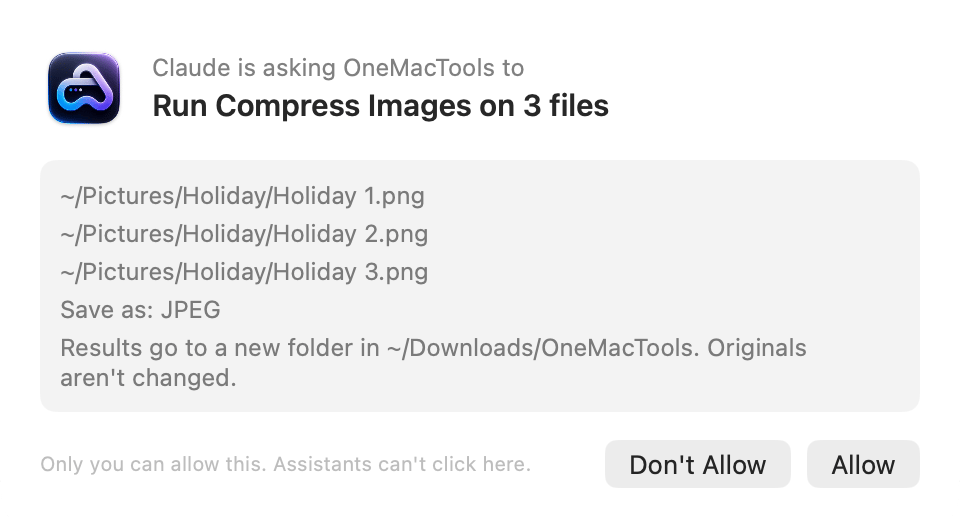
Each request appears in a small floating window in front of your other apps:
- Who is asking: “Claude is asking OneMacTools to”, using the name the assistant gave when it connected.
- What it will do, as a title: “Run Compress Images on 3 files”, “Quit Google Chrome”, “Stop a Claude Code session”, “Move 4 items (1.2 GB) to the Trash”.
- The details: each file path, the options the assistant chose, the process commands and ids, or the container's image and ports. Up to 12 lines are shown, then “and … more”. For tools, the last line says where results go and that originals aren't changed.
- A warning in orange, when there's something you should know before allowing.
- Don't Allow and Allow. Return clicks Allow and Esc clicks Don't Allow.
The footer reads “Only you can allow this. Assistants can't click here.” The window belongs to OneMacTools, not to the assistant, so an assistant has no way to press the button for you.
Which actions always ask
| Action | What you'll see | Checks OneMacTools makes first |
|---|---|---|
| Run a tool | “Run Compress PDF on 2 files”, the files, the options and the output folder | The tool exists, the files exist, there are enough of them, and the tool doesn't need you at the Mac. Options that don't fit the tool are ignored and the assistant is told |
| Quit an app | “Quit Slack” and that it can ask to save unsaved work | The app is running; the name matches one app; it isn't Finder |
| Stop a process | The command and process id, and the folder it runs in | It's one of your own processes and doesn't belong to an app (apps must be quit instead) |
| Stop an agent session | The agent and every process it started | The process really is an AI agent session |
| Stop a Docker container | The container's image, status and ports | Docker is running and the container is |
| Start or stop a recording | What's recorded and for how long | A recording isn't already running (or is, for stop) |
| Move to the Trash | Each path and size, and the total | Every path exists, is inside your home folder, and is your own file, a cache or a build folder |
| Read a document | The document's name, where it lives and what kind of paper it is | Files is on, the document is in a place Files covers, and its text can be read |
If a check fails, no window appears; the assistant gets a plain explanation, such as “No running app called “Zoom”.” or “Process 4512 belongs to an app; use quit_app instead.”
Reading a document's text always asks, every time
Summaries of your papers, from Life Admin, spending and tax papers, are read-only and free, because they never include the numbers on your documents. Life Admin's summary tells an assistant how many files hold ID, card or account numbers, and their names, but not the numbers themselves.
Getting the actual text of a document is different. When an assistant calls read_document, the window shows the file's name, where it is (for example iCloud Drive › Home), what kind of document OneMacTools recognised it as, and how much the assistant will get: the document's text, up to 20,000 characters.
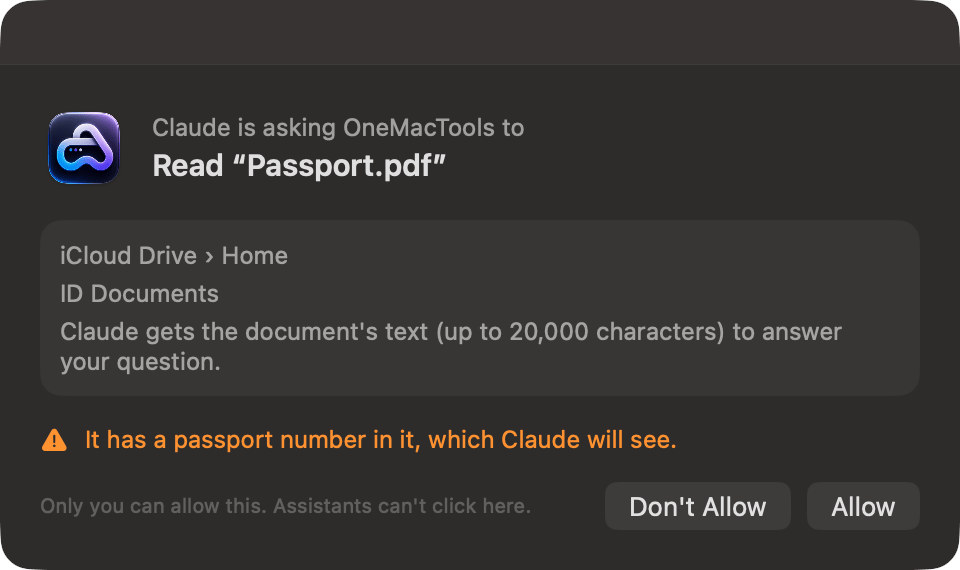
There's no “always allow” for documents. Asking about your passport today and your insurance policy tomorrow means two approvals, and asking about the same passport twice means two as well. Assistants are told to ask for one document at a time.
Sensitive-data warnings
OneMacTools adds an orange warning line when allowing would expose something you might not expect:
- Documents with sensitive numbers. If Life Admin found a passport number, card number, account number or similar in the document, the warning names it: “It has a passport number in it, which Claude will see.”
- Your own files in the Trash. When a move to the Trash includes files you made, not just caches or build folders, the warning reads “Includes your own files. You can put them back from History.”
The warning doesn't block anything. It's there so you decide knowingly. If you don't want the assistant to see the number, click Don't Allow and look at the document yourself.
Are choices remembered? Timeouts and queues
No. OneMacTools never remembers an Allow. Every action request gets its own window, even if you allowed the same thing a minute ago. That's deliberate: an assistant that can quit apps or move files should never get standing permission.
- One at a time. If an assistant sends several requests, they queue and appear one after another.
- No answer means no. A window left for five minutes closes and counts as Don't Allow. The assistant is told “The user didn't answer, so nothing was done.” If OneMacTools doesn't respond within six minutes at all, the assistant gets the same result.
- Don't Allow is final. The assistant is told “The user said no, so nothing was done.” It may ask again, but that's a new window.
Revoking access
To stop all assistants at once, open Settings › AI Assistants and turn off Let AI assistants use OneMacTools. From then on, every read and every action returns a refusal, and any request that arrives is refused without a window. To disconnect one assistant only, remove the onemactools entry from that assistant's MCP settings file; see turning the MCP server off.
Turning off Files also stops file searches, paper summaries and document reading, while Mac Health and developer tools keep working.
The audit trail in History
Everything an assistant did with your Allow is recorded in History, alongside jobs you started yourself:
- Tools an assistant ran appear as normal jobs, with the assistant's name (for example Claude) where other jobs say App, Finder or Shortcuts. You can open the result folder from there.
- Moves to the Trash appear as “Moved 3 items (850 MB) to the Trash — Asked by Claude”, with a Put Back button that returns them to where they were.
- Recordings an assistant started are saved in Mac Health › History.
Reads aren't listed, because they don't change anything.
Questions
Can Claude or Cursor click Allow for me?
No. The approval window is part of the OneMacTools app on your Mac, and MCP gives the assistant no way to press its buttons. The assistant only learns the result after you decide.
Can I set OneMacTools to always allow a trusted assistant?
No. There's no always-allow option; every action asks. If you want fewer prompts, ask the assistant to batch work into one request, such as running a tool on ten files at once.
What happens if I'm away from my Mac when an assistant asks?
The request waits for five minutes, then counts as Don't Allow. Nothing happens, and the assistant is told you didn't answer.
Can an assistant read my documents without asking?
No. It can see summaries, such as when your passport expires or how many files hold account numbers, but reading any document's text needs your Allow every time.
Why did my assistant say OneMacTools refused before any window appeared?
OneMacTools checks every request before showing it. If the app to quit isn’t running, a file doesn’t exist, the path is outside your home folder or the tool needs you at the Mac, the assistant gets the reason straight away and no window opens.
How do I undo something I allowed?
Files moved to the Trash can be put back from History with Put Back. Tool results are new files in their own folder, so you can simply delete that folder; originals are never changed.
Does allowing an action send my files to the AI company?
Running a tool, quitting an app or stopping a process happens on your Mac; the assistant gets a short text reply such as where results were saved. Reading a document is the exception: the assistant receives its text, which then goes wherever that assistant sends your conversations.
