
Monitor Claude Code, Codex and other AI coding agent sessions on your Mac
OneMacTools lets you monitor Claude Code and Codex sessions on your Mac, along with Gemini CLI, Aider, Cursor Agent and opencode. The Agents tab of Dev & Agents shows each running session with its project, everything it started (dev servers, test runners, builds), its memory and CPU and the ports it holds, how much of your Codex and Claude Code usage limits is used, and a Stop button that ends the whole session cleanly.
On this page
Why watch your coding agents?
An AI coding agent doesn't just write code. It starts things: a dev server to check its work, a test watcher, a TypeScript build, a Python script that never exits. Close the terminal tab and many of them keep running. After a day with two or three agents, it's common to find a gigabyte of memory and half a dozen ports held by processes nobody remembers starting.
Activity Monitor shows them as a flat list of node and python entries with no hint of which agent or project they belong to. Dev & Agents groups them back into sessions, so you can see that Claude Code in storefront-web is responsible for four processes, 1.18 GB and port 3000.
Open Dev & Agents under Your Mac in the sidebar (or Go › Dev & Agents); Agents is the first tab. The other tabs, for dev servers, Docker and build folders, are covered in Manage dev servers and ports.
Which AI agents are detected
OneMacTools recognises these command-line agents by their program name or how they were launched:
| Agent | Recognised by |
|---|---|
| Claude Code | The claude command, or the @anthropic-ai/claude-code package |
| Codex | The codex command, or the @openai/codex package |
| Gemini CLI | The gemini command, or the @google/gemini-cli package |
| Aider | The aider command, or python -m aider |
| Cursor Agent | cursor-agent |
| opencode | The opencode command |
It doesn't matter where they were started: Terminal, iTerm, VS Code's terminal, Cursor, or the Claude desktop app. The from chip on each session names the app.
When none is running you'll see No AI agents running. Sessions appear while they run and disappear when they end.
What each session card shows
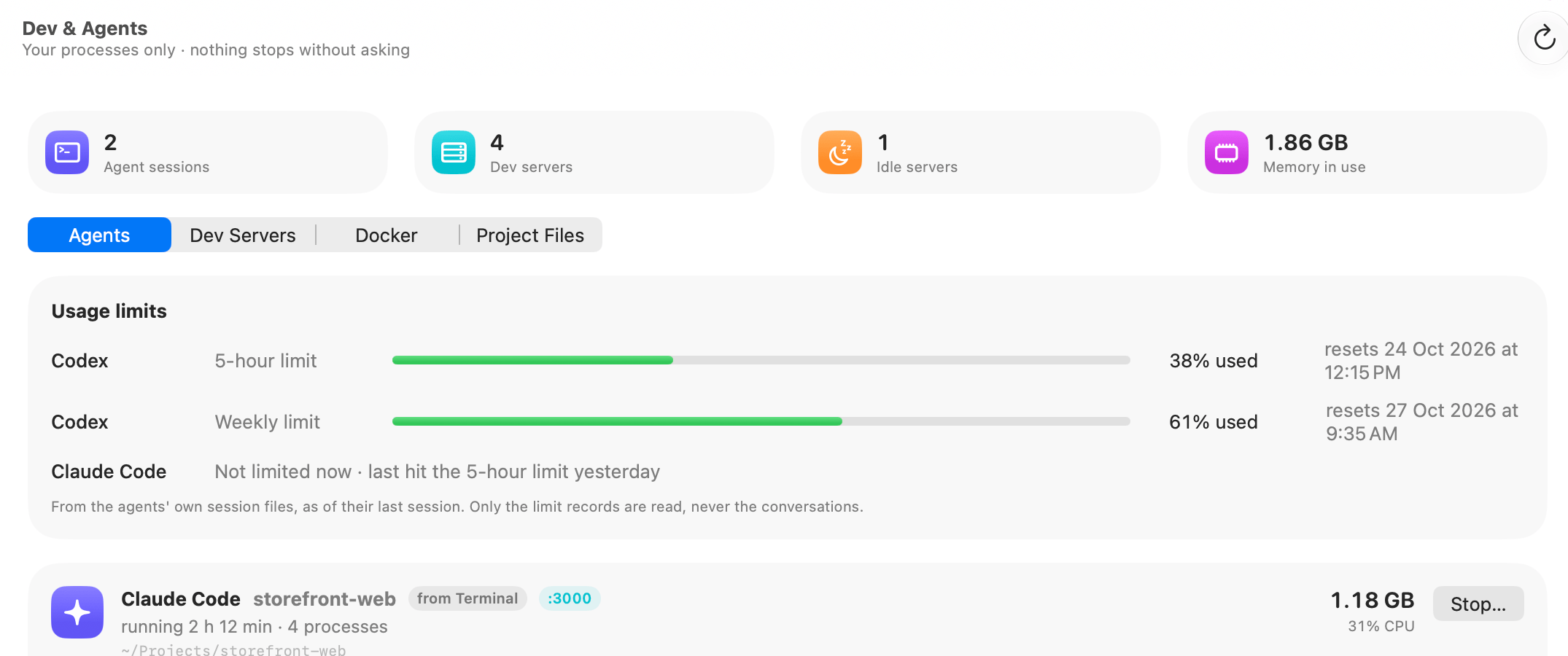
- The agent and project: Claude Code storefront-web. The project is the nearest folder with a
package.json,.git,Cargo.tomlor similar project file; the full path is shown underneath. - from Terminal (or the app that started it).
- Port chips like :3000, for up to three ports held by the agent or anything it started.
- running 2 h 12 min · 4 processes: how long since it started, and the agent plus what it launched.
- Memory in large type and CPU underneath, for the whole session added together.
- Started N processes: expand it to see each command, its process ID and its memory (up to 40).
Sessions are listed newest first. Memory comes from macOS's own accounting; CPU is the share of one core used since the last reading, so a session at 150% is using one and a half cores.
Sub-agents and hosts
When an agent launches another of the same kind in the same folder (a sub-agent), its processes are counted in the parent's session rather than as a separate card. An agent process that only hosts sessions in other folders, running from your home folder or /, isn't counted as a session itself, so the desktop apps that run Claude Code for you don't create a phantom card.
How to stop a Claude Code or Codex session
Sometimes you want an agent gone, with everything it started: it's looping, it's holding a port you need, or you've finished and the terminal is long closed.
- Click Stop… on the session card.
- Read the confirmation, for example Stop this Claude Code session? with Stops the agent and the 3 processes it started, freeing port 3000. Unsaved work in the session may be lost.
- Click Stop. A green line confirms how many processes stopped.
OneMacTools asks each process to quit, starting with the newest children and ending with the agent, the same polite signal as pressing Ctrl-C. Files the agent has already written stay as they are, and Claude Code and Codex keep their transcripts, so you can usually resume later. Only your own processes are touched, and each is checked to be the same program it listed.
To stop just one server an agent started and leave the agent running, use Stop… on that server in the Dev Servers tab instead.
Alerts when an agent's process runs away
OneMacTools also watches what agents start, every 30 seconds, even with the screen closed. When a process uses a full core for 10 minutes, grows by a gigabyte in an hour, or sits idle on a port for a day, you get a notification with a Stop button. The agent itself is never stopped by these alerts. Set or turn off automatic stopping in Settings › Runaway Processes (settings reference).
Codex and Claude Code usage limits
Above the sessions, Usage limits shows how close you are to being cut off. It's read from the agents' own session files on your Mac, as of their last session, and only the lines about limits are read, never your conversations.
Codex: percent used
Codex records its limits as it runs, so you get real numbers: one row for the 5-hour limit and one for the Weekly limit, each with a bar, 38% used and when it resets. The bar is green, orange from 70% and red from 90%.
Once a reset time has passed, the old figure no longer says anything, so the row reads Reset with when, and the next session will show how much is used.
Claude Code: when a limit was hit
Claude Code doesn't record how much of its limit is left, only when you hit one and when it resets. So its row shows one of:
- Hit the 5-hour limit · resets 1pm: you're limited now, until that time.
- Not limited now · last hit the weekly limit yesterday: you were limited before, but it has reset.
- No limit hit in recent sessions. Claude Code doesn't record how much of its limit is left, only when one is hit.
If Codex is installed but hasn't recorded a limit yet, its row says No limit recorded yet; it shows after the next session. Click Refresh in the toolbar to read the limits again.
How this differs from Activity Monitor and ps
Activity Monitor / ps | Dev & Agents | |
|---|---|---|
| Grouping | A flat list of processes | One card per agent session, with everything it started |
| Project | Not shown | The project folder each session runs in |
| Ports | Needs lsof | Shown on the card |
| Stopping | One process at a time | The agent and all its children in one go, newest first |
| Usage limits | Not available | Codex percent used; Claude Code limit hits and resets |
For the whole Mac, including apps and system processes, use Mac Health. Dev & Agents is deliberately narrower: your own developer processes, nothing else.
Agents checking on agents (MCP)
Your agents can see this too. Through the OneMacTools MCP server, Claude Code, Codex, Cursor and others can list agent sessions with what they started, check usage limits, and see what's on a port before starting a server of their own. Anything that changes your Mac still needs your approval (assistant permissions).
Dev & Agents is part of OneMacTools; see pricing for what each plan includes, or download the app to try it.
Questions
How do I see what processes Claude Code started?
Open Dev & Agents in OneMacTools and stay on the Agents tab. Each Claude Code session has a card; expand Started N processes to see every command it launched, with its process ID and memory, and the ports they hold.
How do I check my Codex 5-hour and weekly limit on a Mac?
Open Dev & Agents › Agents. Usage limits shows Codex's 5-hour and weekly limits with the percent used and when each resets, read from Codex's own session files as of its last session.
Can OneMacTools show how much of my Claude Code limit is left?
No, because Claude Code doesn't record that on your Mac. It records when you hit a limit and when it resets, so OneMacTools shows whether you're limited now and when you last hit the 5-hour or weekly limit.
Does stopping a session delete the agent's work?
No. Files it has written stay on disk, and the agent's transcript is kept, so Claude Code and Codex can usually resume. Unsaved work inside the session, such as an edit it was halfway through, may be lost.
Does OneMacTools read my agent conversations?
No. For usage limits it searches the agents' session files only for the lines about rate limits and never decodes the rest. Session cards come from the process list, not from transcripts.
Why does an agent session show a port?
Something the agent started, usually a dev server or preview, is listening on that port. Stopping the session frees it; to keep the agent and free only the port, stop that server from the Dev Servers tab.
