
A tour of the OneMacTools interface
The OneMacTools interface is one window with a sidebar on the left and the current screen on the right. The sidebar lists Discover, Today and History, the eight tool categories, and the Your Mac screens. Every tool opens in the same layout: a drop area in the middle, an Options panel on the right, and a footer with the main button. A menu bar icon gives quick access when the window is closed.
On this page
The main window at a glance
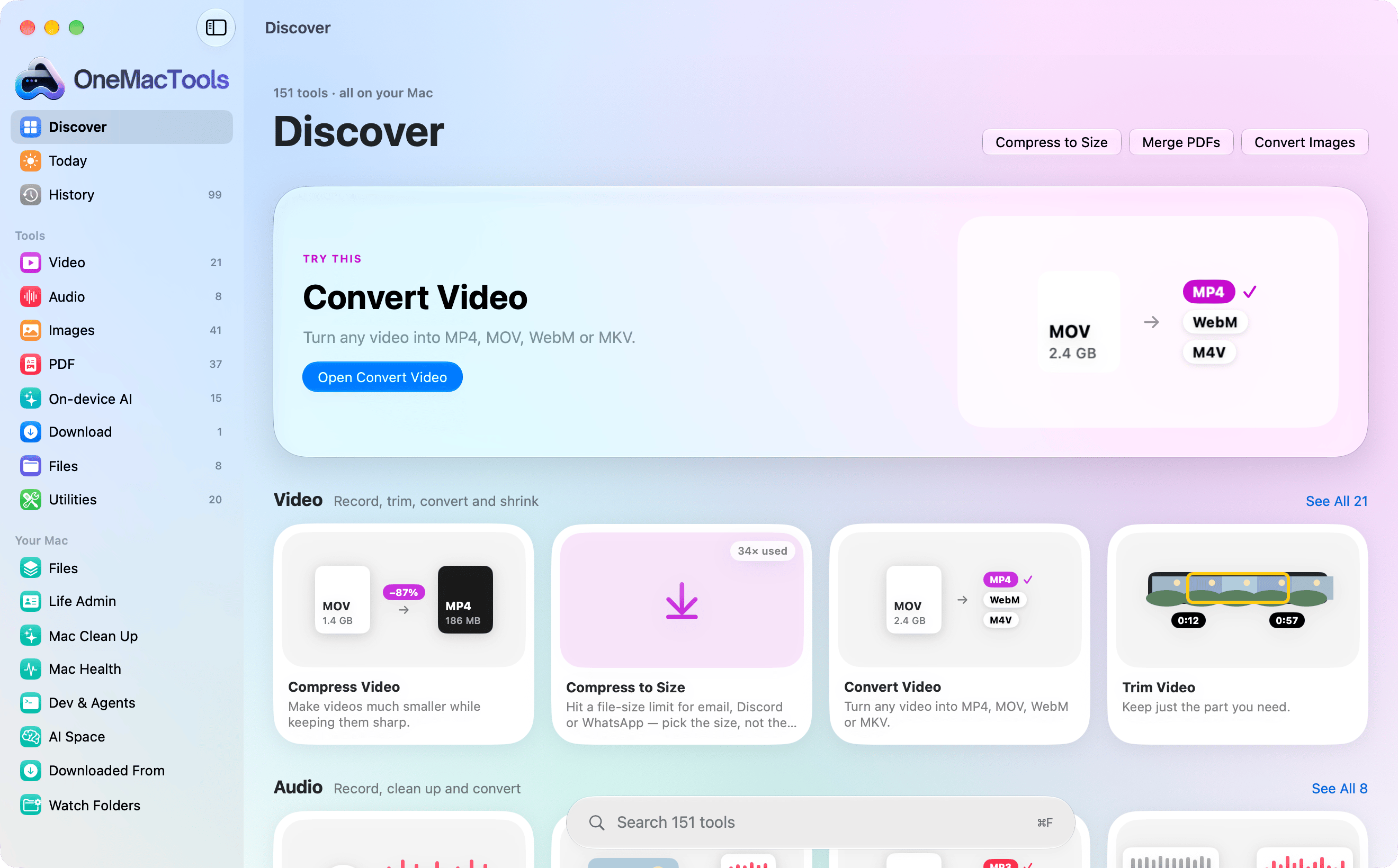
OneMacTools opens in a single window that fits your screen (1320 × 860 points where there's room). You can make it smaller, down to 960 × 600, and macOS remembers its size and position. In the default Liquid Glass look it has three parts:
- The sidebar, on the left, with the OneMacTools logo at the top. Hide or show it with the sidebar button in the toolbar or View › Hide Sidebar (⌃⌘S).
- The main area, which shows whatever is selected in the sidebar: a home screen, a category of tools, a tool, or one of the Your Mac screens.
- The toolbar, across the top of the main area, with the screen's title and subtitle and buttons for that screen, such as Refresh on Today, Clear History in History, or Options on a tool.
The window is the same in every theme in terms of what it can do; Classic, Neo-brutal and Retro rearrange it (more on that below). Closing the window doesn't quit OneMacTools: it keeps running in the menu bar so Quick Actions, recordings and Watch Folders keep working.
The sidebar: Discover, Today, History, tools and Your Mac
The sidebar is split into three groups.
At the top
- Discover (Liquid Glass): the tools-first home, with a featured tool and each category's first tools as illustrated cards.
- Today: your Mac right now, including free space, Downloads, things you could clean up, recent downloads and screenshots, and your recent tools. Home and Today covers it in full.
- History: every job you've run, from anywhere. Its badge shows how many jobs are listed (up to 99). See History.
Tools
The eight categories, each with a badge showing how many tools it holds: Video, Audio, Images, PDF, On-device AI, Download, Files and Utilities. Click one to see all of its tools. The sidebar lists categories rather than all 150-odd tools so it stays short; search lists the tools themselves.
Your Mac
Screens that look after the Mac itself rather than individual files: Files, Life Admin, Mac Clean Up, Mac Health, Dev & Agents, AI Space, Downloaded From and Watch Folders. Some show a live badge: the number of files Files has indexed, how much Mac Clean Up could free, how much space AI apps use, and how many Watch Folder rules are on. The Your Mac overview shows what each one is for.
Discover and category pages: tool cards
Discover opens with “151 tools · all on your Mac” (the number grows as tools are added), your three most recently used tools as buttons on the right, and a Try this banner. The banner features a tool you haven't used yet, a different one each day, with an Open button.
Below it, each category gets a row: its name, a one-line description (for example Video: “Record, trim, convert and shrink”), its first four tools, and a See All link with the count.
Each tool card shows a picture of what the tool does, its name and a two-line summary. Tools you've used show a small “34× used” label, counted from History. Click anywhere on a card to open the tool.
A category page shows every tool in that category. When it holds several kinds of tool, buttons at the top right narrow the list: All, Create, Edit, Convert, Shrink and More. For example, in Images, Shrink leaves just the compression tools.
How to search for a tool
Press ⌘F from anywhere in the window. In Liquid Glass, a search capsule floats at the bottom of Discover and category pages (“Search 151 tools”); in Classic it sits under the logo in the sidebar.
Search matches tool names, their descriptions and common alternative words, so “heic”, “shrink video” or “ocr” all find the right tools. Results appear as cards (or as a list of tools in the Classic sidebar). Press Esc to clear the search.
Tool search finds tools. To find files, use Ask (⌘K), which understands requests such as “merge the PDFs from Gmail this week” and opens the right tool with the files loaded. See Ask, and Quick Search for a file finder that works from any app.
The tool screen and the Options panel
Every tool, whichever category it's in, opens in the same layout, so once you know one you know them all.
| Part | What it does |
|---|---|
| Back button | At the top left of the toolbar, named after the category (for example ‹ Video), goes back to that category. |
| Header | The tool's icon, name and one-line description. |
| Input area | Where your files, link or text go: a drop zone reading “Drop your files here · Originals stay untouched.”, a link field, a text box, or a big action button, depending on the tool. |
| Options panel | On the right: the tool's settings, saved presets, and where results are saved. Hide or show it with the Options button at the top right. |
| Footer | Status on the left (“Ready — ⌘↩ to compress”, a size estimate, progress or the result) and the main button on the right, named after what the tool does: Compress, Merge, Convert… |
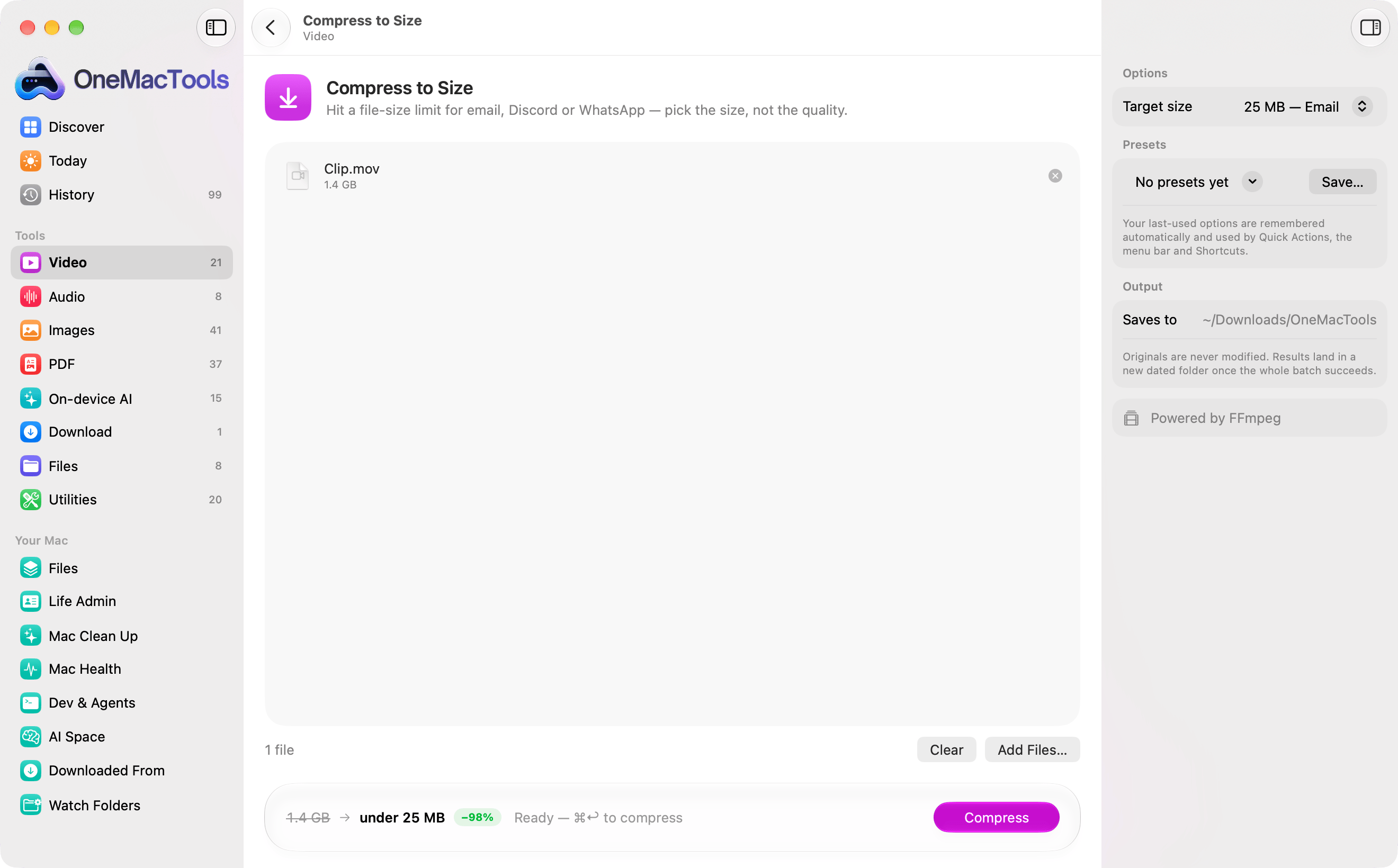
The Options panel has up to four sections: Options (pickers, switches and sliders, some appearing only when relevant), Presets (save and switch between named sets of options), Output (Saves to, with a reminder that originals are never modified), and a line saying how the tool runs, such as Runs entirely on this Mac or Powered by FFmpeg.
The full flow, from adding files to finding the results, is in how to use OneMacTools tools.
The menu bar icon and other windows
OneMacTools puts an icon in the menu bar (a grid of four circles). Click it for Ask OneMacTools…, Record Screen…, Capture & Annotate…, Scrolling Screenshot…, Clipboard History…, Camera Check, Keep Awake, Recent Results, Open OneMacTools, Settings… and Quit OneMacTools. Drop files on the icon to see the tools that can use them.
The icon changes to show what's happening: an hourglass while background jobs run, a red record symbol while recording the screen, and a cup with the time left while Keep Awake is on. If you turned on Mac Health readouts, live CPU, memory, disk, network and battery figures sit beside it; see menu bar readouts.
Other windows you'll see: Settings (⌘,), the Ask panel (⌘K) which opens over the main window, Quick Look previews of results, and small floating panels for Quick Search and Clipboard History. In Settings › Anywhere on your Mac you can hide OneMacTools from the Dock so it lives only in the menu bar.
How the four themes change the interface
OneMacTools has four looks, chosen in Settings › Appearance › Theme. They change layout as well as colour, but every tool and screen works the same in all of them.
| Theme | Layout |
|---|---|
| Liquid Glass (default) | Sidebar with Discover as the home, illustrated tool cards, a floating search capsule, and the tool footer in a floating glass panel. |
| Classic | A plain sidebar with Today as the home and the search field under the logo; Today shows tiles for dropping a file, Mac health, this week's work and Clean Up. |
| Neo-brutal | No sidebar: a bar of outlined buttons across the top, a loud home of colour blocks per category, and cards with hard shadows. |
| Retro | A black-and-white desktop after the early Macs: every screen opens as a window, tools are documents inside category folders, and a window's close box goes back up a level. Light mode only. |
Liquid Glass switches to Classic by itself while Reduce Transparency or Increase Contrast is on in System Settings › Accessibility. More detail, with screenshots of each, is in themes.
Questions
Why don't I see every tool in the OneMacTools sidebar?
The sidebar lists the eight categories rather than each tool, so it stays short. Click a category to see its tools, or press ⌘F and type to list matching tools. In the Classic theme, typing in the sidebar search shows the matching tools grouped by category.
What's the difference between Discover and Today?
Discover is a home for finding tools: a featured tool and each category's first tools. Today is about your Mac and files right now: free space, Downloads, clean-up suggestions, recent downloads and screenshots. Classic, Neo-brutal and Retro have their own versions of each.
How do I hide the Options panel on a tool?
Click the Options button (a sidebar icon) at the top right of the tool's toolbar. Click it again to bring the panel back. The tool keeps using the options set in the panel either way.
How do I get back to the list of tools from a tool?
Click the back button at the top left of the toolbar, which is named after the tool's category, or click any category in the sidebar. Neo-brutal and Retro have their own way back: the top bar and the window close box.
Can I make the OneMacTools window smaller?
Yes, down to 960 × 600 points. Below a certain width the tool cards reflow into fewer columns. You can also hide the sidebar (⌃⌘S) or the Options panel to give the main area more room.
Where are OneMacTools' settings?
Choose OneMacTools › Settings… or press ⌘, (it's also in the menu bar icon's menu). Settings has sections for your licence, output folder, Dock and menu bar, appearance, history, alerts, helpers and AI assistants. The settings reference explains each one.
