
Mac Health: see which app is using your CPU, memory and battery
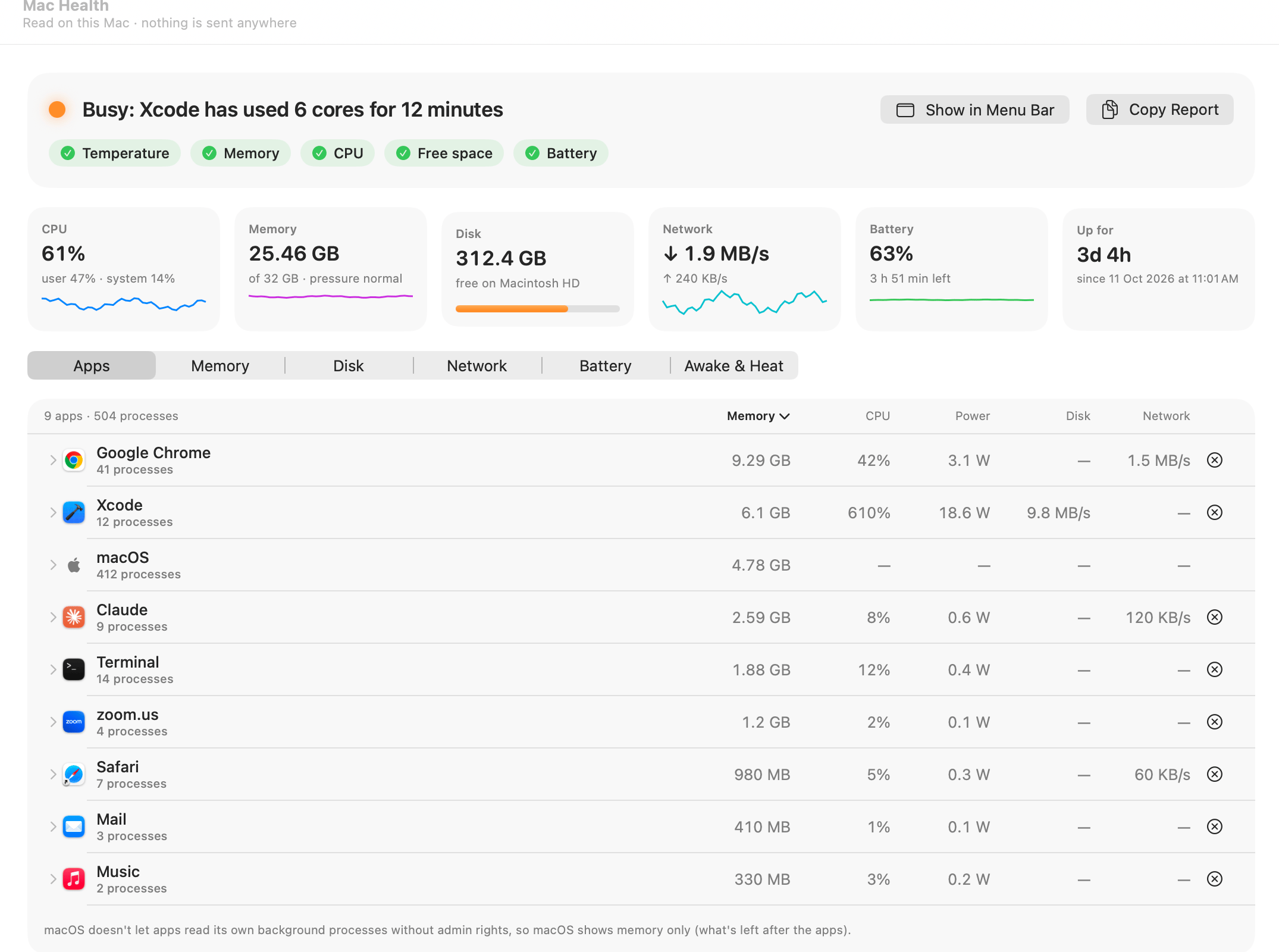
Mac Health is OneMacTools' Mac Activity Monitor alternative. It shows one row per app, with every helper process counted under the app that started it, and the memory, CPU, GPU, power, disk and network each one is using. A single line at the top names the problem, such as “Busy: Xcode has used 6 cores for 12 minutes”, and eight tiles show the whole Mac at a glance. Everything is read on your Mac and nothing is sent anywhere.
On this page
- What Mac Health shows you
- What does the headline at the top mean?
- The eight tiles: CPU, memory, disk, network, battery, temperature, GPU and uptime
- How to see which app is using CPU and memory on Mac
- How to quit an app from Mac Health
- The other tabs: Memory, Disk, Network, Awake and Sound
- How often Mac Health reads your Mac, and what it costs
- Tools mentioned on this page
- Questions
What Mac Health shows you
Open OneMacTools and choose Mac Health from the Your Mac part of the sidebar. The window subtitle reads “Read on this Mac · nothing is sent anywhere”: every figure comes from macOS on your own Mac, with no account and no upload. While the first reading is taken you'll see Reading your Mac… for a moment.
The screen has three layers, from the quick answer down to the detail:
- The verdict at the top: one line saying what, if anything, is wrong, with a coloured dot (green, orange or red) and a row of checks underneath.
- Eight tiles: CPU, Memory, Disk, Network, Battery, Temperature, GPU and Up for, each with the current figure and a small graph of recent readings.
- Nine tabs: Apps, History, Memory, Disk, Network, Battery, Heat, Awake and Sound.
If you only want the general “why is my Mac slow?” checklist, read Why is my Mac slow?. This page is the manual for the screen itself: every label, column and button, and what each one means.
What does the headline at the top mean?
Mac Health checks the Mac on every reading and puts the most serious finding in one line. When nothing needs your attention, it says All calm with a green dot. Otherwise you'll see one of these:
| Headline | When it appears |
|---|---|
| Busy: Xcode has used 6 cores for 12 minutes | One app has kept at least a full CPU core busy for two minutes or more. |
| Busy: Chrome is using 3 cores | The whole CPU is at 90% or more. |
| Running hot: CPU 96 °C, … | macOS says the Mac is hot enough to slow itself down. It names the hottest part and the app working hardest. |
| Memory is tight: Chrome is using 9 GB | Memory pressure is high or critical. It names the app using the most memory. |
| Disk nearly full: 18 GB left | Under 25 GB or 10% free (orange); under 10 GB or 5% free (red). |
| Disk full in about 9 days at this rate | History shows the startup disk filling fast enough to be full within two weeks. |
| Battery at 15%: plug in soon | On battery at 20% or less (orange), 10% or less (red). |
| Battery holds 78% of its original charge | Battery health has dropped below 80%. |
| … is reporting problems: back up your Mac soon | The startup SSD's own health report says something is wrong. |
When several things are wrong at once, the most serious one wins, so a red problem always outranks an orange warning.
Below the headline, the checks (Temperature, Memory, CPU, Free space, Battery and Drive health) each get a tick or a warning triangle. Hold the pointer over one to see its figure, for example “25.46 GB of 32 GB · pressure normal”. Macs without a battery simply don't show the Battery check.
The buttons beside the headline
- Show in Menu Bar appears only while you have no menu bar readouts. It adds CPU and memory beside the menu bar icon; see the menu bar system monitor for the rest.
- Record reads the Mac every second until you stop it, then shows what peaked and which app was behind it. It's covered in history and alerts.
- Share makes an image card of the current reading to post or send.
- Copy Report puts a plain-text summary on the clipboard: the headline, every check, uptime, temperatures, fans, GPU, Neural Engine, drive health, the ten busiest apps and anything keeping the Mac awake. It's ideal for a support request or for pasting into an AI assistant.
The eight tiles: CPU, memory, disk, network, battery, temperature, GPU and uptime
Each tile shows a figure, a line of detail and either a small graph of the last 40 readings or a bar.
| Tile | Main figure | Detail line |
|---|---|---|
| CPU | How busy the processor is overall | Split into user (apps) and system (macOS) |
| Memory | Memory in use | Total memory and pressure: “pressure normal”, “under pressure” or “very tight” |
| Disk | Free space on the startup disk | Its name, with a bar showing how full it is |
| Network | Download speed | Upload speed |
| Battery | Charge level | Time left, “charging · full in …” or “plugged in” |
| Temperature | Average CPU temperature | The hottest part, e.g. “hottest: CPU 74 °C” |
| GPU | How busy the graphics chip is | “Neural Engine in use” when on-device AI is running |
| Up for | Time since the Mac last started | The exact start date and time |
Tiles only appear when the Mac can supply the figure: a Mac mini has no Battery tile, and the Temperature tile needs readable sensors. Units follow Settings › Appearance: Network speeds in bytes (MB/s) or bits (Mbps), and Temperatures in your region's unit, Celsius or Fahrenheit. The Chart colours picker there also offers a colour-blind safe set.
How to see which app is using CPU and memory on Mac
The Apps tab is the heart of Mac Health. Above the list you'll see a count such as “9 apps · 504 processes”, which shows how much grouping has been done for you.
- Open Mac Health and choose the Apps tab (it opens there by default).
- Click a column heading (Memory, CPU, GPU, Power, Disk or Network) to sort by it. The sorted column is shown in bold with a small arrow. Memory is the default.
- Click a row to expand it and see the processes behind that app.
- Use the ⊗ button at the end of the row to quit the app, or right-click the row for Show History… and Quit….
Every column explained
| Column | What it measures |
|---|---|
| Memory | Memory used by all the app's processes together. |
| CPU | CPU use summed over its processes. By default 100% is one full core, so 610% means about six cores. Change it under Settings › Appearance › Show an app's CPU as to “% of the whole Mac (up to 100%)”. |
| GPU | The app's share of the graphics chip's time. A dash means under 1%. |
| Power | Watts the app is drawing now, from macOS's own energy accounting for each process. |
| Disk | Bytes per second read and written together. A dash means none. |
| Network | Bytes per second downloaded and uploaded together. A dash means none. |
The list shows up to 80 apps, which in practice is everything doing anything.
Helper processes are grouped under their app
Activity Monitor lists every process separately, so Chrome can be forty rows. Mac Health uses macOS's own record of which app is responsible for each process and counts it there: Chrome's helpers under Google Chrome, a dev server under the terminal that started it. Command-line programs that macOS started for you (a Homebrew service, a background agent) are grouped by their name. For a side-by-side comparison, see Mac Health vs Activity Monitor.
Expand a row and you'll see each process with its name, process ID, memory and CPU, up to 25 of them, then “and N more”. For browsers, the expanded row first splits the total into Tabs, Extensions, Graphics, Network & services, Browser and Other, so you can tell a heavy tab from a heavy extension.
The macOS row
Processes belonging to macOS itself are gathered into one macOS row. macOS doesn't let apps read its own background processes without admin rights, so by default this row shows memory only (what's left after the apps) and dashes elsewhere. The optional admin helper, installed from Settings › Admin Helper, adds their CPU, power and disk use. It can do only those things, answers only OneMacTools and quits when idle; Remove Helper takes it away again.
How to quit an app from Mac Health
Click the ⊗ button at the end of a row and choose Quit [app]… or Force Quit…. Mac Health always asks first:
- Quit asks the app to quit the normal way. The confirmation says “[app] will ask to save anything unsaved”, and the app gets the chance to do that.
- Force Quit stops it at once. The confirmation warns “Unsaved work in [app] will be lost.”
- For a command-line program, which has no window to save from, the confirmation says how many processes will be stopped.
The macOS row and OneMacTools itself never have a quit button. After a quit, Mac Health takes a fresh reading a second and a half later, so the row disappears and the figures update.
The other tabs: Memory, Disk, Network, Awake and Sound
History, Battery and Heat have their own pages: history and alerts, battery health and CPU temperature and fans. The rest are here.
Memory
A bar splits your memory into Apps, Wired, Compressed, Cached files and Free, with the amount for each. Underneath, Mac Health states memory pressure (normal, high or critical) and how much swap is in use. Cached files are given back as soon as an app needs the space, so a nearly full bar with normal pressure is fine.
The Free up memory card lists apps that have sat in the background for at least half an hour, use 100 MB or more and are doing almost nothing, biggest first, with how much each would free and a Quit… button. If OneMacTools was opened after you last used an app, it says “Not used since OneMacTools opened”. Below that, Using the most memory lists the top eight apps.
Disk
Activity shows Reading, Writing and Written since startup. Drives lists every mounted volume with its free space and a bar that turns red past 90% full. For each SSD that reports its health there's a Drive health card: Rated life used, Written, Spare capacity and Powered on, rated Good, Worn or Needs attention, with a plain note on what to do. Drive health is read at most once an hour. Reading and writing the most lists the busiest apps. To free space, use Mac Clean Up.
Network
Activity shows Downloading, Uploading and the total Since startup. Wi-Fi & connection gives the network name, signal quality, signal and noise in dBm, band, channel and width; macOS only shares the network's name with apps allowed under Location Services. Public address has a Show button that looks it up only when you click. Internet speed runs a test with Test Speed and keeps results for each network, so you can tell a slow Wi-Fi from a slow website; the Internet Speed Test page covers the test itself. Using the network lists the apps sending and receiving now.
Awake
Keeping the Mac awake lists every process stopping sleep, whether it “keeps the Mac awake” or only “keeps the display on”, for how long, and the reason it gave (a call, a download, a playing video). When nothing is, it says “Nothing is stopping your Mac from sleeping.” To keep the Mac awake on purpose, use Keep Awake.
Sound
Volume per app (Beta) gives each app that's playing sound its own slider and mute button, with Reset All. The Microphone card names any app recording from a microphone; it shows which apps are recording, never what they hear. Both are also in the menu bar dropdown.
How often Mac Health reads your Mac, and what it costs
Mac Health reads the Mac only while something is showing it, and stops completely when nothing is. How often depends on what's open; when several things are, the fastest rate wins:
| What's reading | How often |
|---|---|
| Mac Health window | Every 2 seconds |
| Menu bar dropdown | Every 2 seconds while open |
| Menu bar readouts | Every 5 seconds |
| History and alerts | Every 30 seconds |
| A recording (Record) | Every second, until you stop it or it reaches its time limit |
| ⌃⌥⌘H Quit Heaviest App | Every second while its panel is open |
Some readings are only taken while the Mac Health window itself is open, because nothing else shows them: each app's GPU share, the browser split and the microphone (unless the microphone readout is in the menu bar). Temperatures, the GPU total and drive health are read along with everything else, drive health at most once an hour. Per-app network figures come from macOS's own nettop, which runs only while readings are on.
To see what this costs, open Settings › Background Activity. OneMacTools right now measures the app's own CPU and memory every two seconds, and Mac Health readings lists who is reading and how often, for example “menu bar: every 5 s”. From there you can switch off history or the readouts; with both off, OneMacTools sits idle in the background.
Tools mentioned on this page
Questions
Is Mac Health a replacement for Activity Monitor?
For finding out what's slowing your Mac, yes: it groups helper processes under their app, sorts by memory, CPU, GPU, power, disk or network, and states the problem in one line. Activity Monitor is still there for raw per-process detail such as threads and open files, which Mac Health doesn't show.
Why does an app show more than 100% CPU?
By default an app's CPU is shown as a percentage of one core, so an app keeping six cores busy shows about 600%. If you prefer a figure out of 100% for the whole Mac, change Settings › Appearance › Show an app's CPU as.
Why does the macOS row only show memory?
macOS doesn't let ordinary apps read its own background processes. Without admin rights, Mac Health can only work out their memory as what's left after the apps. Installing the optional admin helper in Settings › Admin Helper adds their CPU, power and disk use.
Does Mac Health slow down my Mac?
It only reads the Mac while something is showing it, and stops entirely otherwise. Settings › Background Activity shows OneMacTools' own CPU and memory use live, so you can check for yourself on your Mac.
Can Mac Health quit an app without losing my work?
Quit asks the app to close the normal way, so it can ask you to save first. Only Force Quit stops it at once, and the confirmation warns that unsaved work will be lost.
Does Mac Health send any data off my Mac?
No. Every reading is taken and kept on your Mac. The only network requests are the ones you trigger yourself, such as an internet speed test or looking up your public address, plus phone alerts if you set them up.
