
Keep your Mac awake
Stop your Mac sleeping for an hour, until a time, or until you turn it off.
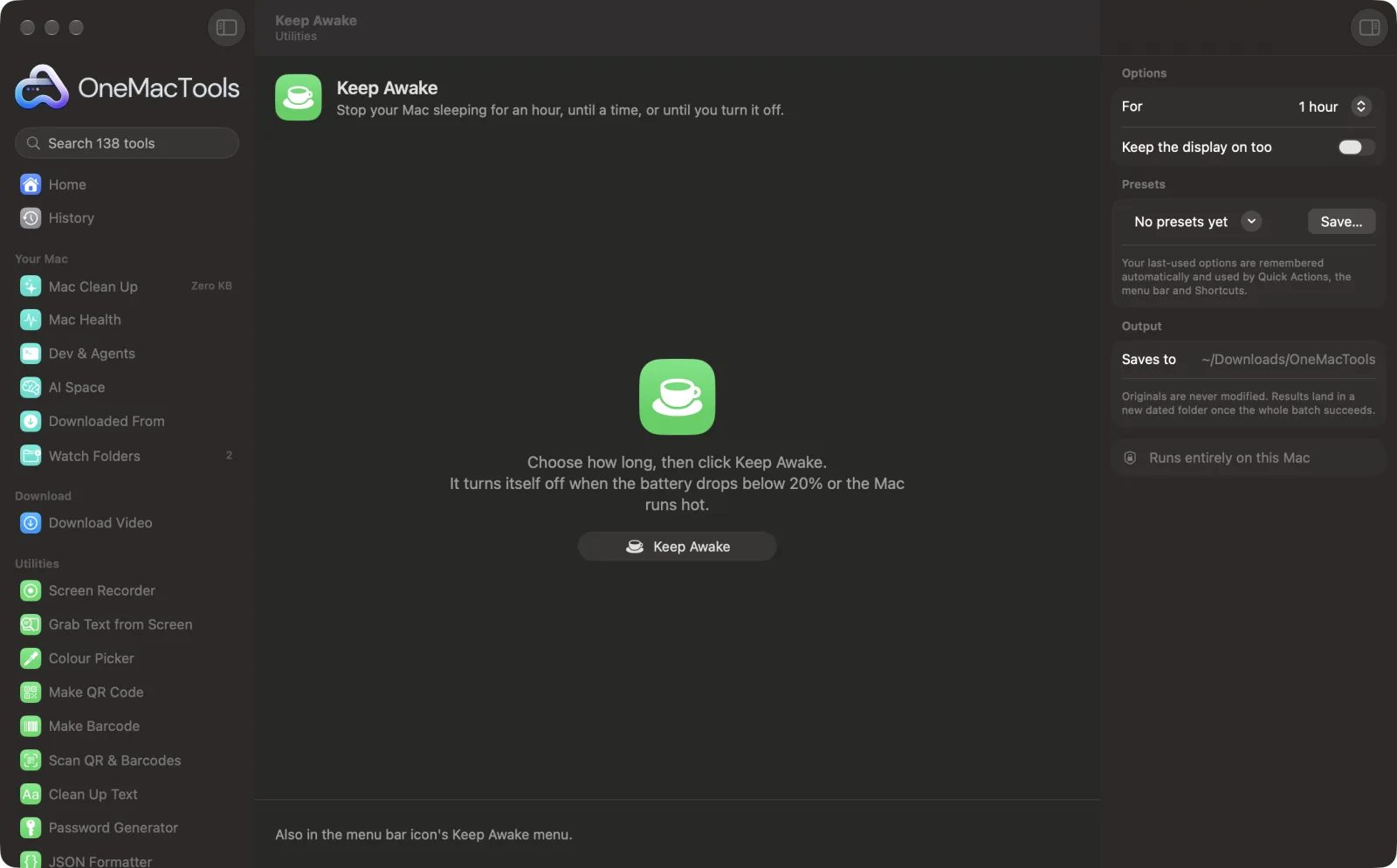
Keep Awake on a Mac
Screenshots from the app, using sample files.
How to use Keep Awake
- 1
Choose how long
Pick 1, 2 or 4 hours, Until a time (type something like 17:30 or 5:30 pm), or Until I turn it off.
- 2
Choose about the display
Turn on Keep the display on too if you're presenting or watching; otherwise the screen can still dim and sleep while the Mac stays awake.
- 3
Click Keep Awake
The time left appears next to the OneMacTools menu bar icon, with a cup.
- 4
Turn it off when you're done
Choose Turn off here, or Keep Awake › Turn Off in the menu bar. It also ends by itself at the time you chose.
What Keep Awake does
Choose how long — an hour, two, four, until a time or until you turn it off — and your Mac stays awake, with the display on too if you like. It turns itself off when the battery drops below 20% or the Mac runs hot, and the time left shows next to the menu bar icon.
Great for
- Keep a long download or render going
- Stop the screen sleeping during a presentation
- Keep a remote session or build running over lunch
Options explained
- For
- 1 hour, 2 hours, 4 hours, Until a time, Until I turn it off, or Turn off. A time that has already passed today means that time tomorrow.
- Keep the display on too
- Stops the screen dimming and sleeping as well. Leave it off to save power when only the Mac needs to keep working, such as during a download.
Best practices
- Start it from the menu bar icon's Keep Awake menu for a quick hour or two without opening the window.
- Leave the display setting off for downloads and builds: the Mac keeps working with the screen asleep, which saves battery.
- It turns itself off below 20% battery so it never drains your Mac flat, and tells you when it does.
- Use the Keep Mac Awake action in Shortcuts to keep the Mac awake as part of an automation, for example while a long export runs.
- Mac Health's Awake & Heat tab shows anything else that's keeping your Mac awake.
Works with
- In
- Nothing: just choose how long.
- Out
- Your Mac stays awake; the time left shows in the menu bar.
- Uses macOS's own power assertions, the same way apps keep the Mac awake during a video call.
- Keeping the Mac awake with the lid closed needs admin rights and isn't included.
Questions about Keep Awake
How do I stop my Mac going to sleep?
Open Keep Awake, choose how long and click Keep Awake. Your Mac stays awake for that time, then sleeps as usual.
Can I keep my Mac awake until a certain time?
Yes. Choose Until a time and type the time, such as 17:30 or 5:30 pm. If that time has passed today, it means tomorrow.
Does it keep the screen on too?
Only if you turn on Keep the display on too. Otherwise the screen can sleep while the Mac keeps working.
Will it drain my battery?
It turns itself off when the battery drops below 20% and tells you, and it also turns off if the Mac runs hot.
How do I turn Keep Awake off?
Choose Turn off in the tool, or Keep Awake › Turn Off in the OneMacTools menu bar menu. The cup next to the icon disappears.
Does it work with the lid closed?
No. Keeping a MacBook awake with the lid shut needs admin rights, so it isn't included; keep the lid open or use an external display.
Does Keep Awake upload my files?
No. Keep Awake runs entirely on your Mac, so your files never leave it and it works offline.
Will Keep Awake change my original files?
No. Results are saved as new files in a dated folder in Downloads › OneMacTools, and your originals are left exactly as they were unless you turn on an option that says otherwise.
What does Keep Awake need?
Just a Mac with macOS 26 or later. There's nothing else to install.
Do this next
Measure download, upload and responsiveness with macOS's own test, remembered per Wi-Fi network.
Screen RecorderRecord a window, an app or the whole screen, with sound, as MP4 or GIF.
Clean KeyboardLock the keyboard (and trackpad) so you can wipe it clean. Esc five times unlocks.
Related Utilities tools
Drag over anything on screen — a video, a photo, a locked PDF — and copy the text in it.
Colour PickerPick any pixel on screen and copy its colour as HEX, RGB, HSL or code.
Make QR CodeTurn a link, some text or Wi-Fi details into a crisp QR code.
Make BarcodeMake Code 128, EAN-13, UPC-A, PDF417 and Aztec barcodes for labels, products and tickets.
Scan QR & BarcodesRead QR codes and barcodes from photos, screenshots and PDFs.
Clean Up TextChange case, fix spaces and line breaks, sort or de-duplicate lines, and count words.

Keep Awake, plus 137 more.
One app. One price.
All 138 tools. Free download, one payment for a licence. 14-day money-back guarantee.