
Manage dev servers, ports, Docker and build folders on your Mac
Dev & Agents in OneMacTools lets you manage dev servers and ports on your Mac from one screen. It lists every server you've started by project, with its ports, memory, CPU and connections, flags ones that have sat idle, and stops them with a click. It also shows Docker, Colima and OrbStack containers and space, and finds old build folders like node_modules to clear.
On this page
What the Dev & Agents screen shows
Open Dev & Agents under Your Mac in the sidebar, or choose Go › Dev & Agents. The subtitle says how it behaves: Your processes only · nothing stops without asking. It looks only at processes running as you, never other users' or macOS's own.
Four tiles across the top count Agent sessions, Dev servers, Idle servers and Memory in use (agents and servers together, without counting a server twice when an agent started it). Below are four tabs:
| Tab | What it's for |
|---|---|
| Agents | AI coding agents and everything they started. See Monitor AI coding agents. |
| Dev Servers | Servers and databases listening on ports, grouped by project. |
| Docker | Containers, images and build caches from Docker Desktop, Colima or OrbStack. |
| Project Files | Build and download folders inside your projects, such as node_modules. |
The list refreshes every three seconds while the screen is open, and stops when you leave it. The Refresh button in the toolbar reads everything again now. This page covers the last three tabs.
How dev servers are found and grouped by project
A dev server is one of your processes listening on a TCP port that is either a known runtime, or runs inside a project folder and isn't part of an app. The runtimes it knows include node, bun, deno, python, ruby, java, php, dotnet, go, vite, esbuild, uvicorn, gunicorn, puma, rails, hugo, caddy, nginx, httpd, streamlit, Jupyter and ollama, plus the databases postgres, redis-server, mysqld and mongod.
Each server is put under the project it runs in: the nearest folder inside your home folder with a project file such as package.json, .git, pyproject.toml, requirements.txt, Cargo.toml, go.mod, Gemfile, composer.json, pom.xml, build.gradle, Package.swift, deno.json, pubspec.yaml, mix.exs or Podfile. A Homebrew Postgres runs outside any project, so it sits under Not in a project.
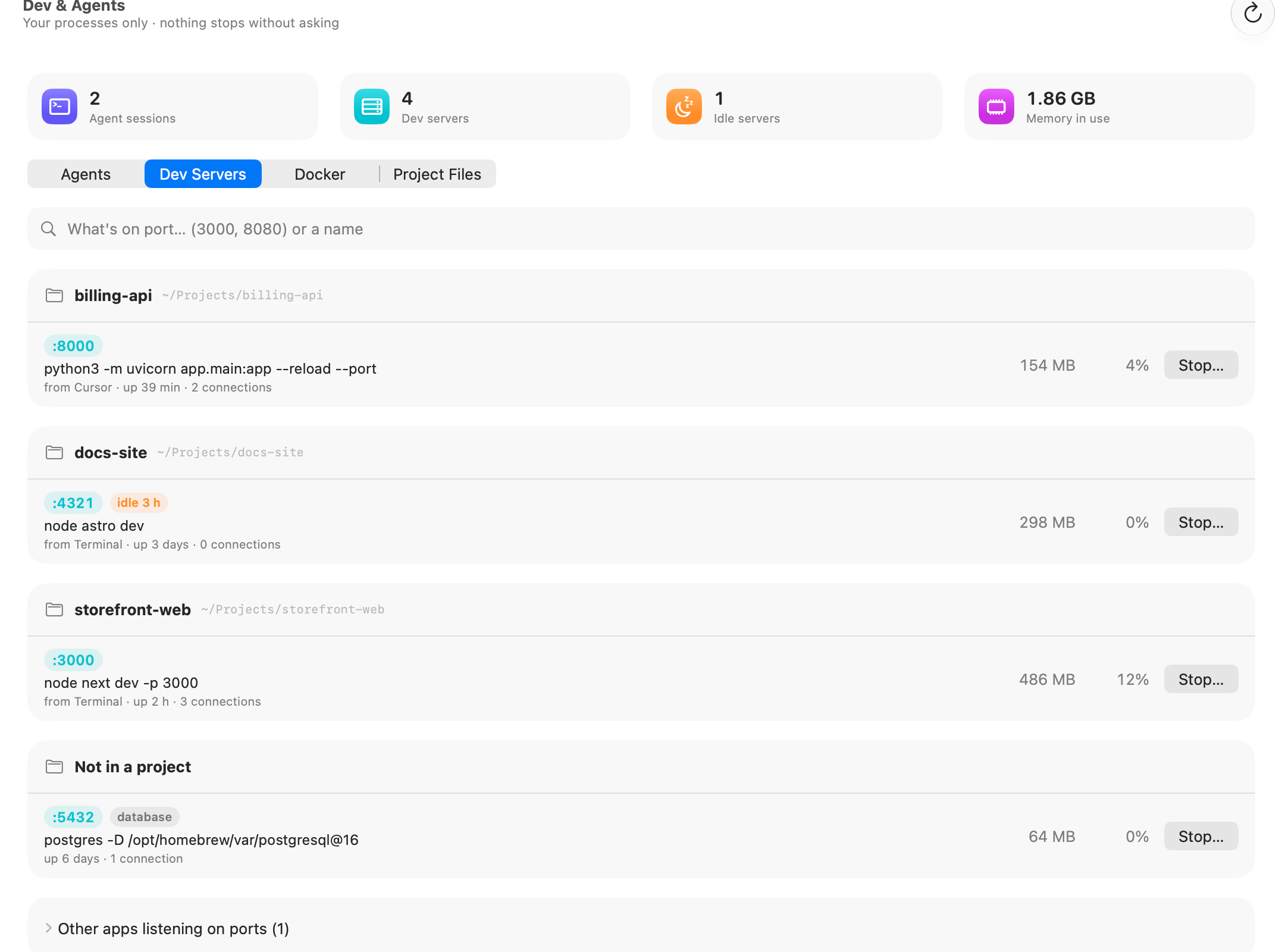
Reading a server row
- Port chips such as :3000. Click one to open
http://localhost:3000in your browser. - database marks Postgres, Redis, MySQL and MongoDB.
- open to your network (orange) means it listens on every interface, so other devices on your Wi-Fi can reach it, not just this Mac.
- idle 3 h (orange) means no CPU and no connections for that long (see below).
- The command, such as
node next dev -p 3000, then from Terminal or from Cursor (the app that started it), how long it's been up, and how many connections are open. - Memory and CPU on the right, then Stop….
How to find what's using a port on Mac
Type into the search field at the top of Dev Servers: What's on port… (3000, 8080) or a name. A number matches ports that start with it (80 finds 8000 and 8080); a word matches the command (astro, uvicorn). The general background, and the Terminal way with lsof, is in the guide What's using a port on my Mac?.
Ports held by apps and macOS services rather than dev tools are collected under Other apps listening on ports (N) at the bottom. Expand it to see each app and its ports. AirPlay Receiver, for example, listens on 5000 and 7000, which is why a Flask app on port 5000 sometimes won't start. You can't stop those from here; quit the app (or turn off AirPlay Receiver in System Settings) to free the port.
Idle servers, and stopping a server safely
A server counts as idle when it has used next to no CPU and had no open connections for at least 15 minutes while OneMacTools was watching. The Idle servers tile counts them, and each gets an idle chip with how long. The Astro docs site you started three days ago and forgot about is the typical case.
Stop a server
- Click Stop… on the row.
- Read the confirmation, for example Stop node on port 4321? with Frees 298 MB and the port. Start it again from your project when you need it.
- Click Stop. A green line confirms how many processes stopped, and the list updates a second later.
Stopping asks the process to quit, the same polite signal Ctrl-C sends, so the server can close cleanly. OneMacTools only ever stops your own processes, and it double-checks that the process ID still belongs to the same program it listed, so a recycled process ID is never hit by mistake.
Runaway process alerts
Even when this screen is closed, OneMacTools checks your dev processes every 30 seconds and sends a notification, with a Stop button, when one uses a full core for 10 minutes, grows by a gigabyte in an hour, or sits idle on a port for a day. Compilers like rustc, clang, tsc and webpack are expected to be busy and are left alone. In Settings › Runaway Processes you can turn this off, or let OneMacTools stop things itself: Stop a process stuck at full CPU (after 15 minutes, 30 minutes or 1 hour) and Stop a dev server nobody uses (after 1, 3 or 7 days). Both default to Never. See the settings reference.
Docker, Colima and OrbStack
The Docker tab works with Docker Desktop, Colima and OrbStack. What you see depends on the state:
- Docker isn't installed: none of the three is on this Mac.
- Docker isn't running: shows how much disk its virtual machine still takes while stopped. Open Docker Desktop or Start Colima starts it (Colima runs
colima start, which can take a minute). For Colima there's also Copy “colima delete”, to paste into Terminal if you no longer use it and want the space back. - Running: Space Docker uses and Containers.
Space Docker uses
One row each for images, containers, local volumes and build cache, with the count, the size and how much can be freed. Clean Up… explains what it does before running:
| Row | What Clean Up removes |
|---|---|
| Images | Images no container uses. They're downloaded or built again when needed. |
| Containers | Stopped containers. Anything they stored outside a volume is lost. |
| Build Cache | Docker's build cache. The next build takes longer. |
| Local Volumes | Volumes no container uses. Their data, such as databases and uploads, is deleted for good. |
Containers lists each with its image, status, ports, memory and CPU, and the Compose project when there is one. Running containers have Stop… (data stays); stopped ones have Start and Remove… (volumes are kept). If OrbStack is installed, OrbStack machines lists its Linux machines with Start and Stop….
Clear old node_modules and build folders
Every JavaScript project carries a node_modules that can run to hundreds of megabytes, and Rust, Python and Flutter projects have their own equivalents. Project Files walks your home folder (six levels deep, skipping Library, Applications, media folders and tools' own hidden folders) and lists build folders project by project, biggest first.
A folder is only listed when the file that recreates it sits beside it, so a folder that merely happens to be called build or target is never touched:
| Folder | Needs beside it | What it is |
|---|---|---|
node_modules | package.json | Downloaded packages; npm install (or yarn, pnpm, bun) brings them back |
.next, .nuxt, .svelte-kit, .turbo, .parcel-cache, .open-next | package.json | Framework build output and caches |
.angular | angular.json or package.json | Angular build cache |
.wrangler | wrangler.toml, wrangler.jsonc or package.json | Wrangler's local state and cache |
target | Cargo.toml | Rust build output |
.venv, venv | pyproject.toml, requirements.txt and similar | Python virtual environment |
Pods | Podfile | CocoaPods dependencies |
.build | Package.swift | Swift Package Manager build output |
.dart_tool, build, .gradle | pubspec.yaml or Gradle files | Dart, Flutter and Gradle output and caches |
Each project shows when you last changed it, from your own files and Git activity. Projects untouched for 30 days are ticked for you, and their dates turn orange. Click the magnifying glass to see a folder in Finder.
- Untick anything you're about to work on.
- Click Move N to Trash… and confirm. The dialog shows how much space it frees.
- Your package manager or build brings the folders back the next time you work on the project. Until you empty the Trash, you can put them back from History.
The guide Delete node_modules on Mac explains the general approach; Project Files is the point-and-click version. For space across the whole Mac, see Mac Clean Up.
Use it from your AI assistant
The same readings are available to Claude, Cursor, Codex and other assistants through the OneMacTools MCP server: what's on a port, the dev servers by project, Docker status and old project files. An assistant can ask “what's using port 3000?” mid-task and get the same answer you'd see here. Stopping anything still needs your approval (how approvals work).
Questions
How do I kill a process on a port on Mac without Terminal?
Open Dev & Agents, choose Dev Servers, type the port number into the search field, and click Stop… on the row. OneMacTools asks the server to quit cleanly and frees the port. Ports held by apps are listed under Other apps listening on ports; quit the app to free those.
Why is port 5000 already in use on my Mac?
macOS's AirPlay Receiver listens on ports 5000 and 7000. Dev & Agents lists it under Other apps listening on ports. Turn off AirPlay Receiver in System Settings › General › AirDrop & Handoff, or run your app on another port.
What does “open to your network” mean on a dev server?
The server listens on every network interface rather than only on this Mac, so phones and computers on the same Wi-Fi can reach it. That's handy for testing on a phone, but on public Wi-Fi you may prefer to bind it to localhost.
Will OneMacTools stop my servers on its own?
Not unless you ask it to. By default it only notifies you about runaway or idle processes. In Settings › Runaway Processes you can choose to stop a process stuck at full CPU after 15, 30 or 60 minutes, or an unused dev server after 1, 3 or 7 days.
Is it safe to delete node_modules?
Yes, as long as package.json is beside it, which Project Files checks. Running npm install (or yarn, pnpm or bun) brings it back. OneMacTools moves the folders to the Trash, and you can put them back from History until you empty it.
Does Dev & Agents work with Colima and OrbStack?
Yes. The Docker tab reads Docker Desktop, Colima or OrbStack, can start Colima or open Docker Desktop, and lists OrbStack's Linux machines with Start and Stop.
