
Ask (⌘K): natural language file search and commands on Mac
Ask is OneMacTools' natural language file search for Mac. Press ⌘K and type what you want in plain words — “compress last week's screen recordings to 25 MB” or “wifi password”. Ask reads your request as filters (kind of file, date, where it came from, size), finds the files, including words inside screenshots and PDFs, and opens the right tool with the files loaded. It also answers questions about your Mac and your papers.
On this page
- How to open Ask
- Type what you want: how Ask reads your request
- Run a tool from Ask with the files ready
- Finding words inside screenshots and PDFs
- Results: filtering, sorting and previewing
- Ask about your Mac: battery, slowdowns and storage
- Ask about your papers with Life Admin
- Ask compared with Spotlight
- Tools mentioned on this page
- Questions
How to open Ask
- Press ⌘K in OneMacTools, or choose Go › Ask… from the menu bar.
- Click the OneMacTools menu bar icon and choose Ask OneMacTools… — this brings the window forward and opens Ask from any app.
- Click one of the source chips on Home, which opens Ask with a search already typed.
Ask opens as a panel over the main window. Start typing straight away; esc closes it. When the field is empty, Ask lists example requests under Try — click one to see how it works. The note at the bottom says it plainly: Ask finds words in file names, tags and the text inside documents and images, and everything runs on your Mac.
Type what you want: how Ask reads your request
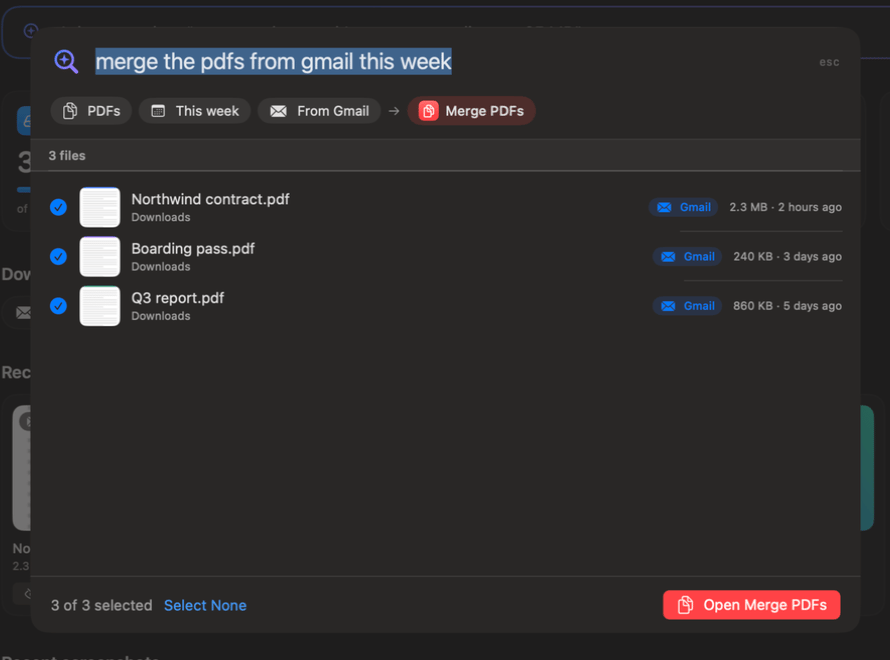
As you type, Ask turns your words into chips under the field, so you can see exactly what it understood. A request like “merge the pdfs from gmail this week” becomes PDFs, This week and From Gmail, then an arrow to a Merge PDFs chip for the action.
| Chip | What you can type | Examples |
|---|---|---|
| Kind of file | pdfs, videos, photos, images, screenshots, screen recordings, audio, documents, spreadsheets, presentations, zips, installers (dmg, pkg) | “screenshots”, “keynotes”, “mp4” |
| Time | today, yesterday, this week, last week, this month, last month, this year, recent, last 3 days, past 2 weeks | “videos from yesterday” |
| From | A source such as Gmail, WhatsApp, Slack, Telegram, Discord, Canva, ChatGPT, Claude, AirDrop, Google Drive, Dropbox, or “from example.com” | “invoices from slack last month” |
| Over a size | bigger than 500 mb, over 2 gb; “big” or “huge” means over 100 MB | “videos bigger than 500 mb” |
| In a place | in Downloads, on the Desktop, in my Documents folder | “pdfs on my desktop” |
| Matching words | Any other words, matched against names, Finder tags and the text inside files | “wifi password”, “lease” |
“From” uses the download record macOS keeps with each file, the same information Downloaded From uses to sort your Downloads. Words that are also everyday words — “mail”, “box”, “x”, “zoom” — only count as a source after “from” or “via”, so “from x” means X but “box of photos” doesn't.
If Ask can't make sense of a request and Apple Intelligence is available, it offers Ask Apple Intelligence to understand it, which rewrites what you typed into a request Ask understands. Otherwise it suggests naming a kind of file, a time or a source.
Run a tool from Ask with the files ready
When your request includes a verb, Ask adds an action chip and a button at the bottom right, such as Merge PDFs · 3 files. Press ↩ or click it, and the tool opens with the found files loaded and any options from your request already set. Nothing runs until you press the tool's own start button, so you can check the files and options first.
Ask picks the tool from the verb and the kind of file:
| You type | Ask opens |
|---|---|
| compress / shrink / make smaller | Compress Video, Compress Images or Compress PDF, depending on the files |
| … to 25 MB (or 8, 10, 16, 50, 100 MB) | Compress to Size with the matching preset; other sizes become a custom target |
| merge / combine / join | Merge PDFs, Merge Videos or Merge Audio |
| convert to jpeg / png / heic / mp4 / mp3 / pdf / webp / word | The matching converter with the format set |
| make searchable, copy text, ocr | Make PDF Searchable or Extract Text |
| redact, sign, split, password-protect, summarise, translate to French | The matching PDF or on-device AI tool |
| transcribe, add subtitles, make a gif, extract audio | The matching audio or video tool |
| rename, batch rename, zip, unzip, tidy, duplicates, encrypt | The matching file tool |
| remove background, resize, beautify, blur faces, remove metadata | The matching image tool |
With an action, Ask ticks the first 50 files it finds; with a plain search, nothing is ticked until you choose. Files the tool can't take are left out of the count. If you type only a tool's name — “merge pdf”, “qr code” — Ask lists matching tools under Tools like a command palette, and ↩ opens the first.
Without an action, selecting files shows a suggestion button with the most likely tool for them, plus Open With… and Show in Finder. With exactly one file selected and nothing else to do, ↩ shows it in Finder.
Finding words inside screenshots and PDFs
Ask searches the text macOS's Spotlight index has for each file, which includes the words in documents and in images. Search “wifi password” and you can find the screenshot you took of a router label and the PDF handbook that mentions it.
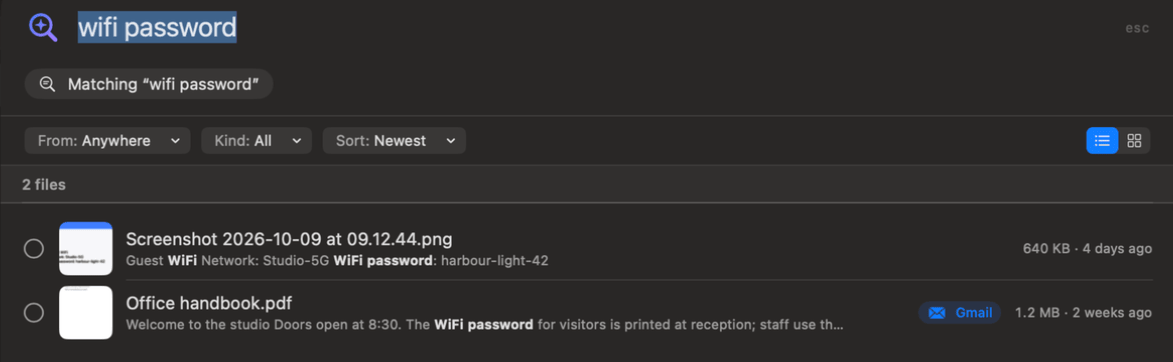
When the words aren't in the file name, Ask reads the file on your Mac (the first ten pages of long documents) and shows a short excerpt under the name with the matching words in bold, so you know why it matched.
Copy the text out of files
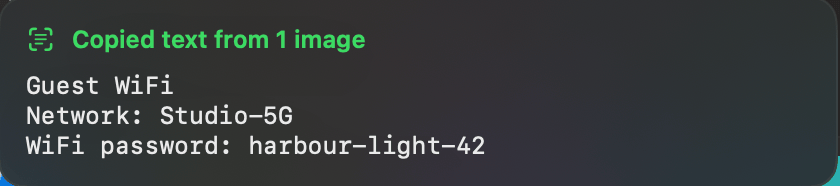
Select results and click Copy Text (or press ⇧⌘C) to put all their text on the clipboard. Images and scanned PDFs are read with Apple's on-device text recognition. The footer then says, for example, Copied text from 2 files. Right-click any result for Quick Look, Open, Show in Finder and Copy Text.
Outside Ask, ⇧⌘C (Go › Copy Text from Latest Screenshot) copies the words from your newest screenshot without opening anything.
Files stored only in iCloud show a cloud icon and aren't read, because reading them would download them.
Results: filtering, sorting and previewing
Results are newest first. Above them, a bar works like a Finder window's toolbar:
- From: narrows to one source, with a count for each (Gmail, WhatsApp…), or Anywhere.
- Kind: narrows to PDFs, Images, Videos, Audio, Documents, or Archives & installers.
- Sort: Newest, Oldest, Largest, Smallest or Name.
- Clear Filters appears when a filter is on, and the list/grid switch on the right shows thumbnails instead of rows.
Click a row to tick or untick it; double-click, or click its thumbnail, to preview it in Quick Look. The footer shows how many are selected, with Select All and Select None. Ask shows up to 200 files; if there are more, the count reads 200+ files and you should narrow the request.
Ask searches your home folder (leaving out the Library and hidden folders) unless you name a place. With Files turned on, it also includes files that live only in your clouds, such as Google Drive or OneDrive.
Ask about your Mac: battery, slowdowns and storage
Questions about the Mac itself are answered from Mac Health's history instead of searching files. Ask recognises questions about battery drain, what slowed the Mac down, memory, disk activity, network use, power, heat and fans, the GPU, how healthy your SSD is, when your disk will be full, and how much of your Codex or Claude usage limit is left. “What is mdworker?” explains a process.
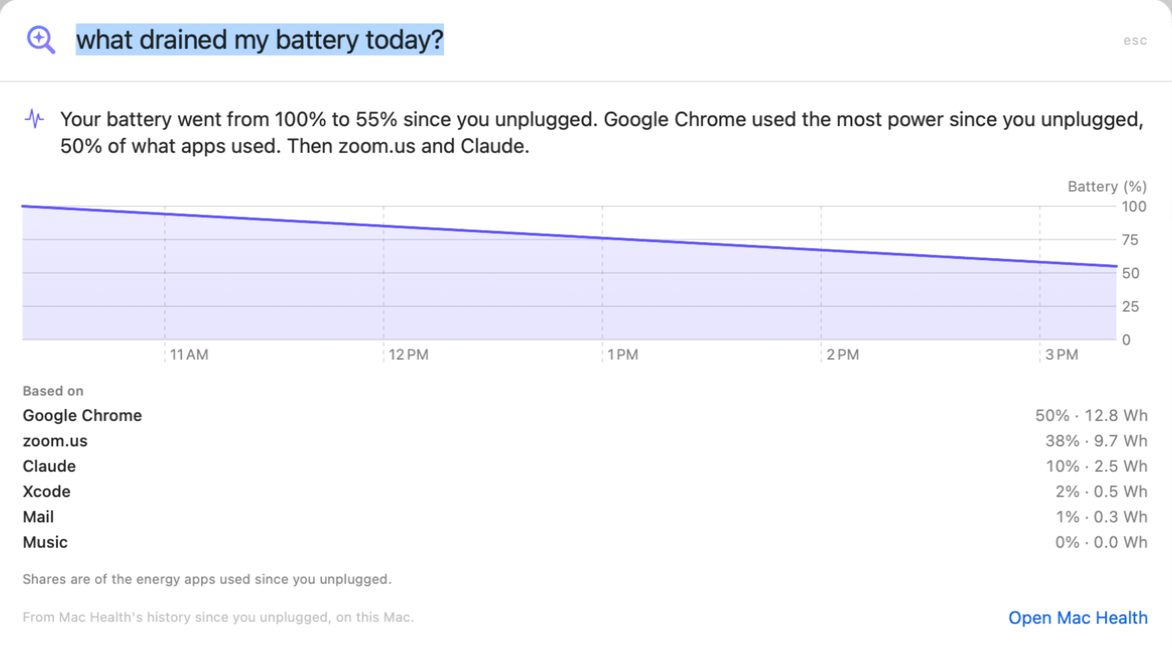
You get a sentence answer, a chart of the period and a Based on list of the figures behind it, with Open Mac Health to dig further. Time words narrow the period: “right now”, “this morning”, “this afternoon”, “this evening”, “today”, “yesterday”, “this week”, “last week”, “this month”, “last 3 hours”. A battery question with no time, while you're on battery, covers the time since you unplugged.
When Apple Intelligence is on, it phrases the answer in plain words, but the numbers always come from your Mac's own history. History is recorded only while OneMacTools is running; turn on Open OneMacTools at login in Settings › History so it has something to answer from. For battery questions in detail, see the battery health monitor.
Ask about your papers with Life Admin
If Files is on and has read your documents, Ask answers questions about your paperwork:
- Expiry: “when does my passport expire?”, “when do I need to renew my car insurance?”
- Warranties: “is the dishwasher still under warranty?”
- Spending: “how much did I spend at Amazon this year?”, “what did I pay Uber last month?”
- Backups: “which papers aren't backed up?”, “what's only on this Mac?”
- Tax: “tax papers for 2025”, “documents for my accountant”
- Sensitive files: “which files have my passport number?”
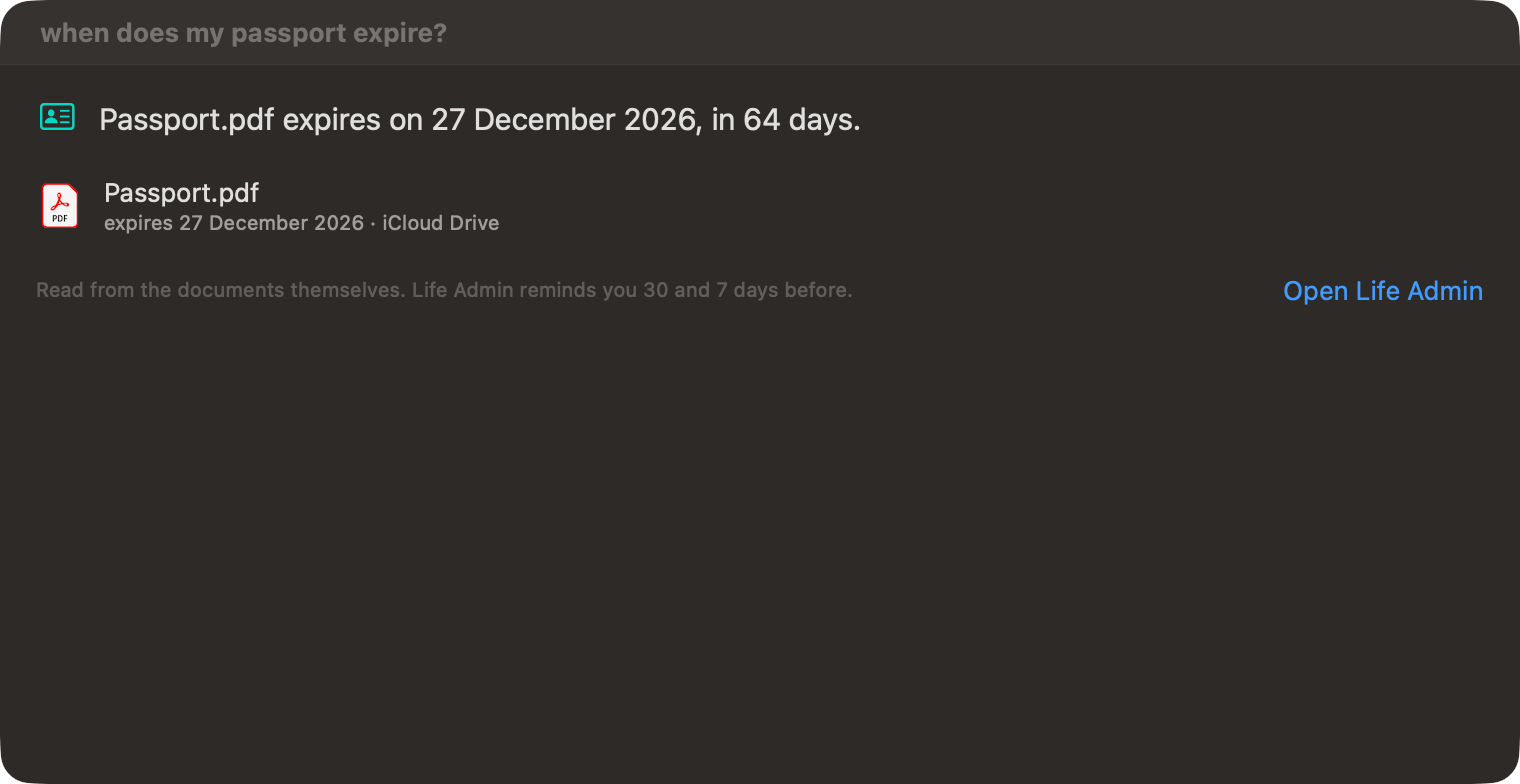
The answer comes first, then the files behind it — double-click one to open it — and Open Life Admin for the full list. Ask never shows the ID numbers themselves. If Files is off, Ask says so and offers Open Files to turn it on. More in Life Admin and tax documents.
Ask compared with Spotlight
Spotlight (⌘Space) is great for opening an app or a file you know the name of. Ask builds on the same index but understands requests Spotlight doesn't: where a file was downloaded from, “last week”, “bigger than 500 MB”, and a verb that turns the results into a job. It also shows why each file matched, lets you copy text out of many files at once, and can answer questions about your Mac's history.
For a fast search from any app without opening OneMacTools, use Quick Search (⌃⌥⌘F). For every shortcut in the app, see keyboard shortcuts.
Tools mentioned on this page
Questions
How do I search for files on Mac using plain English?
In OneMacTools, press ⌘K and type something like “pdfs from gmail last week” or “videos bigger than 500 mb”. Ask turns it into filters you can see as chips and lists the matching files, newest first.
Can I search for text inside screenshots on Mac?
Yes. Ask searches the words macOS has indexed inside images and documents, so typing “wifi password” can find a screenshot of a router label. It shows the matching words in bold under each file.
Does Ask need Apple Intelligence?
No. Ask understands requests with its own rules, instantly and on your Mac. Apple Intelligence is only used, when available, to rephrase a request Ask didn't understand and to word answers about your Mac.
Does Ask run the tool straight away?
No. It opens the tool with the files loaded and the options from your request set, such as a 25 MB target. You check them and press the tool's start button yourself.
Why does Ask find nothing for a file I know exists?
Ask relies on Spotlight's index for files on your Mac, so check the folder isn't excluded in System Settings › Spotlight. Files inside your Library folder or hidden folders are left out, and cloud-only files appear only when Files is turned on.
Can Ask tell me what's draining my battery?
Yes. Ask “what drained my battery today?” and it answers from Mac Health's history: how far the battery dropped and which apps used the most energy, with a chart. It needs OneMacTools to have been running to have that history.
