
Watch Folders: automatically process new files on Mac
Watch Folders is OneMacTools' Mac automation for new files. Pick a folder, optionally narrow it to a kind of file, a name or where the file was downloaded from, and choose what happens: run any tool, move the file to another folder, add a Finder tag, or move it to the Trash. Every new file that lands there is handled automatically, in the background, and recorded in History.
On this page
- What Watch Folders does
- How to create a watch folder rule
- Conditions: which files a rule takes
- Actions: run a tool, move, tag or trash
- Managing rules: pause, apply to existing files, remove
- History and Put Back: undoing a rule
- How watching works, and its limits
- Watch Folders vs macOS Folder Actions and Shortcuts
- Tools mentioned on this page
- Questions
What Watch Folders does
A watch folder is a rule: this folder → do this. OneMacTools keeps an eye on the folder, and when a new file arrives that matches the rule, it acts on it. Typical rules:
- Desktop → Compress Images, only screenshots: every screenshot you take is compressed into your OneMacTools folder.
- Downloads → Move to “Invoices”, only PDFs with “invoice” in the name: invoices file themselves.
- Downloads → Move to the Trash, only installers (.dmg, .pkg): disk images don't pile up after you've installed an app.
- Downloads → Convert Images, only files from WhatsApp: HEIC photos people send you arrive as JPEGs.
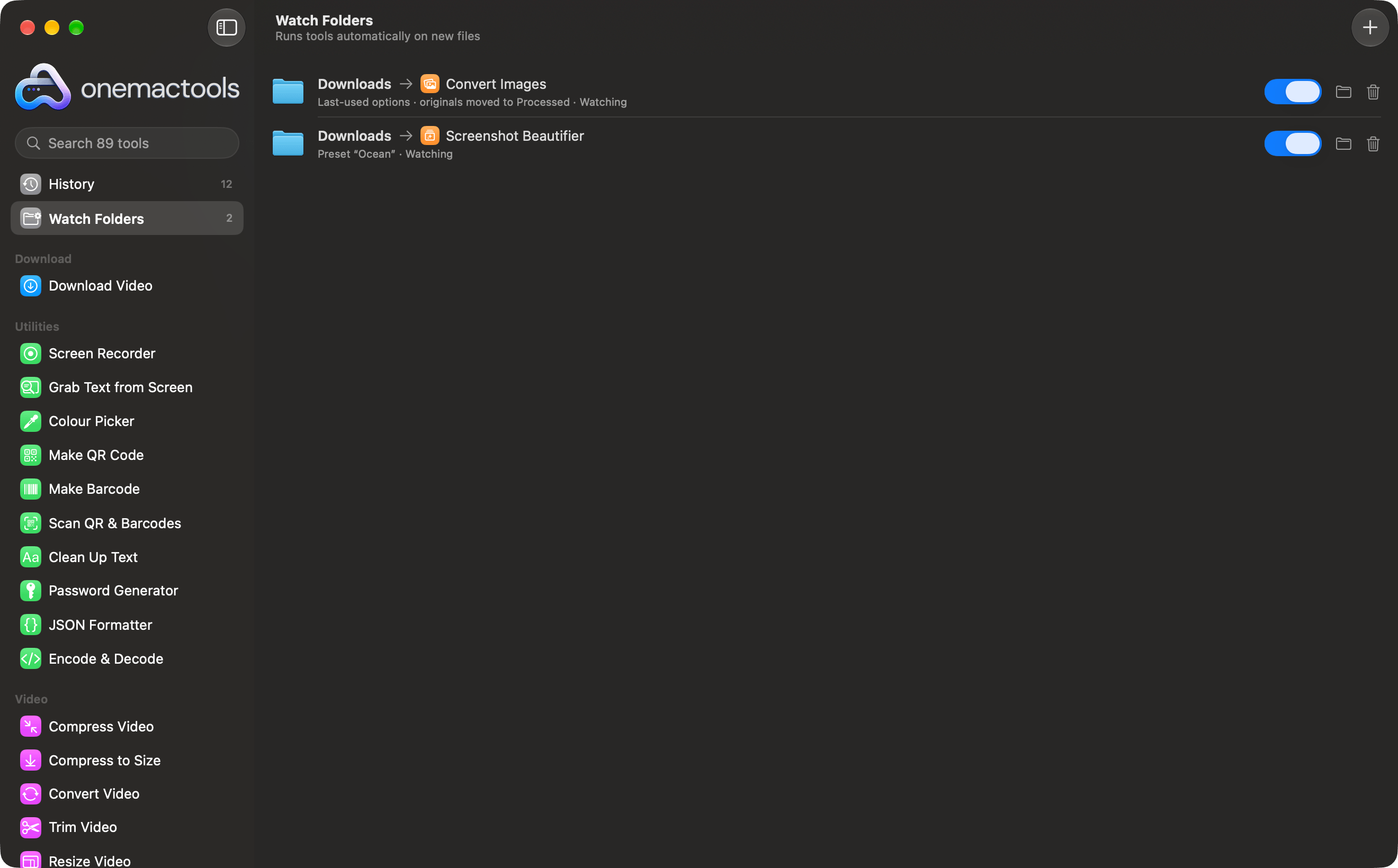
Open it from the sidebar: Watch Folders is at the bottom of the Your Mac section, with a badge showing how many rules are switched on. The screen's subtitle sums it up: Runs tools automatically on new files.
How to create a watch folder rule
- Click Add Watch Folder… (or the + button in the toolbar).
- Next to Folder, click Choose… and pick the folder to watch, such as Downloads or Desktop.
- Optionally narrow which files count, using Only, Name contains and Only files from (explained below).
- Under Do, choose Run a tool, Move to a folder, Add a Finder tag or Move to the Trash, and fill in what that action needs.
- Click Start Watching. The rule appears in the list with the status Watching.
You can also start a rule from Home or Downloaded From: their Automate… buttons open the same sheet with your Downloads folder and that source (say, WhatsApp) already filled in.
Conditions: which files a rule takes
A rule with no conditions takes every new file in the folder. Add conditions to narrow it; a file must meet all of them.
| Setting | Choices | Notes |
|---|---|---|
| Only | Any kind of file, Images, Screenshots, Videos, Audio, PDFs, Documents, Archives, Installers (.dmg, .pkg) | Documents covers PDFs, text, Word, Pages, Keynote, Numbers, Excel and PowerPoint files; Screenshots are images macOS marked as screen captures |
| Name contains | Any text, or blank for Any name | Not case-sensitive: “invoice” matches “Invoice-0043.pdf” |
| Only files from | Anywhere, or a source such as Gmail, Outlook, WhatsApp, Telegram, Slack, Discord, Microsoft Teams, Zoom, ChatGPT, Claude, Canva, Figma, Notion, X, Google Drive, Dropbox, iCloud, WeTransfer, GitHub, AirDrop, Extensions | Uses the download record macOS keeps with each file, so it works for downloads, not files you copied in yourself |
Under the rule's name, the list shows its conditions in a sentence, such as Only PDFs · names containing “invoice” · from WhatsApp.
Actions: run a tool, move, tag or trash
Run a tool
Run lists every tool that works on files, grouped by category — compress, convert, resize, OCR, rename and more. Tools that need you at the controls, such as recorders, or that ask for a password aren't offered. With chooses the options: Last-used options (whatever you last used for that tool in the app) or a Preset you've saved in the tool's Presets section. Use a preset when the rule should stay the same even if you use the tool differently by hand.
Turn on Move originals into a “Processed” folder afterwards to tidy up: once a batch succeeds, the originals move into a Processed sub-folder of the watched folder. Results go to your OneMacTools folder (by default Downloads › OneMacTools), in a new dated folder per run, and each run appears in History with a Watch Folder badge and sends a notification.
Tools that need several files — Merge PDFs needs at least two — wait until enough matching files have arrived. The status shows, for example, Waiting for 2 files.
Move to a folder
Choose a destination with Choose… next to To. Files are moved, not copied; if a file with the same name is already there, the new one gets a unique name rather than replacing it.
Add a Finder tag
Type a tag such as Receipts. The tag is added to each new file (files that already have it are skipped), so they show up under that tag in Finder's sidebar.
Move to the Trash
Moves matching files to the Trash. Because this would otherwise catch everything, a trash rule needs at least one condition — a kind, a name or a source — and the sheet warns you until you add one. Files go to the Trash, not straight to deletion, and you can put them back (see below).
Managing rules: pause, apply to existing files, remove
Each rule in the list has four controls on the right:
| Control | What it does |
|---|---|
| Apply to What's There… | Runs the rule once on the files already in the folder. It first asks, for example, Compress Images: 12 files already in Desktop?; trash rules show Move 12 to the Trash in red. If nothing matches, it says so. |
| Switch | Pauses or resumes the rule. A paused rule shows Paused and ignores new files; when you switch it back on, files that arrived while it was off are treated as already there. |
| Folder button | Opens the watched folder in Finder. |
| Trash button | Stop watching and remove — deletes the rule. Your files and results aren't touched. |
Rules can't be edited after you save them. To change one, add a new rule with the settings you want and remove the old one.
The status at the end of each rule's line tells you what it last did: Watching, Processing 3 files…, Processed 3 files at 14:03, Move to “Invoices”: 1 file at 09:12, or Last run failed at 14:03 — see History. Folder not found means the folder was renamed, moved or is on a drive that isn't connected.
History and Put Back: undoing a rule
Every run is listed in History. Tool runs appear under the tool's name with a Watch Folder badge and link to their results. Moves and trashing appear as Watch Folders entries, such as Move to “Invoices”: 2 files from Downloads, with a Put Back button that returns every file to where it was.
That makes it safe to try a rule: if a trash rule catches something you wanted, open History and click Put Back. Tags aren't recorded there; remove a tag in Finder if you need to.
How watching works, and its limits
- New files only, top level only. A rule looks at files directly inside the folder. Sub-folders — including Processed and anything inside them — are ignored, as are hidden files.
- It waits for downloads to finish. Unfinished downloads (.download, .crdownload, .part, .partial, .tmp, .icloud) are skipped, and a file is only taken once its size has stopped changing, so a 2 GB video still copying in won't be processed half-written.
- OneMacTools must be running. Rules run inside the app, which keeps watching with the window closed. They don't run while the app is quit. Turn on Open OneMacTools at login in Settings › History so rules start again after a restart; files that arrived while the app was quit count as already there, so use Apply to What's There… to catch up.
- Activation. Like every OneMacTools tool, rules only run once your licence is activated.
- Notifications. Tool runs notify you when they finish, unless Notify me when background jobs finish is off in Settings.
Watching uses macOS's own folder change events rather than checking the folder over and over, so an idle rule costs nothing noticeable.
Watch Folders vs macOS Folder Actions and Shortcuts
macOS has two built-in ways to react to new files. Folder Actions attach an AppleScript or Automator workflow to a folder; they're powerful but need you to write or build the workflow, and there's no list of what ran. The Shortcuts app can also run a shortcut when files are added to a folder.
Watch Folders needs no scripting: pick a folder, a condition and an action from menus. It understands where a file was downloaded from, waits for downloads to finish, runs any OneMacTools tool with your options or a preset, and records everything in History with Put Back. If you need a chain of steps across several apps, build a shortcut that calls OneMacTools' Run OneMacTools Tool action — see Apple Shortcuts and Siri. For one-off jobs on files you choose, Finder Quick Actions are quicker.
Tools mentioned on this page
Questions
How do I automatically process new files in a folder on Mac?
In OneMacTools, open Watch Folders, click Add Watch Folder…, choose the folder and pick an action such as Run a tool or Move to a folder, then click Start Watching. Every new file that lands there is handled in the background.
How do I automatically compress screenshots on Mac?
Add a watch folder for the folder your screenshots save to (usually Desktop), set Only to Screenshots, choose Run a tool › Compress Images, and start watching. Compressed copies go to your OneMacTools folder; the originals stay put unless you turn on moving them to Processed.
Can Watch Folders delete old .dmg installers automatically?
Yes. Watch Downloads, set Only to Installers (.dmg, .pkg) and choose Move to the Trash. They go to the Trash, not straight to deletion, and History's Put Back returns them if needed.
Does Watch Folders process files already in the folder?
Not automatically; only files added after you save the rule. Click Apply to What's There… on the rule to run it once on the existing files, after a confirmation showing how many match.
Do watch folders keep working when OneMacTools is closed?
They keep working with the window closed, as long as the app is running. They stop when you quit it, so turn on Open OneMacTools at login in Settings › History to keep them going after a restart.
Can a watch folder only act on files from WhatsApp or Gmail?
Yes. Set Only files from to the source you want. It uses the download record macOS saves with each file, so it works for files downloaded from those services.
