
Files: search iCloud, Google Drive, OneDrive and Dropbox at once on your Mac
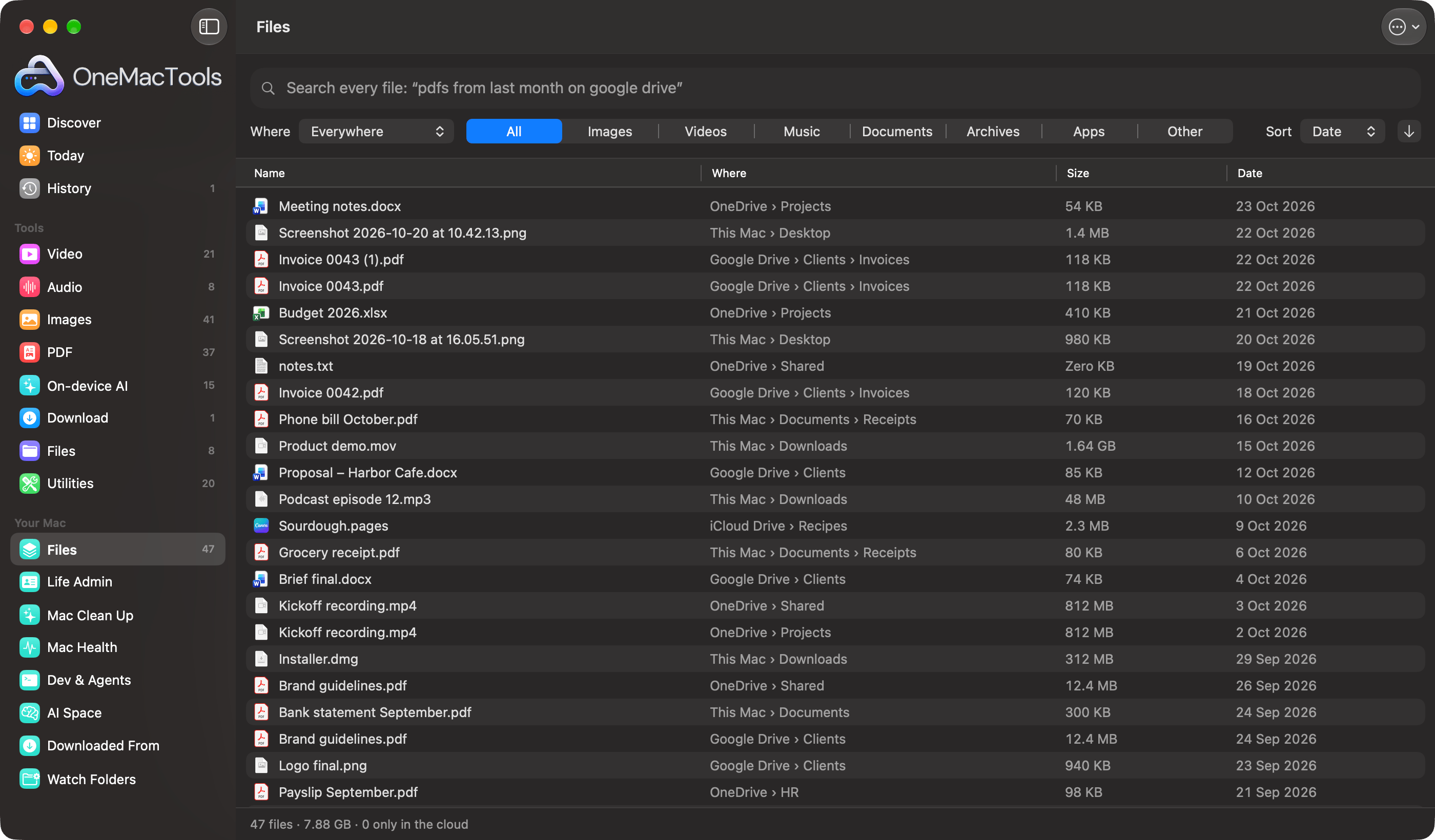
Files is the OneMacTools screen that lists every file in iCloud Drive, Google Drive, OneDrive, Dropbox, Box and your Mac’s own folders in one table, and lets you search them all at once in plain English, such as “pdfs from last month on google drive”. Files that are only in the cloud are listed from their names, sizes and dates without being downloaded, and the index stays private on your Mac.
On this page
How to turn on Files
Files is off until you turn it on. While it’s off, nothing is opened, scanned or watched.
- Click Files in the sidebar, under Your Mac.
- Under Found on this Mac, check the places you want included. Each cloud shows its account (for example your Google address) so you can tell two accounts apart.
- Click Index My Files. “The first look takes a minute or two.”
- If macOS asks whether OneMacTools may see your Desktop, Documents and Downloads, allow it, or those folders can’t be listed.
While the first look runs, the bottom bar shows where it is (“Looking in Google Drive… 12,480 files”). After that the list is kept current: OneMacTools watches the folders for changes, and catches up on anything that changed while it was closed.
Which clouds and folders are included
Files finds the places your files live by looking at a few well-known folders. Nothing is scanned until you click Index My Files.
| Source | What’s included | On by default? |
|---|---|---|
| iCloud Drive | Your iCloud Drive folder. | Yes |
| Google Drive, OneDrive, Dropbox, Box | Each account’s folder from the service’s Mac app (the folders macOS keeps in CloudStorage). OneDrive Personal and work accounts are listed separately. | Yes |
| Cloud Folder | Any other service that syncs through macOS’s cloud folders. | Yes |
| This Mac | Desktop, Documents, Downloads, Movies, Music and Pictures, plus Applications. | Yes |
| Telegram | Telegram Desktop’s downloads folder, if you have one. | Yes |
| Media from WhatsApp for Mac. Reading another app’s data asks for permission, so it’s opt-in. | No | |
| External drives and network shares | Each drive or NAS by name. Backups can be huge, so they’re opt-in. | No |
| Leftover copies | An “iCloud Drive (Archive)” folder or an old cloud folder that no longer syncs, marked as a leftover. | Yes |
To change sources later, open the Files menu (the ⋯ button in the toolbar) and tick or untick them under Sources. Files looks again with the new set.
How Files lists cloud files without downloading them
Cloud apps keep files you haven’t opened recently as placeholders: the name, size and date are on your Mac, but the contents stay in the cloud. Files reads only those details, so a 40 GB Google Drive full of placeholders is listed in full while taking nothing extra on your disk, and nothing is downloaded.
- A cloud icon next to the name marks a file that’s only in the cloud. Hovering says “Only in the cloud: opening it downloads it”.
- The bottom bar counts them: “47 files · 7.88 GB · 3 only in the cloud”.
- Icons are chosen by file type, never by reading the file, so even showing an icon doesn’t trigger a download.
- Anything that has to read a file (opening it, Quick Look, Smart Rename) downloads it first, the same as opening it in Finder.
How to search every cloud at once in plain English
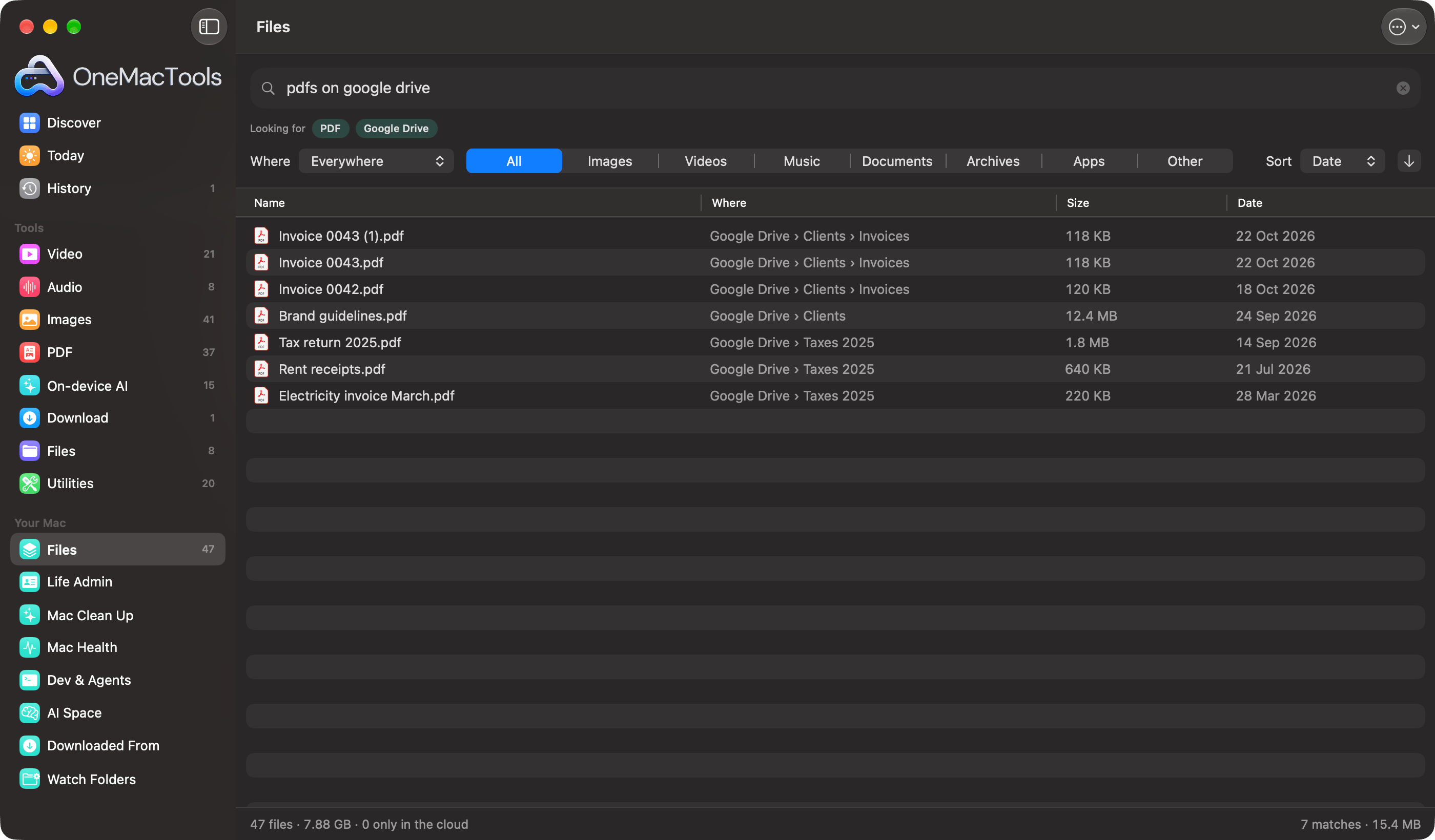
Type into the search field at the top. Files reads what you typed as filters, shows how it understood you as chips under Looking for, and updates the list as you type.
| You type | Files understands |
|---|---|
| pdfs, images, photos, videos, music, audio, documents, zips, apps | That kind of file |
| word, spreadsheets, excel, presentations, slides, installers, dmg | Those file types (Word includes Pages; spreadsheets include Numbers and CSV) |
| heic, jpg, png, mov, mp4, mp3, docx, xlsx, key, psd, svg, epub… | That exact file extension |
| screenshots | Screenshots only |
| on google drive, icloud, onedrive, dropbox, box, this mac | Only that source |
| today, yesterday, this week, last month, last year, march, 2025 | Files dated then |
| last 3 days, past 2 weeks, older than 6 months, newer than 1 year | A date range from today |
| over 5 mb, under 500 kb, bigger than 1 gb, big, huge | A size limit (big is over 100 MB, huge over 1 GB) |
| from gmail, whatsapp, slack, chatgpt, github, canva, telegram | Downloads that came from there |
| invoice, receipt, payslip, tax, passport, contract, insurance… | Documents of that kind |
| any other word | Names and folders that contain a word starting with it, and the text inside documents that have been read |
So “videos over 1 gb on onedrive” shows big videos in OneDrive only, and “invoice 2025” finds invoices dated 2025, including one called scan_0032.pdf once that document has been read and recognised as an invoice. Clear the search with the ✕ in the field.
Filters, columns and sorting
Under the search field are three controls that combine with whatever you’ve typed:
- Where: Everywhere, or one source, each with its file count (“Google Drive (2,140)”).
- The row of kinds: All, Images, Videos, Music, Documents, Archives, Apps or Other.
- Sort: Date, Name or Size, with the arrow button to flip between newest, largest or Z first and oldest, smallest or A first.
The table has four columns: Name, Where (the source and folder, as people say it: “Google Drive › Clients › Invoices”), Size and Date. Drag a column edge to resize it. Results load 200 at a time as you scroll, so even a library of hundreds of thousands of files opens instantly.
When a search or filter is on, the right of the bottom bar shows how many files match and their total size (“7 matches · 15.4 MB”), which is a quick way to answer “how much space do my videos take on Dropbox?”.
What you can do with a file
Double-click a row to open the file. Press Space for Quick Look. Select several rows with ⌘-click or ⇧-click, then right-click:
| Command | What it does |
|---|---|
| Open in a Tool… | Shows every OneMacTools tool that takes these files. |
| Open | Opens them in their usual apps. |
| Show in Finder | Reveals them in their cloud folder. |
| Quick Look | Previews them. |
| Smart Rename… | One file: suggests a clear name from what’s in it, which you can edit before clicking Rename. It’s renamed where it is, and History can put the old name back. See Smart Rename. |
| Add Tag… | Adds a Finder tag, such as “Taxes 2025”, to the selected files. |
| Zip…, Encrypt…, Checksum | Open Create Zip, Encrypt Files or File Checksum with the files loaded. |
| Copy Path | Copies each file’s full path, one per line. |
Files is also where Mac Clean Up gets its view of every cloud. With Files on, Mac Clean Up adds Copies across your clouds, Older versions, Numbered copies & sync conflicts, Very large files and more, and Explore Disk can map each cloud by size. Your papers, such as IDs, payslips and warranties, are picked out in Life Admin.
Privacy and background work
The list of your files is kept in a private index on your Mac. It isn’t uploaded, synced or shared. AI assistants you connect through the MCP server can search it, read-only, from your Mac. See Privacy.
Two jobs run in the background, and only at quiet moments: when your Mac is plugged in, nobody has used it for a minute, it isn’t hot and Low Power Mode is off. Otherwise they wait.
- Fingerprinting possible duplicates, so identical copies across clouds can be found. Files read once aren’t read again until they change.
- Reading documents on your Mac, newest first, so search can match the words inside them and Life Admin can find expiry dates. Files only in the cloud are skipped.
In the Files menu, Look Again Now runs a full look to catch anything the watcher missed, for example a drive that was unplugged. Turn Off Files… stops everything and, after you confirm Turn Off and Delete the Index, deletes OneMacTools’ list of your files. Your files themselves aren’t touched.
Tools mentioned on this page
Questions
Can I search Google Drive, OneDrive, Dropbox and iCloud at the same time on a Mac?
Yes. With each service’s Mac app installed and signed in, turn on Files in OneMacTools and click Index My Files. One search box then covers every cloud and your Mac’s own folders, and the Where menu narrows to one source when you want.
Does searching cloud files download them?
No. Files only reads the name, size and date of cloud-only files, which are already on your Mac as placeholders. A file is downloaded only when you open it, preview it or rename it with Smart Rename.
Do I need the Google Drive or OneDrive app installed?
Yes. Files reads the folders those apps keep on your Mac. It doesn’t sign in to your cloud accounts, so a cloud you only use in a browser isn’t included.
Can Files search inside documents?
Yes, for documents on your Mac that have been read. OneMacTools reads them in the background when your Mac is plugged in and idle, then words inside them match your searches. Files only in the cloud are matched by name and folder.
Why isn’t a file I just added showing up?
Files watches your folders and normally picks up changes within moments. If a cloud app was syncing a lot at once, or a drive was unplugged, choose Look Again Now from the Files menu in the toolbar.
How do I remove the index Files made?
Open the Files menu in the toolbar and choose Turn Off Files…, then Turn Off and Delete the Index. OneMacTools stops watching your folders and deletes its list of your files; your files aren’t touched.
Can Files include an external drive or a NAS?
Yes. Connected drives and network shares appear under Found on this Mac (or under Sources in the Files menu) by name, switched off because backups can be huge. Tick one to include it; Files then looks through it and keeps it in the same search.
