
Mac Clean Up: clean up Mac storage safely, with everything going to the Trash
Mac Clean Up is the storage cleaner in OneMacTools. It scans Downloads, Desktop, Movies, Pictures, caches, logs, Xcode data and Applications (and, with Files on, every cloud) and sorts what it finds into groups such as old installers, big videos, duplicate copies and similar photos. You review each group, then Move to Trash or Shrink instead. Nothing is deleted: History can put everything back until you empty the Trash.
On this page
- How to clean up Mac storage with Mac Clean Up
- What the scan looks at
- Every group Mac Clean Up can find
- Shrink instead: keep the file, make it smaller
- How to review duplicates and keep the right copy
- Move to Trash and putting things back
- The storage panel and the System Data review
- What Mac Clean Up never touches
- Tools mentioned on this page
- Questions
How to clean up Mac storage with Mac Clean Up
- Click Mac Clean Up in the sidebar, or press ⇧⌘K (Go › Mac Clean Up). ⇧⌘D (Go › Duplicates) opens it straight at the duplicates.
- If no scan has run yet, one starts straight away. Groups appear one by one as they’re found.
- Click a group’s header or Review items to see its files. Most groups arrive with every item ticked; click a row to untick anything you want to keep.
- Click Move N to Trash at the bottom of the group, then Move to Trash in the confirmation (“Move 3 items (1.79 GB) to the Trash?”).
- Empty the Trash in Finder when you’re sure. Until then, the space isn’t freed, and everything can be put back.
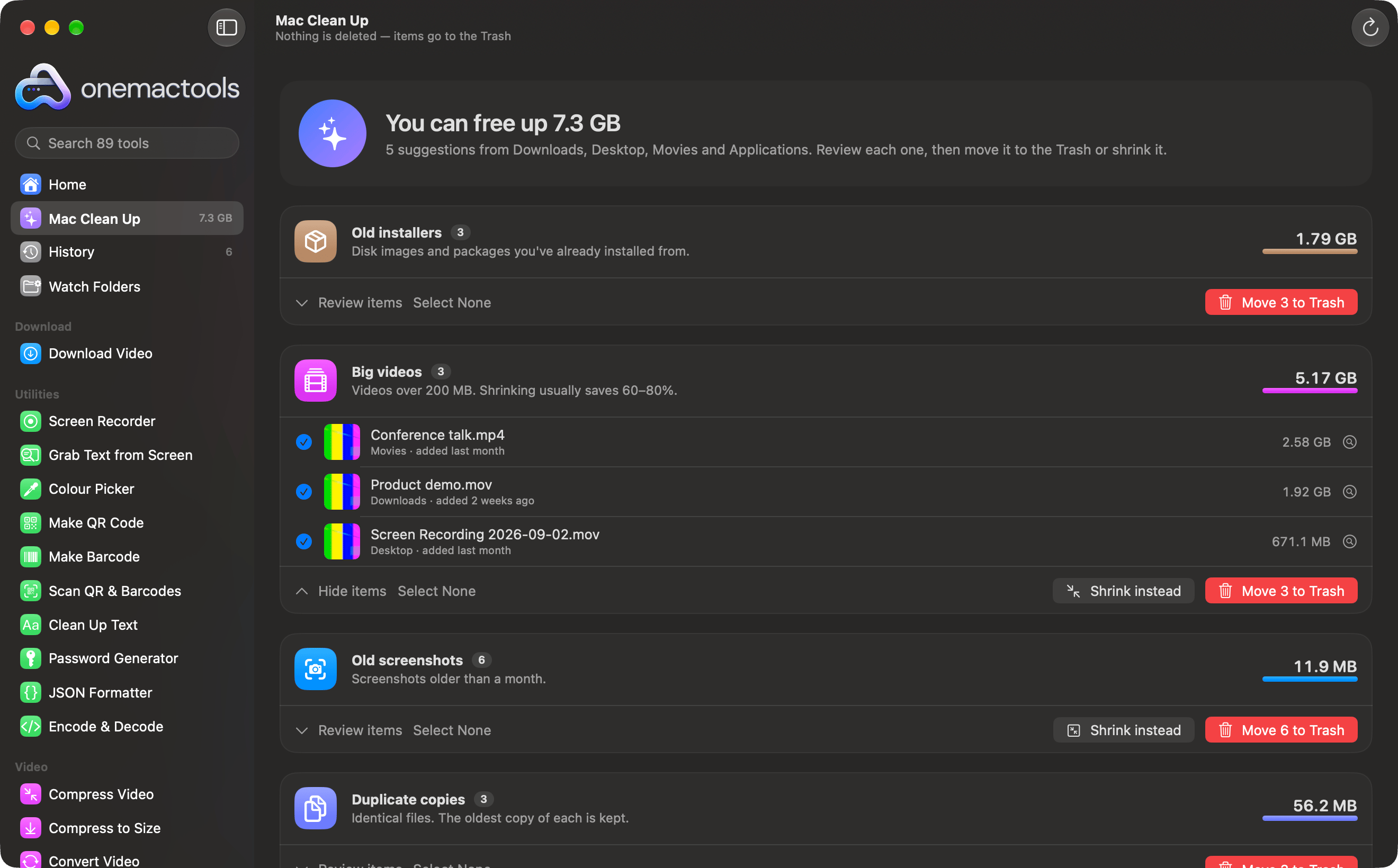
The subtitle under the screen’s title says it plainly: “Nothing is deleted — items go to the Trash”. Mac Clean Up never empties the Trash for you.
What the scan looks at
While it works, Mac Clean Up shows a radar, three live counters (files checked, found so far, suggestions) and a checklist of steps, each ticked off with what it found:
- Downloads (three folders deep), Desktop and Movies and Pictures (two deep), and your Screenshots folder.
- Caches, logs, Xcode data & projects: your Library’s caches and logs, Xcode and package-manager caches, and build folders in old projects.
- Comparing files: identical copies, matched by content.
- Checking apps: apps you haven’t opened for three months.
- Comparing photos: look-alike photos, compared on your Mac.
- Every folder and cloud: only when Files is turned on. It reads Files’ index, so nothing is walked again or downloaded.
Click Scan Again in the toolbar to start over. The storage panel at the top is measured again at the same time.
Every group Mac Clean Up can find
Each file appears in one group only. Groups with nothing in them aren’t shown, and if nothing turns up at all you’ll see All tidy.
| Group | What’s in it | Ticked at first? |
|---|---|---|
| Old installers | Disk images and packages (.dmg, .pkg, .mpkg, .xip) more than a day old, which you’ve already installed from. | Yes |
| Xcode & developer data | Xcode build products, simulator caches, old device support, and npm and Gradle download caches. They’re recreated when needed. | Yes |
| Old project files | node_modules, .next, Rust’s target, Python environments and other build folders in projects you haven’t touched for a month (1 MB and over). | Yes |
| App caches | Temporary files apps keep to work faster (1 MB and over). Caches of apps that are running are left alone. | Yes |
| Old logs | Diagnostic logs not touched for a week. | Yes |
| Old screenshots | Screenshots older than a month. | Yes |
| Big videos | Videos of 200 MB or more. “Shrinking usually saves 60–80%.” | Yes |
| Duplicate copies | Identical files of 100 KB or more, matched by their content. | Yes (all but one copy) |
| Copies across your clouds | The same file kept in more than one folder or cloud, including same-name, same-size files where one copy is only in the cloud. | No |
| Similar photos | Bursts, edits and re-saved copies of the same photo. The largest is kept. | No |
| HEIC + JPEG pairs | The same photo saved as both HEIC and JPEG. The JPEG copies are listed. | No |
| Numbered copies & sync conflicts | “Report (1).pdf” next to “Report.pdf”, and the copies cloud apps make when a file changed in two places. | No |
| Older versions | Earlier drafts such as “Plan v2” and “Plan final (2)”. The newest of each isn’t listed. | No |
| Forgotten downloads | Downloads more than two months old that you haven’t opened in two months. | Yes |
| Very large files | Anything over 1 GB, in any folder or cloud. | No |
| Already saved elsewhere | Files in old sync folders that no longer sync, which already exist with the same name and size in an account that does. | No |
| Empty files | Files with nothing in them (0 bytes). | Yes |
| Names some clouds reject | Names with : * ? " < > | or ending in a space or dot, which stop files syncing to OneDrive or Windows. | No |
| Very long paths | Paths over 400 characters, which fail to sync on some services. | No |
| Unused apps | Apps in Applications not opened in three months. Apple’s apps and OneMacTools are never listed. | No |
Copies across your clouds, Numbered copies & sync conflicts, Older versions, Very large files, Already saved elsewhere, Empty files, Names some clouds reject and Very long paths come from Files’ index of every folder and cloud, so they only appear with Files on. Apart from Empty files, they don’t count towards the “You can free up” total, because trashing a cloud copy frees space in that cloud rather than on your Mac, and they need a careful look first.
Shrink instead: keep the file, make it smaller
Some files are big but worth keeping. Big videos and Old screenshots have a Shrink instead button next to Move to Trash.
- For Big videos, it opens Compress Video with the ticked videos loaded and Balanced quality chosen. A 2.58 GB conference talk typically comes out at a fraction of the size.
- For Old screenshots, it opens Compress Images with the ticked screenshots loaded and HEIC chosen as the format.
Shrinking makes new, smaller copies; the originals stay where they are until you trash them. A sensible order is to shrink, check the results, then come back and move the originals to the Trash.
How to review duplicates and keep the right copy
Duplicate copies, Copies across your clouds and Similar photos are shown as sets rather than a plain list. Each set has the file’s name, how many copies there are and how much can be freed (“2 copies · 2.3 MB can be freed”), then a thumbnail for every copy with where it lives, its size and when it arrived.
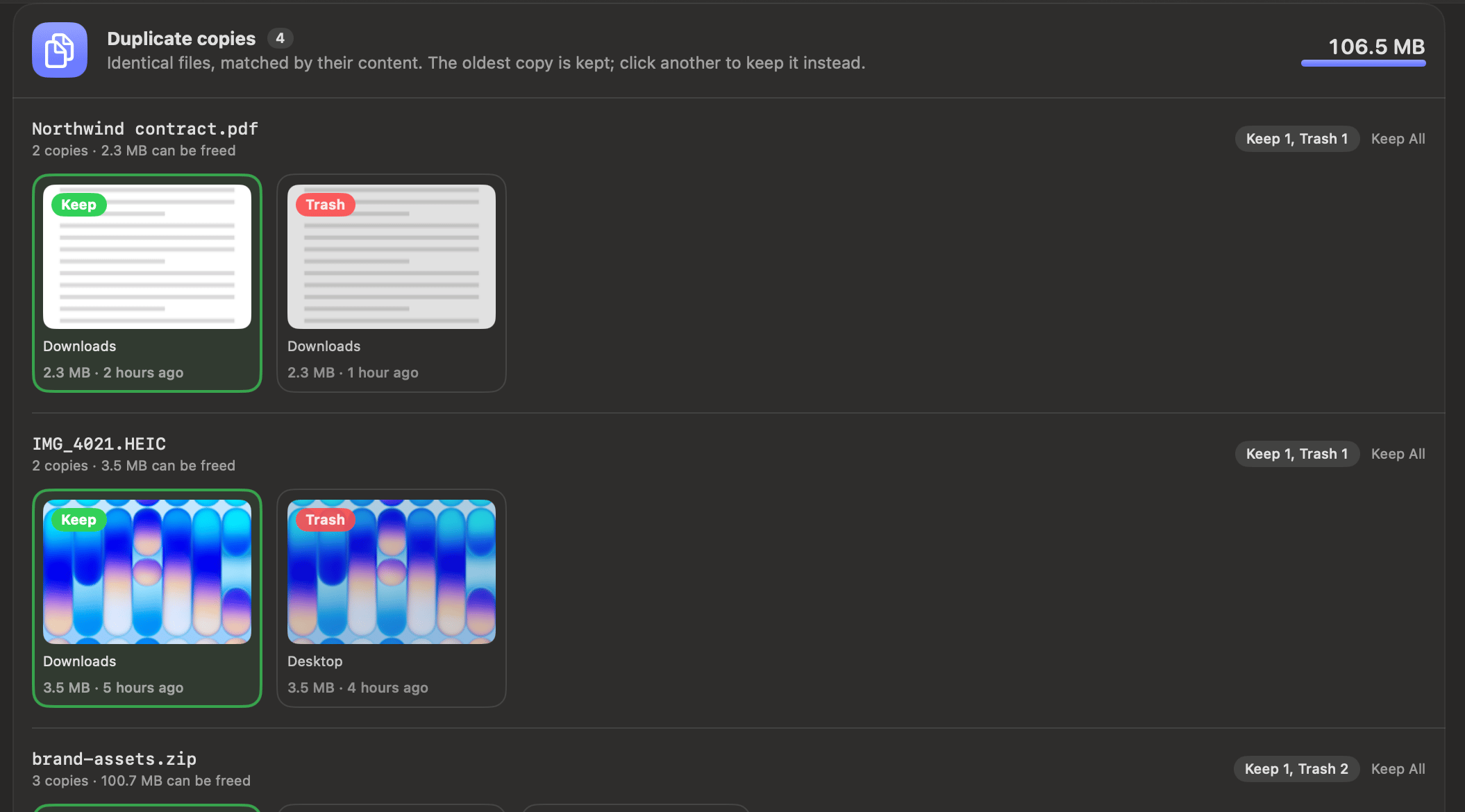
- Each copy is labelled Keep (green) or Trash (red). Click any copy to keep it instead; the others in that set are marked for the Trash.
- The pill on the right sums it up, for example Keep 1, Trash 2. Keep All unmarks the whole set; Use Suggestion puts the suggested choice back.
- Right-click a copy for Quick Look or Show in Finder before you decide.
- At the bottom of the group, Use Suggestions applies the suggested keeper to every set at once, and Select None clears them all.
Which copy is kept
For identical copies, OneMacTools suggests keeping the copy outside Downloads first, then the oldest, then the one with the shortest path. That usually keeps the file you filed away and trashes the second download of it. For Similar photos, the largest file is kept, since it’s usually the original rather than a resized or re-saved copy.
How copies are matched
Duplicate copies are matched by content, not by name: files of the same size are compared by their first and last 64 KB, and only true matches are read in full and fingerprinted. Two files with different names but the same content are duplicates; two files with the same name but different content are not.
Similar photos uses Apple’s on-device image analysis to compare up to 1,500 of your newest photos. Screenshots are left out, because screenshots of the same app look alike without being copies. Photos checked once aren’t opened again on the next scan. For a standalone version that works on any folder you choose, see the Duplicate Finder tool.
The first 150 sets and the first 300 items in a group are shown; the rest are counted underneath.
Move to Trash and putting things back
When you confirm, the ticked files are moved to the Trash one by one. A green banner then says what happened, for example “Moved 3 items (1.79 GB) to the Trash.”, and how many couldn’t be moved, if any. The banner has three buttons:
- Put Back moves everything from that batch back to where it was and scans again.
- Share makes an image of how much you’ve freed (totals only, no file names).
- ✕ closes the banner.
Every batch is also recorded in History as Mac Clean Up with a line such as “Moved 3 items (1.79 GB) to the Trash — Old installers”, and a Put Back button that works later too. You can also drag items out of the Trash in Finder, or use Finder’s own Put Back. See History.
Put Back only moves an item if it’s still in the Trash and nothing else is now at its old location; anything it couldn’t restore stays listed so you can try again. Once you empty the Trash, the files are gone for good.
The storage panel and the System Data review
Above the groups, the Storage panel shows a bar across your disk and the space used by Applications, Documents, Developer, Photos, Music & TV, Mail & Messages, Trash, macOS and System Data, with “… used · … available” and when it was last measured. Trash opens the Trash in Finder; Explore Disk opens the disk map.
Click System Data or Developer to see what’s inside. Parts that match a Clean Up group (App caches, Logs, Build products (DerivedData)) have a Review button that jumps to that group. App data and Everything else open a review sheet that lists folders biggest first and only lets you tick those it can tell are safe: leftovers from apps you’ve deleted, caches that rebuild themselves, and iPhone or iPad backups over three months old. Virtual memory, Sleep image and local snapshots are marked Managed by macOS.
If you see “Turn on Full Disk Access to measure Mail, Messages, Photos and app data too.”, OneMacTools can’t yet read those folders’ sizes. Open Settings takes you to the right place; only file sizes are read. See Privacy permissions and Full Disk Access. What System Data actually is, in general, is explained in What is System Data on Mac?.
What Mac Clean Up never touches
- Your Trash. It never empties it; that’s always your call.
- Files only in iCloud. They take no space on your Mac, so trashing them would free nothing, and reading them would download them.
- OneMacTools’ own output folder. What you’ve just made is fresh work, not clutter.
- Caches of running apps, and OneMacTools’ own cache.
- Apple’s apps and OneMacTools itself, in Unused apps.
- Code projects. Scans of your folders skip developer folders (node_modules, build, .venv and similar) and any folder with a Git repository, so your source code never turns up as “forgotten downloads”. Build folders in old projects are offered separately, in Old project files.
- macOS’s own files. Virtual memory, the sleep image and snapshots are shown so you know what they are, never offered for the Trash.
Developers will find more detail on project folders in Dev & Agents, and AI app storage in AI Space.
Tools mentioned on this page
Questions
Is it safe to clean up Mac storage with a cleaner app?
It is when nothing is deleted outright. Mac Clean Up only moves files to the Trash, records every batch in History with a Put Back button, and never empties the Trash. It also leaves running apps’ caches, Apple’s apps and macOS’s own files alone.
Why didn’t my free space go up after Move to Trash?
Files in the Trash still take up space. Empty the Trash in Finder to get the space back. The storage panel’s note says the same: items you move to the Trash free their space when you empty the Trash.
Can I get back a file I trashed with Mac Clean Up?
Yes, until you empty the Trash. Click Put Back in the banner straight after, or find the Mac Clean Up entry in History and click Put Back there. Each item goes back to its original folder.
How does it decide which duplicate to keep?
For identical files it suggests keeping the copy outside Downloads, then the oldest, then the one with the shortest path. For similar photos it keeps the largest. You can click any copy to keep that one instead.
Does Mac Clean Up delete files from iCloud Drive or Google Drive?
Only if you choose a cloud copy in Copies across your clouds and move it to the Trash, which removes it from that cloud. That group starts with nothing ticked so you check each set. iCloud-only files never appear in the other groups.
Why are Similar photos and HEIC + JPEG pairs not ticked?
Look-alike photos and pairs need a human eye: a burst may hold the one shot you want. Those groups, unused apps and everything from your clouds start unticked, so nothing is trashed unless you choose it.
How long does a scan take?
Most of it takes seconds to a minute, depending on how many files are in Downloads, Desktop, Movies and Pictures. Comparing photos is the slowest step; photos already compared in an earlier scan aren’t opened again, so later scans are quicker.
