
AI Space: see and clear what AI apps store on your Mac
AI Space is the OneMacTools screen that shows how much space AI apps take on your Mac and what's safe to clear. It finds Cursor, Claude, Claude Code, ChatGPT and Codex, Ollama, LM Studio and more, splits each into caches, logs, chat history, downloaded models and app data, ticks only caches and logs, and finds folders left behind by AI apps you've uninstalled. Everything goes to the Trash, so you can put it back.
On this page
What AI Space does
AI tools are some of the heaviest things on a developer's Mac, and they hide it well. Cursor keeps a VS Code-sized profile plus per-project chat state; Claude Code keeps every session's transcript and file checkpoints; Ollama and LM Studio keep multi-gigabyte models in hidden folders. None of it shows up as an app size in Finder.
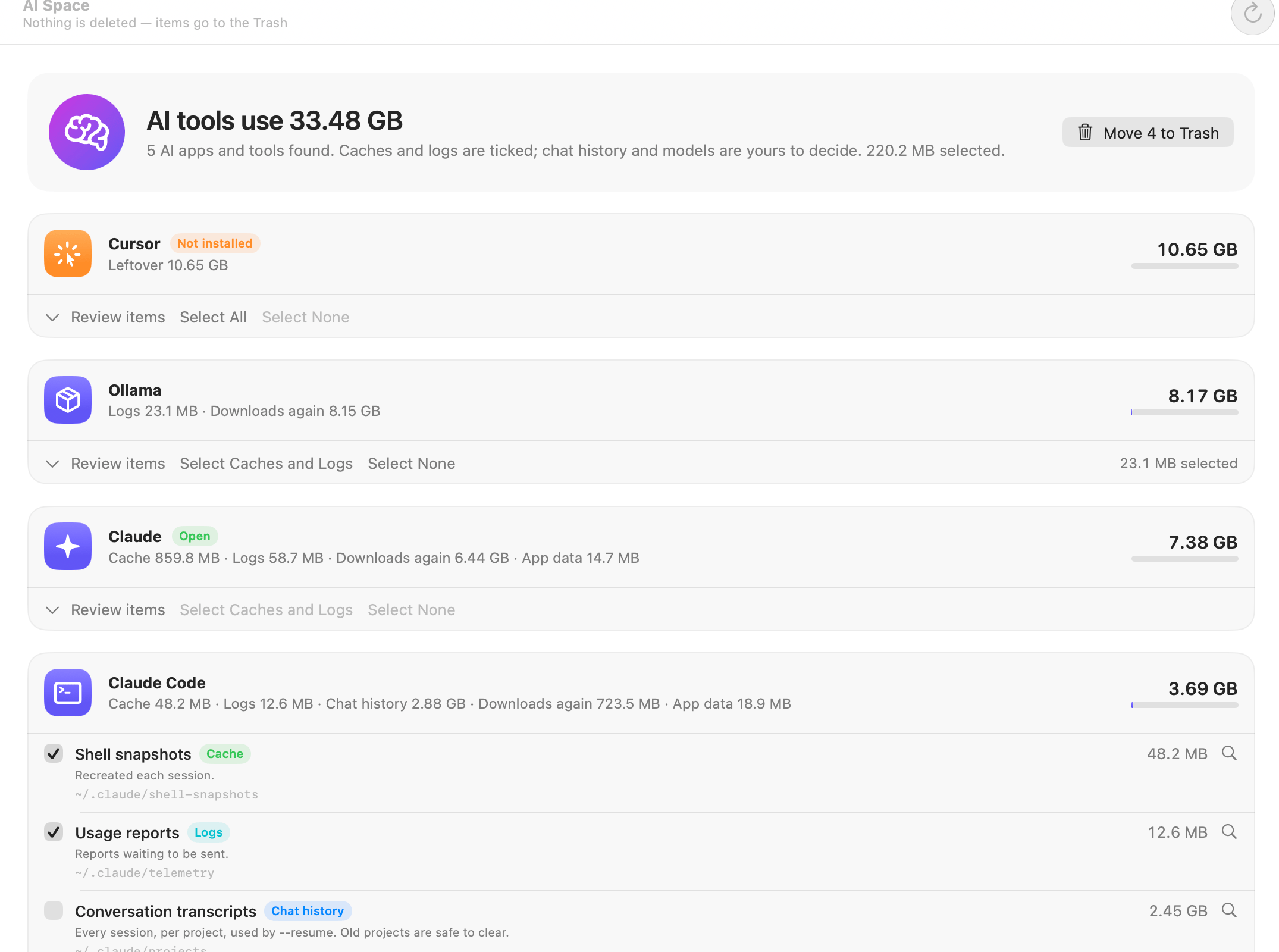
Open AI Space under Your Mac in the sidebar (or Go › AI Space). It scans when you first open it, then shows AI tools use and a total, with one card per app or tool, biggest first. The subtitle is the rule it follows: Nothing is deleted — items go to the Trash.
The general question of why AI apps take so much space, and where they keep it, is answered in the guide How much space do AI apps take on a Mac?. This page is about using the AI Space screen.
Which AI apps it knows
AI Space has a catalogue of where each tool keeps its data. Only the ones with something on your Mac appear:
| Kind | Apps and tools |
|---|---|
| Code editors and agents | Cursor, Windsurf, VS Code and Copilot, Zed, Claude Code, ChatGPT and Codex, Gemini CLI, Continue, Aider, Devin |
| Chat apps | Claude, ChatGPT Atlas, Microsoft Copilot, Perplexity (and Comet) |
| Local models | Ollama, LM Studio, Jan, Msty, Hugging Face models, PyTorch and Whisper models |
| Image generation | DiffusionBee, Draw Things |
Each card shows the app, its total size, and a summary by kind, such as Cache 859.8 MB · Logs 58.7 MB · Downloads again 6.44 GB · App data 14.7 MB. A green Open badge means the app is running; an orange Not installed badge means the app is gone but its folders aren't. Anything under 1 MB is left out.
What's safe to clear: caches, logs, chat history and models
Every folder is labelled with what it is, and the label decides whether it's ticked for you, left for you to decide, or locked:
| Label | What it is | Ticked for you? |
|---|---|---|
| Cache | Rebuilt automatically. Clearing it costs a little speed the next time the app starts. | Yes |
| Logs | Logs, crash and usage reports. Only useful when reporting a problem. | Yes |
| Chat history | Your conversations, sessions and file checkpoints. Clear old ones only if you won't go back to them. | No |
| Downloads again | Models, runtimes and virtual machines, downloaded again when needed (which can take a while). | No |
| App data | Settings, sign-in and the app's own databases. | Locked: clear these from inside the app |
| Leftover | Left behind by an AI app that's no longer on this Mac. | No, but Select All is one click |
Some examples of what you'll see inside the cards:
- Claude Code: Conversation transcripts (every session per project, used by
--resume), File checkpoints (copies of files before Claude edited them, for rewinding), Shell snapshots and Usage reports, and Installed versions with older ones kept after updates. - ChatGPT and Codex: Session transcripts, Archived sessions, Generated images, log databases and Runtimes Codex downloads to run code.
- Cursor, Windsurf, VS Code and Copilot: Electron caches (Cache, Code Cache, GPUCache and similar), Per-project data for every folder you've opened, and Local file history.
- Claude: the Linux Virtual machine it uses to run code, which is downloaded again the next time it's needed.
- Ollama, LM Studio, Jan, Msty: Models.
Anything a card's named folders don't cover, such as settings and sign-in, is shown as App data (or Rest of a folder) with a lock, so you can see its size without risking your login.
How to clear AI app caches on Mac with AI Space
- Open AI Space and wait for the scan. Caches and logs of apps that aren't running are already ticked; the header shows how much is selected.
- Click Review items on a card to see each folder with its label, a one-line explanation, its path and size. Click the magnifying glass to see it in Finder.
- Tick or untick folders. Select Caches and Logs ticks just those for one app; Select None clears that card.
- Click Move N to Trash at the top, and confirm.
A green banner says how much moved and offers Put Back, which restores everything to where it was, and Share. You can also restore later from History, or from the Trash in Finder. Space is only freed when you empty the Trash.
If your selection includes chat history, the confirmation warns you: those conversations won't be in the app any more.
Quit the app first
A running app's caches are in use. While an app is Open, its folders in Library show a lock with Quit Claude first (or whichever app), and the card says Claude is open. Quit it to clear its caches and data. Quit it, click Scan Again in the toolbar, and they become selectable. Command-line tools like Claude Code and Codex don't need quitting.
Local models: Ollama, LM Studio and Hugging Face
Models are usually the biggest items, often several gigabytes each, and they're labelled Downloads again rather than ticked, because downloading a 7 GB model again on a slow connection isn't free.
Most of these apps store all their models in one folder, so trashing it removes every model. When you only want to drop one or two, the card gives a tip instead:
- Ollama: see every model and its size with
ollama list;ollama rm <model>removes one without breaking the others. - Hugging Face models:
hf cache scanlists each model with its size, andhf cache deleteremoves chosen ones. - LM Studio: delete unused ones in LM Studio › My Models.
- Draw Things: delete unused ones in Draw Things' model list.
To see what else is eating space beyond AI tools, use Mac Clean Up or Explore Disk.
Remove leftovers of uninstalled AI apps
Dragging Cursor to the Trash removes the app, not the 10 GB of data in your Library and home folder. AI Space notices: if an app's folders are on your Mac but the app isn't (copies in the Trash or on a mounted disk image don't count) and its command-line tool isn't either, the card is marked Not installed and every folder is labelled Leftover, with isn't on this Mac any more, so nothing uses this folder.
- Find the card with the orange Not installed badge.
- Click Select All on it.
- Click Move N to Trash and confirm.
If you plan to reinstall the app and want your chats and settings back, leave its leftovers alone. Leftovers from all kinds of apps, not just AI ones, are covered by Mac Clean Up.
Privacy and AI assistants
AI Space measures folder sizes. It doesn't open your chats, transcripts or models, and nothing is sent anywhere. Assistants connected through the OneMacTools MCP server can ask for the same breakdown, so Claude Code can tell you its own transcripts have grown to 3 GB; moving anything to the Trash still needs your approval.
AI Space is part of OneMacTools; see pricing for plans.
Questions
Is it safe to delete Claude Code's projects folder?
It holds your conversation transcripts, which --resume uses. Deleting old projects' transcripts is safe if you won't resume them; Claude Code keeps working. AI Space labels it Chat history and never ticks it for you.
Will clearing Cursor's cache delete my chats?
No. Caches like Cache, Code Cache and GPUCache are rebuilt automatically. Cursor's chats live in its per-project data and its chats and settings database, which AI Space labels Chat history and App data and doesn't tick.
Why can't I select some of Claude's folders?
The Claude app is open, and its folders in Library are in use. Quit Claude, click Scan Again, and they become selectable. App data items stay locked either way; clear those from inside the app.
How do I delete Ollama models to free space?
Run ollama list to see each model and its size, then ollama rm with the model name to remove one. AI Space shows the Models folder's total and can trash it whole, but that removes every model at once.
Does AI Space delete anything permanently?
No. Everything goes to the Trash, and the banner's Put Back or History restores it to where it was. Space is freed only when you empty the Trash.
My AI app isn't listed. Why?
AI Space only shows apps it knows about that have at least 1 MB on your Mac. If yours isn't in its catalogue, use Mac Clean Up or Explore Disk to find its folders.
