
Mac performance history, trends and alerts
Mac Health's History tab is a Mac performance history for your whole Mac and every app on it. It records a reading every 30 seconds while OneMacTools runs and keeps up to a year. You can chart CPU, memory, battery, network, disk and temperature, click any spike to see the apps behind it, spot trends such as a disk filling up, set alerts with your own thresholds, record a build second by second, and export reports.
On this page
How Mac Health records history
History is on by default. While OneMacTools is running, it reads the Mac every 30 seconds and saves one row per minute for the Mac and one for each app that used anything (up to 40 apps a minute). Minute detail is kept for two days; after that it's folded into hourly averages, with each app's memory kept at its highest. Everything lives in one file on your Mac.
History only grows while OneMacTools is running. When you close its window it stays in the menu bar and keeps recording; to keep it going after a restart, turn on Open OneMacTools at login.
Settings › History
| Setting | What it does |
|---|---|
| Record Mac Health history | On by default. Off stops recording (alerts can still run). |
| Keep history for | 30 days (default), 90 days, 6 months or 1 year. Older data is deleted about once an hour. |
| Open OneMacTools at login | Starts OneMacTools when you log in, so history continues after a restart. If macOS refuses, add it in System Settings › General › Login Items. |
| Save a weekly report every Monday | A one-page PDF of the past week, saved to OneMacTools' folder from 9:00 on Monday (or the next time OneMacTools runs), with a notification. |
| Stop a recording after | 15 minutes, 30 minutes (default), 1 hour or 2 hours. |
| History file | The file's size on disk, and Delete History… to clear it. |
Delete History… asks first; afterwards charts, Ask's answers about your Mac and CSV exports start again from now.
Reading the History charts
Open Mac Health and choose the History tab. Pick a range at the top: 1 hour, 12 hours, 24 hours (the default), 7 days, 30 days or All. Ranges over about a day use hourly points; shorter ones use minutes.
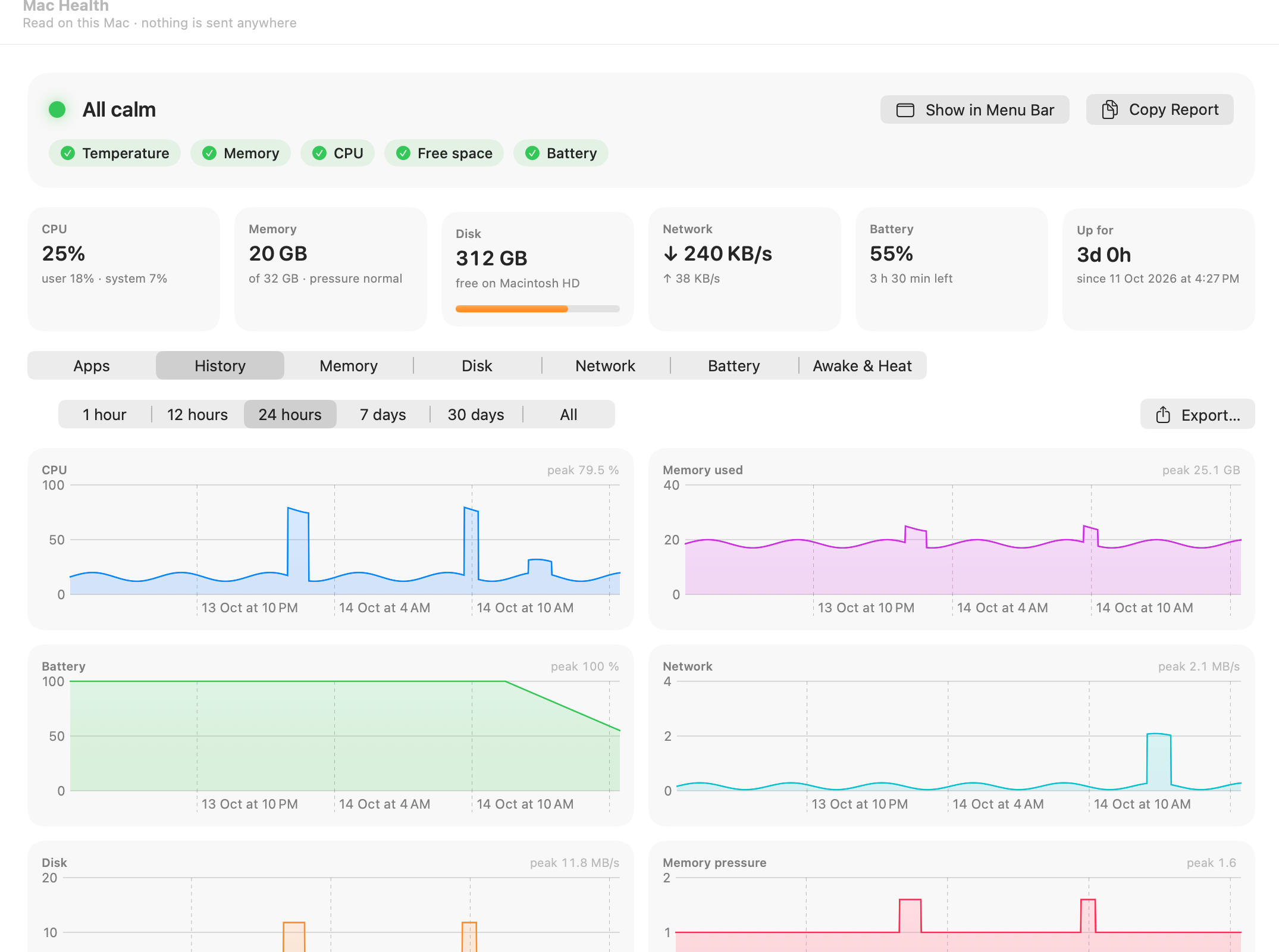
Each chart shows its peak for the range in the corner:
- CPU in %, and Memory used in GB.
- Battery in % on laptops; on Macs without a battery, Battery power in watts instead.
- Network and Disk in MB/s.
- Memory pressure.
- CPU temperature, GPU and Neural Engine in use (as a share of the time), when they've been recorded.
Click a spike to see which app caused it
Click or drag across any chart and a line marks that moment on all of them. A panel appears reading “At 14:32” (with the date for longer ranges), listing the apps busiest then, each with its CPU, memory and power. This is the quickest way to answer “what slowed my Mac down this morning?”.
Top apps and hour by hour
Below the charts, Top apps ranks up to eight apps over the range. Switch what it ranks by with the picker: CPU (average, of a core or of the Mac depending on your setting), Memory (average), Power (watt-hours), Disk and Network (total bytes). For ranges up to 48 hours, Hour by hour names the heaviest app in each hour by the same measure.
One app's history
In the Apps tab, right-click any app and choose Show History…. A sheet opens with the same range picker and charts for just that app: CPU, memory, power, network and disk.
Trends: disk full in N days, apps growing, writes per day
When there's enough history, a Where things are heading card appears above the charts. A trend is only stated when there are at least three days of data and the direction is clear; otherwise nothing is said. Trends are worked out about once an hour.
| Trend | When it appears |
|---|---|
| Disk full in about 39 days at this rate | Free space on the startup disk has fallen steadily by more than about 500 MB a day over the last two weeks, and will run out within 120 days. It says how much a day, and points to Mac Clean Up. Within 14 days it turns orange and shows in Mac Health's headline; within 7, red. |
| The battery drains 40% faster than last week | Average power on battery changed by 25% or more compared with last week, with at least two hours unplugged in each week. If it improved: “The battery lasts longer than last week”. |
| Slack uses twice the memory it did last week | An app's average memory this week is at least 1.8 times last week's and over 500 MB. Up to three apps are listed. |
| Your Mac writes about 31 GB a day | The Mac writes at least 1 GB a day on average, over at least three days of history. SSDs wear by writing, and Mac Health › Disk shows how much of the drive's rated life is used. |
If a disk-full trend appears, Mac Clean Up and the disk space map show where the space is going.
Mac alerts you can set, and their thresholds
Alerts are checked on every reading while OneMacTools is running. Turn them all on or off with Alert me when something misbehaves in Settings › Alerts. Nine are built in and on by default; each can be switched off but not deleted:
| Built-in alert | Threshold |
|---|---|
| An app keeps the CPU busy | 80% of a core for 10 minutes |
| An app's memory keeps growing | 1 GB within an hour (checked once there's 15 minutes to compare) |
| An app writes heavily to disk | About 1 GB in 10 minutes |
| An app uses the network heavily | About 1 GB in 10 minutes |
| Memory pressure stays high | For 5 minutes |
| The startup disk has less than 10 GB free | At once |
| The battery is at 10% or less | At once, only on battery |
| The Mac stays hot | macOS slowing it down for 5 minutes |
| The SSD has used 80% of its rated life, or reports a problem | At once; repeats at most once a week |
How to add your own alert
- Open Settings › Alerts and click Add Alert….
- When: choose Any app, A particular app (type its name, e.g. Google Chrome) or The Mac.
- Uses: pick what to watch. For apps: Memory, CPU, Power, Disk writes, Network or Memory growth. For the Mac, also Free disk, Battery, Memory pressure, Heat, CPU temperature, GPU and Drive wear.
- Is: above or below, then the Value in the unit shown (GB, %, W, MB/s, GB/hour or °C).
- Set For N minutes (0 to 240) for how long it must last, then Save. A preview line shows the rule in words first.
Your rules appear under the built-ins with a switch, Edit and a delete button. Built-in and custom alerts repeat at most once an hour for the same rule and app, so a stuck process doesn't flood you.
What the notification lets you do
Each alert is a macOS notification naming the app behind it, for example “Google Chrome is keeping the CPU busy · 140% of a core for 10 minutes.” App alerts have two buttons: Quit… opens Mac Health and asks to quit that app the normal way, and Mute This App stops alerts for it. Muted apps are listed in Settings › Alerts › Muted apps; click one to unmute it. The first alert asks macOS for permission to show notifications.
Alerts on your phone or chat
In Settings › Alerts on Your Phone, turn on Also send alerts to my phone or chat and choose ntfy, Pushover, Slack, Home Assistant or Webhook. Fill in the server and topic, keys or URL, and use Send Test. Only the alert's title and text are sent, never files or other figures. Tokens and webhook addresses are kept in your Keychain. ntfy topics are public to anyone who guesses the name, so pick a long one.
Record a build or a slow moment second by second
History's minutes are too coarse for a two-minute build. Click Record in Mac Health's header (or in the menu bar dropdown) before you start, and Mac Health reads the Mac every second: CPU, memory, disk, network, temperature, GPU and the three busiest apps at each moment. The button turns into a red Stop with a running clock.
Click Stop to see the recording: what peaked and which app was behind it, the busiest apps over the whole recording, and Export CSV…. A recording also stops by itself after the time set in Settings › History › Stop a recording after. Saved recordings are listed in a Recordings card in the History tab, with Open and a delete button.
Export history, weekly reports and Ask
The Export menu at the top right of History has three choices:
- Weekly Report as PDF…: a one-page report of the past week.
- Weekly Report as CSV…: the same figures for a spreadsheet.
- History as CSV…: choose a folder and Mac Health saves three CSV files there for the selected range: apps by day, the Mac by hour, and every reading.
Finder opens on the saved files when it's done.
You can also question history in plain words with Ask (⌘K): “what slowed my Mac down this morning?”, “what drained my battery today?” or “what is mdworker?”. Answers are worked out from history on your Mac, with a small chart and the figures they're based on. See Ask about your Mac. AI assistants connected through the MCP server can read Mac Health too.
Questions
How do I see what my Mac was doing earlier?
Open Mac Health › History, choose a range and click the spike in the chart. A panel lists the apps busiest at that moment with their CPU, memory and power. You can also ask Ask (⌘K) “what slowed my Mac down this morning?”.
How long does OneMacTools keep performance history?
30 days by default. You can choose 90 days, 6 months or 1 year in Settings › History. Minute-by-minute detail is kept for two days, then folded into hourly averages.
Does history keep recording when OneMacTools is closed?
Closing the window leaves OneMacTools in the menu bar, still recording. Quitting it stops recording. Turn on Open OneMacTools at login so it continues after a restart.
Can I get alerted when an app uses too much memory?
Yes. The built-in alert fires when an app grows by 1 GB within an hour. For a fixed limit, add your own in Settings › Alerts: Any app or a particular app, Memory, above, a value in GB, for some minutes.
Can Mac alerts be sent to my phone?
Yes, through ntfy, Pushover, Slack, Home Assistant or your own webhook, set up in Settings › Alerts on Your Phone. Only the alert's title and text are sent.
How much disk space does Mac Health history use?
Settings › History shows the history file's size next to Delete History…. It depends on how many apps you run and how long you keep history; minute detail is folded into hours after two days to keep it small.
Why doesn't the Where things are heading card appear?
Trends need at least three days of history and a clear direction. If free space, battery drain, app memory and daily writes are all steady, there's nothing to report and the card stays hidden.
