
Menu bar system monitor: live CPU, memory and more in your Mac's menu bar
OneMacTools includes a Mac menu bar system monitor. Turn on live readouts for CPU, memory, disk, network, battery, temperature, GPU and microphone, each as a value, a small graph or both; they turn red when something is strained. Clicking one opens a dropdown with every figure, the five busiest apps, a Record button and a volume slider for each app playing sound. The OneMacTools icon beside them holds quick tools and recent results.
On this page
Two things in your menu bar
OneMacTools can put two kinds of item in the menu bar, and they do different jobs:
- Readouts: live Mac Health figures such as “61%” for CPU with a small graph. Off until you turn them on. Click one for the dropdown.
- The OneMacTools icon: a menu of quick tools, recent results and app controls, and a drop target for files. It stays for actions; readouts sit beside it.
The icon is controlled by Settings › Show OneMacTools in the menu bar. It can only be turned off while Show OneMacTools in the Dock is on, so the app always has one way in.
Readouts are part of Mac Health, which has the full picture behind every figure.
How to add a system monitor to the Mac menu bar
The quickest way: open Mac Health and click Show in Menu Bar next to the headline. It adds CPU (value and graph) and memory (value). The button only appears while no readouts are on.
For full control, open Settings › Menu Bar Readouts:
- Turn on each readout you want. It's added at the end with the style Both.
- For each one, choose Value, Graph or Both with the segmented control.
- Use the ‹ and › buttons to move a readout left or right. Readouts appear in the menu bar in this order.
- Turn on Compact, for smaller screens to make every readout narrower, which helps on a 13-inch MacBook with a busy menu bar.
The readouts you can show
| Readout | Shows | Turns red when |
|---|---|---|
| CPU | Overall CPU use, e.g. 61% | CPU is at 90% or more |
| Memory | Memory in use, e.g. 25.5G | Memory is under pressure |
| Disk | Free space on the startup disk, e.g. 312G | Under 10 GB or 5% free |
| Network | Upload and download speeds stacked, ↑ and ↓ | Never |
| Battery | Charge, e.g. 63% | On battery at 20% or less |
| Temperature | CPU temperature, e.g. 61° | macOS is slowing the Mac down to keep cool |
| GPU | Graphics chip use, e.g. 34% | GPU is at 90% or more |
| Microphone in use | A microphone symbol that lights up orange while any app records | Never; hover to see which app |
Graphs show the last 40 readings. The network graph scales to its own peak, and the temperature graph is drawn between 30 °C and 110 °C. The microphone readout has no graph. Network speeds follow Settings › Appearance › Network speeds in: in bits, “40M” means 40 Mbps.
The readout dropdown
Click any readout and a dropdown opens beneath it. While it's open, Mac Health reads the Mac every 2 seconds instead of every 5.
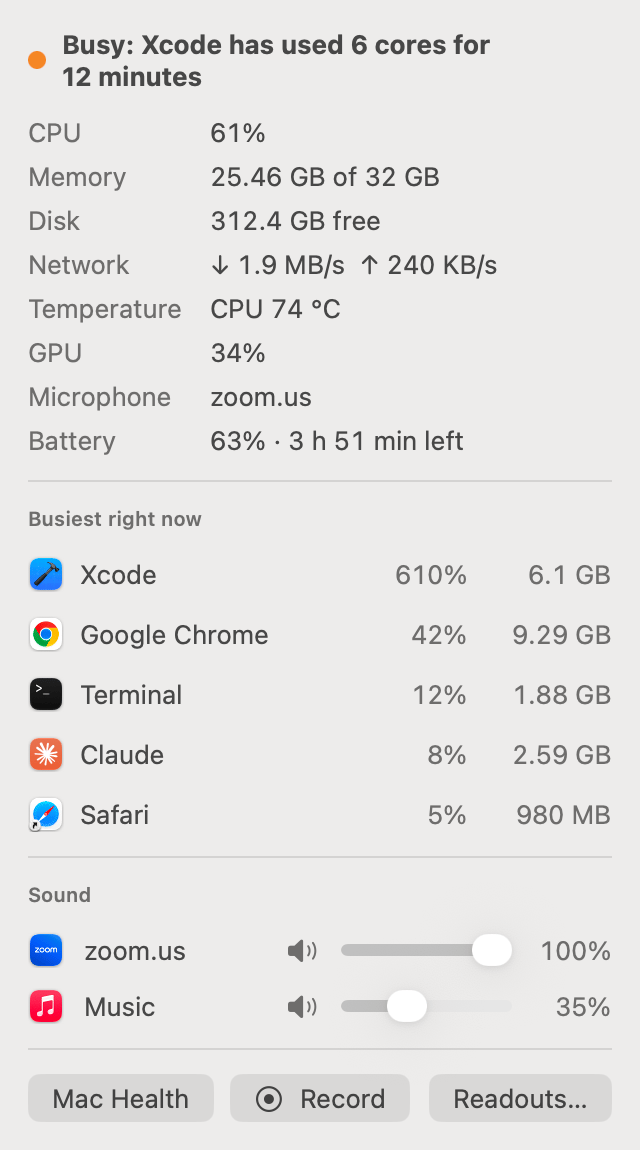
From top to bottom:
- The headline with its coloured dot, the same verdict as at the top of Mac Health, such as “Busy: Xcode has used 6 cores for 12 minutes” or “All calm”.
- Every figure: CPU, Memory (used of total), Disk (free), Network (down and up), Temperature (the hottest part), GPU, Microphone (only while an app is using it, naming it) and Battery (with time left or until full). A figure turns red under the same rules as its readout.
- Busiest right now: the five apps using the most CPU, each with its CPU and memory. Click one to open Mac Health's Apps tab with that app expanded, showing its processes.
- Sound: a volume slider and mute button for each app playing sound, or one you've already turned down. When nothing is playing it says “Nothing is playing sound.”
- Mac Health opens the full window, Record starts a second-by-second recording, and Readouts… opens Settings.
Volume per app (Beta)
Turning an app down quiets its own sound and plays it back at your level, with a few milliseconds of delay. Apps at 100% aren't touched, and everything goes back to normal if OneMacTools quits. The first time, macOS asks to let OneMacTools record audio from other apps: that's how it hears the sound to play it back. Nothing is recorded or saved. The same sliders, with Reset All, are in Mac Health › Sound.
Record from the menu bar
Record in the dropdown works exactly like the one in Mac Health: the Mac is read every second until you stop it, then you see what peaked and which app caused it. See performance history and alerts.
Keyboard shortcuts: open the dropdown and quit the heaviest app
Two system-wide shortcuts work from any app, with no Accessibility permission needed:
| Shortcut | What it does | Change it in |
|---|---|---|
| ⌃⌥⌘M | Opens the readout dropdown, or Mac Health when no readout is on. | Settings › Menu Bar Readouts › Shortcut for the readout dropdown: ⌃⌥⌘M, ⌃⌥M, ⌥⌘M or Off |
| ⌃⌥⌘H | Offers to quit the heaviest app. | ⌃⌥⌘H offers to quit the heaviest app in the same section |
Quit the heaviest app with ⌃⌥⌘H
Press ⌃⌥⌘H and a small panel appears in the middle of the screen: “Quit Xcode? It's the heaviest app right now, using 6.1 GB of memory and 610% CPU.” Press Return to quit it, or Esc to cancel. The panel waits for a fresh reading taken after you pressed the keys, so the figures are current.
It picks the app keeping the CPU busiest, as long as one is using half a core or more; otherwise the app using the most memory. It never offers macOS, Finder or OneMacTools itself, and it quits the normal way, so an app with unsaved work asks you to save first.
Other OneMacTools shortcuts are listed in keyboard shortcuts.
Quick tools in the OneMacTools menu bar icon
Click the OneMacTools icon for a menu of things you do often:
- Ask OneMacTools… opens Ask in the main window.
- Record Screen… starts the Screen Recorder with your last options, or Stop Recording while one runs.
- Capture & Annotate… and Scrolling Screenshot….
- Grab Text from Screen and Colour Picker.
- Keep Awake, with For 1 Hour, For 2 Hours, For 4 Hours, Until I Turn It Off and More Options…, plus Turn Off while it's on.
- Stop Meeting Recording while a meeting is being recorded.
- Clipboard History… when Clipboard History is on, and Camera Check (or Close Camera Check).
- Recent Results: your last eight finished jobs; choose one to open its folder.
- Open OneMacTools, Settings… and Quit OneMacTools.
The icon also changes to show what's happening: a red record symbol while the screen is recording, an hourglass while background jobs run, and a cup with the time left while Keep Awake is on.
Drop files on the icon
Drag files onto the icon and a menu appears with the Quick Actions that fit them, plus Open With, listing every tool that accepts those files by category. Until OneMacTools is activated, the icon offers Activate OneMacTools…, Buy a Licence… and Quit OneMacTools instead; see activating your licence.
What the readouts cost, and how to turn them off
Readouts read the Mac every 5 seconds, and only while at least one is on. With none on and history off, Mac Health doesn't sample at all. Settings › Background Activity shows OneMacTools' own CPU and memory use live, lists who is reading Mac Health and how often (for example “menu bar: every 5 s”), and shows Menu bar readouts with how many are shown and a Turn Off button.
To remove a single readout, switch it off in Settings › Menu Bar Readouts. Turning off the microphone readout also stops the microphone check unless Mac Health's window is open.
If you'd rather glance at figures on the desktop than in the menu bar, Mac Health is also available as desktop widgets.
Tools mentioned on this page
Questions
How do I show CPU usage in the Mac menu bar?
Open Mac Health and click Show in Menu Bar, which adds CPU and memory. Or turn on CPU in Settings › Menu Bar Readouts and choose Value, Graph or Both.
Why did a menu bar readout turn red?
Readouts turn red when the CPU or GPU is at 90% or more, memory is under pressure, the disk has under 10 GB or 5% free, the battery is at 20% or less on battery, or macOS is slowing the Mac down because it's hot. Click it to see the details.
My menu bar is full. Can I make the readouts smaller?
Yes. Turn on Compact, for smaller screens in Settings › Menu Bar Readouts, choose Value instead of Both, and show only the readouts you need.
How do I see which app is using my microphone?
Turn on the Microphone in use readout. Its symbol lights up orange while any app records; hover over it, or open the dropdown, to see which app. Mac Health › Sound shows the same.
Can I change the volume of one app on my Mac?
Yes, with Volume per app (Beta), in the readout dropdown and in Mac Health › Sound. Each app that's playing sound gets its own slider and mute button. macOS asks once for permission to capture other apps' audio.
What does ⌃⌥⌘H do?
It shows a panel offering to quit the heaviest app: the one using the most CPU, or the most memory if nothing is busy. Press Return to quit it the normal way or Esc to cancel. You can switch it off in Settings › Menu Bar Readouts.
