
Clipboard history manager for Mac
Everything you copy, searchable from ⌃⌥⌘V. Off until you turn it on; passwords are never kept.
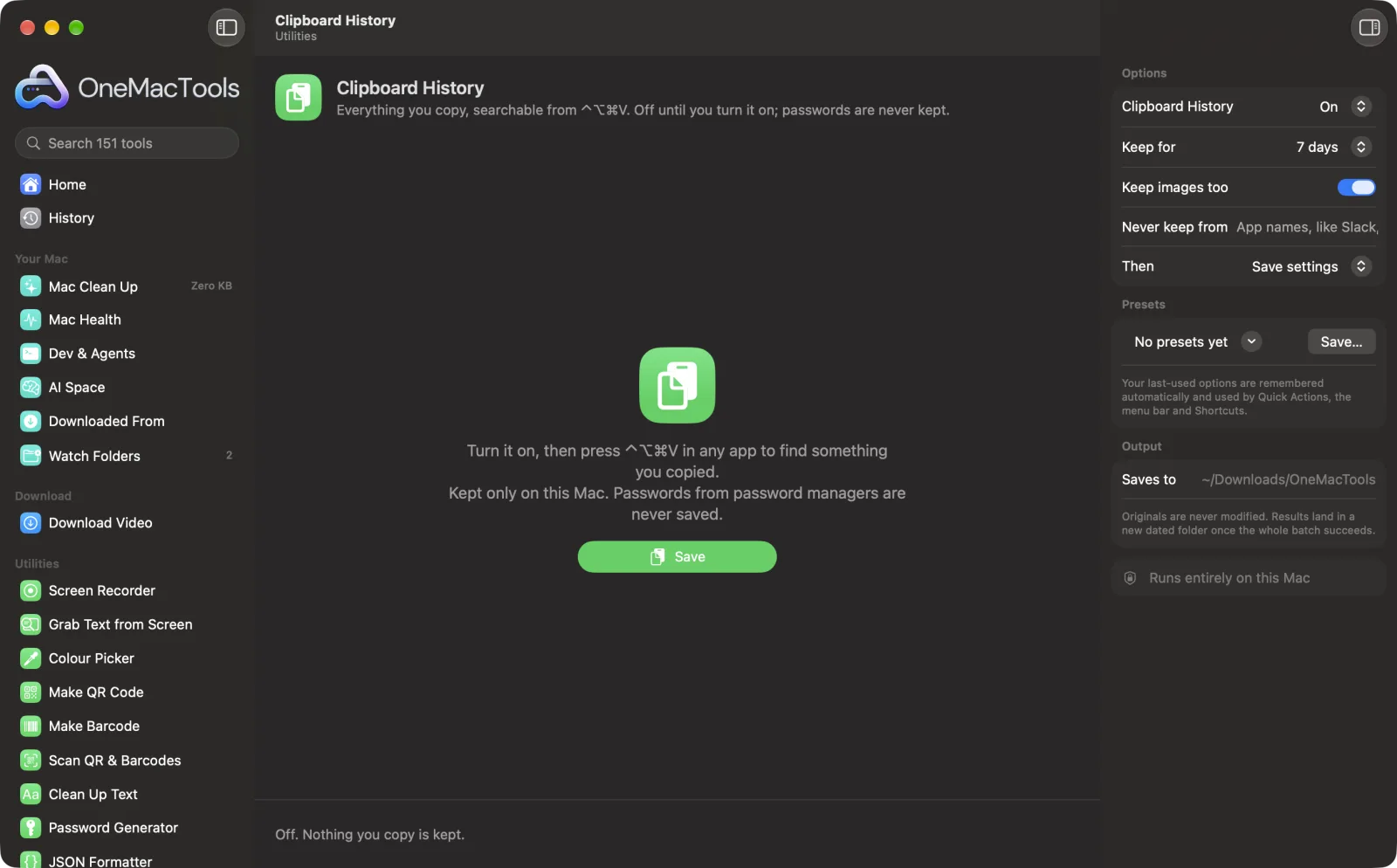
Clipboard History on a Mac
Screenshots from the app, using sample files.
How to use Clipboard History
- 1
Turn it on
Set Clipboard History to On and click Save. Until then, nothing you copy is kept.
- 2
Copy as usual
Text, links, images and files you copy are kept on this Mac, newest first.
- 3
Press ⌃⌥⌘V
In any app. A search box opens with everything you copied.
- 4
Find it and press Return
Type a few letters, use ↑ and ↓, and press Return to paste it where you were. ⌥Return pastes plain text.
- 5
Pin what you use often
Press ⌘P on an item to keep it at the top, however old it gets.
What Clipboard History does
Turn it on and OneMacTools keeps the text, links, images and files you copy, on this Mac only. Press ⌃⌥⌘V in any app, type a few letters, and press Return to paste it straight in (or ⌥Return for plain text). Pin the things you paste every day. Passwords that password managers mark as private are never kept, apps you name are ignored, and everything older than a day, a week or a month is deleted.
Great for
- Paste something you copied an hour ago
- Keep a few snippets pinned for every day
- Collect several bits of text, then paste them one by one
Options explained
- Clipboard History
- Off or On. Turning it off deletes the history.
- Keep for
- 1, 7 or 30 days. Older items are deleted, except pinned ones. At most 500 items are kept.
- Keep images too
- Screenshots and copied pictures are kept as files beside the history. Turn off to keep text, links and files only.
- Never keep from
- App names, separated by commas. 1Password, Bitwarden, Keychain Access, Passwords, Dashlane, LastPass and KeePassXC are always excluded.
- Then
- Save settings, or Clear the history (pinned items stay).
Best practices
- Allow OneMacTools under Accessibility so Return pastes straight into the app; without it, the item is copied and you press ⌘V.
- Add chat or notes apps to Never keep from if you often copy private things there.
- Password managers mark copied passwords as private, and those are never kept.
- Clicking outside the list closes it, like Spotlight.
- Use ⌥Return to paste formatted text as plain text.
Works with
- In
- Anything you copy: text, links, images and files.
- Out
- A searchable list from ⌃⌥⌘V; the item you pick is pasted or copied.
- Kept only on this Mac, in OneMacTools' own folder.
- Checks for something new twice a second; that takes microseconds.
Questions about Clipboard History
How do I see clipboard history on a Mac?
macOS keeps only the last thing you copied. Turn on Clipboard History in OneMacTools and press ⌃⌥⌘V to see everything you've copied since.
Does it save my passwords?
No. Password managers mark copied passwords as private and those are skipped, and their apps are excluded too.
Where is the history stored?
On your Mac only, in OneMacTools' Application Support folder. It's never uploaded or synced.
How long is the history kept?
7 days by default, or 1 or 30. Pinned items stay until you unpin them.
Why does picking an item copy it instead of pasting?
Pasting into another app needs the Accessibility permission. Allow OneMacTools under Privacy & Security › Accessibility.
Does it slow my Mac down?
No. It checks a counter twice a second and only reads the clipboard when it changes.
Does Clipboard History upload my files?
No. Clipboard History runs entirely on your Mac, so your files never leave it and it works offline.
Will Clipboard History change my original files?
No. Results are saved as new files in a dated folder in Downloads › OneMacTools, and your originals are left exactly as they were unless you turn on an option that says otherwise.
What does Clipboard History need?
Just a Mac with macOS 26 or later. There's nothing else to install.
Do this next
Press ⌃⌥⌘D in any app, speak, and your words are typed in with punctuation. On-device.
Redact Text for AISwap names, emails, phone and card numbers, API keys and addresses for placeholders before pasting into an AI chat, then put them back.
Clean Up TextChange case, fix spaces and line breaks, sort or de-duplicate lines, and count words.
Related Utilities tools
Record a window, an app or the whole screen, with sound, as MP4 or GIF.
Grab Text from ScreenDrag over anything on screen — a video, a photo, a locked PDF — and copy the text in it.
Colour PickerPick any pixel on screen and copy its colour as HEX, RGB, HSL or code.
Make QR CodeTurn a link, some text or Wi-Fi details into a crisp QR code.
Make BarcodeMake Code 128, EAN-13, UPC-A, PDF417 and Aztec barcodes for labels, products and tickets.
Scan QR & BarcodesRead QR codes and barcodes from photos, screenshots and PDFs.

Clipboard History, plus 150 more.
One app. One price.
All 151 tools. Free download, one payment for a licence. 14-day money-back guarantee.