
Dictate text into any app on Mac
Press ⌃⌥⌘D in any app, speak, and your words are typed in with punctuation. On-device.
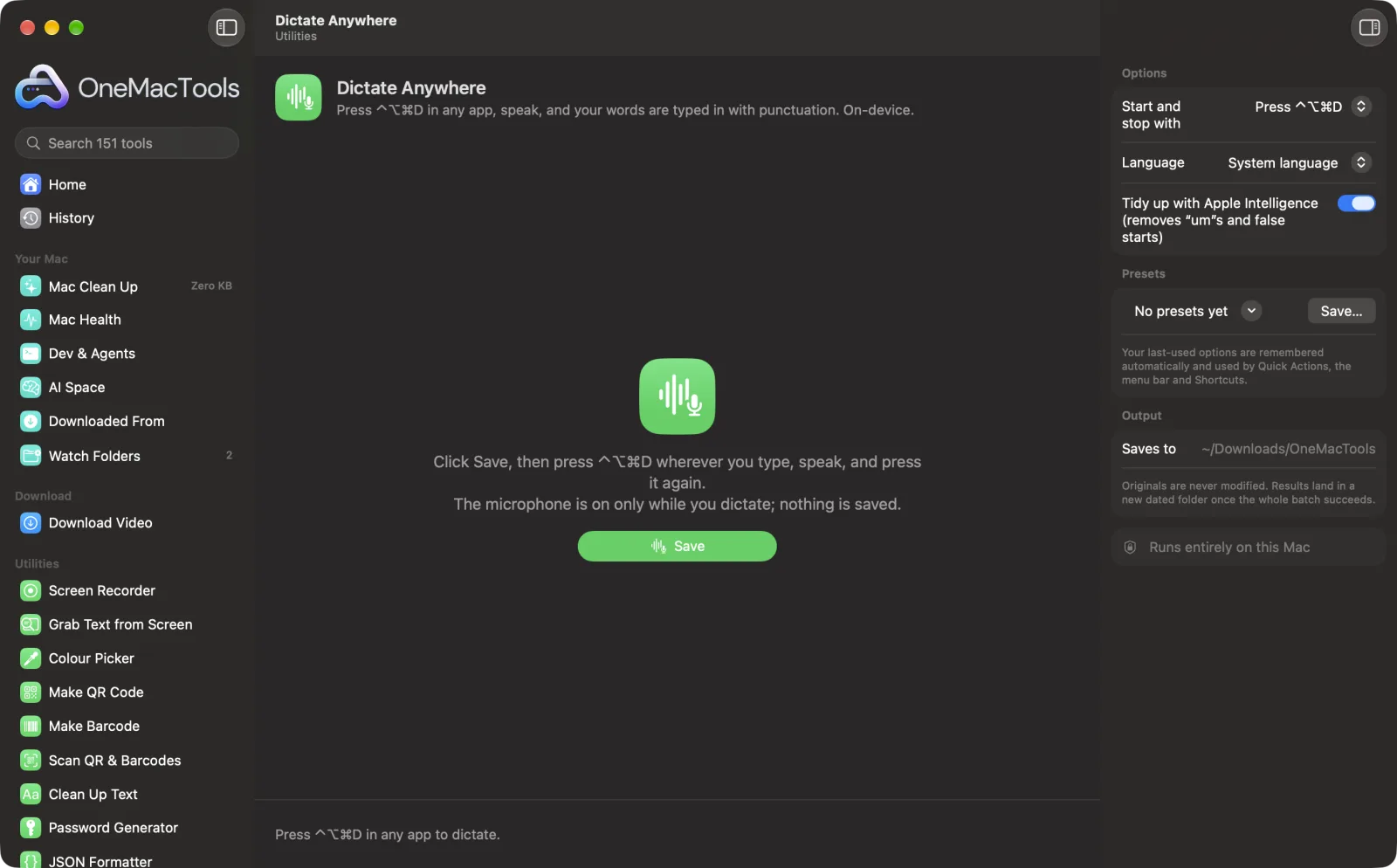
Dictate Anywhere on a Mac
Screenshots from the app, using sample files.
How to use Dictate Anywhere
- 1
Choose how to start
⌃⌥⌘D to start and stop, or hold Right ⌥ while you talk. Then click Save.
- 2
Click where you want the text
An email, a chat, a document, a form or a code editor.
- 3
Press ⌃⌥⌘D and speak
A bar at the bottom of the screen shows what's been heard as you talk.
- 4
Press ⌃⌥⌘D again
The words are typed in where the cursor was, with punctuation.
What Dictate Anywhere does
Press ⌃⌥⌘D wherever you type (an email, a chat, a code editor, a form), speak, and press it again: your words appear where the cursor was, with punctuation, from Apple's on-device speech recognition. A small bar shows what's been heard as you talk. Optionally Apple Intelligence removes the “um”s and false starts first. Or hold Right ⌥ while you talk. Your clipboard is put back as it was afterwards.
Asks for microphone access the first time you record.
Great for
- Reply to messages without typing
- Talk through a long email, then edit
- Give an AI chat a long prompt by voice
Options explained
- Start and stop with
- ⌃⌥⌘D (press to start, press again to finish), Hold Right ⌥ while you talk, or Off.
- Language
- The language you'll speak. The first time, macOS may download its speech model.
- Tidy up with Apple Intelligence
- Removes “um”s, false starts and repeated words before typing it in, keeping your own words. Needs Apple Intelligence.
Best practices
- Allow OneMacTools under Accessibility so it can type into other apps; without it the text is copied for you to paste.
- Say punctuation naturally by pausing; full stops and commas are added for you.
- Speak in whole sentences: recognition is better with more context.
- Use Hold Right ⌥ for short replies and ⌃⌥⌘D for longer dictation.
- Click the × on the bar to cancel without typing anything.
Works with
- In
- Your voice, through any microphone.
- Out
- Text typed into the app you were using.
- Uses Apple's on-device speech recognition; audio isn't saved or sent anywhere.
- The microphone is on only while you dictate.
Questions about Dictate Anywhere
How do I dictate into any app on a Mac?
Turn on Dictate Anywhere, click where you want the text, press ⌃⌥⌘D, speak, and press it again. Your words are typed in with punctuation.
How is it different from macOS dictation?
It shows what it heard as you talk, can tidy up filler words with Apple Intelligence, and works with a hold-to-talk key.
Is my voice sent to a server?
No. Recognition runs on your Mac with Apple's speech models.
Does it change my clipboard?
It uses the clipboard for a moment to type the text in, then puts back what was there.
Which languages work?
English, Spanish, French, German, Italian, Portuguese, Japanese, Korean, Chinese and more, as supported by Apple's on-device speech recognition.
Why is the text only copied, not typed?
Typing into other apps needs the Accessibility permission. Allow OneMacTools under Privacy & Security › Accessibility.
Does Dictate Anywhere upload my files?
No. Dictate Anywhere runs entirely on your Mac, so your files never leave it and it works offline.
Will Dictate Anywhere change my original files?
No. Results are saved as new files in a dated folder in Downloads › OneMacTools, and your originals are left exactly as they were unless you turn on an option that says otherwise.
What does Dictate Anywhere need?
Just a Mac with macOS 26 or later. There's nothing else to install.
Do this next
Everything you copy, searchable from ⌃⌥⌘V. Off until you turn it on; passwords are never kept.
TranscribeTurn speech in audio or video into text or subtitles with Apple's on-device speech recognition.
RewriteParaphrase, proofread, shorten or change the tone of text with on-device Apple Intelligence.
Related Utilities tools
Record a window, an app or the whole screen, with sound, as MP4 or GIF.
Grab Text from ScreenDrag over anything on screen — a video, a photo, a locked PDF — and copy the text in it.
Colour PickerPick any pixel on screen and copy its colour as HEX, RGB, HSL or code.
Make QR CodeTurn a link, some text or Wi-Fi details into a crisp QR code.
Make BarcodeMake Code 128, EAN-13, UPC-A, PDF417 and Aztec barcodes for labels, products and tickets.
Scan QR & BarcodesRead QR codes and barcodes from photos, screenshots and PDFs.

Dictate Anywhere, plus 150 more.
One app. One price.
All 151 tools. Free download, one payment for a licence. 14-day money-back guarantee.