
Paraphrase and rewrite text on Mac with on-device AI
Paraphrase, proofread, shorten or change the tone of text with on-device Apple Intelligence.
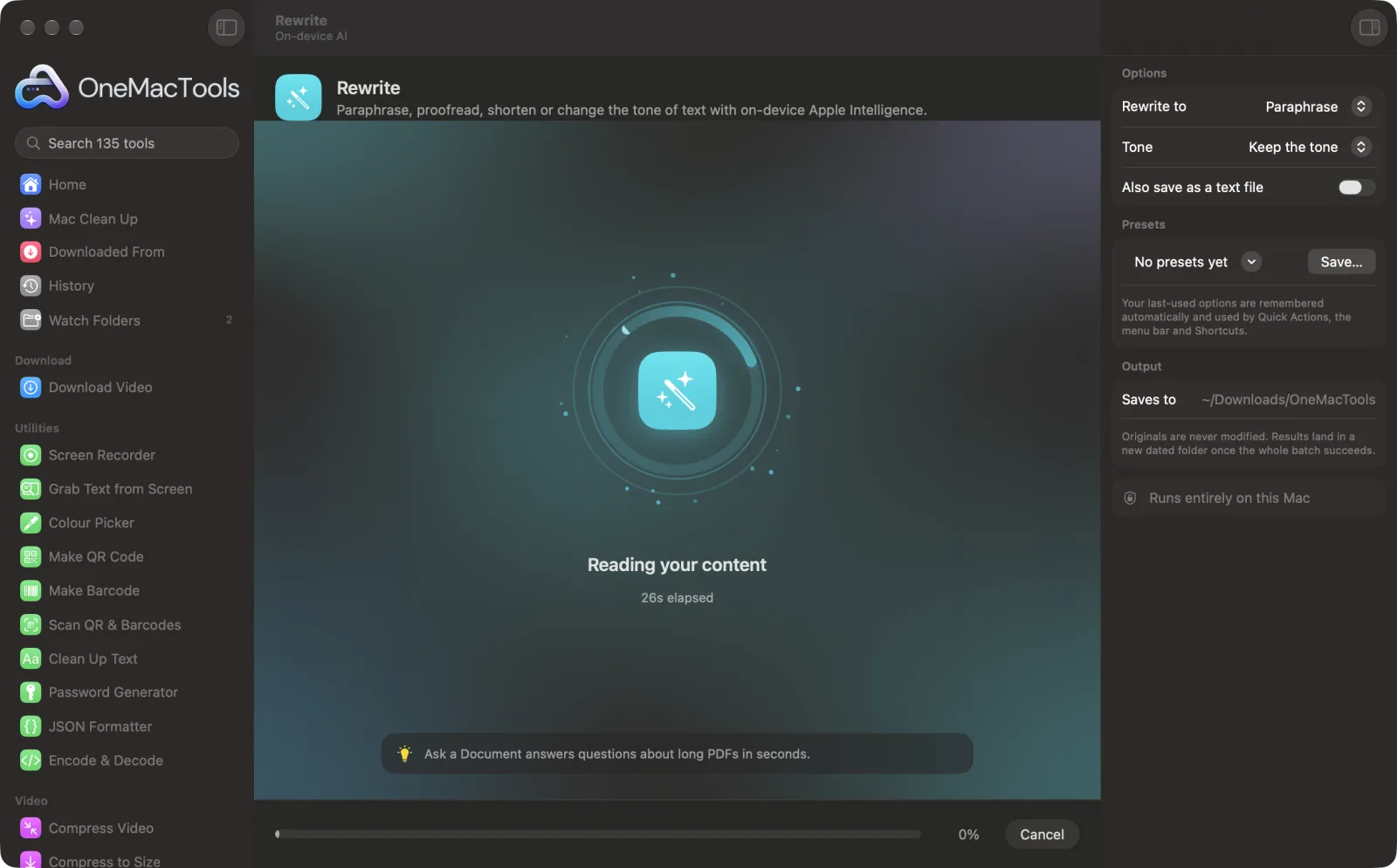
Rewrite on a Mac
Screenshots from the app, using sample files.
How to use Rewrite
- 1
Paste your text
Paste an email, a paragraph from a report or a post into the box.
- 2
Choose what to do
In the right-hand panel, set Rewrite to Paraphrase, Fix grammar & spelling, Make shorter, Make longer or Simplify.
- 3
Pick a tone
For every choice except Fix grammar & spelling, set Tone, or leave it on Keep the tone.
- 4
Click Rewrite
Apple Intelligence's on-device model rewrites the text. Long text is rewritten a few paragraphs at a time, keeping your paragraph breaks.
- 5
Use the result
The rewritten text appears below your original and is copied to the clipboard, ready to paste. Your original stays in the box, so you can try another option.
What Rewrite does
Paste an email, a paragraph or a post and choose what you want: paraphrase it in new words, fix grammar and spelling while changing as little as possible, make it shorter or longer, or simplify it. Pick a professional, friendly, confident or casual tone. Long text is rewritten a few paragraphs at a time, and nothing leaves your Mac.
Needs Apple Intelligence turned on in System Settings. It runs on-device, so your text never leaves your Mac.
Great for
- Proofread an important email before sending it
- Make a long update short enough for chat
- Rephrase a paragraph so it reads more naturally
Options explained
- Rewrite to
- Paraphrase, the default, says the same thing in different words, keeping every fact. Fix grammar & spelling corrects spelling, grammar and punctuation while changing as little as possible. Make shorter keeps the key information in fewer words. Make longer adds detail and smoother flow without inventing facts. Simplify rewrites in plain language.
- Tone
- Shown for Paraphrase, Make shorter, Make longer and Simplify. Keep the tone, the default, leaves it as it is; or choose Professional, Friendly, Confident or Casual. Fix grammar & spelling always keeps your tone.
- Also save as a text file
- Off by default. Turn it on to also save the result as “Rewritten text.txt” in a new dated folder in Downloads › OneMacTools.
Best practices
- Read the result before you send it, especially after Make longer: check that any added detail is true.
- For an important email, use Fix grammar & spelling. It keeps your own words and only fixes mistakes.
- Separate paragraphs with a blank line. Long text is split at paragraph breaks, and the breaks are kept in the result.
- Rewrite keeps the language of your text. To change language, use Translate.
- Try two tones and compare. Your original stays in the box, so you can run it again with a different setting.
Works with
- In
- Text you paste or type: an email, a paragraph, a post or a longer piece.
- Out
- Rewritten text shown below your original and copied to the clipboard, and optionally saved as a .txt file.
- Rewrite needs Apple Intelligence turned on.
- Long text is rewritten about 2,500 characters at a time, split at paragraph breaks.
Questions about Rewrite
How do I paraphrase text on a Mac without uploading it?
Open Rewrite, paste the text, leave Rewrite to on Paraphrase and click Rewrite. Apple Intelligence's on-device model rewrites it on your Mac, and the result is copied to your clipboard.
Can it check my grammar and spelling?
Yes. Choose Fix grammar & spelling. It corrects spelling, grammar and punctuation while keeping your wording, meaning and tone as they are.
Will it change the meaning of my text?
It's told to keep every fact and the meaning, and Make longer is told not to invent facts, names or numbers. AI can still slip, so read the result before you use it.
How do I make an email sound more professional?
Paste the email, keep Rewrite to on Paraphrase and set Tone to Professional. For a tighter version, choose Make shorter with the same tone.
How much text can I rewrite at once?
There's no fixed limit. Long text is rewritten a few paragraphs at a time and joined back together, so a long document simply takes longer.
Does it work in languages other than English?
It keeps the language you paste, so it works in the languages Apple Intelligence supports on your Mac.
Can I rewrite text from a Word document or PDF?
Copy the text from the document and paste it into Rewrite. For a scanned PDF, get the text out with Extract Text first.
Does Rewrite upload my files?
No. Rewrite runs entirely on your Mac, so your files never leave it and it works offline.
Will Rewrite change my original files?
No. Results are saved as new files in a dated folder in Downloads › OneMacTools, and your originals are left exactly as they were unless you turn on an option that says otherwise.
Does Rewrite need Apple Intelligence?
Yes. It uses Apple Intelligence's on-device model, so turn Apple Intelligence on in System Settings. Your text is processed on your Mac and never uploaded.
Do this next
Change case, fix spaces and line breaks, sort or de-duplicate lines, and count words.
TranslateTranslate documents and subtitles offline with Apple's downloadable languages.
SummarizeGet the short version of long documents from Apple Intelligence's on-device model.
Related On-device AI tools
Read text out of photos, screenshots and scanned PDFs with Apple's Vision framework.
Ask a DocumentAsk a question about PDFs, scans or documents and get an answer from what they say.
Smart RenameGive scans, screenshots and photos real names from what's inside them.
Receipts to SpreadsheetRead receipts and invoices into a spreadsheet of dates, vendors, tax and totals.
Alt Text & CaptionsWrite accessible descriptions for images, for websites, documents and social posts.
TranscribeTurn speech in audio or video into text or subtitles with Apple's on-device speech recognition.

Rewrite, plus 134 more.
One app. One price.
All 135 tools for $29, once. 14-day money-back guarantee.