
Scrolling screenshot of a whole page on Mac
Capture a whole long page or chat as one tall image: it scrolls by itself and joins the pieces.
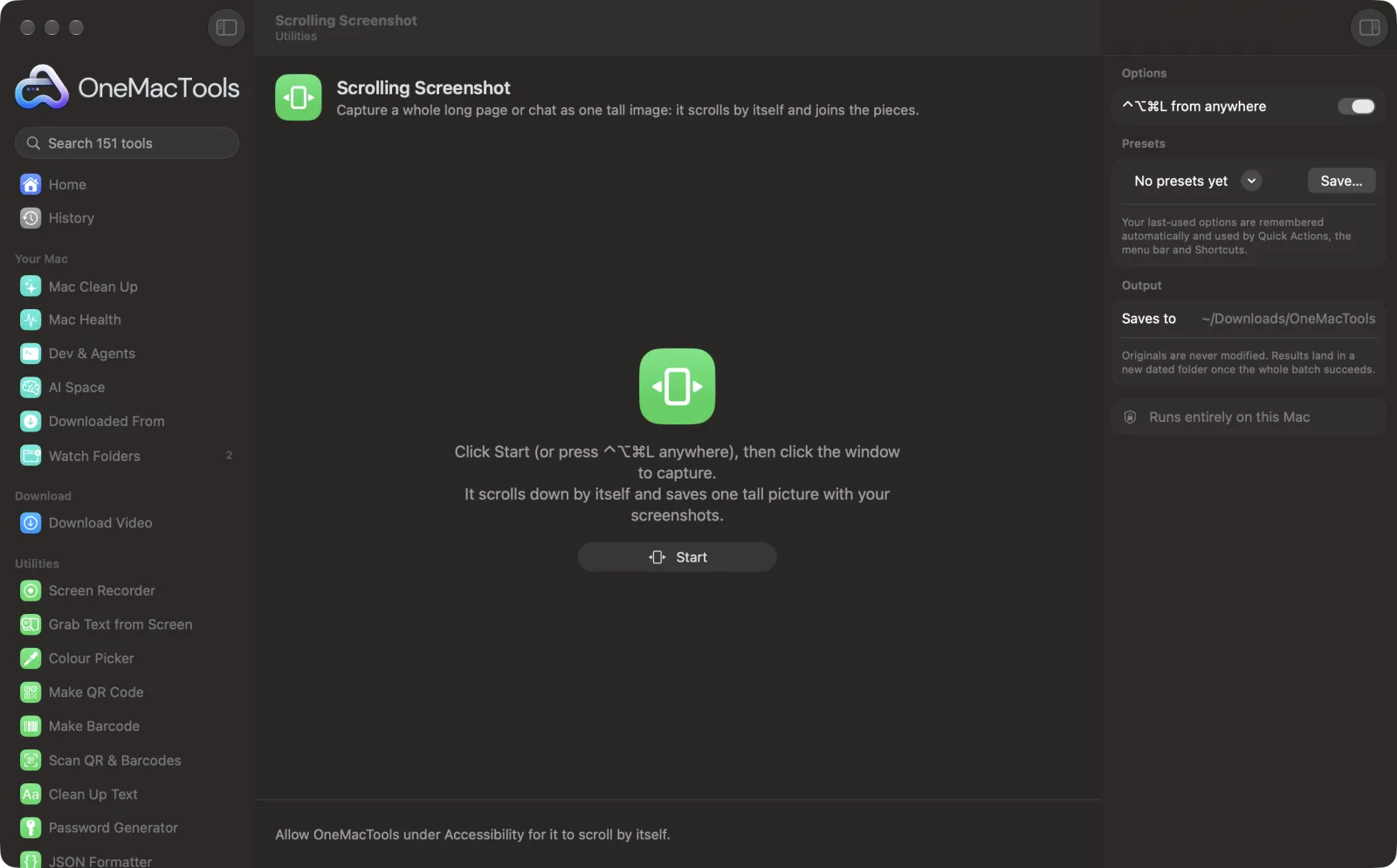
Scrolling Screenshot on a Mac
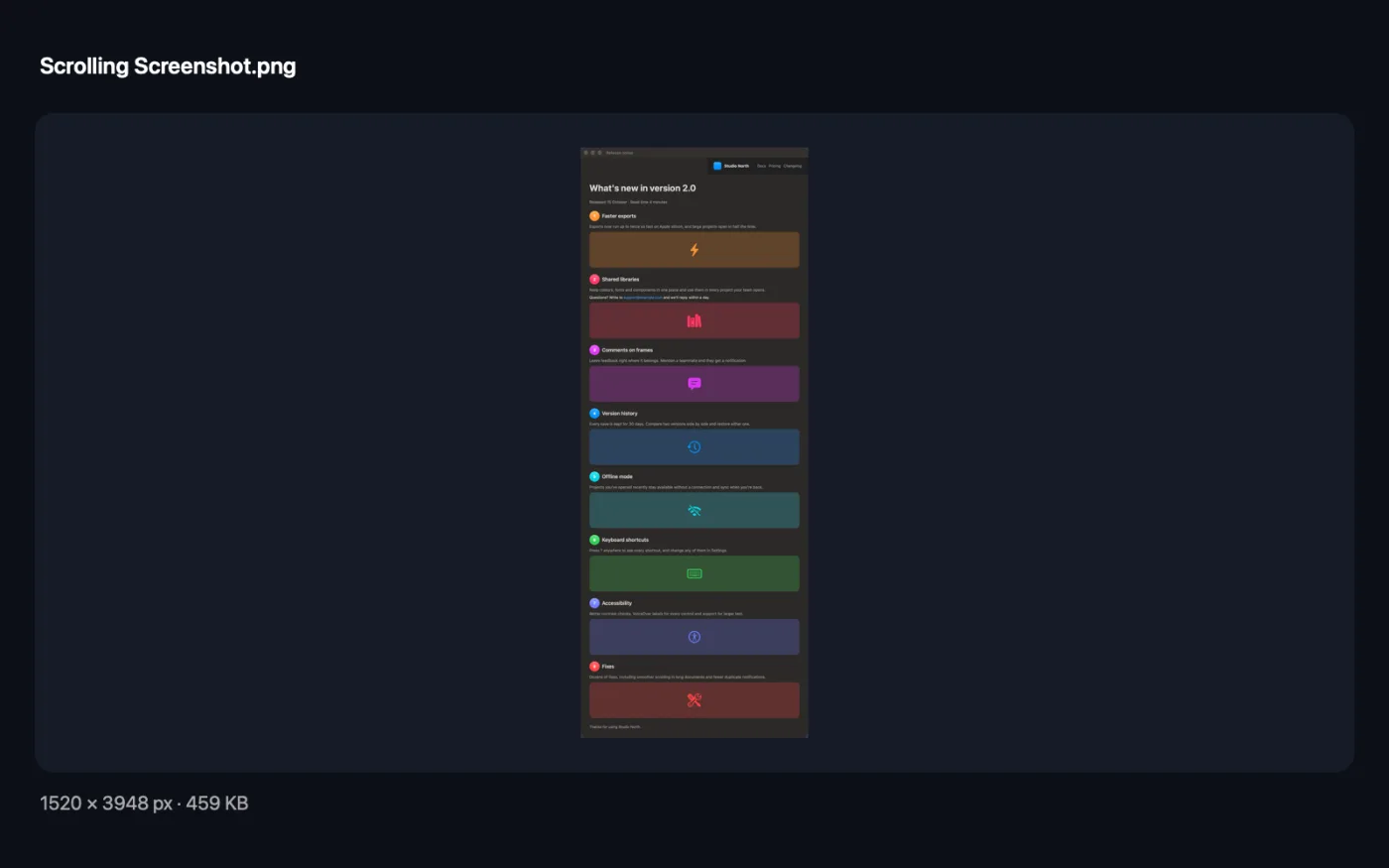
Screenshots from the app, using sample files.
How to use Scrolling Screenshot
- 1
Scroll to where you want to start
Usually the top of the page or chat.
- 2
Press ⌃⌥⌘L
Or click Start in the tool, or use the menu bar icon's menu.
- 3
Click the window
A bar at the top of the screen shows how tall the picture is so far.
- 4
Let it scroll
It scrolls down by itself and stops at the end. Click Done to stop sooner.
- 5
Find the picture
It's saved with your screenshots, and a thumbnail lets you copy or edit it.
What Scrolling Screenshot does
Press ⌃⌥⌘L and click a window: a web page, a chat, a document or a long settings list. It scrolls down by itself, captures as it goes and joins the pieces into one tall picture, keeping sticky headers and footers once instead of repeating them. If two pieces can't be lined up exactly, it stops and saves what it has, so a broken join never ends up in the picture. Saved with your screenshots.
Asks for Screen Recording permission the first time you use it.
Great for
- Save a whole web page as one image
- Share a long chat in one picture
- Capture a full settings list or report
Options explained
- ⌃⌥⌘L from anywhere
- On by default. Turn it off if another app uses that shortcut; Scrolling Screenshot stays in the menu bar icon's menu.
Best practices
- Allow OneMacTools under Accessibility so it can scroll by itself; without it, you scroll slowly and click Done.
- Make the window tall: fewer pieces means fewer joins.
- Pages that animate or load more as you scroll can stop the capture early. It keeps what it has rather than joining badly.
- Sticky headers and footers are kept once, at the top and bottom.
- Very long pages stop at 30,000 pixels; capture the rest separately if you need it.
Works with
- In
- Any window that scrolls: browsers, chats, documents, settings.
- Out
- One tall PNG, saved with your screenshots.
- Needs the Screen Recording permission; scrolling by itself also needs Accessibility.
- Each join is checked; if one can't be lined up exactly, capturing stops there.
Questions about Scrolling Screenshot
How do I take a scrolling screenshot on a Mac?
Press ⌃⌥⌘L, click the window, and let it scroll. You get one tall picture of the whole page or chat.
Does it work in Chrome, Safari and Slack?
Yes, in any window that scrolls. It captures the window as you see it, so it doesn't depend on the app.
Why does the header appear only once?
Rows that stay put while the page moves are recognised as a sticky header or footer and kept once.
Why did it stop before the end?
Either the page ended, it reached 30,000 pixels, or two pieces couldn't be lined up exactly, usually because something on the page was animating.
Do I need Accessibility?
Only for scrolling by itself. Without it, scroll down slowly while it captures and click Done.
Is anything uploaded?
No. Everything happens on your Mac.
Does Scrolling Screenshot upload my files?
No. Scrolling Screenshot runs entirely on your Mac, so your files never leave it and it works offline.
Will Scrolling Screenshot change my original files?
No. Results are saved as new files in a dated folder in Downloads › OneMacTools, and your originals are left exactly as they were unless you turn on an option that says otherwise.
What does Scrolling Screenshot need?
Just a Mac with macOS 26 or later. There's nothing else to install.
Do this next
Capture an area or window with ⌃⌥⌘S, then add arrows, boxes, text, numbered steps, blur and crop.
Web Page to PDFSave any web page as a PDF, split into printable pages or as one long page.
Compress ImagesShrink photos for email and the web, with a live before-and-after preview.
Related Utilities tools
Record a window, an app or the whole screen, with sound, as MP4 or GIF.
Grab Text from ScreenDrag over anything on screen — a video, a photo, a locked PDF — and copy the text in it.
Colour PickerPick any pixel on screen and copy its colour as HEX, RGB, HSL or code.
Make QR CodeTurn a link, some text or Wi-Fi details into a crisp QR code.
Make BarcodeMake Code 128, EAN-13, UPC-A, PDF417 and Aztec barcodes for labels, products and tickets.
Scan QR & BarcodesRead QR codes and barcodes from photos, screenshots and PDFs.

Scrolling Screenshot, plus 150 more.
One app. One price.
All 151 tools. Free download, one payment for a licence. 14-day money-back guarantee.