
Finder Quick Actions on Mac: right-click to compress, convert and more
OneMacTools adds Finder Quick Actions to your Mac's right-click menu, so you can compress a video, merge PDFs, convert images to JPEG or make a PDF searchable without opening the app. Each action appears as “OMT: …” under Quick Actions or Services, runs in the background with the tool's last-used options, saves results to a new dated folder and tells you with a notification when it's done.
On this page
- What Finder Quick Actions are in OneMacTools
- Every Quick Action OneMacTools adds to Finder
- How to use a Quick Action on one or several files
- Where Quick Action results are saved
- Drop files on the menu bar icon or the Dock icon
- How to turn Finder Quick Actions on or off
- Quick Actions not showing in Finder? How to fix it
- How it differs from macOS's own Quick Actions
- Tools mentioned on this page
- Questions
What Finder Quick Actions are in OneMacTools
macOS lets apps offer actions on files you select in Finder. OneMacTools uses this to put its most common jobs one right-click away. Select one or more files, right-click, and choose an action whose name starts with OMT:, such as OMT: Compress Video or OMT: Merge PDFs. The job runs in the background, so you can carry on working while it finishes.
Quick Actions don't show you the tool's window or options. They use the options you last used for that tool in the app (or the tool's defaults if you've never opened it), plus a few fixed settings that make the action do what its name says — Convert Video to MP4 always picks MP4, for example. If you want different settings, open the tool once in OneMacTools, set the options, and run it; from then on the Quick Action uses those choices too.
Each action only appears for files it can handle. Right-click a .mov and you'll see the video actions; right-click a PDF and you'll see the PDF actions. OMT: Open in OneMacTools… and OMT: Create ZIP appear for any file.
Every Quick Action OneMacTools adds to Finder
These are all the actions, the files they appear for, and what they do. Each links to the tool's own page, where its options are explained.
| Finder menu item | Shows for | What it does |
|---|---|---|
| OMT: Open in OneMacTools… | Any file | Opens the app with the files loaded and asks What would you like to do?, listing every tool that accepts them |
| OMT: Compress Video | Videos | Compress Video with your last-used quality |
| OMT: Compress Video to 25 MB | Videos | Compress to Size with the 25 MB — Email target |
| OMT: Convert Video to MP4 | Videos | Convert Video with the format set to MP4 |
| OMT: Make GIF from Video | Videos | Video to GIF |
| OMT: Extract Audio as MP3 | Videos | Extract Audio as MP3 |
| OMT: Add Subtitles | Videos | Auto Subtitles, transcribed on your Mac |
| OMT: Transcribe | Audio and video | Transcribe speech to text on your Mac |
| OMT: Convert Images to JPEG | Images | Convert Images with the format set to JPEG |
| OMT: Compress Images | Images | Compress Images |
| OMT: Remove Background | Images | Remove Background |
| OMT: Combine Images into PDF | Images | Images to PDF |
| OMT: Redact Images | Images | Redact Images |
| OMT: Merge PDFs | PDFs | Merge PDFs into one file |
| OMT: Compress PDF | PDFs | Compress PDF |
| OMT: Make PDF Searchable | PDFs | Make PDF Searchable by adding a text layer to scans |
| OMT: Extract Text | Images and PDFs | Extract Text (OCR) |
| OMT: Tables to Spreadsheet | Images and PDFs | Tables to Spreadsheet |
| OMT: Smart Rename | Images, PDFs, text and Word files | Smart Rename from what's inside each file |
| OMT: Convert to PDF | Text, RTF, HTML, Word and Markdown | Convert to PDF |
| OMT: Markdown to PDF | Markdown | Markdown to PDF |
| OMT: Create ZIP | Any file | Create ZIP |
| OMT: Copy SHA-256 Checksum | Any file | File Checksum with SHA-256, copied to the clipboard |
How to use a Quick Action on one or several files
- In Finder, select the file — or ⌘-click or drag to select several. For most actions they should be the same kind (all videos, all PDFs).
- Right-click (or Control-click) the selection.
- Open Quick Actions or Services at the bottom of the menu, depending on how macOS has grouped them, and choose the OMT: action you want.
- Carry on working. While the job runs, the OneMacTools icon in the menu bar turns into an hourglass.
- When it finishes, a notification shows the tool's name and a short summary, such as how many files were saved and where. Click it to open the results folder.
Selecting several files runs them as one batch. OMT: Compress Images on 40 photos compresses all 40 into one results folder; OMT: Merge PDFs on four PDFs makes one merged PDF from them. A 1.4 GB screen recording sent to OMT: Compress Video to 25 MB ends up as a file you can attach to an email, with nothing for you to set.
If OneMacTools isn't running when you choose an action, macOS starts it for you. If you've hidden its Dock icon in Settings, it still runs from the menu bar.
Where Quick Action results are saved
Quick Actions never change your originals. Each job works in a temporary folder and, only once the whole batch has succeeded, moves the results to a new folder named after the tool and the time, for example Compress Video – 2026-10-12 at 15.29.15. By default these folders go in Downloads › OneMacTools.
To save somewhere else, open OneMacTools › Settings…, find Output, and click Choose… next to Save results to. Reset goes back to the default. The same folder is used by the app, Quick Actions, the menu bar, Watch Folders and Shortcuts.
A few actions don't make files. OMT: Copy SHA-256 Checksum puts the checksum on your clipboard, and the notification tells you so.
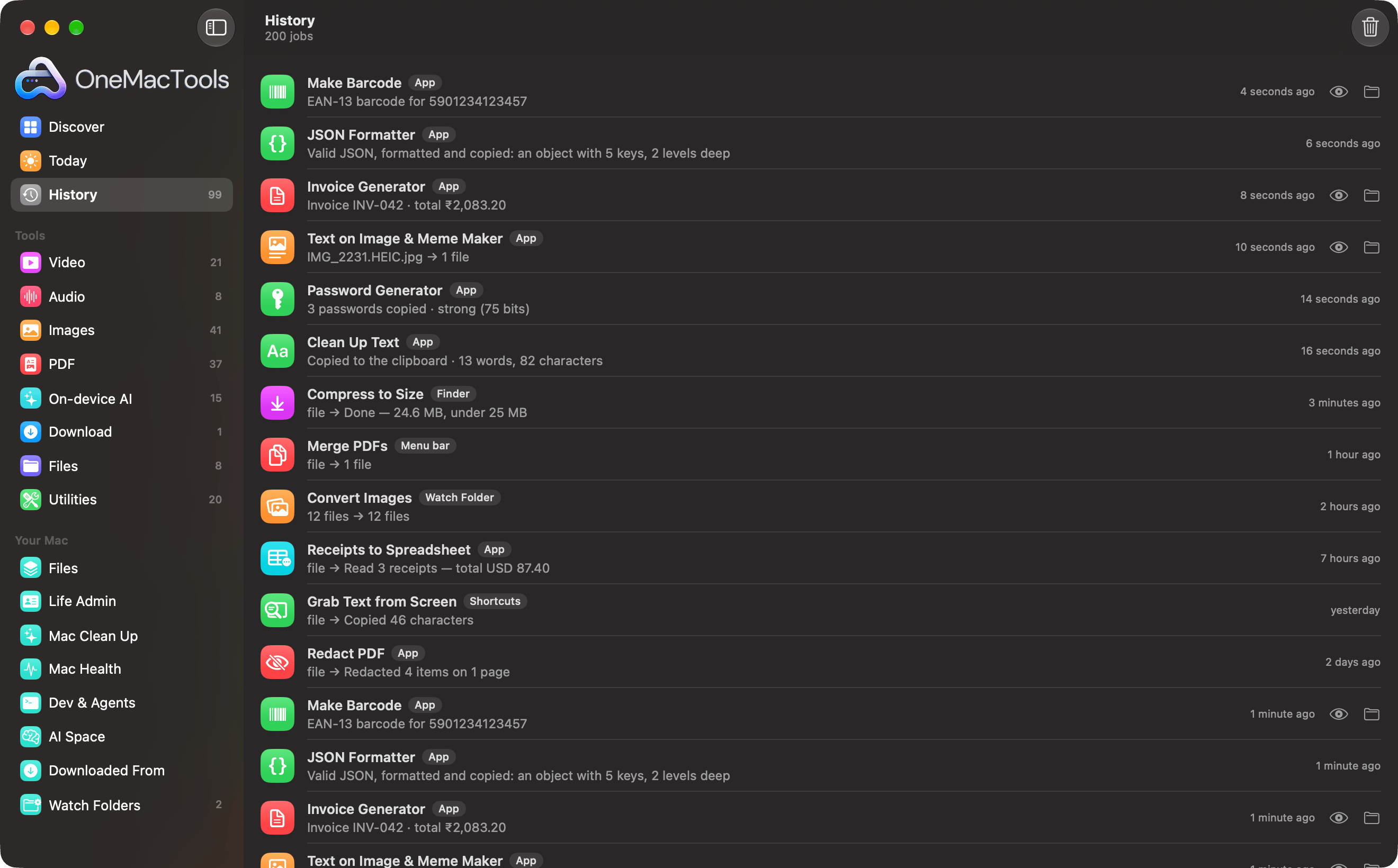
Every Quick Action job is also recorded in History with a Finder badge, next to jobs from the app, the menu bar, Watch Folders and Shortcuts. From there you can open the results again. See History of processed files.
Drop files on the menu bar icon or the Dock icon
Finder isn't the only way in. You can drag files onto the OneMacTools icon in the menu bar. A menu appears with the file's name (or the number of files) at the top, followed by every Quick Action that works on them, and an Open With submenu listing all the matching tools grouped by category. Choosing a Quick Action runs it in the background exactly as Finder would; choosing a tool from Open With opens it in the app with the files loaded so you can set options first.
If nothing fits, the menu says No tools work with these files. The menu bar menu itself reminds you: Tip: drop files on this icon for Quick Actions.
Dropping files on the Dock icon, or choosing OMT: Open in OneMacTools…, opens the main window on a page that lists the file name and asks What would you like to do?, with every tool that accepts those files grouped by category. Click one to open it with the files ready. This is the quickest way in when you want to see and change a tool's options. For the menu bar's other features, see the menu bar system monitor.
How to turn Finder Quick Actions on or off
macOS decides which services appear in Finder's menus, and you can switch each one on or off.
- In OneMacTools, open Settings… and find the Anywhere on your Mac section.
- Next to Finder Quick Actions, click Open Services Settings…. This opens Keyboard settings in System Settings.
- Click Keyboard Shortcuts…, then choose Services and expand Files and Folders.
- Tick the OMT: actions you want and untick the ones you don't. Changes apply straight away.
While you're there, you can give an action a keyboard shortcut: double-click to the right of its name and press the keys. Pick a combination other apps don't use, such as ⌃⌥⌘M for Merge PDFs.
In the same Anywhere on your Mac section, Notify me when background jobs finish controls the notifications Quick Actions send. Turn it off if you'd rather check History, but you then won't be told when a job fails.
Quick Actions not showing in Finder? How to fix it
- Open OneMacTools once. macOS learns about the actions when the app launches. After installing or moving the app, open it so Finder picks them up.
- Check the Services list. Follow the steps above and make sure the OMT: actions are ticked under Files and Folders.
- Check the file type. An action only appears for files it accepts. OMT: Merge PDFs won't show for a .docx; use OMT: Convert to PDF first.
- Look in both places. macOS may list the actions under Quick Actions or under Services, and can move them between the two as more apps add services.
- Relaunch Finder. ⌥-right-click Finder in the Dock and choose Relaunch, or log out and back in, if menus look out of date.
- Activate your licence. Until OneMacTools is activated, a Quick Action fails with a notification saying OneMacTools isn't activated yet. See activate your licence key.
- Install FFmpeg for video and audio. Video and audio actions need FFmpeg; images, PDFs and on-device AI don't. FFmpeg on Mac setup shows how.
When a job fails, the notification title reads, for example, Compress Video failed, followed by the reason. The same failure is listed in History. If you're still stuck, see troubleshooting.
How it differs from macOS's own Quick Actions
Finder already has a few built-in Quick Actions, such as Rotate Left, Create PDF and Convert Image, and you can build your own in Automator or Shortcuts. They're useful but limited: they mostly work on images, and anything else means building a workflow yourself.
OneMacTools adds ready-made actions for video, audio, PDFs and on-device AI — compress to a target size, add subtitles, make scans searchable, rename files from their contents — and they all use the same options you've already chosen in the app. Results always go to a new folder, so nothing is overwritten, and every job lands in History. If you need a different chain of steps, combine OneMacTools with Shortcuts as described in Apple Shortcuts and Siri.
Tools mentioned on this page
Questions
How do I add Quick Actions to the right-click menu on Mac?
Install OneMacTools and open it once; its actions then appear in Finder's right-click menu under Quick Actions or Services, each starting with “OMT:”. If they're missing, go to System Settings › Keyboard › Keyboard Shortcuts › Services › Files and Folders and tick them.
Can I compress a video by right-clicking it on a Mac?
Yes. Right-click the video and choose OMT: Compress Video, or OMT: Compress Video to 25 MB to make it small enough for email. It runs in the background and saves the smaller copy to Downloads › OneMacTools, leaving the original untouched.
How do I change the settings a Quick Action uses?
Open the same tool in OneMacTools, choose your options and run it once. Quick Actions always use a tool's last-used options, plus the fixed setting in the action's name, such as MP4 or JPEG.
Why don't I see every OMT action when I right-click?
Each action only appears for files it can work on, so video actions show for videos and PDF actions for PDFs. Also check that the action is ticked in Keyboard › Keyboard Shortcuts › Services › Files and Folders.
Can I give a Finder Quick Action a keyboard shortcut?
Yes. In System Settings › Keyboard › Keyboard Shortcuts › Services, find the OMT: action under Files and Folders, double-click to the right of it and press the keys you want. The shortcut works when files are selected in Finder.
Do Quick Actions upload my files anywhere?
No. They run the same tools as the app, on your Mac. Results are saved to your OneMacTools folder and recorded in History. See the privacy page for details.
