
Convert PDF to Excel on Mac
Read tables in screenshots, photos and PDFs into Excel or CSV, rows and columns kept.
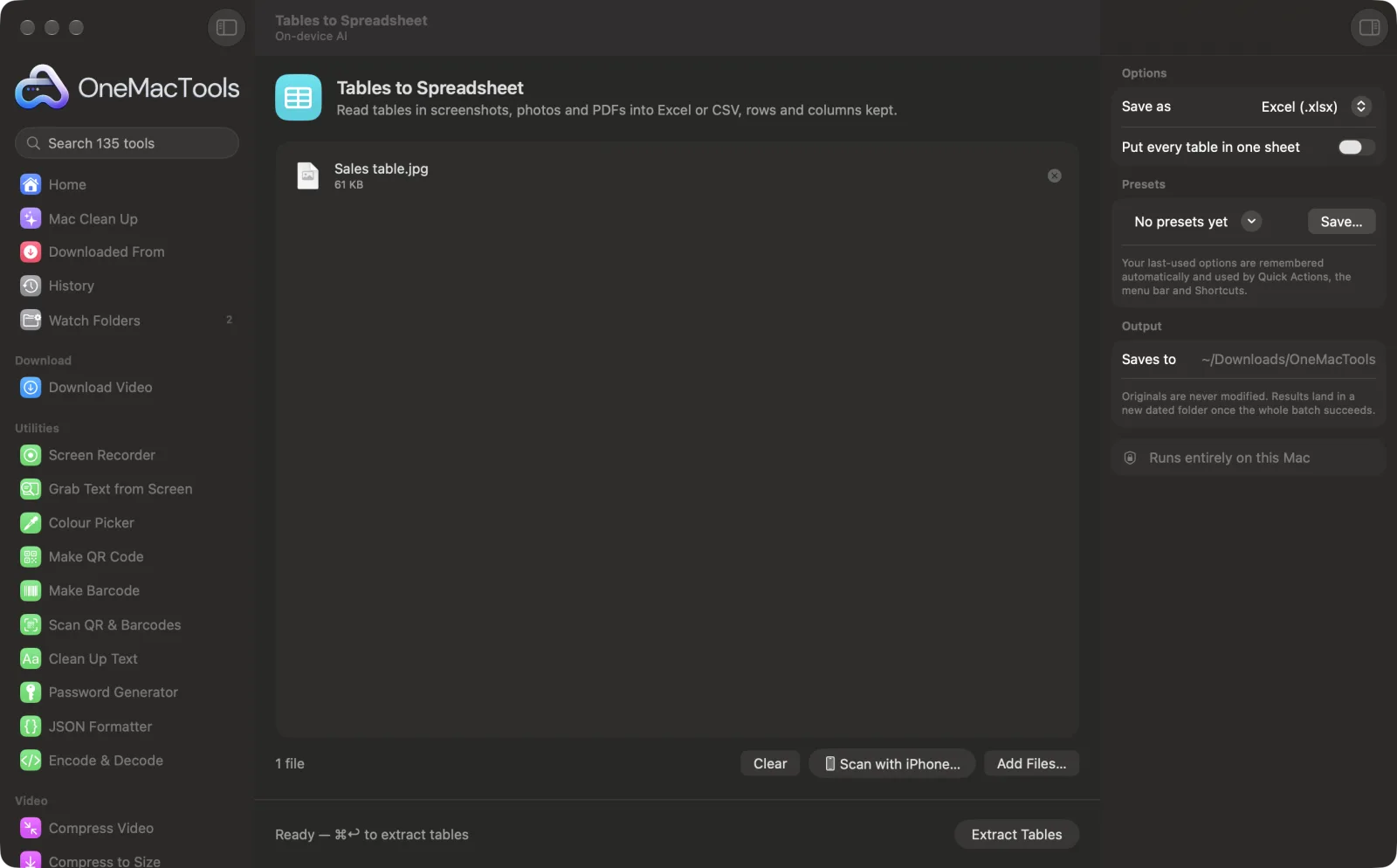
PDF to Excel (Tables to Spreadsheet) on a Mac

Screenshots from the app, using sample files.
How to use PDF to Excel (Tables to Spreadsheet)
- 1
Add the tables
Drop PDFs, screenshots or photos of tables onto Tables to Spreadsheet. To photograph a printed table, click Scan with iPhone…. Or select files in Finder, right-click and choose Quick Actions › OMT: Tables to Spreadsheet, which uses your last settings.
- 2
Choose the format
In the right-hand panel, set Save as to Excel (.xlsx) or CSV.
- 3
Decide how to group tables
Leave Put every table in one sheet off for a file per table, or turn it on to collect them all in one.
- 4
Click Extract Tables
The document reading built into macOS finds the tables on each page and rebuilds them cell by cell. Where there's no clear table, lines of text with wide gaps are split into columns.
- 5
Open the spreadsheet
The window says how many tables were read. Files named “<file> table” (or “table 1”, “table 2”) are saved in a new dated folder in Downloads › OneMacTools; open them with the Preview (eye) button or Show in Finder.
What PDF to Excel (Tables to Spreadsheet) does
OneMacTools uses the document reading built into macOS to find tables in screenshots, photos and PDFs and rebuild them cell by cell. Numbers are saved as numbers, so you can add them up straight away. Save each table as its own Excel file or CSV, or all of them in one sheet. Works offline, with no upload.
It's also a Finder Quick Action: right-click files and choose OMT: Tables to Spreadsheet.
Great for
- Turn a bank statement PDF into a spreadsheet
- Copy a table from a screenshot into Numbers
- Digitise a printed price list
Options explained
- Save as
- Excel (.xlsx), the default, or CSV. In both, values that look like plain numbers are saved as numbers, so you can add them up straight away.
- Put every table in one sheet
- Off by default, so each table gets its own file. Turn it on to put every table from every file into one file named Tables, with a blank row between tables.
Best practices
- Use sharp, straight images. A full-size screenshot or a flat, well-lit photo gives far better columns than a skewed one.
- Only the first 30 pages of a PDF are read. Split a longer statement into parts with Split PDF first.
- Check the totals: add up a column in the spreadsheet and compare it with the original.
- Headings that span several columns and merged cells may need tidying by hand.
- For receipts and invoices, Receipts to Spreadsheet picks out the date, vendor, tax and total for you.
Works with
- In
- PDFs (with text or scanned), screenshots and photos of tables in any image format macOS can open.
- Out
- Excel (.xlsx) or CSV files, one per table or all tables in one sheet.
- Up to the first 30 pages of each PDF are read.
- Commas and dollar signs are removed when reading numbers, so 1,234.50 and $99 become numbers. Amounts that use a comma as the decimal point, such as 12,50, and codes with leading zeros, such as 00123, aren't kept as written, so check those columns.
- Files with no table are skipped. If none of them has one, you'll see “No tables or columns of text were found.”
Questions about PDF to Excel (Tables to Spreadsheet)
How do I convert a PDF table to Excel on a Mac?
Drop the PDF onto Tables to Spreadsheet and click Extract Tables. Each table is rebuilt cell by cell in an .xlsx file, with numbers stored as numbers so you can add them up straight away.
Does it work on scanned or photographed tables?
Yes. It uses the document reading built into macOS, which works on scans and phone photos as well as PDFs. You can also photograph a table with Scan with iPhone….
Can I get all the tables in one sheet?
Yes. Turn on Put every table in one sheet. The tables are stacked in one file, with a blank row between them.
Can I convert a bank statement PDF to Excel?
Yes. Drop the statement in and each table of transactions becomes a spreadsheet. Check the balances against the statement, and split statements longer than 30 pages first.
Why are some numbers stored as text?
Only values that read as plain numbers are converted. Amounts with other currency symbols, percentages or brackets for negatives stay as text, so convert those columns in your spreadsheet app if you need to calculate with them.
How do I copy a table from a screenshot into a spreadsheet?
Drop the screenshot onto Tables to Spreadsheet and click Extract Tables. Open the .xlsx in Numbers or Excel, or choose CSV to import it anywhere.
Does PDF to Excel (Tables to Spreadsheet) upload my files?
No. PDF to Excel (Tables to Spreadsheet) runs entirely on your Mac, so your files never leave it and it works offline.
Will PDF to Excel (Tables to Spreadsheet) change my original files?
No. Results are saved as new files in a dated folder in Downloads › OneMacTools, and your originals are left exactly as they were unless you turn on an option that says otherwise.
What does PDF to Excel (Tables to Spreadsheet) need?
Just a Mac with macOS 26 or later. There's nothing else to install.
Can I use PDF to Excel (Tables to Spreadsheet) from Finder?
Yes. Right-click files in Finder and choose Quick Actions › “OMT: Tables to Spreadsheet”. It runs in the background and notifies you when it's done.
Do this next
Read receipts and invoices into a spreadsheet of dates, vendors, tax and totals.
Split PDFSplit by pages, chapters (bookmarks), file size or where a word appears, or cut two-page scans in half.
CSV to PDFTurn a CSV into a tidy, printable table, landscape for wide data.
Related On-device AI tools
Read text out of photos, screenshots and scanned PDFs with Apple's Vision framework.
Ask a DocumentAsk a question about PDFs, scans or documents and get an answer from what they say.
Smart RenameGive scans, screenshots and photos real names from what's inside them.
Alt Text & CaptionsWrite accessible descriptions for images, for websites, documents and social posts.
TranscribeTurn speech in audio or video into text or subtitles with Apple's on-device speech recognition.
Meeting NotesTurn a meeting recording into a transcript plus notes with decisions and action items.

PDF to Excel (Tables to Spreadsheet), plus 134 more.
One app. One price.
All 135 tools for $29, once. 14-day money-back guarantee.