
Convert CSV to PDF on Mac
Turn a CSV into a tidy, printable table, landscape for wide data.
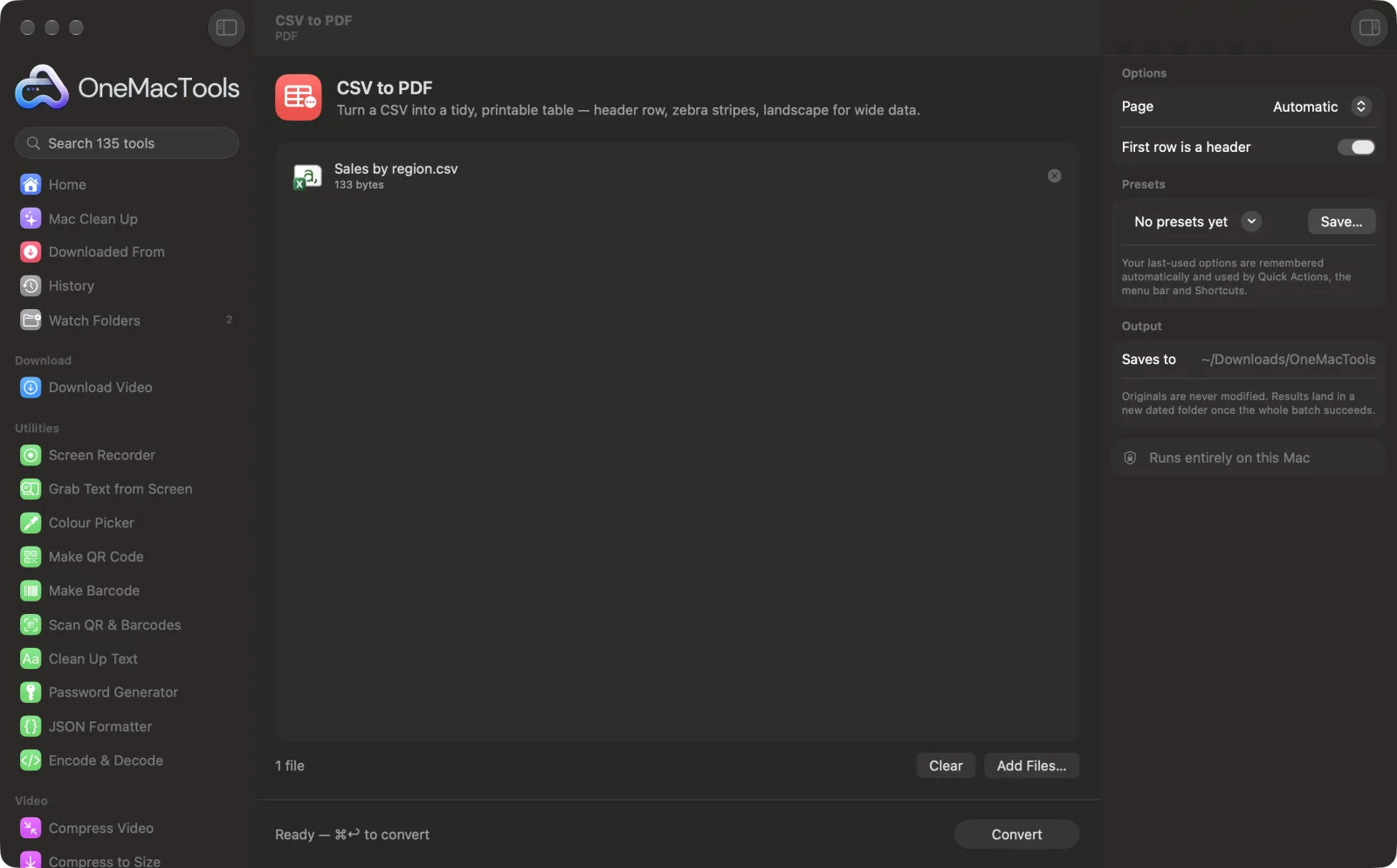
CSV to PDF on a Mac
Screenshots from the app, using sample files.
How to use CSV to PDF
- 1
Add the CSV
Drop one or more CSV or TSV files onto CSV to PDF.
- 2
Choose the paper
In the right-hand panel, pick Automatic, A4 or US Letter.
- 3
Say whether there's a header
Leave First row is a header on if the first row holds column names.
- 4
Convert
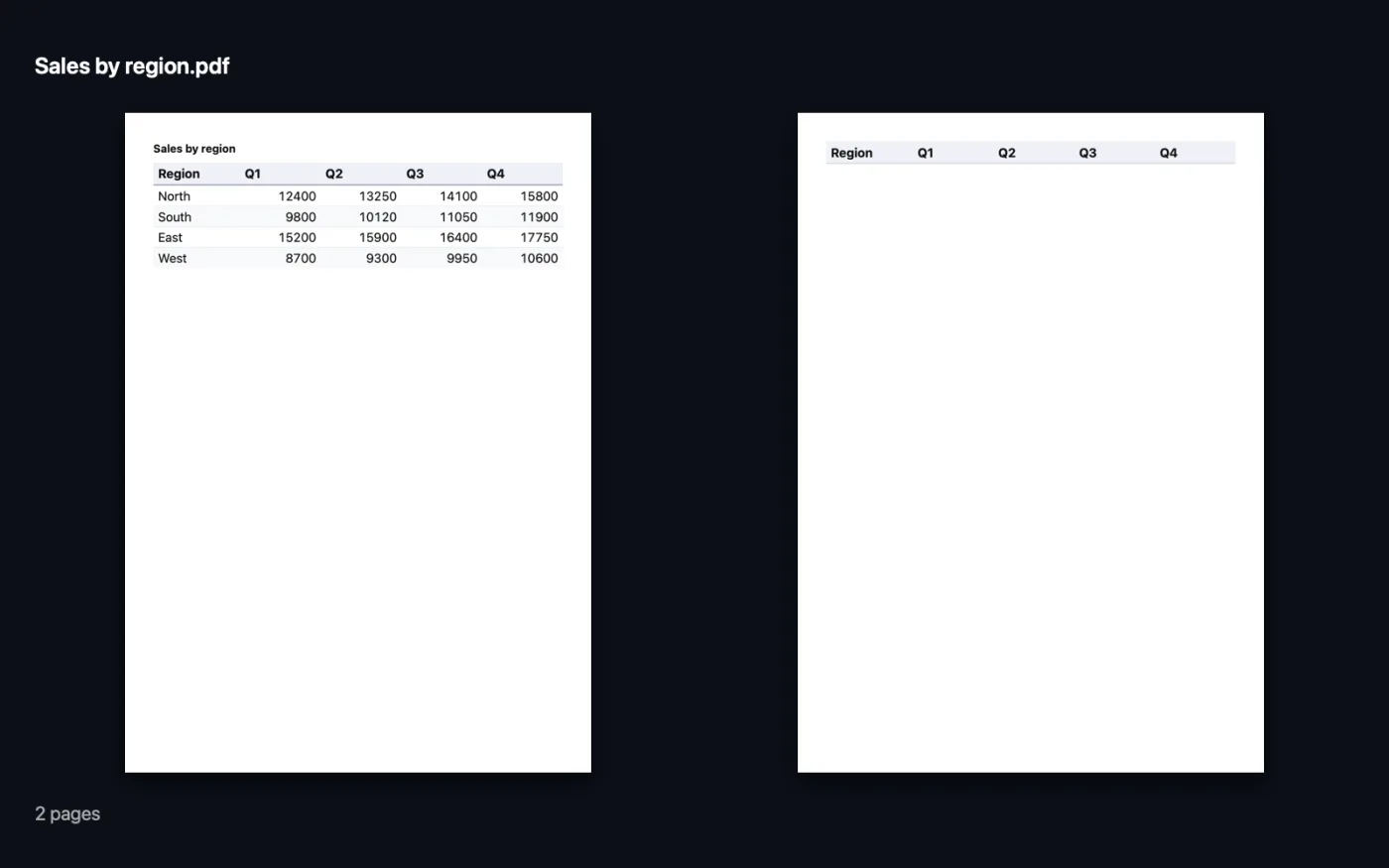
Click Convert. Each file becomes a PDF table, titled with the file name; tables with more than five columns are turned to landscape.
- 5
Open the PDF
It's saved in a dated folder in Downloads › OneMacTools with the same name as the CSV.
What CSV to PDF does
OneMacTools lays out your CSV as a clean table with a header row, zebra stripes, numbers aligned right and wide tables turned to landscape. TSV files work too.
Great for
- Print an export from your bank or shop
- Share a data export with someone who can't open CSV
- Attach a readable table to an email
Options explained
- Page
- Automatic (the default), A4 or US Letter. Automatic uses US Letter in the US and Canada and A4 elsewhere. Tables with more than five columns are always laid out in landscape.
- First row is a header
- On by default. Shows the first row as bold column headings on a shaded band. Turn it off if your file has no column names, so the first row is treated as data.
Best practices
- Remove columns you don't need before converting. Fewer columns means larger, more readable text.
- Numbers are aligned to the right automatically, so totals and amounts line up.
- Save the CSV as UTF-8 (most apps' default) so accented letters and symbols come out correctly.
- Rename the file before converting: the file name becomes the title printed above the table.
- To combine several tables into one document, convert them all and then use Merge PDF.
Works with
- In
- CSV and TSV files saved as UTF-8.
- Out
- A PDF table per file, with zebra stripes, right-aligned numbers and the file name as the title.
- Wide tables (more than five columns) are laid out in landscape automatically.
- Long tables break between rows, and the header row repeats at the top of every page.
Questions about CSV to PDF
How do I convert a CSV to PDF on a Mac?
Drop the CSV onto CSV to PDF and click Convert. You get a tidy, printable table with a title, header row and striped rows.
How do I print a CSV file nicely?
Convert it with CSV to PDF and print the PDF. The table gets clear headings, aligned numbers and landscape pages when it's wide.
Can I convert a TSV file?
Yes. Tab-separated files are accepted as well as comma-separated ones, and commas inside TSV cells stay in their cell.
Does the header repeat on every page?
Yes. When a table runs over several pages, the header row is printed at the top of each one, and pages break between rows rather than through them.
Why are some characters wrong in the PDF?
The CSV probably isn't saved as UTF-8. Export it again as “CSV UTF-8” from your spreadsheet app and convert it again.
Why is my PDF in landscape?
Tables with more than five columns are turned to landscape so the columns fit the width of the page.
Can I convert Excel files the same way?
Save the sheet as CSV first, or use Office & iWork to PDF, which converts .xlsx files directly.
Does CSV to PDF upload my files?
No. CSV to PDF runs entirely on your Mac, so your files never leave it and it works offline.
Will CSV to PDF change my original files?
No. Results are saved as new files in a dated folder in Downloads › OneMacTools, and your originals are left exactly as they were unless you turn on an option that says otherwise.
What does CSV to PDF need?
Just a Mac with macOS 26 or later. There's nothing else to install.
Do this next
Combine PDFs into one, in the order you choose, or alternate pages to join front and back scans.
Office & iWork to PDFExcel, PowerPoint, Word, Keynote, Numbers and Pages to PDF, offline, with no Office needed.
Page Numbers, Header & FooterNumber pages, add a header and footer, or stamp legal Bates numbers.
Related PDF tools
Split by pages, chapters (bookmarks), file size or where a word appears, or cut two-page scans in half.
Organize PDFReverse, reorder or split out odd and even pages.
Delete PagesRemove the pages you don't need.
Extract PagesPull the pages you want out into a new PDF.
Rotate PDF PagesTurn or flip some or all pages.
Compress PDFShrink image-heavy PDFs for email and upload.

CSV to PDF, plus 134 more.
One app. One price.
All 135 tools for $29, once. 14-day money-back guarantee.