
Redact screenshots and images on Mac
Black out emails, phone and card numbers, chosen words and faces in screenshots and photos.
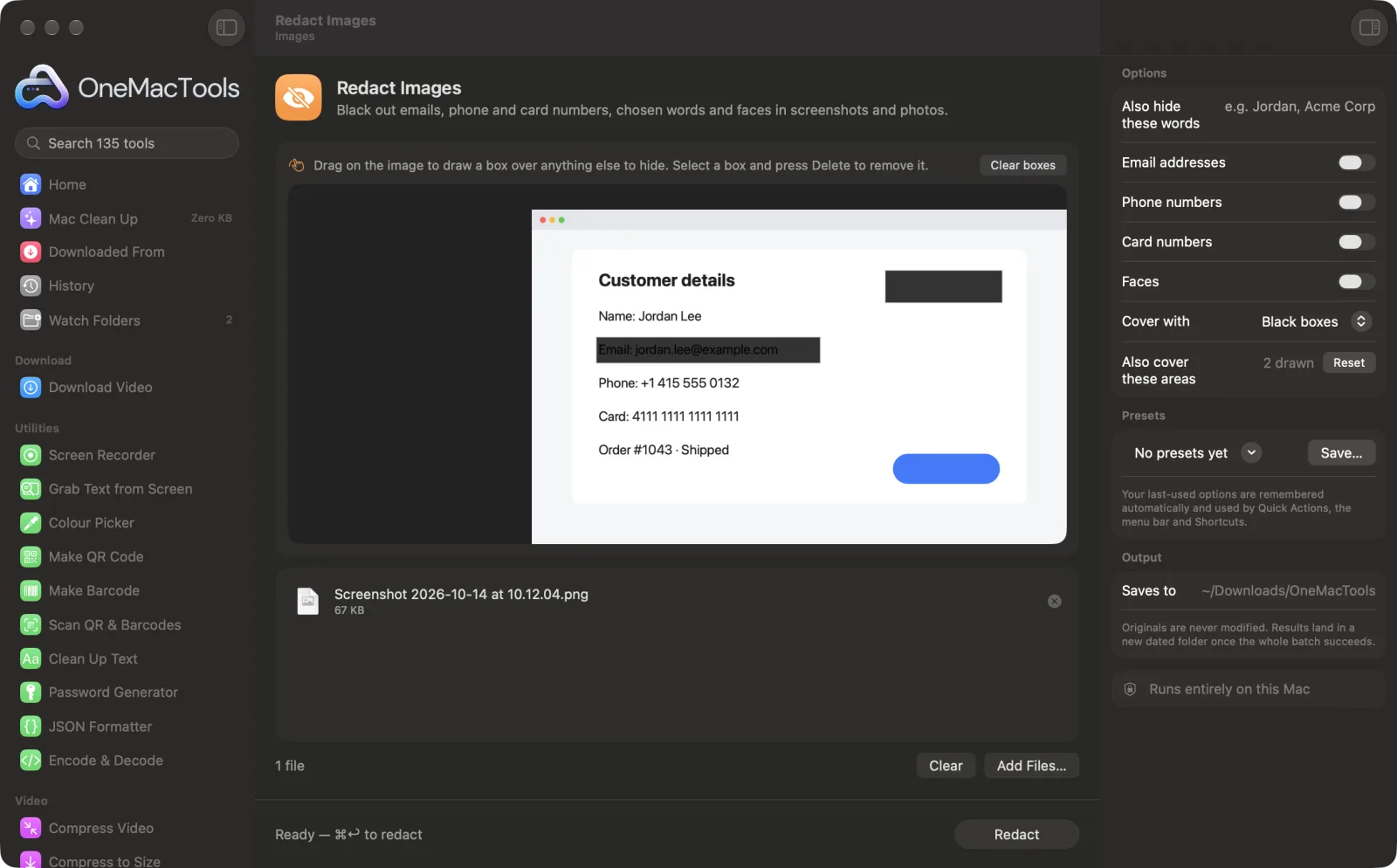
Redact Images on a Mac
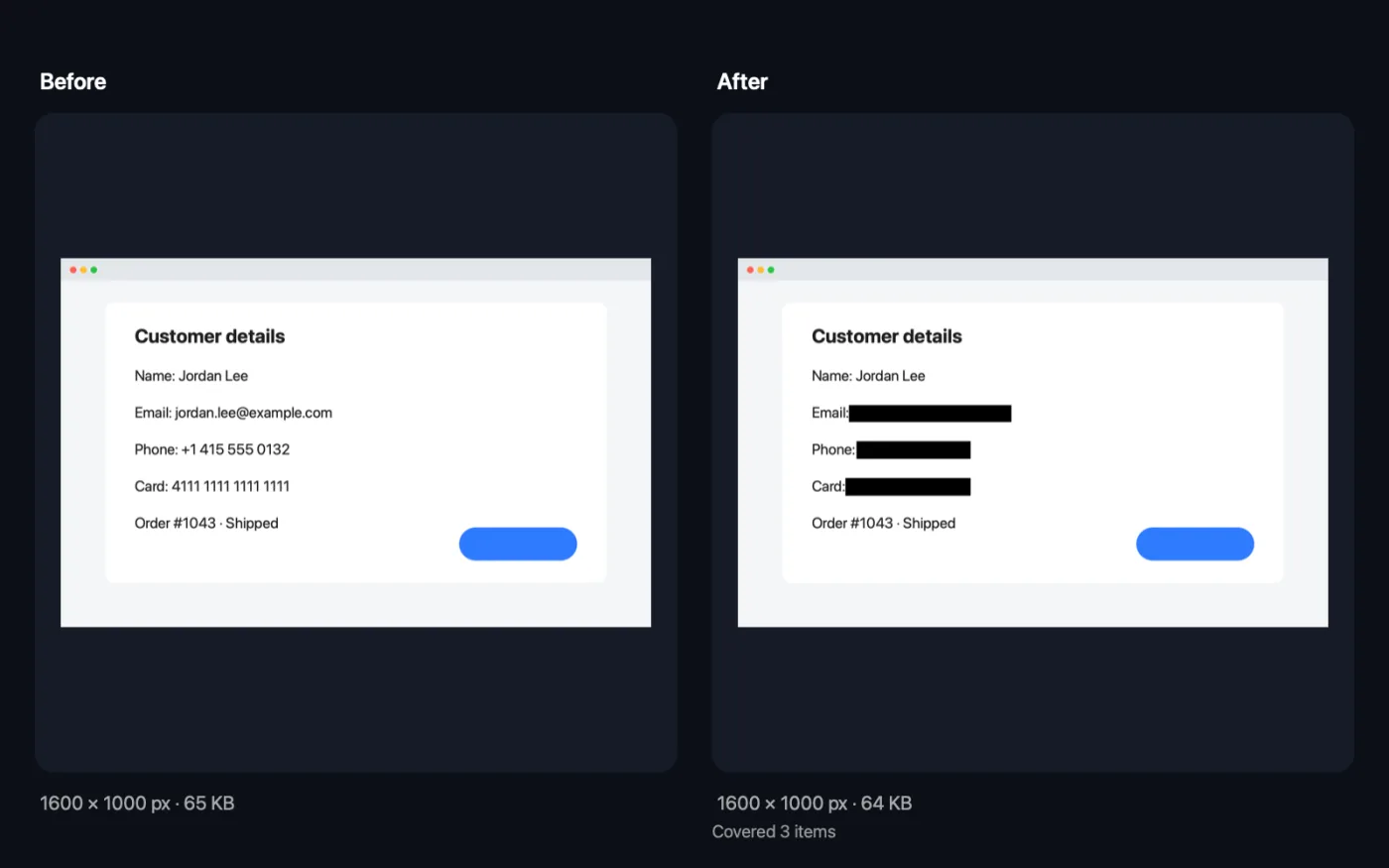
Screenshots from the app, using sample files.
How to use Redact Images
- 1
Drop your screenshots or photos
Add the images you're about to share. Or select them in Finder, right-click and choose Quick Actions › OMT: Redact Images, which uses your last settings.
- 2
Choose what to hide
Emails, phone numbers and card numbers are on by default. Type any other words to hide, such as a name or company, and turn on Faces if you need to.
- 3
Choose how to cover it
Black boxes, Blur or Pixelate.
- 4
Click Redact
The text in each image is read on your Mac, and every match is covered. You see how many items were covered.
- 5
Check before you share
The copies are saved with “redacted” in their names in a new dated folder in Downloads › OneMacTools. Open each with the Preview (eye) button to make sure everything is covered.
What Redact Images does
OneMacTools reads the text in your screenshots on your Mac and covers email addresses, phone numbers, card numbers and any words you choose. It can also find and cover faces. Pick black boxes, blur or pixelate. Your originals are untouched; redacted copies are saved in the OneMacTools folder.
It's also a Finder Quick Action: right-click files and choose OMT: Redact Images.
Great for
- Share a bug report screenshot without customer details
- Post a receipt online without your card number
- Blur faces before sharing event photos
Options explained
- Also hide these words
- Words or names to cover, separated by commas, such as Jordan, Acme Corp. Matching ignores capitals and accents, and also catches the word inside longer words.
- Email addresses
- On by default. Covers anything that looks like an email address.
- Phone numbers
- On by default. Covers phone numbers found by macOS's own number detection, in most international formats.
- Card numbers
- On by default. Covers 13- to 19-digit numbers that pass the standard card-number check, so ordinary long numbers like order IDs are usually left alone.
- Faces
- Off by default. Covers every face found in the image.
- Cover with
- Black boxes cover each item completely. Blur and Pixelate are softer to look at but leave a hint of the shape underneath.
- Also cover these areas
- Drag on the image in the window to draw a box over anything else to hide, such as a signature, an address or a photo. Select a box to move or resize it; press Delete or click its × to remove it. Boxes work even with every automatic option turned off.
Best practices
- Use Black boxes for anything truly sensitive, like card or account numbers. They leave nothing behind.
- Be specific with words to hide. A short word like “Jo” also covers part of “John” and “Johnson”.
- Text that's tiny, blurred, handwritten or at a steep angle may not be read. Always check the redacted copy before sharing.
- An email or phone number that wraps onto a second line is still covered on both lines.
- Redact a PDF with Redact PDF instead, which removes the text rather than covering it in a picture.
Works with
- In
- Screenshots and photos in any format macOS can open.
- Out
- JPEG copies for JPEG images and PNG copies for everything else, with “redacted” in the name.
- If nothing matching is found, the copies are saved unchanged and the app tells you.
Questions about Redact Images
How do I hide personal information in a screenshot on a Mac?
Drop the screenshot onto Redact Images, leave emails, phone numbers and card numbers on, add any names to hide, and click Redact. Every match is covered in the copy.
Can blurred or pixelated text be read again?
Sometimes, with enough effort, especially for short numbers. Black boxes are the safe choice for anything sensitive.
Does it work on photos of documents and receipts?
Yes, as long as the text is sharp enough to read. Check the result, as creased or angled text can be missed.
Why wasn't a number covered?
Card numbers must pass the standard card-number check, and phone numbers must look like a phone number. To cover anything else, type it in Also hide these words.
Can I redact a batch of screenshots at once?
Yes. Drop them all; each one is searched and covered with the same settings.
Does it hide names automatically?
No. Type the names you want to hide in Also hide these words. Emails, phone numbers and card numbers are found automatically.
Can I black out an area by hand?
Yes. Drag on the image in the window to draw boxes over anything you want covered, alongside the emails, numbers and words it finds automatically.
Does Redact Images upload my files?
No. Redact Images runs entirely on your Mac, so your files never leave it and it works offline.
Will Redact Images change my original files?
No. Results are saved as new files in a dated folder in Downloads › OneMacTools, and your originals are left exactly as they were unless you turn on an option that says otherwise.
What does Redact Images need?
Just a Mac with macOS 26 or later. There's nothing else to install.
Can I use Redact Images from Finder?
Yes. Right-click files in Finder and choose Quick Actions › “OMT: Redact Images”. It runs in the background and notifies you when it's done.
Do this next
Automatically hide faces, number plates, names and screens before sharing.
Screenshot BeautifierPut screenshots on a gradient with padding, rounded corners and a soft shadow.
Remove MetadataStrip location, camera and other EXIF data before sharing.
Related Images tools
Convert between PNG, JPEG, HEIC, AVIF and TIFF. Reads WebP, RAW and more.
Compress ImagesShrink photos for email and the web, with a live before-and-after preview.
Convert to WebPMake small, web-ready WebP images, lossy or lossless, with transparency kept.
Resize ImagesResize by longest edge, exact pixels, percentage, or print size in cm, mm or inches at the DPI you need.
Crop ImagesCrop to an aspect ratio or an exact area, or trim plain borders automatically — one photo or a whole folder.
Rotate & Flip ImagesTurn or mirror photos in one go.

Redact Images, plus 134 more.
One app. One price.
All 135 tools for $29, once. 14-day money-back guarantee.