
Convert Markdown to PDF on Mac
Turn Markdown into a styled PDF with tables, code blocks, task lists and pictures. Several at once.
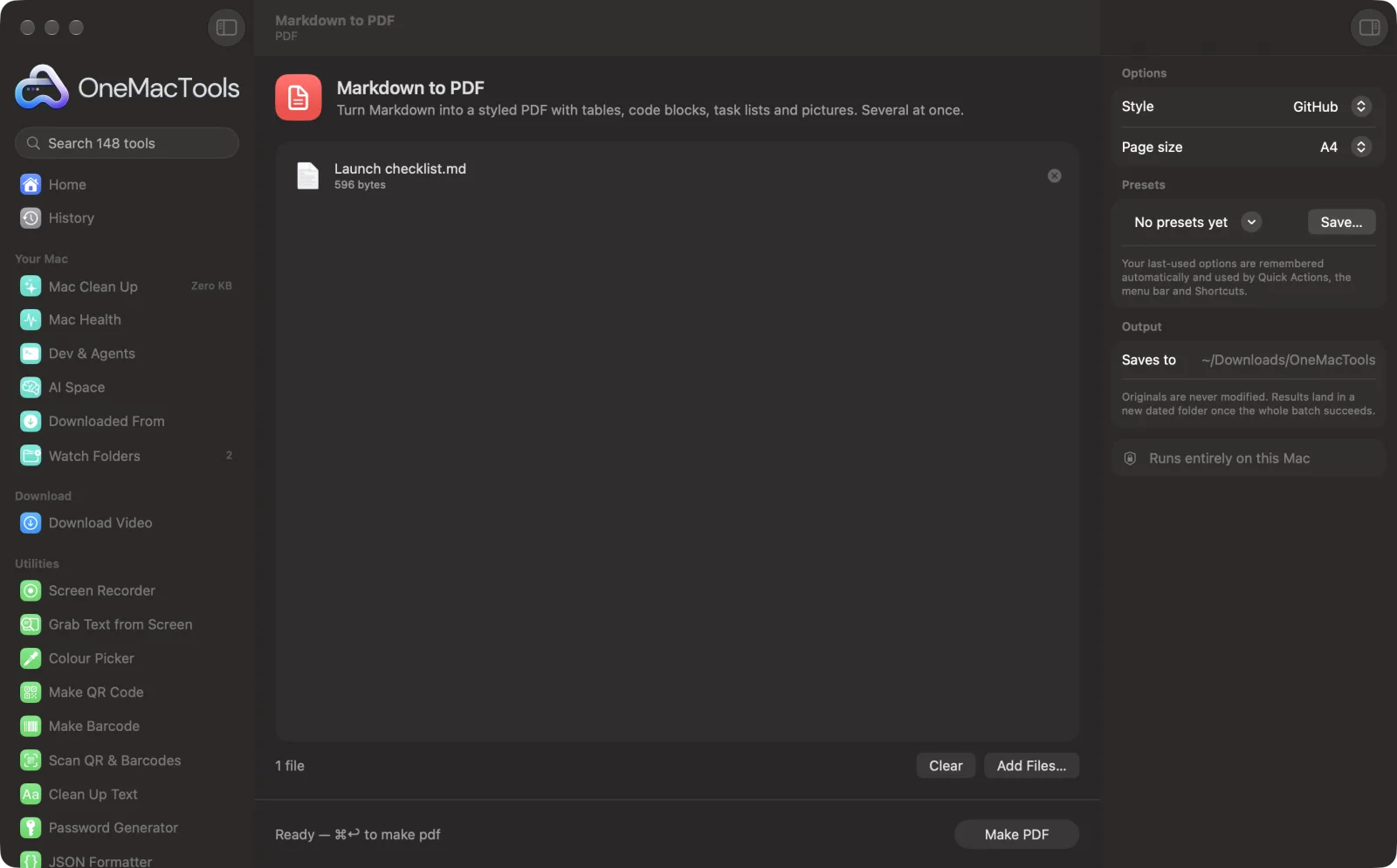
Markdown to PDF on a Mac
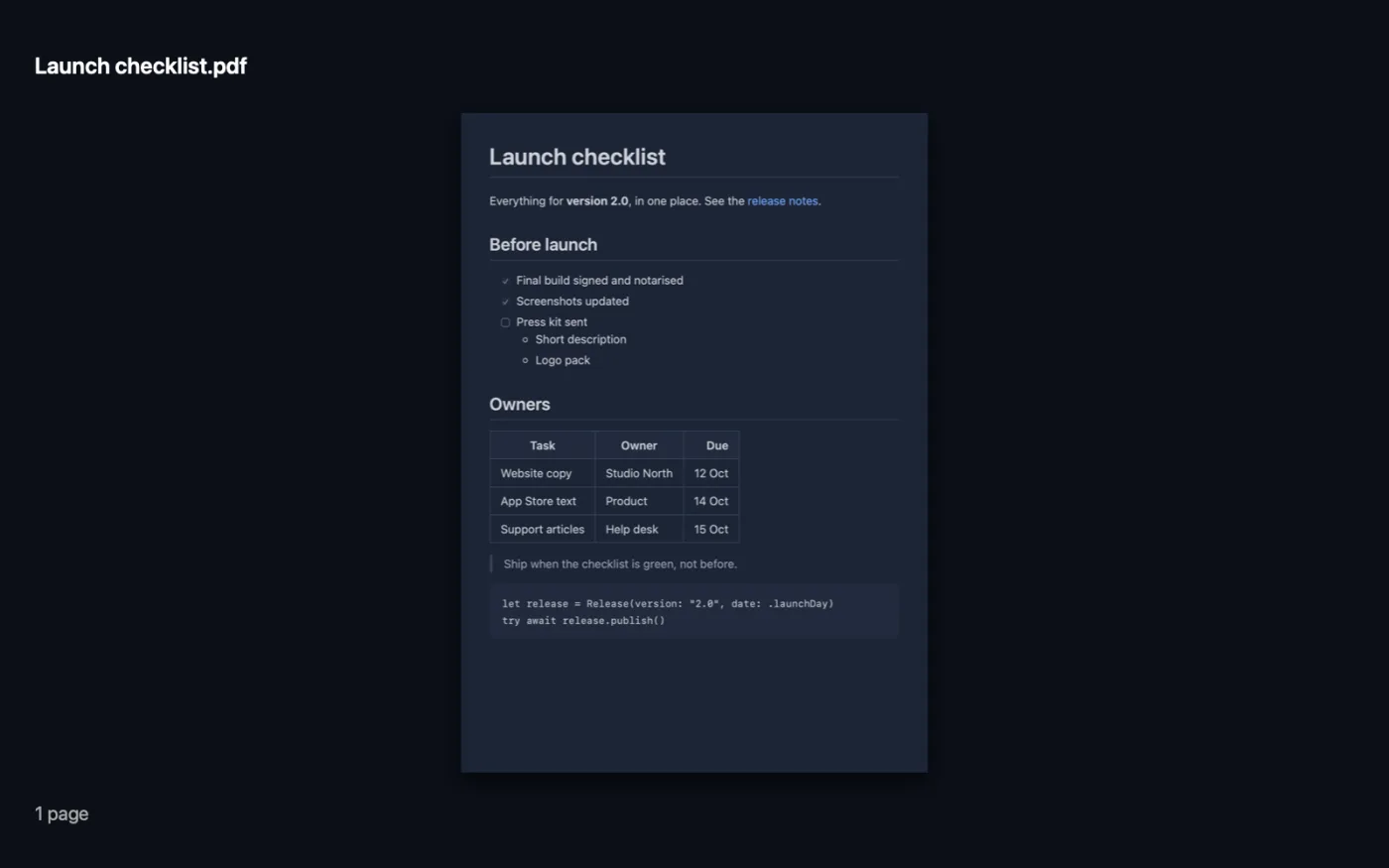
Screenshots from the app, using sample files.
How to use Markdown to PDF
- 1
Drop Markdown files
One or many .md or .markdown files: READMEs, notes from Obsidian or Bear, documentation.
- 2
Pick a style
GitHub looks like a README on GitHub, Clean serif like a printed page, Compact fits more on each page.
- 3
Pick the page size
A4 or US Letter.
- 4
Click Make PDF
Each file becomes a PDF with the same name, with pages broken between lines.
What Markdown to PDF does
Drop .md files (READMEs, notes, documentation) and get clean PDFs styled like GitHub, a serif book page or a compact layout. Tables, code blocks, quotes, nested and task lists and pictures next to the file all come through, text stays selectable, and pages break between lines, not through them. Also a Finder Quick Action.
It's also a Finder Quick Action: right-click files and choose OMT: Markdown to PDF.
Great for
- Send a README to someone who doesn't use GitHub
- Print meeting notes written in Obsidian or Bear
- Turn documentation into a PDF handout
Options explained
- Style
- GitHub (sans serif, grey code blocks and table headers), Clean serif (a book-like serif for reading) or Compact (smaller text for long documents).
- Page size
- A4 for most of the world, US Letter for the US and Canada.
Best practices
- Keep pictures next to the Markdown file (or in a folder beside it) and link them with a relative path: they're put inside the PDF.
- Use a level-one heading (# Title) at the top: it becomes the PDF's title.
- Wide tables fit better in Compact.
- Front matter at the top of the file (between --- lines) is left out of the PDF.
- Select several files to convert a whole folder of notes at once, or use the Markdown to PDF Quick Action in Finder.
Works with
- In
- Markdown files (.md, .markdown).
- Out
- One PDF per file, with selectable text and links that work.
- Covers headings, emphasis, links, pictures, code blocks, quotes, nested and task lists, tables and rules.
- Pictures on the web are fetched when the PDF is made.
Questions about Markdown to PDF
How do I convert Markdown to PDF on a Mac?
Drop the .md file into Markdown to PDF, pick a style and click Make PDF. Or right-click the file in Finder and choose Quick Actions › OMT: Markdown to PDF.
Will tables and code blocks look right?
Yes. Tables keep their borders and alignment, code blocks keep their spacing in a monospaced font, and long lines wrap instead of being cut off.
Do pictures in my Markdown show up?
Yes. Pictures next to the file are put inside the PDF, and pictures with web addresses are downloaded when the PDF is made.
Can I convert many Markdown files at once?
Yes. Select them all; each becomes its own PDF.
Does it work with Obsidian or Bear notes?
Yes, for standard Markdown. Wiki-style [[links]] stay as plain text.
Is the text in the PDF selectable?
Yes. It's real text, so you can search and copy it.
Does Markdown to PDF upload my files?
No. Markdown to PDF runs entirely on your Mac, so your files never leave it and it works offline.
Will Markdown to PDF change my original files?
No. Results are saved as new files in a dated folder in Downloads › OneMacTools, and your originals are left exactly as they were unless you turn on an option that says otherwise.
What does Markdown to PDF need?
Just a Mac with macOS 26 or later. There's nothing else to install.
Can I use Markdown to PDF from Finder?
Yes. Right-click files in Finder and choose Quick Actions › “OMT: Markdown to PDF”. It runs in the background and notifies you when it's done.
Do this next
Combine PDFs into one, in the order you choose, or alternate pages to join front and back scans.
Page Numbers, Header & FooterNumber pages, add a header and footer, or stamp legal Bates numbers.
Compress PDFShrink image-heavy PDFs for email and upload.
Related PDF tools
Split by pages, chapters (bookmarks), file size or where a word appears, or cut two-page scans in half.
Organize PDFReverse, reorder or split out odd and even pages.
Delete PagesRemove the pages you don't need.
Extract PagesPull the pages you want out into a new PDF.
Rotate PDF PagesTurn or flip some or all pages.
Grayscale & Flatten PDFMake print-ready copies: lock form fields and annotations into the page, or convert to black and white.

Markdown to PDF, plus 144 more.
One app. One price.
All 145 tools. Free download, one payment for a licence. 14-day money-back guarantee.