
Use OneMacTools as an MCP server for Claude, Claude Code, Cursor and Codex
OneMacTools is an MCP server for your Mac. Turn it on in Settings › AI Assistants and add it to Claude Desktop, Claude Code, Cursor or Codex with one click, or paste a snippet into any other MCP assistant. The assistant can then read Mac Health, dev servers, agent sessions, Docker, storage and your files, and ask to run any OneMacTools tool. Every action waits for you to click Allow, and nothing leaves your Mac.
On this page
- What the OneMacTools MCP server does
- Which AI assistants OneMacTools can set up
- How to connect Claude, Cursor or Codex to your Mac
- Manual MCP config for other assistants
- What an assistant can read without asking
- What an assistant must ask you for
- Example prompts to try
- How to turn the MCP server off
- Questions
What the OneMacTools MCP server does
The Model Context Protocol (MCP) is the standard way AI assistants use apps and tools. OneMacTools includes an MCP server, so an assistant you already use can answer questions like “what's on port 3000?”, “what's taking space in my home folder?” or “when does my passport expire?” from what OneMacTools knows about your Mac, and can ask OneMacTools to run tools such as Compress PDF or Transcribe on your files.
The server is the OneMacTools app itself, started by the assistant with the --mcp argument. It talks to the assistant over standard input and output, so no network port is opened and nothing is uploaded. It shows no window of its own; when an assistant asks for an action, the main OneMacTools app opens an approval window (opening itself in the background if it wasn't running).
It's off until you turn it on, and it needs an activated licence. If either is missing, the assistant gets a plain message saying so instead of any data.
Which AI assistants OneMacTools can set up
Settings › AI Assistants has a row for each assistant OneMacTools can configure for you, and a snippet for everything else:
| Assistant | Settings file OneMacTools edits | After adding |
|---|---|---|
| Claude Desktop | ~/Library/Application Support/Claude/claude_desktop_config.json | Quit and reopen Claude to load it |
| Claude Code | ~/.claude.json | Start a new Claude Code session |
| Cursor | ~/.cursor/mcp.json | Cursor loads it straight away (Settings › MCP shows it) |
| Codex | ~/.codex/config.toml | Start a new Codex session |
| Other assistants | Your assistant's MCP settings, by hand | Use Copy Setup Snippet |
A row's Add to … button is greyed out when that assistant doesn't seem to be installed (OneMacTools looks for its app or its settings folder). Hover over the button to see which file it will change.
How to connect Claude, Cursor or Codex to your Mac
- Open OneMacTools and choose OneMacTools › Settings (⌘,).
- Scroll to AI Assistants and turn on Let AI assistants use OneMacTools.
- Click Add to Claude Desktop… (or Claude Code, Cursor or Codex).
- Read the confirmation: “OneMacTools adds an entry called “onemactools” to … after backing the file up. Nothing else in it changes.” Click Add.
- The row now shows Added with a green tick, and a line under the section tells you what to do next, such as “Quit and reopen Claude to load it.” It also names the backup file if there was an existing one.
- Restart or reload the assistant as described, then ask it something like “Use OneMacTools to tell me how my Mac is doing.”
Adding to an assistant also turns on Let AI assistants use OneMacTools if it was off. If you move OneMacTools to a different folder, click Update next to the assistant so the entry points to the app's new location.
Manual MCP config for other assistants
For any other assistant that supports MCP over stdio, click Copy Setup Snippet next to Other assistants and paste it into that assistant's MCP settings. The snippet is the same entry OneMacTools writes for Claude and Cursor:
{ "mcpServers": { "onemactools": { "command": "/Applications/OneMacTools.app/Contents/MacOS/OneMacTools", "args": ["--mcp"] } } }
The command is the path to the app on your Mac, so the copied snippet always has the right path even if you keep OneMacTools somewhere other than Applications. For Claude Code the entry also has "type": "stdio". Codex uses TOML instead of JSON, so its entry is a table:
[mcp_servers.onemactools] followed by command = "/Applications/OneMacTools.app/Contents/MacOS/OneMacTools" and args = ["--mcp"].
OneMacTools recognises the assistant from its name when it connects and uses that name in approval windows and History: Claude, Claude Code, Cursor, Codex, Windsurf, Gemini CLI or VS Code, or the name the assistant reports.
What an assistant can read without asking
Read tools answer straight away, because they only look. They're marked read-only to the assistant:
| MCP tool | What the assistant gets |
|---|---|
mac_health | A one-line verdict plus CPU, memory, free disk, network, battery, temperatures and fans, GPU and Neural Engine use, SSD health, microphone use and the heaviest apps |
list_apps | Running apps with their helpers counted under them, sorted by memory, CPU or power |
mac_history | Answers from Mac Health's history, e.g. “what drained my battery today?”, or the top apps for a metric over a number of hours |
mac_trends | Where the Mac is heading: days until the disk is full, faster battery drain, apps using much more memory than last week |
whats_on_port, dev_servers | Which process listens on a port, and every dev server and database grouped by project |
agent_sessions, agent_limits | Running Claude Code, Codex, Gemini CLI, Aider, Cursor Agent and opencode sessions; Codex's usage limits and when Claude Code last hit one |
docker_status | Containers, and the space images, volumes and build cache take |
ai_space, old_project_files, storage_overview | AI apps' caches and models, build folders in your projects, and the biggest folders on each drive |
find_files | Files found in plain words, the way Ask (⌘K) does |
search_files, list_sources, find_duplicates, storage_summary | Searches across every cloud and folder in OneMacTools Files, including cloud-only files (needs Files turned on) |
life_admin, spending, tax_papers | Summaries of your papers: what expires, receipts totals by month and merchant, a tax year's papers (needs Files turned on) |
list_tools | Every OneMacTools tool with its id, inputs and options |
Paper summaries never include ID, card or account numbers; life_admin reports how many files hold them and their names only. Reading a document's actual text is an action and always asks. More on this in AI assistant permissions and approvals. The Files-based tools depend on Files and Life Admin.
What an assistant must ask you for
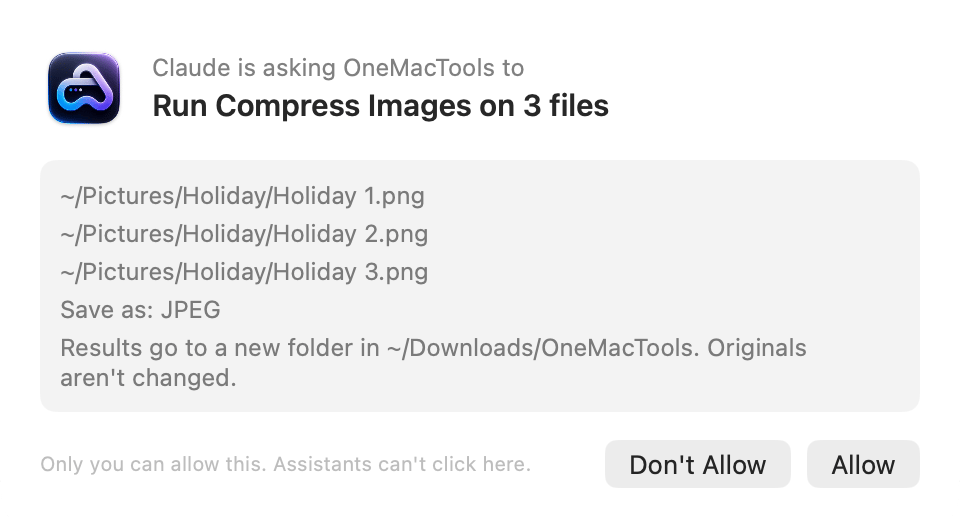
These tools change something, so each one opens an approval window in OneMacTools and waits for you to click Allow:
run_tool: run any OneMacTools tool on files or text, with options. Results go to a new folder; originals aren't changed. Tools that need you at the Mac, such as Screen Recorder or Record Meeting, can't be run by an assistant.quit_app: quit an app the normal way, so it can ask to save. Finder can't be quit this way.stop_processandstop_agent_session: stop one of your own processes, or an AI agent session and everything it started.stop_container: stop a running Docker container.start_recordingandstop_recording: record the Mac second by second, then get what peaked and which apps were behind it.read_document: give the assistant the text of one document.move_to_trash: move files in your home folder to the Trash, never delete them.
Example prompts to try
- “Why is my Mac slow right now?” (uses
mac_healthandlist_apps) - “What's running on port 5173, and which project started it? Stop it.” (reads with
whats_on_port, then asks tostop_process) - “Which of my projects have old node_modules folders, and how much space would I get back?”
- “Record my Mac while I run this build, then tell me what peaked.”
- “Find the PDFs I downloaded from Gmail this week and merge them.” (finds with
find_files, then asks torun_tool) - “How much did I spend on Amazon last month?” (needs Files)
- “Compress these three screenshots to JPEG.” (
run_toolwith Compress Images)
For general background on ports and agents, see the guide What's using a port on my Mac? and the Dev & Agents docs.
How to turn the MCP server off
Turn off Let AI assistants use OneMacTools in Settings › AI Assistants. Assistants that still have the entry can start the server, but every read and action gets the reply “OneMacTools isn't letting AI assistants in” and nothing else.
To remove OneMacTools from an assistant completely, delete the onemactools entry from its settings file (the paths are in the table above), or restore the backup OneMacTools made. Quitting the assistant ends the server process too.
Questions
Is the OneMacTools MCP server local?
Yes. The assistant starts OneMacTools on your Mac and talks to it over standard input and output. No network port is opened, and OneMacTools sends nothing to any server. What the assistant does with the answers depends on the assistant you use.
Does Claude Desktop need to be restarted after adding OneMacTools?
Yes. Quit Claude completely and reopen it so it reads its settings file again. Claude Code and Codex pick it up in a new session, and Cursor loads it straight away.
Why is the Add to Cursor button greyed out?
OneMacTools didn't find Cursor's app or its ~/.cursor folder. Install or open Cursor once, then reopen Settings; or use Copy Setup Snippet and paste it into Cursor's MCP settings.
Can an assistant delete my files through OneMacTools?
No. The only file-removing action is move_to_trash, which works only inside your home folder, needs your Allow every time, and can be undone with Put Back in History.
Does the MCP server work if OneMacTools isn't open?
Reads work as soon as the assistant starts the server. For actions, the server opens OneMacTools in the background so it can show you the approval window.
Do I need a licence to use OneMacTools over MCP?
Yes. Until OneMacTools is activated, the server replies that the user needs to enter their licence key. See the pricing page for plans.
