
OneMacTools themes: Liquid Glass, Classic, Neo-brutal and Retro
OneMacTools themes are four complete looks for the app: Liquid Glass (the default, made for macOS 26), Classic, Neo-brutal and Retro. Each one changes the window’s layout, home screen, navigation and styling, not just its colours, while every tool, option and result stays exactly the same. All four are free with any licence, and you switch between them in Settings › Appearance.
On this page
- What a theme changes, and what it doesn’t
- How to change the theme in OneMacTools
- Liquid Glass: the default look for macOS 26
- Classic: the familiar sidebar and Today tiles
- Neo-brutal: loud blocks and hard shadows
- Retro: a black-and-white desktop from the early ’90s
- Other appearance options that work with every theme
- Which OneMacTools theme should you choose?
- Tools mentioned on this page
- Questions
What a theme changes, and what it doesn’t
Most Mac apps offer a light and a dark mode. OneMacTools goes further: a theme decides how the main window is laid out, what you see first when you open it, how you move between tools and the Your Mac screens, and how panels, buttons and progress bars are drawn. Liquid Glass uses a sidebar and a floating search capsule; Neo-brutal swaps the sidebar for a bar of buttons across the top; Retro turns the window into a little black-and-white desktop with folders and windows.
What a theme never changes is the work. The inside of every tool is shared: the same drop area, the same options in the inspector, the same presets, the same results in the same folder. A job you run in Retro produces a byte-for-byte identical file to one run in Liquid Glass. History, Watch Folders, Quick Actions, Shortcuts, the menu bar and your settings are untouched when you switch, so you can try every look without losing anything.
| Liquid Glass | Classic | Neo-brutal | Retro | |
|---|---|---|---|---|
| Navigation | Sidebar of categories | Sidebar of categories with a search field | Bar of buttons across the top | Menu-bar-style strip of titles |
| Home | Discover (featured tool and each category’s first tools) | Today, as a grid of tiles | 151 TOOLS. ZERO UPLOADS. with a colour block per category | A window of category folders on a grey desktop |
| Search | Floating capsule, ⌘F | Field under the logo, ⌘F | Find a tool field, ⌘F | Find… field, ⌘F |
| Corners | Extra rounded | Standard macOS | Nearly square | Square |
| Light & dark | Both | Both | Both | Light only |
| Tool card pictures setting | Yes | No | Yes | No |
How to change the theme in OneMacTools
- Open OneMacTools and choose OneMacTools › Settings… (or press ⌘,).
- Scroll to the Appearance section.
- Under Theme, click one of the four small pictures: Liquid Glass, Classic, Neo-brutal or Retro. Each picture is labelled Light & dark or Light only.
- The main window redraws straight away. There’s nothing to save and no need to restart.
The first time you open OneMacTools after activating it (or after the update that brought themes), a Choose your look sheet shows the same four pictures with the current one selected. Pick one and click Done; you can change it again any time in Settings › Appearance.
Your choice is remembered per Mac user account. If you use OneMacTools on several Macs under one licence, each Mac keeps its own theme.
Liquid Glass: the default look for macOS 26
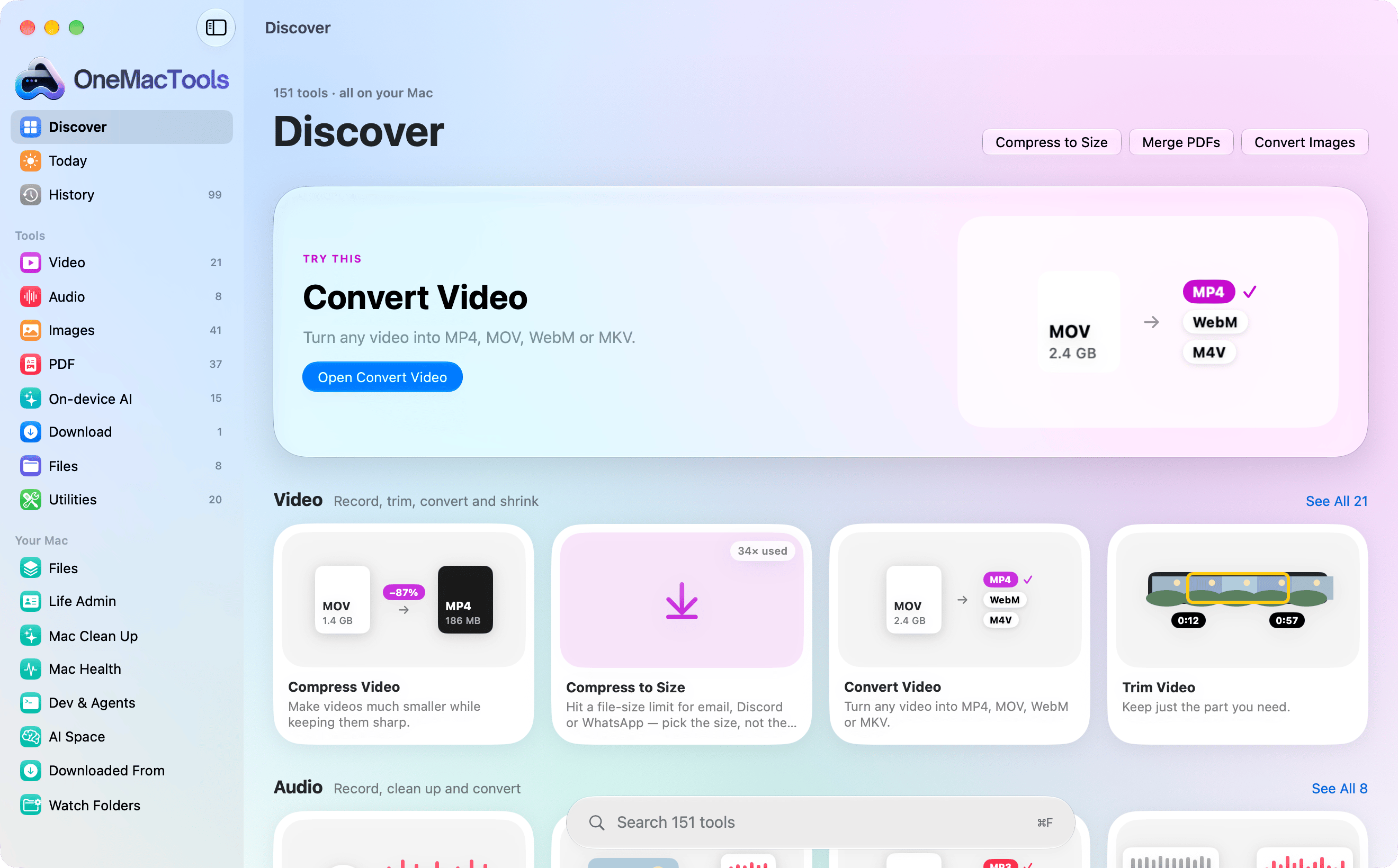
Liquid Glass is built to sit alongside macOS 26’s own glass controls. Corners are rounder than in the other looks, the main button on each screen uses the system’s glass style, and a soft colour wash sits behind the browsing screens so the glass has something to show through.
Layout
- Sidebar: Discover, Today and History at the top, then a Tools section with one row per category (each with its tool count), then the Your Mac screens: Files, Life Admin, Mac Clean Up, Mac Health, Dev & Agents, AI Space, Downloaded From and Watch Folders.
- Discover is the home. It opens with a big TRY THIS card for a tool you haven’t used yet (a different one each day), shortcut buttons for popular tools, then each category’s first tools as cards with a See All link.
- Category pages list every tool in that category, with buttons to narrow it down: All, Create, Edit, Convert, Shrink and More (only the ones that apply to that category appear).
- Search floats at the bottom of Discover and the category pages as a capsule reading “Search 151 tools”. Press ⌘F to jump into it and Esc to clear it.
- When a tool is open, a back button in the toolbar returns to its category, and the category stays highlighted in the sidebar.
Tool cards show how often you’ve used each tool (for example “34× used”), drawn from History. To learn the rest of the window, see the app tour.
Classic: the familiar sidebar and Today tiles
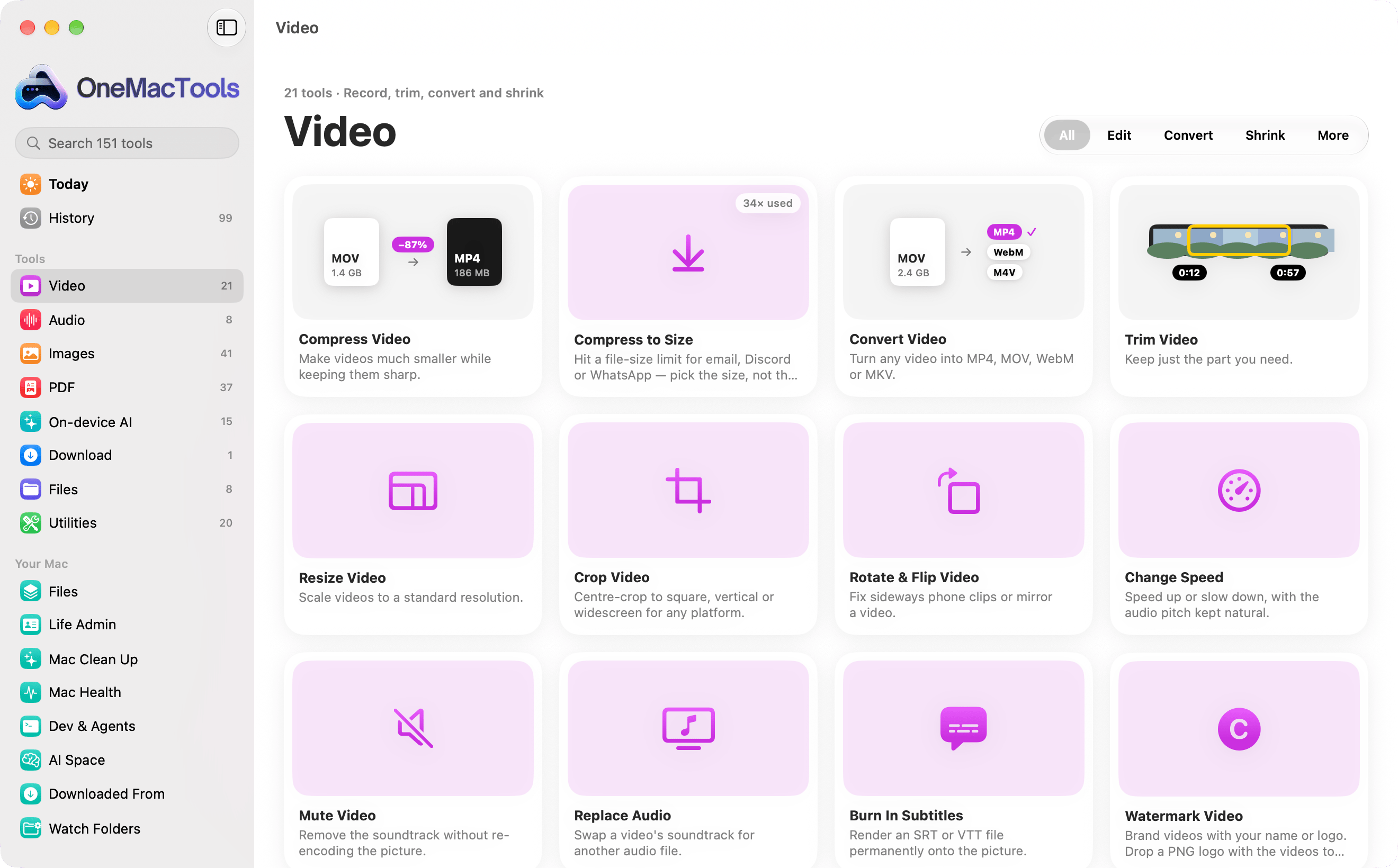
Classic is the look closest to a standard Mac app, with the usual macOS corner radius and plain backgrounds. It suits you if you prefer system-looking windows or work with Reduce Transparency turned on.
- Sidebar: the OneMacTools logo with a search field underneath, then Today, History, the Tools categories and the Your Mac screens. Typing in the search field replaces the categories with a list of matching tools, grouped by category, so you can open one directly.
- Home is Today, drawn as tiles: a drop zone (drop a file and the tools that can open it appear right there, with a reminder that ⌘K lets you ask in your own words), rings for battery, disk and memory that open Mac Health, this week’s jobs with a bar per day that opens History, what Mac Clean Up could free, each main category’s most-used tools as chips, an on-device AI tile, and your last few jobs. Home’s shelves of downloads, screenshots and sources follow underneath. More on this screen in Home dashboard.
- Category pages use the same All, Create, Edit, Convert, Shrink and More buttons as Liquid Glass.
Neo-brutal: loud blocks and hard shadows
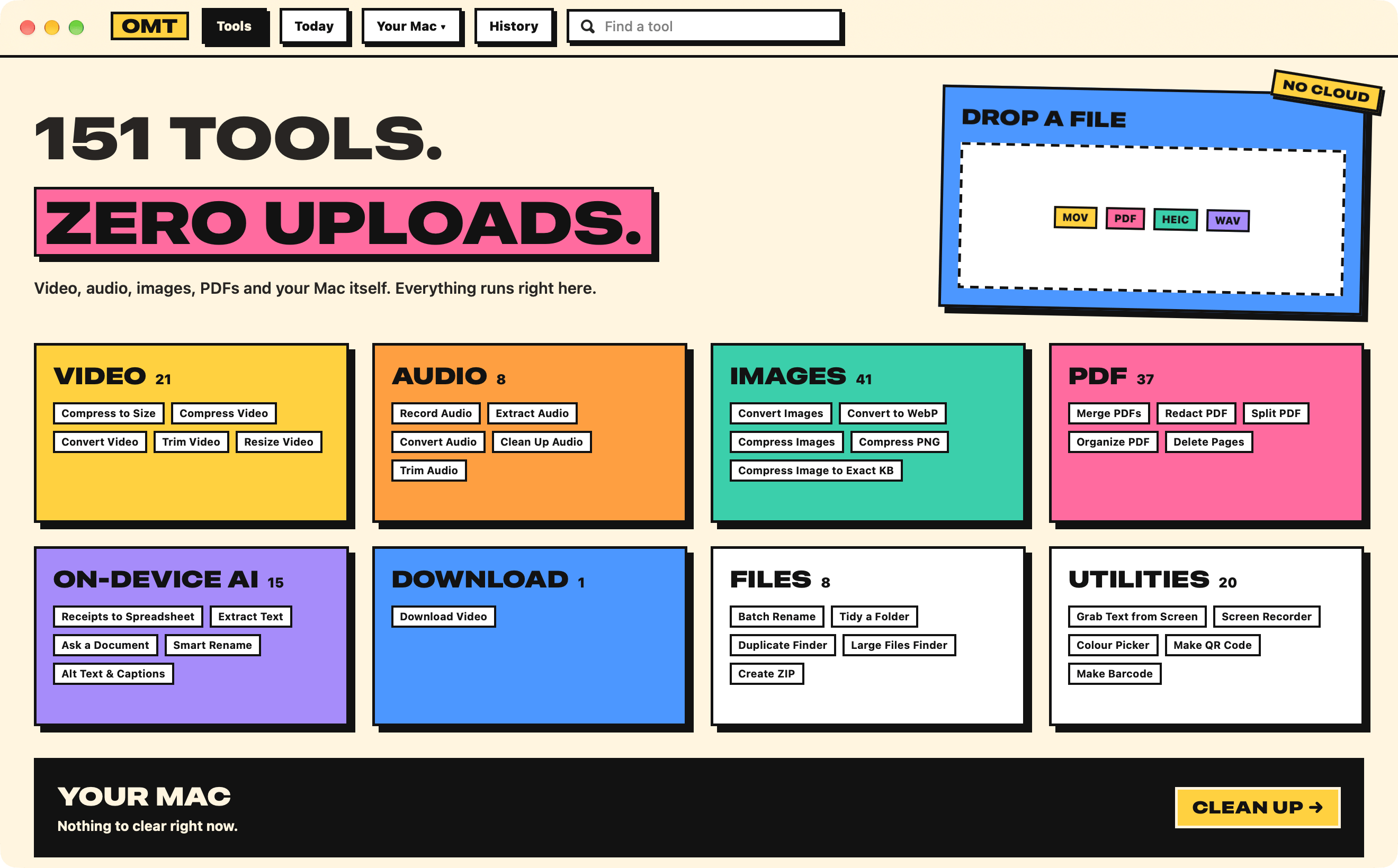
Neo-brutal is deliberately bold: flat, bright colour blocks, thick ink outlines, heavy wide type for titles and hard offset shadows down and to the right. Buttons press into their shadow when you click them. Corners are almost square. In dark mode the paper turns dark and the outlines turn cream.
- Top bar instead of a sidebar: an OMT badge, then Tools, Today, a Your Mac ▾ menu (Files, Life Admin, Mac Clean Up, Mac Health, Dev & Agents, AI Space, Downloaded From, Watch Folders) and History. The button for where you are is filled with ink.
- Find a tool sits at the right of the bar; ⌘F focuses it.
- The home shows the promise in big type, a DROP A FILE zone (drop something and the tools that open it appear, most-used first, or “NO TOOL OPENS THIS.”), one colour block per category with its tool count and most-used tools, and a YOUR MAC strip with a CLEAN UP → button.
- Tool cards put each tool’s picture in a coloured panel with a “used” sticker once you’ve run it.
Because there’s no sidebar, Neo-brutal gives tools the full width of the window, which is handy on a 13-inch screen.
Retro: a black-and-white desktop from the early ’90s
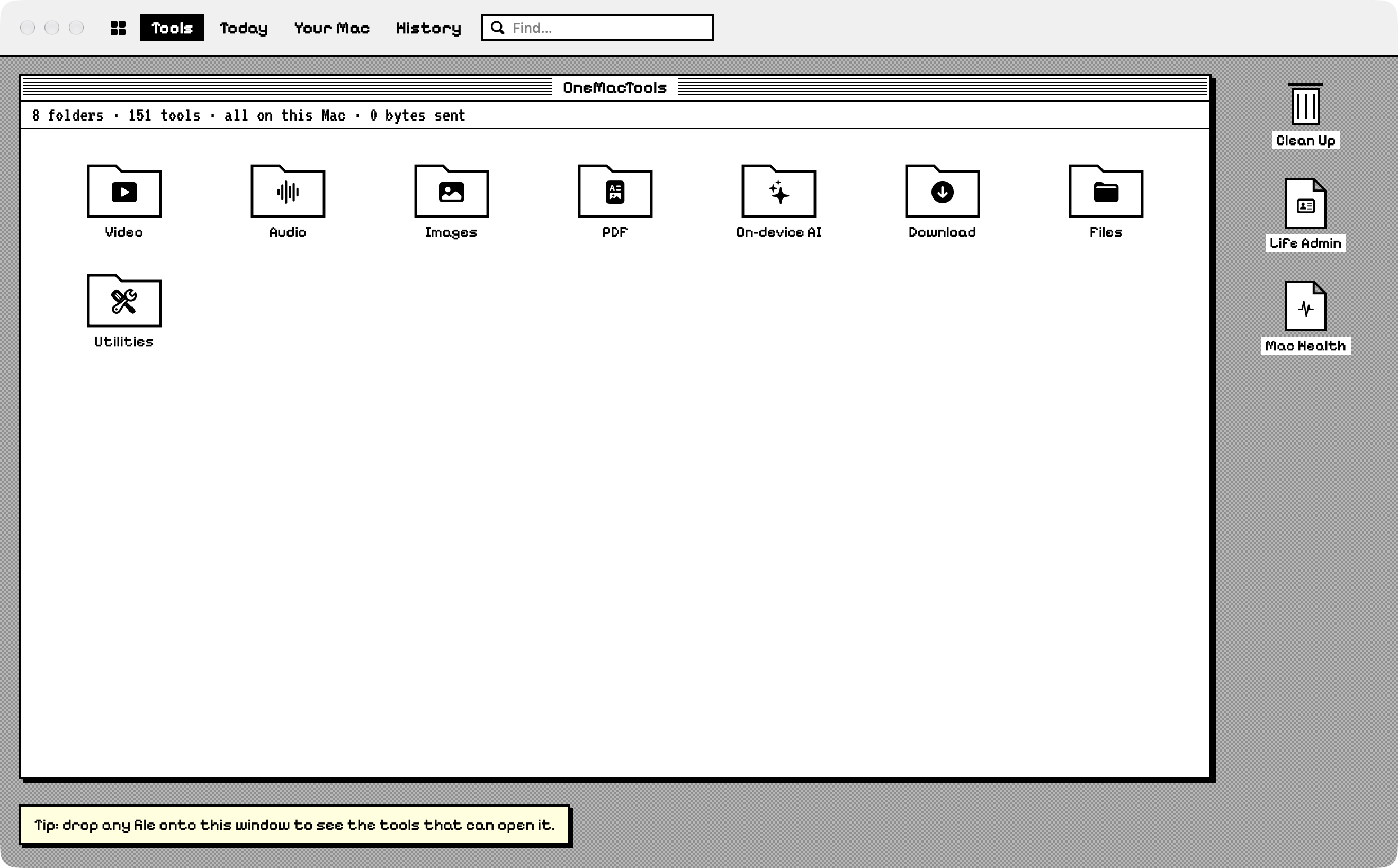
Retro is drawn after the black-and-white Macs of the early 1990s: a checked grey desktop, windows with striped title bars and a close box, hard one-pixel shadows, and a pixel font for titles and labels. The pixel fonts (Pixelify Sans, and VT323 for numbers and status lines) are bundled with the app; body text and anything you type stay in the normal system font so they’re easy to read.
- A menu-bar-style strip across the top: Tools, Today, Your Mac (a menu of the Your Mac screens) and History, with a Find… field (⌘F). The title for where you are is inverted.
- Every screen opens as one window on the desktop. The tools home is a window of category folders with a status line such as “8 folders · 151 tools · all on this Mac · 0 bytes sent”. Open a folder and its tools appear as document icons; the window’s close box goes back up a level.
- Desktop icons on the right lead to Clean Up (drawn as the trash can), Life Admin and Mac Health.
- A tip at the bottom reminds you that you can drop any file onto the window to see the tools that can open it.
- Inside a tool, the options panel is drawn as a column within the window, and progress bars are the striped “barber pole” of old.
Other appearance options that work with every theme
The Appearance section in Settings has a few more choices beside the theme. They apply in every look; see the settings reference for the full list.
| Setting | Choices | What it does |
|---|---|---|
| Tool card pictures | Illustrations (default), Symbols | Each tool has its own small drawing showing what it does. Choose Symbols for plain icons. Applies to Liquid Glass and Neo-brutal; the option is greyed out in Classic and Retro. |
| Chart colours | OneMacTools (default), Colour-blind safe | The colour-blind safe set (Okabe & Ito) is used in Mac Health, History, the menu bar readouts and the storage bars. |
| Network speeds in | Bytes (MB/s), Bits (Mbps) | Internet providers quote speeds in bits. |
| Show an app’s CPU as | % of one core, % of the whole Mac | Per-core shows up to 100% per core, so a busy app can read 300%. |
| Temperatures in | Your region’s unit, Celsius, Fahrenheit | Used in Mac Health and the menu bar. |
Light and dark follow macOS (System Settings › Appearance). There’s no separate light/dark switch inside OneMacTools; Retro simply ignores dark mode.
Which OneMacTools theme should you choose?
- Liquid Glass if you want OneMacTools to look like the rest of macOS 26 and like discovering tools you haven’t tried.
- Classic if you prefer a quieter, system-standard window, use Reduce Transparency or Increase Contrast, or want Today’s tiles as your home.
- Neo-brutal if you like big, high-contrast targets, want the full window width for tools, or work on a small screen.
- Retro for fun, nostalgia, or screenshots that stand out. It works fully; it’s just always light.
Keyboard shortcuts are the same everywhere: ⌘F to find a tool, ⌘K to ask in your own words, and the rest listed in keyboard shortcuts. Whatever look you pick, every tool, from Compress Video to Merge PDFs, behaves identically.
Tools mentioned on this page
Questions
Are the OneMacTools themes free?
Yes. All four looks are included with every licence, whether it covers 1 Mac or 25. There are no paid themes and no tools tied to a particular look.
Why does OneMacTools show Classic when I picked Liquid Glass?
Liquid Glass falls back to Classic while Reduce Transparency or Increase Contrast is turned on in System Settings › Accessibility › Display. Your choice is saved, and Liquid Glass returns as soon as both are off.
Can I use Retro in dark mode?
No. Retro is light only, like the early Macs it’s drawn from, so it stays white with black outlines even when macOS is set to dark. The other three looks follow macOS light and dark automatically.
Does changing the theme reset my settings or history?
No. A theme only changes the window’s layout and styling. Your History, presets, last-used options, Watch Folders, menu bar readouts and every other setting stay as they were.
Do I need to restart OneMacTools after switching theme?
No. The main window redraws as soon as you click a theme in Settings › Appearance. Open tools keep their files and options.
How do I turn off the drawings on tool cards?
In Settings › Appearance, set Tool card pictures to Symbols. The option applies to Liquid Glass and Neo-brutal, which show tool cards with pictures; it’s greyed out in Classic and Retro.
