
OneMacTools History: every job you've run, from anywhere
OneMacTools History is the list of every job you've run: the tool, where it was started (the app, Finder, the menu bar, a Watch Folder, Shortcuts or an AI assistant), the files that went in, what came out and when. From each entry you can preview the results, open the folder, reopen the tool or put trashed files back. It keeps your latest 200 jobs, on your Mac only.
On this page
What OneMacTools History is for
Once you're running tools from Finder, the menu bar, Watch Folders and Shortcuts as well as the window, it's easy to lose track of where a result went. History collects every finished job in one list, newest first, wherever it was started.
Open it from History near the top of the sidebar (its badge shows how many jobs are listed, up to 99), with ⌘Y or Go › History, or by clicking the This week tile on Today. The title bar shows the total, such as “200 jobs”.
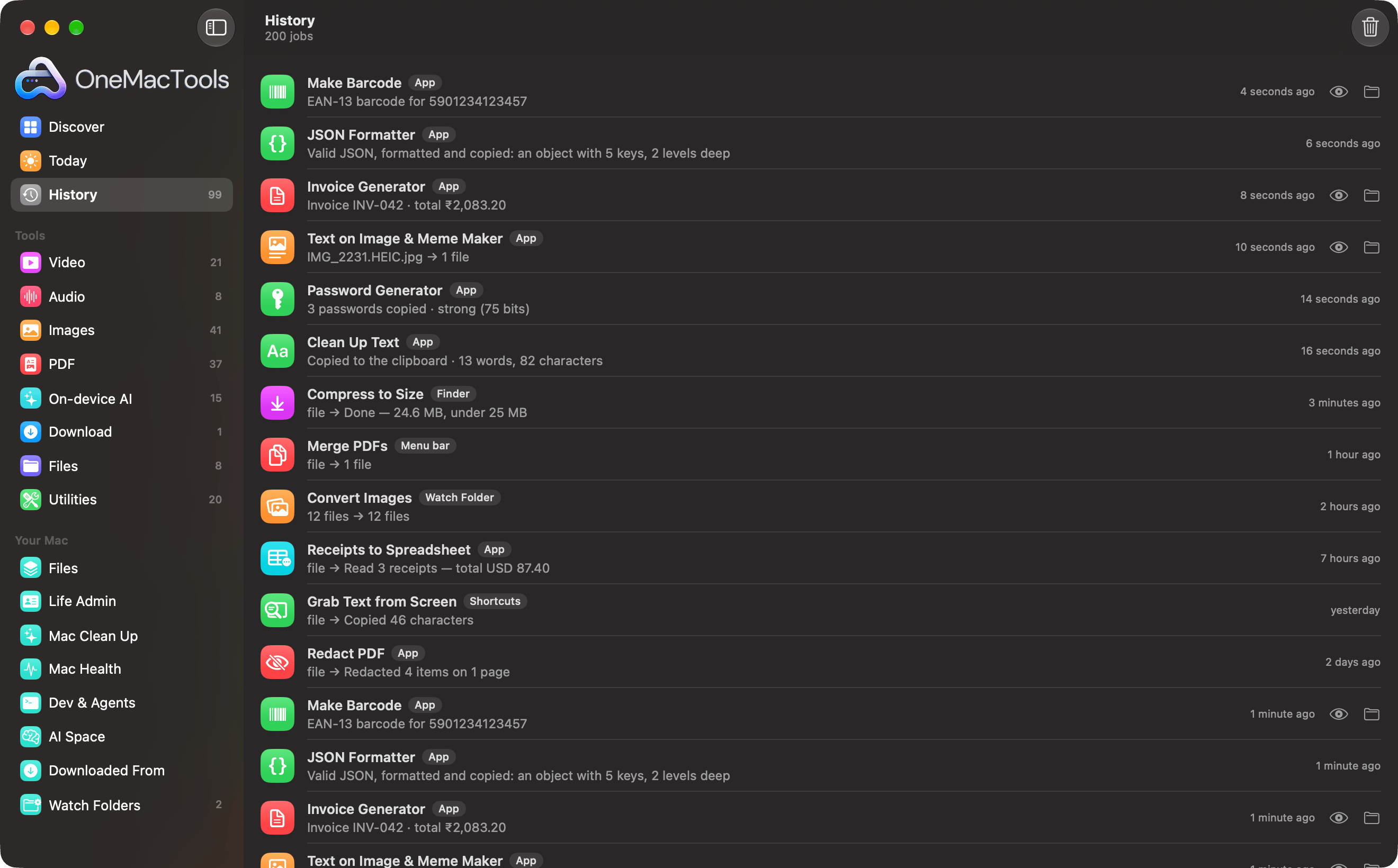
Until you've run something, History shows “No history yet”. History is about the jobs OneMacTools runs. It's separate from Mac Health history, the minute-by-minute record of CPU, memory and battery; see performance history and alerts for that.
What each History entry shows
| Part | Example | Meaning |
|---|---|---|
| Icon | A purple compress icon | The tool, in its category's colour; a sparkle for Mac Clean Up |
| Name | Compress to Size | The tool or feature that ran, in your app language |
| Source badge | Finder | Where the job was started (see the next section) |
| Detail | Clip.mov → Done — 24.6 MB, under 25 MB | The input file (or “12 files”), an arrow, and the result: the tool's summary or the number of files made |
| Failure | Failed — That key wasn't found… | Shown in orange instead of the detail when the job failed, with the reason |
| Time | 3 minutes ago, yesterday | When it finished, as a relative date |
| Buttons | Eye, folder, Put Back | Preview and Show in Finder for jobs that made files; Put Back for files moved to the Trash |
Jobs that didn't make files, such as Clean Up Text or Password Generator, show their message (“Copied to the clipboard · 13 words, 82 characters”) and no folder buttons. The eye and folder buttons are dimmed if you've since moved or deleted the results folder.
Which jobs are recorded: sources explained
The small badge after each tool's name tells you where the job came from.
| Badge | Started from |
|---|---|
| App | A tool in the OneMacTools window, including tools opened from Ask |
| Finder | A Finder Quick Action (right-click › Quick Actions › “OMT: …”) |
| Menu bar | Files dropped on the menu bar icon, or its recording and capture items |
| Watch Folder | A Watch Folder rule running a tool, or filing, tagging or trashing new files |
| Shortcuts | The Shortcuts app or Siri, through OneMacTools' actions |
| Screen Recorder | A finished screen recording |
| Record Meeting | A meeting recording and its notes |
| Files | Actions in the Files screen, such as Smart Rename |
| An assistant's name | An AI assistant over MCP, after you allowed it, for example Claude |
Besides tools, History records Mac Clean Up (what was moved to the Trash and how much space it freed), Life Admin actions and Watch Folders filing. Failed jobs are recorded too, so you can find an error message later. Cancelled jobs aren't.
If you've connected an assistant, its entries are the easiest way to check exactly what it did. See AI assistant permissions and approvals.
What you can do with a History entry
Use the buttons on the right of a row, or right-click (Control-click) it for the full menu:
| Action | What it does |
|---|---|
| Preview (eye) | Opens the results in Quick Look inside the app; arrow keys step through them |
| Show in Finder (folder) | Opens the job's results folder |
| Put Back | Moves files that Mac Clean Up or a Watch Folder sent to the Trash back where they were |
| Open [tool] | Opens that tool with your last-used options, to run it again |
| Remove from History | Removes just that entry; the result files stay where they are |
Putting trashed files back
When Mac Clean Up, Explore Disk, AI Space, Dev & Agents, an allowed AI assistant or a Watch Folder moves files to the Trash, History remembers where each one came from. Click Put Back to move them out of the Trash to their original places. The entry then notes how many were put back (“· 3 put back”), and the button stays only for any that couldn't be restored, for example because you emptied the Trash. Once the Trash is emptied, files can't be put back.
Finding results from weeks ago
History doesn't have its own search field, but entries are in date order and show both the input and output names. To find a result by its contents or name, use Ask (⌘K) or Quick Search; result folders are ordinary folders in Downloads › OneMacTools, named after the tool and time.
How long History keeps jobs, and how to clear it
History keeps your latest 200 jobs. When job 201 is added, the oldest entry drops off the list automatically. There's no time limit: if you run a few jobs a week, entries from months ago are still there.
To clear it, click Clear History (the trash icon at the top right of History). OneMacTools asks first: “Clear all history? Only the list is cleared. Your result files stay where they are.” Click Clear History to confirm. To remove a single entry, right-click it and choose Remove from History.
Settings › History is about Mac Health history, not job History: it controls whether Mac Health records readings, how long they're kept (30 days, 90 days, 6 months or a year), and Delete History… for those readings. It doesn't affect this list.
Where History is used elsewhere in the app
Several screens read from History, so clearing it resets them too:
- Today's This week tile counts jobs and files made in the last seven days (Mac Clean Up and failed jobs aren't counted). Click it to open History.
- Your recent tools on Today, and the three recent-tool buttons on Discover, come from your latest jobs.
- “34× used” labels on tool cards count your jobs per tool.
- Discover's Try this banner prefers tools you haven't used yet.
- Download Video lists recent downloads under its link field.
The app tour shows where each of these sits.
History and your privacy
History is stored in a single file on your Mac, in ~/Library/Application Support/OneMacTool. It's never uploaded, synced or shared, and OneMacTools contains no analytics, so nobody else sees what you've processed. What it records is the tool, the date, where the job started, the names of the input files, the results folder and the result message. It doesn't store copies of your files or their contents.
Bear in mind that file names can be revealing (“Passport scan.pdf”), and result messages sometimes include a figure from the job, such as a receipt total or an invoice amount. If you share your Mac's user account, clear History or remove those entries. Removing the app doesn't delete the file; the install page lists everything to delete for a complete uninstall, and privacy and permissions covers what the app can access.
Questions
Where can I see files I processed with OneMacTools?
In History, near the top of the sidebar, or press ⌘Y. Each entry has a folder button to open its results in Finder and an eye button to preview them. The results themselves are in Downloads › OneMacTools, in folders named after the tool and the time.
Does History include jobs run from Finder Quick Actions?
Yes. Jobs from Finder, the menu bar, Watch Folders, the Shortcuts app and AI assistants are all recorded, each with a badge showing where it came from. Failed jobs are recorded too, with the reason.
Does clearing History delete my converted files?
No. Clear History and Remove from History only change the list. Your results stay in Downloads › OneMacTools until you delete them yourself.
How many jobs does OneMacTools History keep?
The latest 200. Older entries drop off automatically as new jobs are added, with no time limit. History isn't affected by the Keep history for setting, which is for Mac Health readings.
Can I undo a Mac Clean Up from History?
Yes, as long as the files are still in the Trash. Click Put Back on the Mac Clean Up entry and they return to their original folders. Once the Trash is emptied, they can't be recovered from History.
How do I see what an AI assistant did with OneMacTools?
Open History and look for entries badged with the assistant's name, such as Claude. Each shows the tool it ran, the files, the result and when. Assistants can only run tools after you click Allow.
