
AI image upscaler for Mac
Enlarge photos 2× or 4× and keep them sharp, with Apple's on-device AI. Several at once.
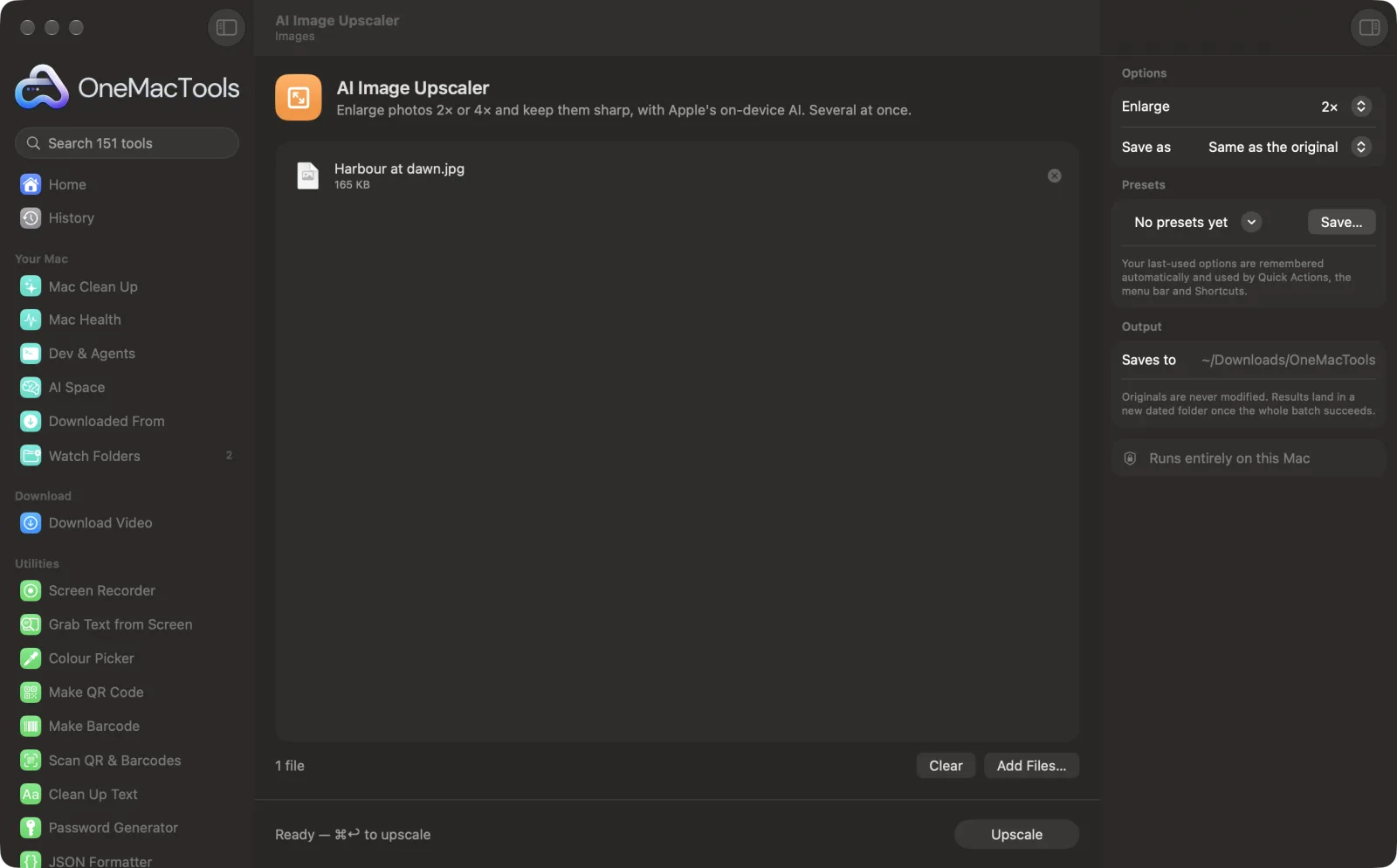
AI Image Upscaler on a Mac
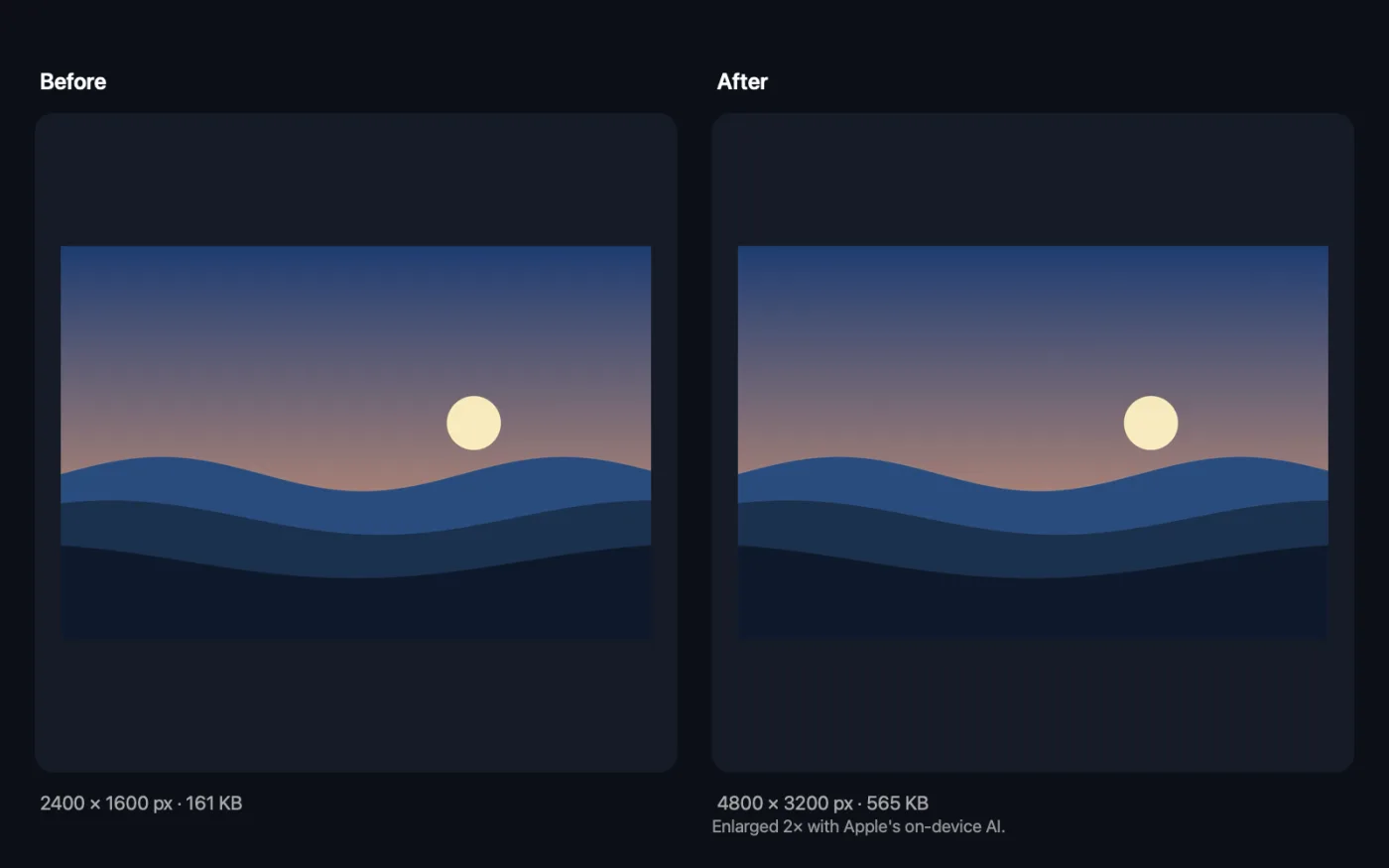
Screenshots from the app, using sample files.
How to use AI Image Upscaler
- 1
Drop pictures
Photos, product shots or graphics; several at once.
- 2
Choose 2× or 4×
2× doubles the width and height; 4× makes them four times bigger.
- 3
Click Upscale
The first time, macOS downloads Apple's model once.
- 4
Compare
Each copy is saved beside the others with 2x or 4x in its name.
What AI Image Upscaler does
Drop photos or pictures and get them 2× or 4× larger with Apple's on-device super-resolution, which adds believable detail instead of the blur of a plain resize. Big pictures are done in overlapping pieces so there are no seams. Nothing is uploaded. The first time, macOS downloads Apple's model once.
Great for
- Enlarge a small product photo for a website
- Print an old photo bigger
- Sharpen a low-resolution image for a slide
Options explained
- Enlarge
- 2× or 4×. 2× is done at 4× and then scaled down, which stays sharper than a plain 2× resize.
- Save as
- The same format as the original, PNG (lossless) or JPEG (smaller).
Best practices
- Start from the best copy you have: upscaling adds believable detail, but it can't recover what was never there.
- Use 2× for the web and 4× for print.
- Results larger than 16,000 pixels across are refused; choose 2× or crop first.
- Compress the result afterwards with Compress Images if the file is big.
- Photo details like the date taken and camera are kept.
Works with
- In
- JPEG, PNG, HEIC, WebP, TIFF and other images.
- Out
- A 2× or 4× copy of each picture.
- Uses Apple's on-device super-resolution (macOS 26) on the Neural Engine.
- On Macs without it, a careful resize with sharpening is used, and the result says so.
Questions about AI Image Upscaler
How do I upscale an image on a Mac?
Drop it into AI Image Upscaler, choose 2× or 4×, and click Upscale. You get a larger, sharper copy.
Is it better than resizing in Preview?
Yes. A normal resize stretches the pixels and looks soft; the AI scaler predicts finer detail, so edges and textures stay crisp.
Is my photo uploaded?
No. It runs on your Mac's Neural Engine.
Why does the first upscale take longer?
macOS downloads Apple's model once. After that it's ready instantly.
Can it upscale big pictures?
Yes. Large pictures are processed in overlapping pieces and joined without seams, up to 16,000 pixels across.
Can I upscale many images at once?
Yes. Select them all; each gets its own enlarged copy.
Does AI Image Upscaler upload my files?
No. AI Image Upscaler runs entirely on your Mac, so your files never leave it and it works offline.
Will AI Image Upscaler change my original files?
No. Results are saved as new files in a dated folder in Downloads › OneMacTools, and your originals are left exactly as they were unless you turn on an option that says otherwise.
What does AI Image Upscaler need?
Just a Mac with macOS 26 or later. There's nothing else to install.
Do this next
Shrink photos for email and the web, with a live before-and-after preview.
Remove BackgroundLift the subject out of a photo into a transparent PNG, on-device.
Resize ImagesResize by longest edge, exact pixels, percentage, or print size in cm, mm or inches at the DPI you need.
Related Images tools
Convert between PNG, JPEG, HEIC, AVIF and TIFF. Reads WebP, RAW and more.
Convert to WebPMake small, web-ready WebP images, lossy or lossless, with transparency kept.
Crop ImagesCrop to an aspect ratio or an exact area, or trim plain borders automatically — one photo or a whole folder.
Rotate & Flip ImagesTurn or mirror photos in one go.
Screenshot BeautifierPut screenshots on a gradient with padding, rounded corners and a soft shadow.
Watermark ImagesAdd your name, © notice or logo to photos — in a corner or tiled across the whole image.

AI Image Upscaler, plus 150 more.
One app. One price.
All 151 tools. Free download, one payment for a licence. 14-day money-back guarantee.