
Password generator for Mac
Strong passwords, memorable passphrases and PINs, made on this Mac and copied for you.
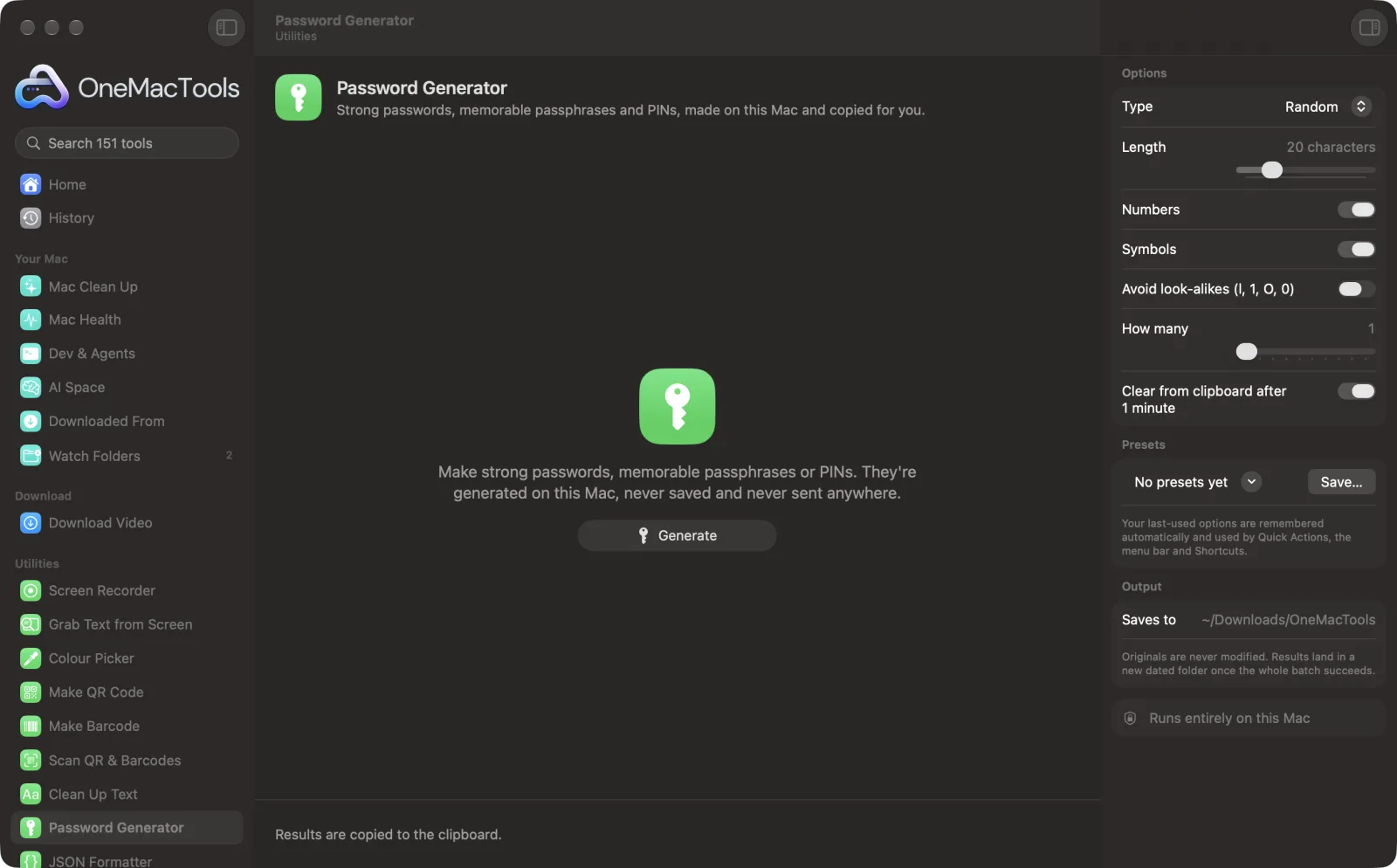
Password Generator on a Mac
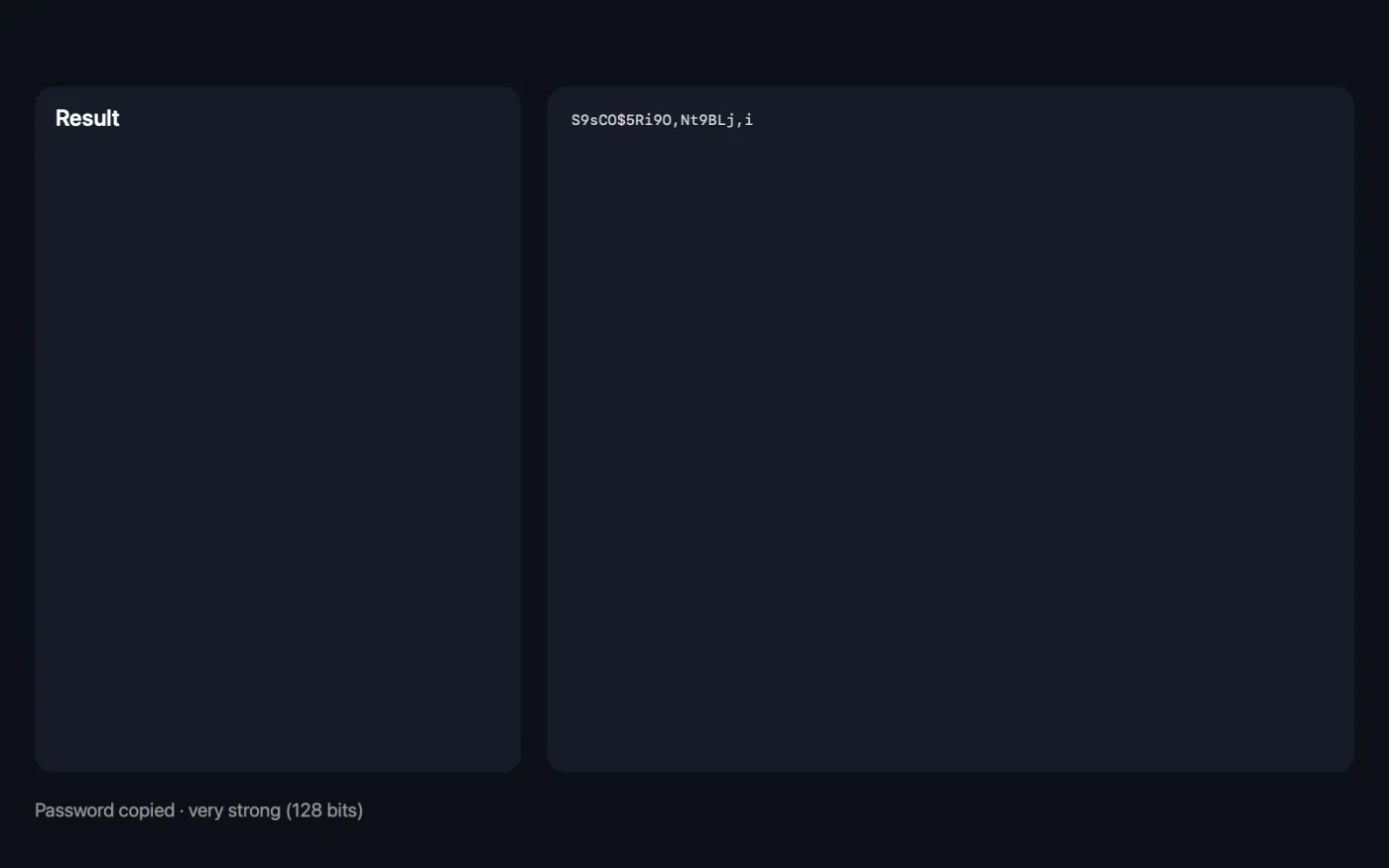
Screenshots from the app, using sample files.
How to use Password Generator
- 1
Choose the type
Pick Random for the strongest passwords, Passphrase for something you can remember and type, or PIN for numbers only.
- 2
Adjust the settings
Set the length, words or digits, and the characters you want. Choose how many to make at once.
- 3
Click Generate
The password appears in large type in the window and is copied to the clipboard. The window also rates its strength.
- 4
Paste it where you need it
Paste it into the sign-up form or your password manager. If Clear from clipboard after 1 minute is on, it's removed from the clipboard a minute later.
What Password Generator does
Make random passwords of 8 to 64 characters with numbers and symbols, memorable passphrases of everyday words like Harbor-Velvet-Mango42-Ribbon-Canyon, or PINs. Each one is made with macOS's secure random number generator, guaranteed to include every character type you chose, and rated for strength. Passwords are never saved or sent anywhere, are hidden from clipboard managers, and can clear themselves from the clipboard after a minute.
Great for
- Create a strong password for a new account
- Make a memorable passphrase for your Mac or Wi-Fi
- Generate a batch of temporary passwords for a team
Options explained
- Type
- Random makes a mix of letters, numbers and symbols. Passphrase strings everyday words together, like Harbor-Velvet-Mango42-Ribbon-Canyon. PIN makes a number.
- Length
- Only shown when Type is Random. From 8 to 64 characters, 20 by default. Longer is stronger; 16 or more is a good minimum for important accounts.
- Numbers
- Only shown when Type is Random. On by default. Includes the digits 0–9, with at least one in every password.
- Symbols
- Only shown when Type is Random. On by default. Includes symbols such as ! @ # $ % & * and brackets, with at least one in every password. Turn it off for sites that reject symbols.
- Avoid look-alikes (l, 1, O, 0)
- Only shown when Type is Random. Off by default. Leaves out characters that are easy to confuse, such as I, l, 1, O, 0, o, S, 5, Z, 2, B and 8. Useful for passwords you'll read out or type from paper.
- Words
- Only shown when Type is Passphrase. From 3 to 10 words, 5 by default. Each extra word makes the passphrase much harder to guess.
- Separator
- Only shown when Type is Passphrase. Hyphen, Space, Period, Underscore or None between the words.
- Capitalise words
- Only shown when Type is Passphrase. On by default. Starts each word with a capital letter, which helps sites that require one.
- Add a number
- Only shown when Type is Passphrase. On by default. Adds a number from 0 to 99 to the end of one word, for sites that require a digit.
- Digits
- Only shown when Type is PIN. From 4 to 12 digits, 6 by default.
- How many
- From 1 to 10. Makes several at once, one per line, so you can pick the one you like.
- Clear from clipboard after 1 minute
- On by default. Removes the password from the clipboard a minute after it's copied, unless you've copied something else since.
Best practices
- Use a different password for every account. Save each one in a password manager such as the Passwords app.
- Choose Passphrase for passwords you have to type by hand, like your Mac login or Wi-Fi. Five words is easy to remember and hard to guess.
- Aim for a strength of strong or very strong. Raise the length or word count until the rating gets there.
- If a site rejects your password, turn off Symbols and make the password longer instead.
- Turn on Avoid look-alikes for passwords you'll share by phone or print on paper.
Works with
- In
- Nothing: choose your settings and click Generate.
- Out
- Passwords, passphrases or PINs in the window and on the clipboard.
- Made with macOS's cryptographically secure random number generator.
- Passwords are never saved to disk or to History, and never sent anywhere.
- The copy is marked as private, so clipboard managers that respect this skip it.
- Random passwords always include at least one of each character type you turned on.
Questions about Password Generator
How do I generate a strong password on a Mac?
Leave Type on Random with a length of 20 or more, keep Numbers and Symbols on and click Generate. The password is copied to your clipboard, ready to paste.
Are the passwords saved anywhere?
No. They're shown in the window and copied to the clipboard, but never written to disk, kept in History or sent anywhere. History only records that passwords were made and how strong they were.
Is a passphrase as secure as a random password?
A five-word passphrase is strong enough for most accounts and much easier to remember and type. Add more words for important accounts; the strength rating shows how it compares.
How long should a password be?
At least 16 characters for random passwords, or five words for passphrases. The strength rating turns strong at 60 bits and very strong at 80.
Does the password stay on my clipboard?
With Clear from clipboard after 1 minute on, it's removed after a minute if you haven't copied anything else. It's also marked as private so clipboard managers that respect this don't store it.
Can I make several passwords at once?
Yes. Set How many to up to 10 and they're listed one per line and copied together.
How do I make a password without confusing characters?
Turn on Avoid look-alikes (l, 1, O, 0). Characters such as I, l, 1, O and 0 are left out, so the password is easy to read and type.
Does Password Generator upload my files?
No. Password Generator runs entirely on your Mac, so your files never leave it and it works offline.
Will Password Generator change my original files?
No. Results are saved as new files in a dated folder in Downloads › OneMacTools, and your originals are left exactly as they were unless you turn on an option that says otherwise.
What does Password Generator need?
Just a Mac with macOS 26 or later. There's nothing else to install.
Do this next
Lock files and folders in a password-protected disk image (AES-256) that opens on any Mac.
Add PasswordAdd a password needed to open the PDF.
File ChecksumVerify downloads with SHA-256, SHA-512, SHA-1 or MD5 hashes.
Related Utilities tools
Record a window, an app or the whole screen, with sound, as MP4 or GIF.
Grab Text from ScreenDrag over anything on screen — a video, a photo, a locked PDF — and copy the text in it.
Colour PickerPick any pixel on screen and copy its colour as HEX, RGB, HSL or code.
Make QR CodeTurn a link, some text or Wi-Fi details into a crisp QR code.
Make BarcodeMake Code 128, EAN-13, UPC-A, PDF417 and Aztec barcodes for labels, products and tickets.
Scan QR & BarcodesRead QR codes and barcodes from photos, screenshots and PDFs.

Password Generator, plus 150 more.
One app. One price.
All 151 tools. Free download, one payment for a licence, yours to keep.