
Record and transcribe Zoom, Teams and Meet calls on Mac
Record both sides of a call, then get a transcript labelled You and Others, plus notes. On-device.
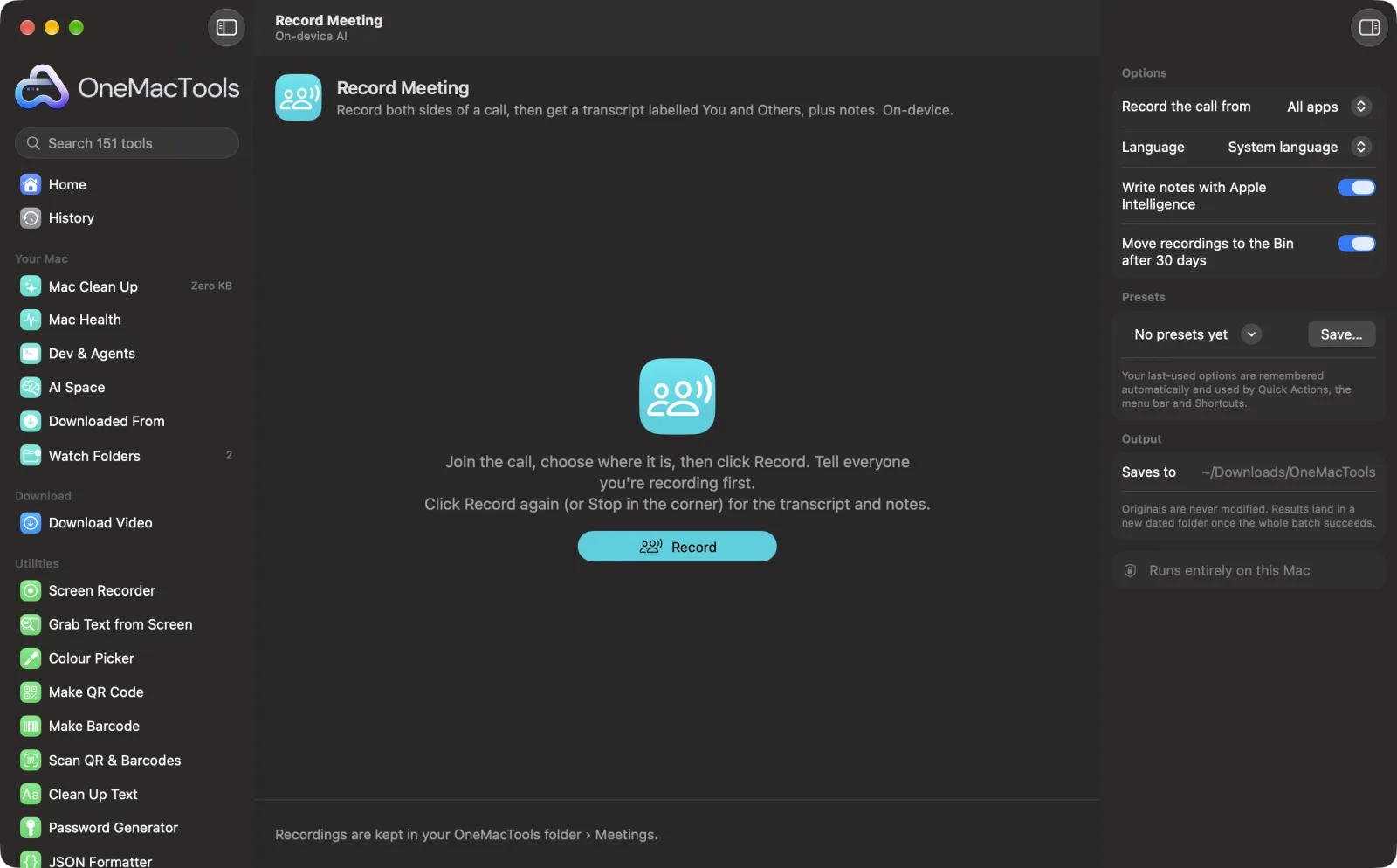
Record Meeting on a Mac
Screenshots from the app, using sample files.
How to use Record Meeting
- 1
Join the call
Zoom, Teams, Meet in a browser, FaceTime or any app.
- 2
Choose where the call is
Pick the app from the list (it shows apps making sound), or All apps.
- 3
Tell everyone, then click Record
A red timer appears in the corner of the screen while it records.
- 4
Click Stop when the call ends
On the timer, in the menu bar, or Record Meeting's button.
- 5
Open the Meetings folder
The recording, a transcript labelled You and Others, and notes are in your OneMacTools folder › Meetings.
What Record Meeting does
Join a Zoom, Teams, Meet or FaceTime call, choose where it is, and click Record. Your microphone and the call's sound are recorded as two tracks, so the transcript knows who spoke: “You” or “Others”. When you stop, you get the recording, a timed transcript and, with Apple Intelligence, notes with decisions and action items. A small red timer shows while it records. Everything stays on your Mac, and recordings move to the Bin after 30 days unless you keep them.
Asks for microphone access the first time you record.
Great for
- Keep a record of a client call
- Write up action items after a stand-up
- Catch up on what was said while you were presenting
Options explained
- Record the call from
- One app, so music or other sounds aren't recorded, or All apps (everything but OneMacTools).
- Language
- The language spoken in the meeting, for the transcript.
- Write notes with Apple Intelligence
- A summary, decisions, action items and open questions, from the transcript. Needs Apple Intelligence.
- Move recordings to the Bin after 30 days
- Keeps the Meetings folder from growing. Only meetings Record Meeting made are moved, and you can restore them from the Bin.
Best practices
- Always tell people you're recording; in many places it's required by law.
- Wear headphones so your microphone doesn't pick up the other side, which keeps “You” and “Others” apart.
- Pick the call's app rather than All apps, so notifications and music stay out of the recording.
- Recording stops by itself after 3 hours.
- Move a meeting out of the Meetings folder to keep it past 30 days.
Works with
- In
- Your microphone and the sound of the app you choose.
- Out
- Recording.m4a, Transcript.md and Notes.md in a folder per meeting.
- macOS asks once for the microphone and once to record other apps' sound.
- Transcription and notes run on your Mac.
Questions about Record Meeting
How do I record a Zoom or Teams call on a Mac?
Join the call, open Record Meeting, choose the app and click Record. Your voice and the call's sound are both recorded, and you get a transcript when you stop.
Does it record what others say?
Yes. It records the sound the call's app plays, so everyone else is on the recording, labelled Others in the transcript.
Do other people get notified?
No, not by the call app, since it records on your Mac. Tell them yourself before you start.
Is the meeting uploaded anywhere?
No. Recording, transcription and notes all happen on your Mac.
Can it tell individual people apart?
It tells you apart from everyone else, since your microphone is a separate track. Other speakers are labelled Others together.
Where are recordings kept and for how long?
In your OneMacTools folder › Meetings, one folder per meeting. After 30 days they move to the Bin, unless you turn that off.
Does Record Meeting upload my files?
No. Record Meeting runs entirely on your Mac, so your files never leave it and it works offline.
Will Record Meeting change my original files?
No. Results are saved as new files in a dated folder in Downloads › OneMacTools, and your originals are left exactly as they were unless you turn on an option that says otherwise.
What does Record Meeting need?
Just a Mac with macOS 26 or later. There's nothing else to install.
Do this next
Turn a meeting recording into a transcript plus notes with decisions and action items.
TranscribeTurn speech in audio or video into text or subtitles with Apple's on-device speech recognition.
SummarizeGet the short version of long documents from Apple Intelligence's on-device model.
Related On-device AI tools
Read text out of photos, screenshots and scanned PDFs with Apple's Vision framework.
Ask a DocumentAsk a question about PDFs, scans or documents and get an answer from what they say.
Smart RenameGive scans, screenshots and photos real names from what's inside them.
Receipts to SpreadsheetRead receipts and invoices into a spreadsheet of dates, vendors, tax and totals.
Alt Text & CaptionsWrite accessible descriptions for images, for websites, documents and social posts.
RewriteParaphrase, proofread, shorten or change the tone of text with on-device Apple Intelligence.

Record Meeting, plus 150 more.
One app. One price.
All 151 tools. Free download, one payment for a licence. 14-day money-back guarantee.