
How to transcribe audio and video to text on a Mac, free and offline
Turn interviews, lectures, voice memos and videos into text or SRT subtitles on your Mac, without uploading them. What's built in, what works offline, and how to get a clean transcript.
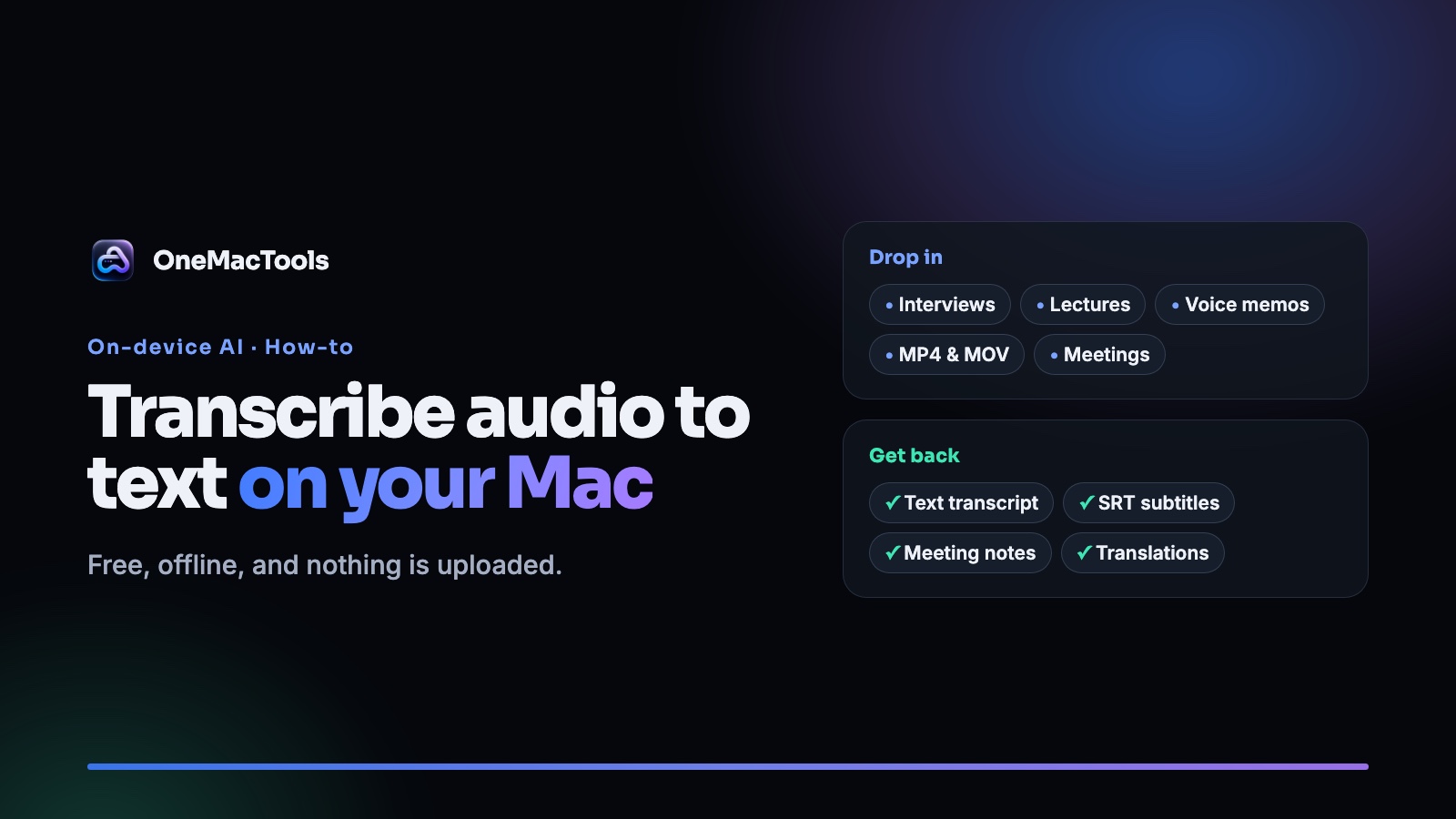
You have a recording: an interview, a lecture, a client call, a voice memo, a video. You want the words as text. The usual answer is to upload it to a transcription website. That means waiting for the upload, paying per minute, and sending someone else a recording that may be private.
Your Mac can do this itself. Apple's speech recognition runs on the Mac and works offline once its language model is downloaded. Here's how to use it, and how to get a transcript you can actually use.
What's built into macOS
macOS has Dictation: press the Dictation key (or the shortcut set in Keyboard settings) and speak into any text field. It's excellent for writing as you talk.
Where it stops: Dictation listens to the microphone as you speak. It doesn't take an audio or video file you already have and turn it into a transcript or a subtitle file.
Transcribe a file on your Mac, step by step
Transcribe in OneMacTools uses Apple's on-device speech recognition on files:
- Add the recording. Drop audio or video files onto Transcribe: M4A, MP3, WAV, AIFF, MP4 or MOV. Or select them in Finder, right-click and choose Quick Actions › OMT: Transcribe.
- Choose the language that's spoken. US, UK and India English are listed separately, which helps with accents and spelling.
- Choose Text or Subtitles (SRT). Text gives one continuous transcript. SRT gives numbered, timed captions for a video.
- Click Transcribe. For videos, the soundtrack is taken out first. The first time you use a language, macOS may download its speech model.
- Open the result. A
.txtor.srtfile named after each recording is saved in a new folder in Downloads › OneMacTools.
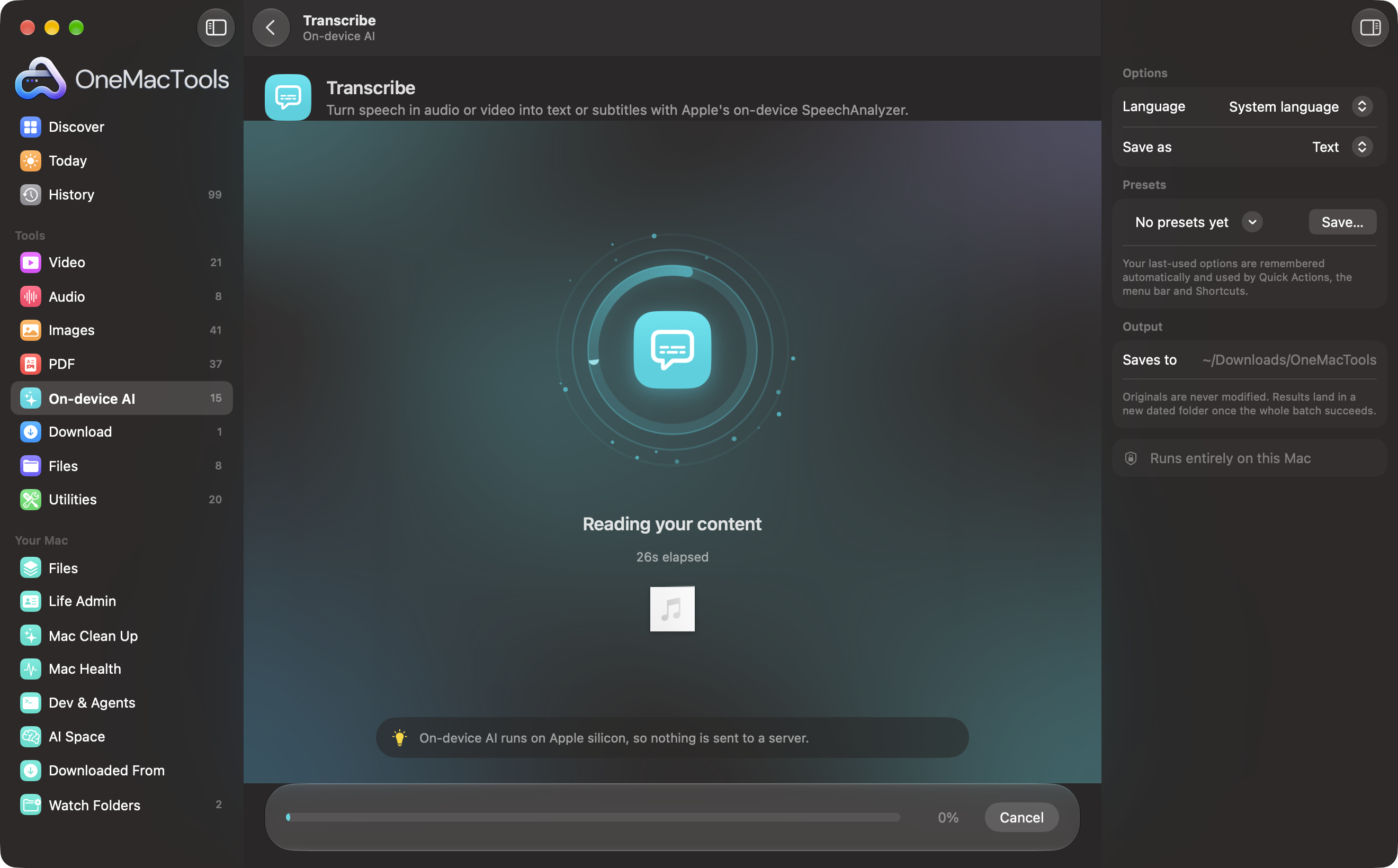
You can drop a whole folder of recordings at once, and each gets its own file.
Which languages work offline?
On-device transcription covers English (US, UK and India), Chinese, French, German, Italian, Japanese, Korean, Portuguese and Spanish. It can also use your Mac's own language if Apple supports it. If a language isn't supported yet, Transcribe tells you before it starts.
How to get a better transcript
- Start with clean audio. Record close to the speaker and avoid music and background noise. For an existing recording, Clean Up Audio can reduce noise first.
- Pick the right English. US, UK and India English give better results with matching accents.
- Check names, numbers and jargon before you quote or publish anything.
- Need to know who said what? Transcribe doesn't label speakers. SRT timings show when each part was said, which helps you find it.
Beyond a plain transcript
- Meeting notes: Meeting Notes turns a recording into a transcript plus a summary, decisions and action items. The notes need Apple Intelligence turned on; without it you still get the transcript.
- Subtitles on a video: Auto Subtitles splits speech into short, readable captions and can burn them into the video.
- In another language: Translate translates the transcript or subtitle file offline with Apple's downloadable languages.
Why offline matters for transcription
Recordings are among the most personal files people have: interviews with sources, therapy notes, medical appointments, board meetings, family videos. An online service has to receive the whole recording to transcribe it.
On-device transcription never sends it anywhere. It also has no per-minute pricing and no upload wait, and it works on a plane.
Questions
Can a Mac transcribe audio files for free?
macOS includes on-device speech recognition, but its built-in Dictation works on live speech, not files. To turn a file into text, you need an app that uses that recognition on files, such as Transcribe.
How do I transcribe a voice memo on a Mac?
Drag the recording out of the Voice Memos app into a Finder folder. Then drop the .m4a file onto Transcribe.
How do I make SRT subtitles from a video?
Drop the video onto Transcribe and set Save as to Subtitles (SRT). For captions burned into the video, use Auto Subtitles.
Is on-device transcription as accurate as online services?
For clear speech in a supported language, Apple's on-device recognition is very good. Accuracy drops with noise, music, crosstalk and heavy accents, as it does for every service. Always check names and numbers.
Does it work with MKV or WebM videos?
If a video can't be read, convert it to MP4 first with Convert Video, then transcribe it.
Tools in this post
More on the blog and in the guides.
More from the blog
How to redact a PDF on a Mac properly (and why a black box isn't enough)
Drawing a black rectangle over text in a PDF often leaves the text underneath. Here's how to redact names, emails, phone and card numbers on a Mac so they're really gone, and how to check.
Adobe Acrobat alternatives for Mac in 2026: what to use instead, and when you still need Acrobat
An honest look at Acrobat alternatives on the Mac, from free Preview to PDF Expert, iLovePDF and OneMacTools, with prices, privacy and what each one can't do.
