
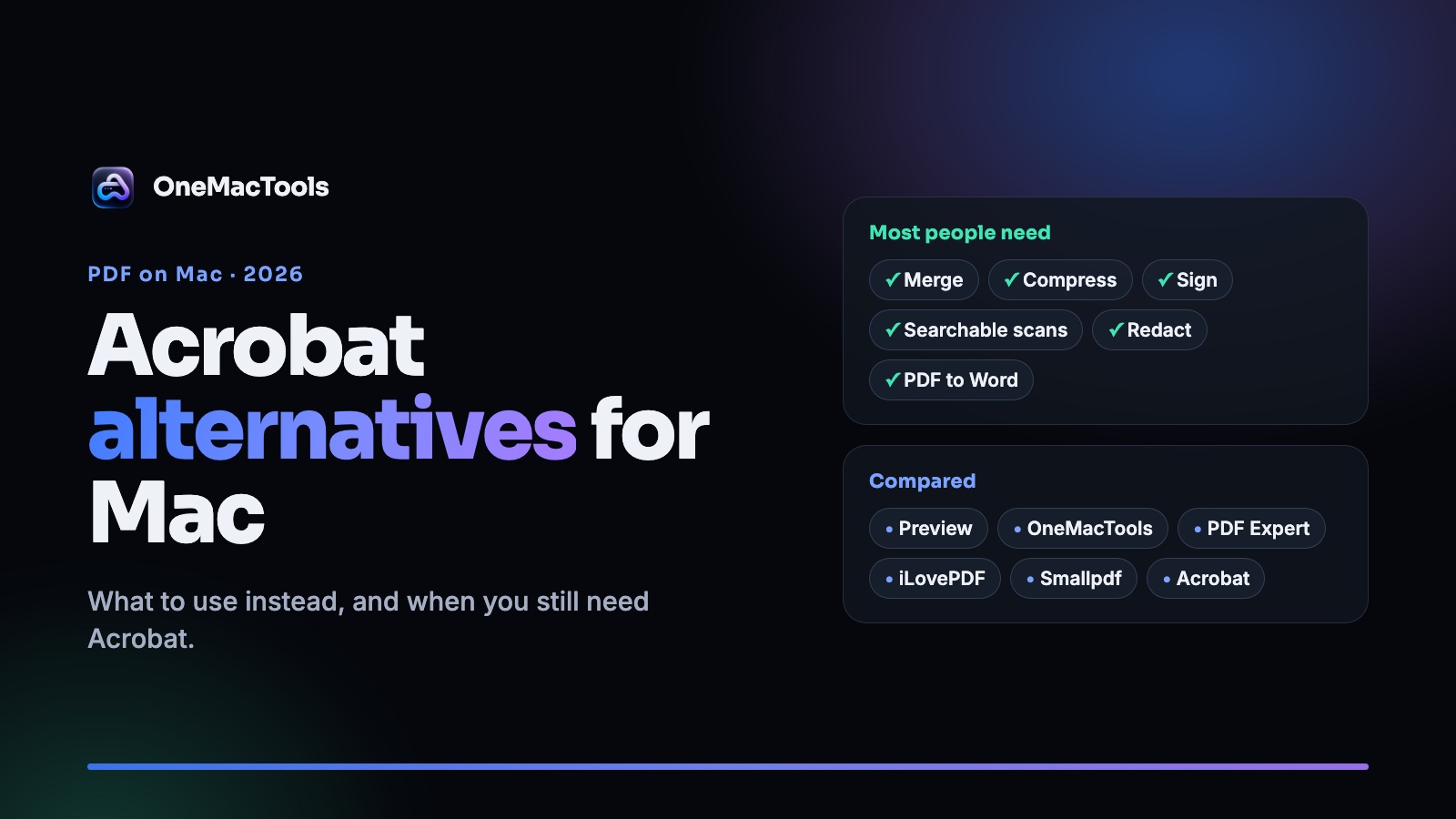
Adobe Acrobat alternatives for Mac in 2026: what to use instead, and when you still need Acrobat
An honest look at Acrobat alternatives on the Mac, from free Preview to PDF Expert, iLovePDF and OneMacTools, with prices, privacy and what each one can't do.
Adobe Acrobat is the reference PDF editor, and it's priced like one. Standard starts at $14.99 a month and Pro at $19.99 a month on yearly plans. That's $180 to $240 a year, every year.
Most people don't need everything Acrobat does. They merge a few files, shrink a PDF for email, sign a contract, make a scan searchable or black out an account number. This guide compares the realistic alternatives on a Mac, says where each one is the better choice, and is honest about when you should keep Acrobat.
Prices and features come from each product's own website, checked on 14 October 2026. Check the pricing pages linked below before you buy.
First, decide what you actually do with PDFs
Look at the last month. Most PDF work falls into one of these:
- Organising: merging, splitting, reordering, rotating and deleting pages.
- Shrinking: making a PDF small enough to email or upload.
- Signing and forms: filling in a form and adding a signature.
- Scans: turning a scanned document into a PDF you can search and copy from.
- Privacy: redacting names and numbers, adding a password.
- Editing the text itself: changing words, fonts and layout inside the PDF.
The last one is the job that really needs a full PDF editor. Everything above it can be done for much less.
The alternatives at a glance
| Price | Where your files go | Best for | |
|---|---|---|---|
| Preview (built in) | Free | Stay on your Mac | Merging, signing, forms, light markup |
| OneMacTools | One-time, from $19 for 1 Mac | Stay on your Mac | Everyday PDF jobs in bulk, plus video, images and audio |
| PDF Expert | Yearly subscription, or a Mac-only lifetime licence | Stay on your device | Editing real text, annotating, iPad and iPhone sync |
| iLovePDF | Free with limits; Premium $48 a year | Web tools upload your files | Any computer, any browser |
| Smallpdf | Free with limits; Pro is a subscription | Web tools upload your files | Quick jobs in a browser, e-signature |
| Adobe Acrobat | From $14.99 a month (yearly plan) | Desktop app on your Mac; online tools in the cloud | Full editing, certified redaction, PDF/A, enterprise |
Preview: free, and better than you think
Preview comes with every Mac and covers a lot. You can drag pages between PDFs to combine them, reorder and delete pages, fill in forms, sign with the trackpad or your iPhone, and add highlights and notes.
Where it stops: Preview can't make a scanned PDF searchable or redact by pattern. Its Reduce File Size option is one fixed setting that often leaves pages blurry. It's also built for one document at a time.
OneMacTools: the everyday jobs, paid once
OneMacTools is a native Mac app with 37 PDF tools among its 151. Each one is built for a single job: merge, split, compress, sign, make searchable, redact, add a password, convert PDF to Word and more. Everything runs on your Mac, with no account, and it works from Finder Quick Actions and Shortcuts as well as the app.
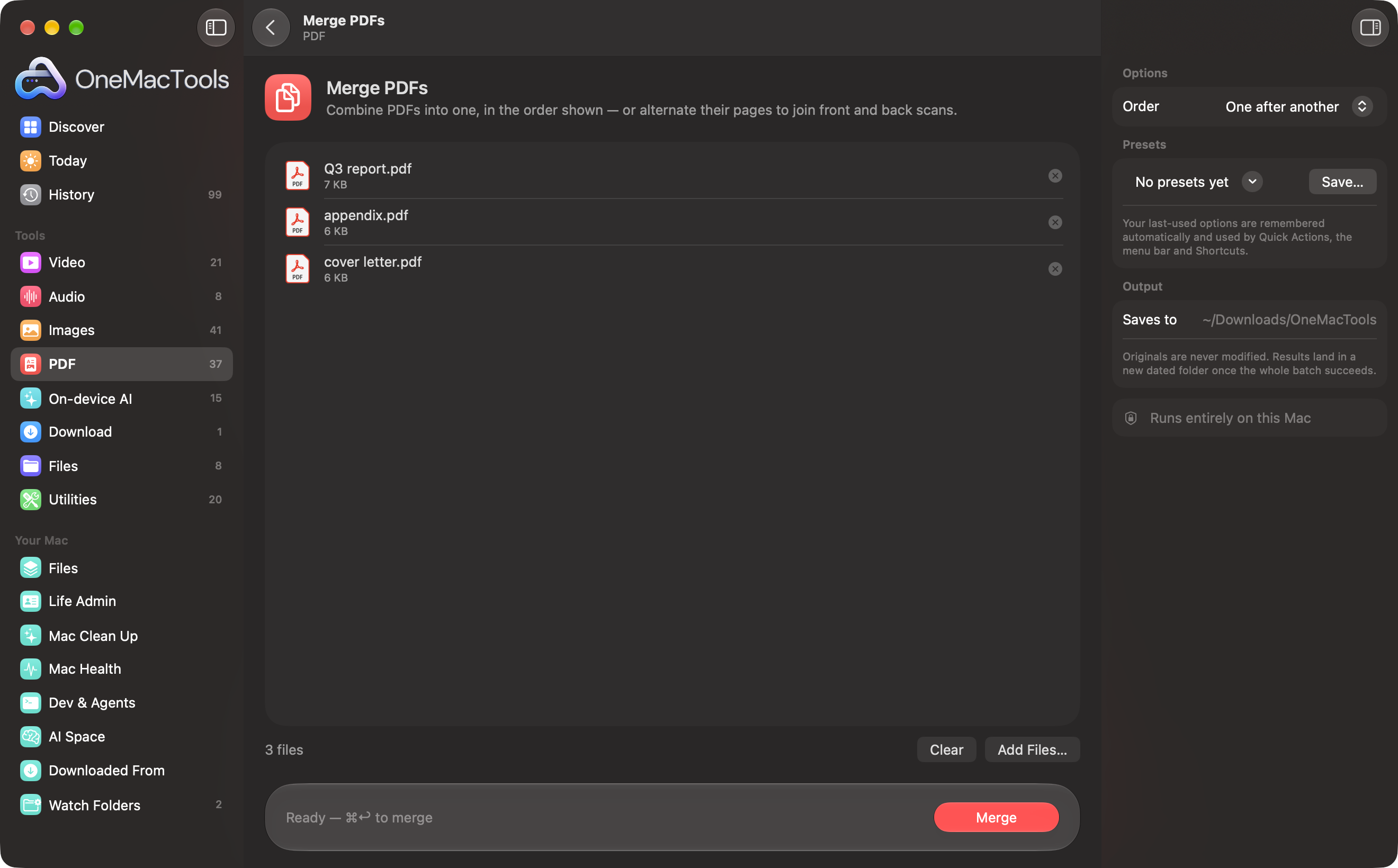
Where it's the better choice: you do the same PDF jobs again and again, often to many files, and you'd rather pay once. A licence costs less than one month of Acrobat Pro, and the same app also covers video, images, audio and Mac clean-up.
Where it isn't: OneMacTools doesn't edit the existing text inside a PDF. If you need to rewrite a paragraph in a PDF, you need an editor like PDF Expert or Acrobat.
PDF Expert: the editor for Mac and iPad
Readdle's PDF Expert is a polished native editor. It's the best fit if you edit real text, images and links in PDFs, annotate a lot, or want the same app on Mac, iPad and iPhone. It's sold as a yearly subscription, with a lifetime licence for the Mac only. See their pricing page for your country.
Where it isn't the best choice: if you mostly organise, compress and convert, you'd be paying for editing you don't use.
iLovePDF and Smallpdf: any browser, at a privacy cost
Both work in any browser, have free tiers with limits, and offer a broad set of tools. That's handy on a computer that isn't yours.
The trade-off is that their web tools upload your file. iLovePDF's security page says uploaded files are deleted within two hours. That may be fine for a menu or a flyer. It's worth a second thought for contracts, payslips, IDs or medical letters. Both also offer desktop apps that work on your computer: iLovePDF's comes with Premium, and Smallpdf's is for Windows.
When you should keep Acrobat
Acrobat is still the right tool when you need:
- Full editing of text and layout in complex documents.
- Certified redaction and advanced OCR for legal or compliance work.
- PDF/A, accessibility tagging and advanced forms.
- E-signature workflows and admin controls across a team on Mac and Windows.
If that's your job, the subscription is the cost of doing it properly.
Which one should you choose?
- You sign and merge now and then: Preview. It's free.
- You do everyday PDF jobs often, and want them private: OneMacTools.
- You edit the text in PDFs and work on an iPad too: PDF Expert.
- You're on someone else's computer: iLovePDF or Smallpdf, for files that aren't sensitive.
- You need certified redaction, PDF/A or team e-signing: keep Acrobat.
For side-by-side tables, see our comparisons with Adobe Acrobat, PDF Expert, iLovePDF and Smallpdf. Each one says where the other product is the better choice.
Questions
Is there a free alternative to Adobe Acrobat on Mac?
Yes. Preview is free on every Mac and handles merging, reordering pages, signing, forms and markup. For compression, OCR and redaction you'll need another tool.
Can I make a scanned PDF searchable without Acrobat?
Yes. Make PDF Searchable in OneMacTools adds an invisible text layer to scanned pages on your Mac, so Spotlight and Preview can search them.
Can I redact a PDF without Acrobat?
Yes, but a black box drawn on top isn't enough, because the text can still be underneath. Use a tool that removes it. See how to redact a PDF properly on a Mac.
Is it safe to use online PDF tools?
They upload your file to a server, so it depends on what's in the file. Read what free online converters do with your files before uploading anything personal.
Tools in this post
More on the blog and in the guides.
More from the blog
CleanMyMac alternatives in 2026: honest options for a full or slow Mac
CleanMyMac isn't the only way to free up space or speed up a Mac. We compare the built-in tools, DaisyDisk, iStat Menus, Vitals and OneMacTools, with prices and what each is best at.
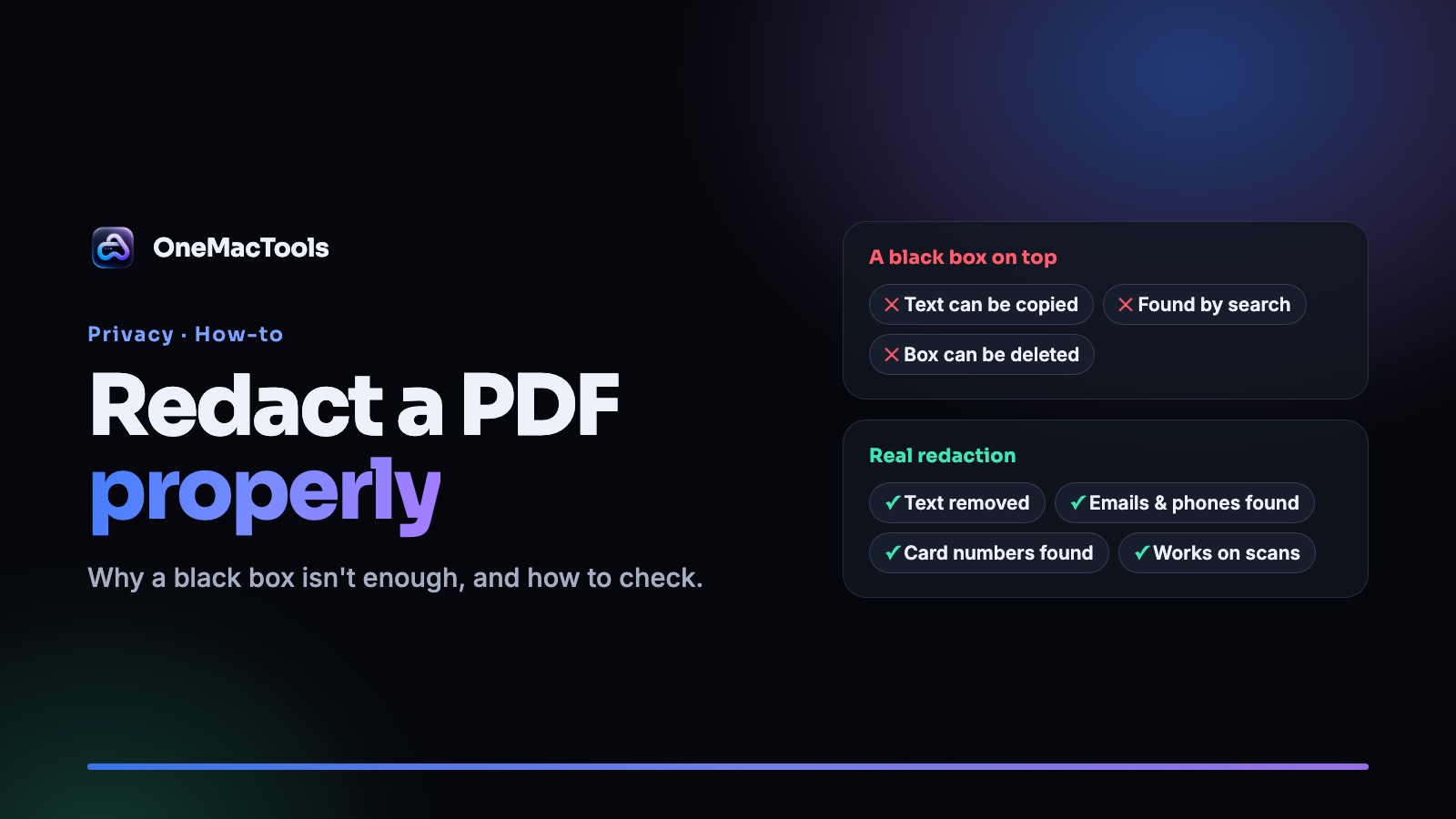
How to redact a PDF on a Mac properly (and why a black box isn't enough)
Drawing a black rectangle over text in a PDF often leaves the text underneath. Here's how to redact names, emails, phone and card numbers on a Mac so they're really gone, and how to check.
