
What happens to your file when you use a free online PDF converter?
Free converters are convenient, but every one of them has to receive your file first. What that means, five questions to ask before uploading, and how to do the same jobs on your Mac.
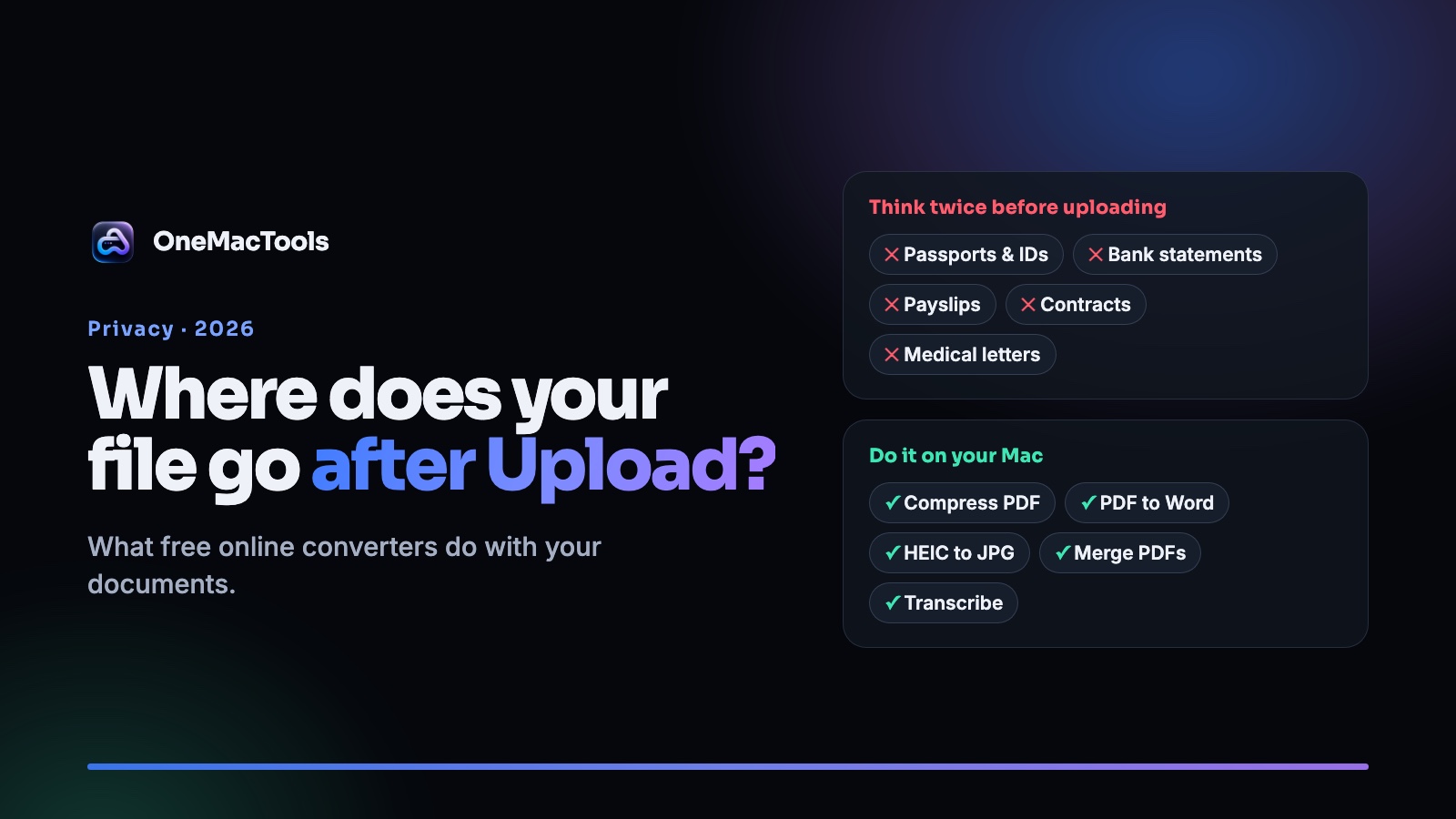
Search for "compress PDF" or "PDF to Word" and the top results are free websites. You drop your file, wait a few seconds, and download the result. It's so easy that most people never think about the step in the middle: your file was uploaded to someone else's computer.
For a restaurant menu, that doesn't matter. For a passport scan, a payslip, a signed contract or a medical letter, it might. This isn't a warning against any particular site. It's what happens, so you can decide which files are fine to upload and which aren't.
What actually happens when you click Upload
- Your file is sent to the service's servers. The whole document, every page.
- It's processed there. Compressed, converted or merged by their software.
- The result is stored until you download it.
- Both are kept for a while, then deleted. How long depends on the service. iLovePDF's security page, for example, says uploaded files are deleted within two hours.
Reputable services take this seriously, with encryption in transit and automatic deletion. But for that window, a copy of your document exists somewhere you don't control. You're relying on the service's policy, its security, and the laws of the country where its servers are.
Five questions to ask before you upload
- What's in the file? Look for ID numbers, bank details, signatures, health information or other people's personal data. If it's there, think twice.
- How long do they keep it? A good service states this clearly on a security or privacy page. "We delete files after a few hours" is better than silence.
- Where are the servers? This decides which privacy laws apply to your file.
- Do I need an account? An account links your files to your name and email.
- Is the file someone else's? Client documents, patient records and HR files may be covered by a contract or by law. Your employer may not allow uploading them at all.
Files you shouldn't upload
As a rule of thumb, keep these off websites:
- Passports, driving licences and ID cards
- Bank statements, payslips and tax returns
- Signed contracts and legal documents
- Medical records and letters
- Anything about clients, patients or employees
The same jobs, done on your Mac
The good news is that nearly everything these sites do, your Mac can do without uploading anything.
Built into macOS:
- Combine PDFs, reorder pages and sign: Preview.
- Convert and resize images: right-click in Finder and choose Quick Actions › Convert Image.
- Make a PDF from images: Quick Actions › Create PDF.
With OneMacTools, for jobs Preview can't do, or can't do well:
| The website job | On your Mac |
|---|---|
| Compress PDF | Compress PDF |
| Merge PDF | Merge PDFs |
| PDF to Word | PDF to Text & Word, with OCR for scans |
| HEIC to JPG, WebP to PNG | Convert Images |
| Compress video to 25 MB | Compress to Size |
| Remove background | Remove Background |
| Transcribe audio | Transcribe |
Every tool runs on your Mac. There's no upload and no file size limit, and it works offline.
A word about AI chats
The same thinking applies when you paste a document into an AI chatbot. The text goes to the service, and depending on its settings, it may be kept with your conversation history.
If you need help from an AI with a document that contains personal details, Redact Text for AI swaps names, emails, phone and card numbers, API keys and addresses for placeholders before you paste. Afterwards it puts them back in the answer.
The short version
- Free online converters upload your file. That's how they work, not a flaw.
- For files with nothing personal in them, they're fine.
- For IDs, money, health, contracts and other people's data, do it on your Mac with Preview or a tool that runs locally.
Questions
Are online PDF converters safe?
Reputable ones use encryption and delete files after a set time. But they all have to receive your file, so the risk depends on what's in it. For sensitive documents, an offline tool avoids the question entirely.
How do I compress a PDF without uploading it?
Preview's Reduce File Size option works offline but often makes pages blurry. Compress PDF in OneMacTools shrinks image-heavy PDFs on your Mac.
How do I convert a PDF to Word offline on a Mac?
PDF to Text & Word saves a PDF's text as a Word document, plain text or RTF, and reads scanned pages with on-device OCR.
What should I do before sharing a document?
Remove what the other person doesn't need. See how to redact a PDF properly on a Mac, and Remove Metadata strips location and camera details from photos.
Tools in this post
More on the blog and in the guides.
More from the blog
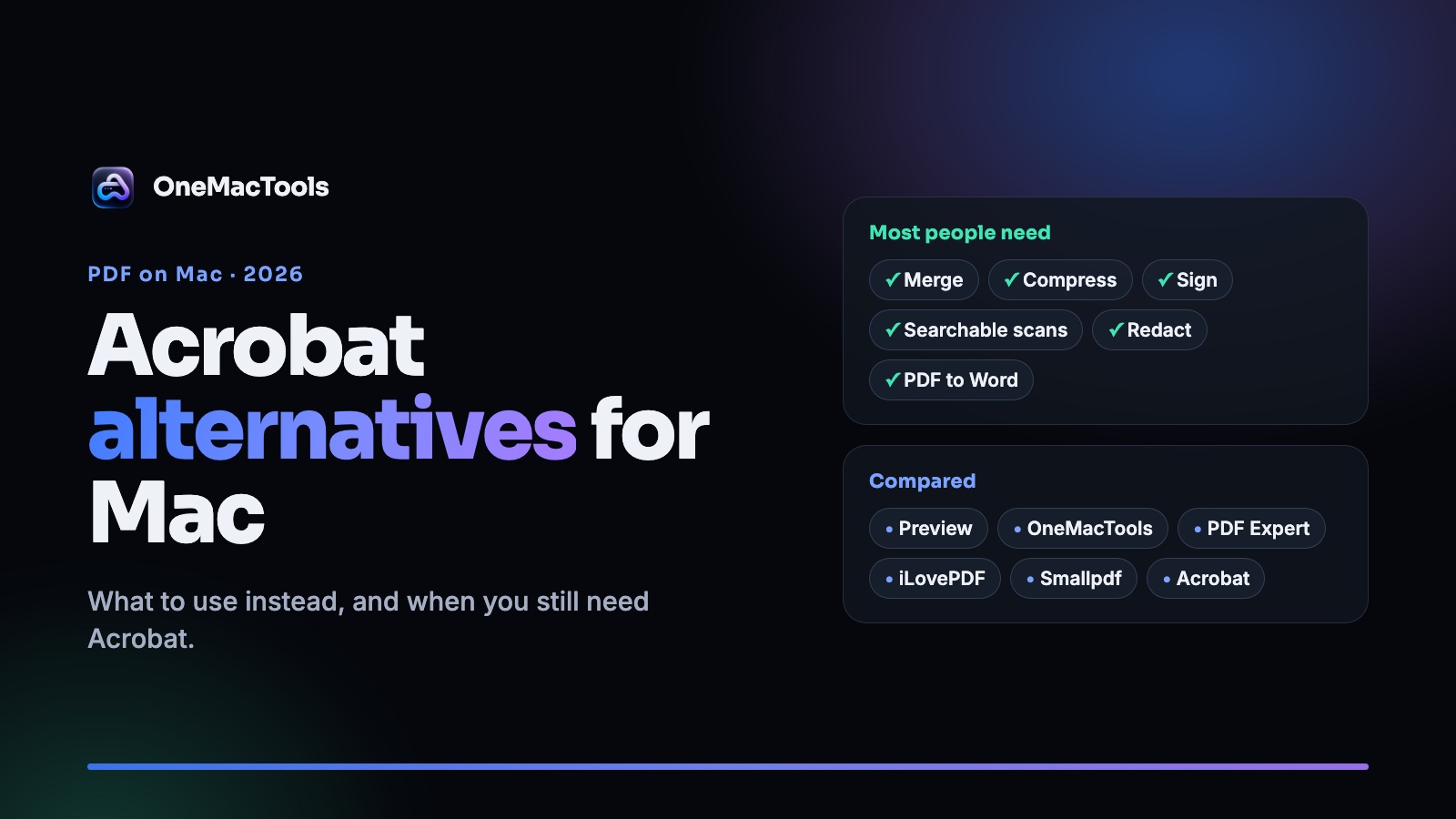
Adobe Acrobat alternatives for Mac in 2026: what to use instead, and when you still need Acrobat
An honest look at Acrobat alternatives on the Mac, from free Preview to PDF Expert, iLovePDF and OneMacTools, with prices, privacy and what each one can't do.
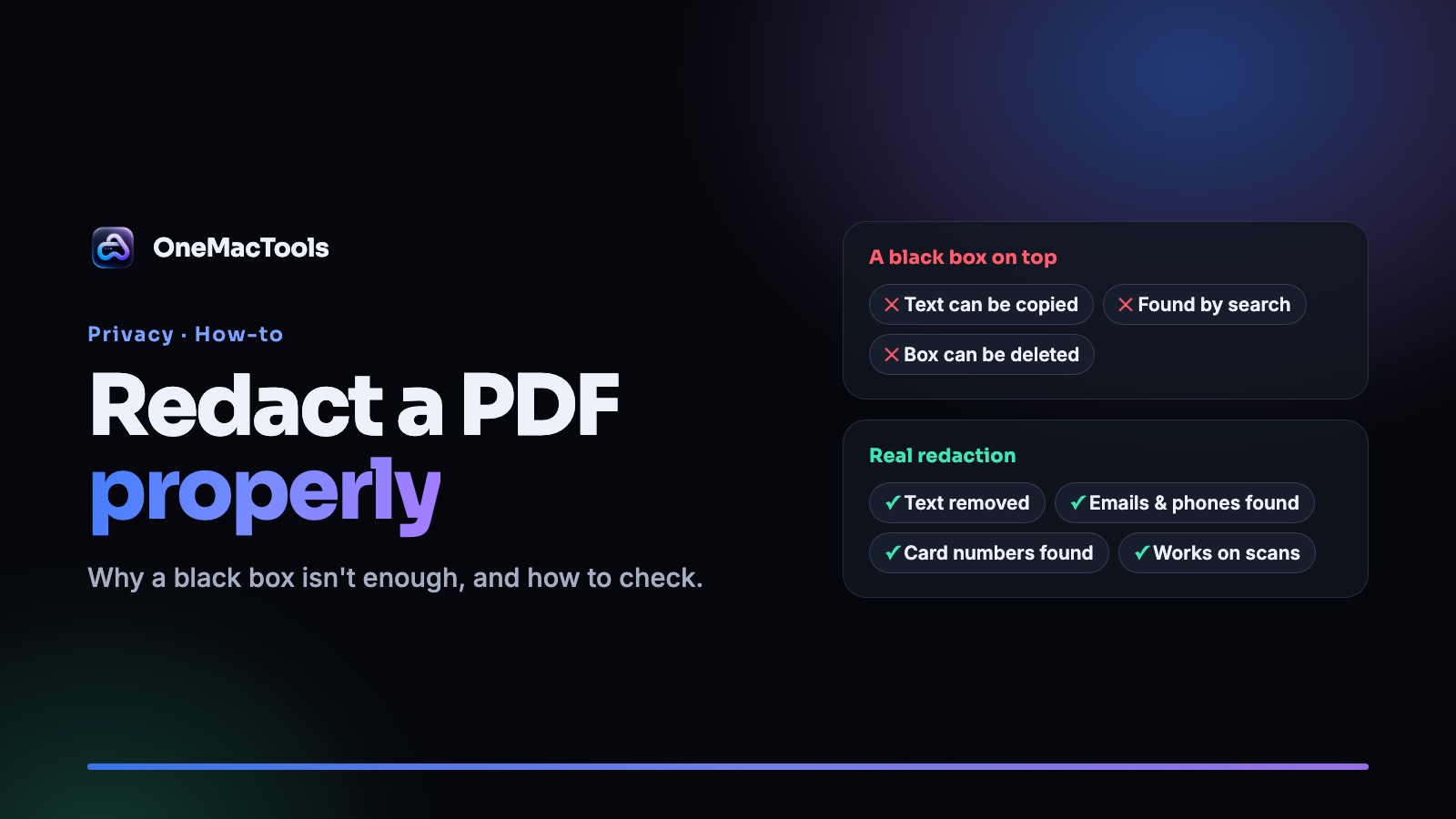
How to redact a PDF on a Mac properly (and why a black box isn't enough)
Drawing a black rectangle over text in a PDF often leaves the text underneath. Here's how to redact names, emails, phone and card numbers on a Mac so they're really gone, and how to check.
