
The Mac apps you don't need in 2026: what macOS 26 already does, and the gaps it leaves
Preview, QuickTime, Finder and Live Text replace a surprising number of paid Mac utilities. Here's what they handle well, where they stop, and what to use for the rest.
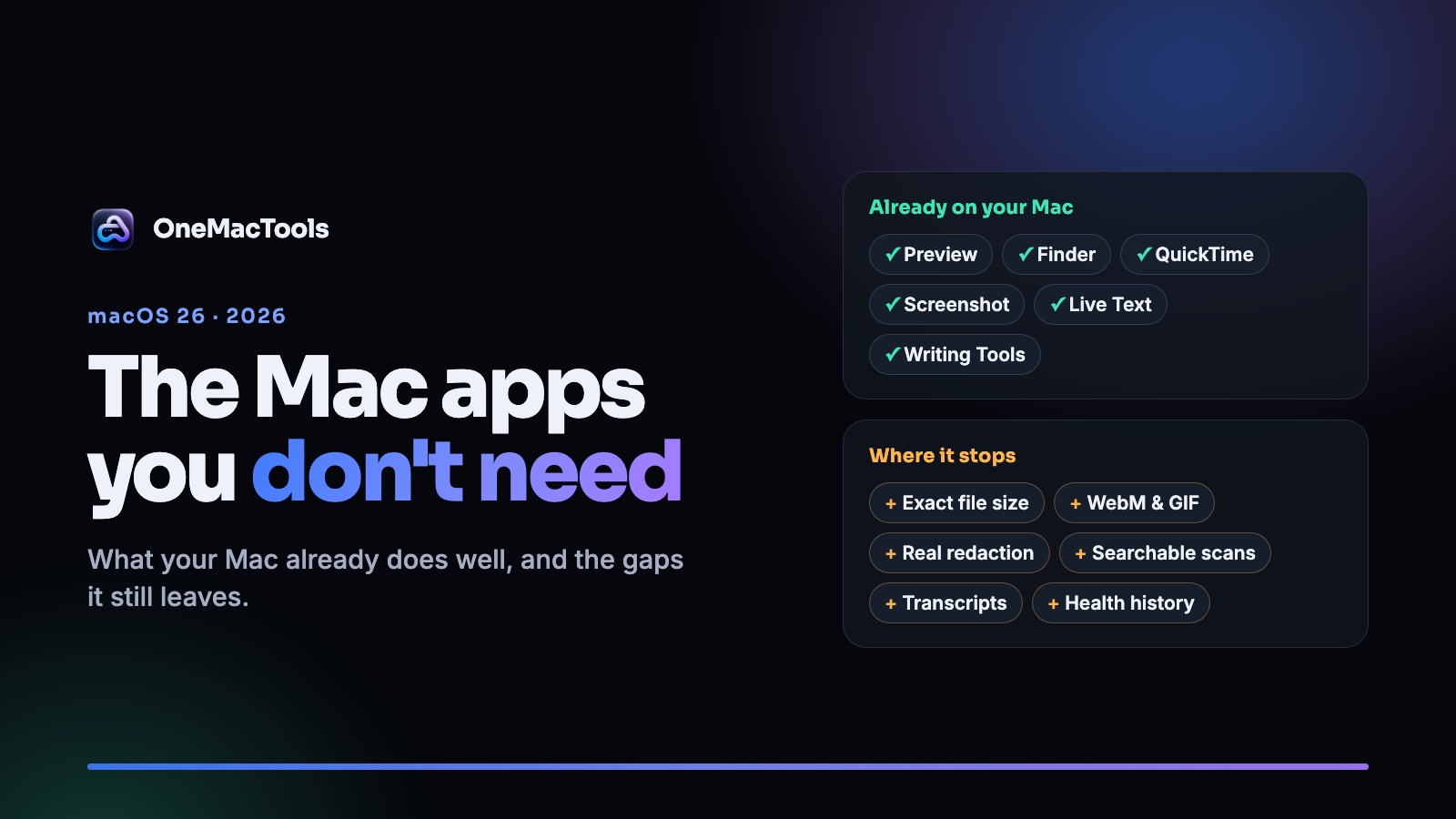
Most "essential Mac apps" lists have the same problem: half the apps on them do something your Mac can already do. Before you pay for another converter, PDF editor or screen recorder, it's worth knowing what's already on your Mac.
This is an honest list. First, the jobs macOS 26 handles well with apps you already have. Then the jobs where the built-in apps stop, and what to reach for when you hit those limits.
What your Mac already does well
Preview: most everyday PDF and image jobs
Preview is the most underrated app on the Mac. Before you install a PDF tool, try these:
- Combine PDFs. Open one PDF, show the sidebar with thumbnails, and drag another PDF or its pages into it.
- Reorder, rotate and delete pages. Drag thumbnails around, or select them and press Delete.
- Sign and fill in forms. The Markup toolbar adds a signature you made with the trackpad, the camera or your iPhone.
- Convert and resize images. Use File › Export to change format (JPEG, PNG, HEIC, TIFF and more), and Tools › Adjust Size to resize.
- Add a password. Choose File › Export and set a password for opening the PDF.
If those are the only PDF jobs you do, you don't need a PDF app.
Finder: batch jobs you didn't know were there
- Rename many files at once. Select them, right-click and choose Rename. You can replace text, add text, or number the files with a name you choose.
- Convert images in bulk. Select photos, right-click and choose Quick Actions › Convert Image. You can change the format and pick a smaller size in one step.
- Make a PDF from images. Select images and choose Quick Actions › Create PDF.
- Zip files. Right-click and choose Compress.
QuickTime Player: simple video jobs
QuickTime does more than play videos. It can trim a clip (Edit › Trim), rotate it, and export it at a smaller resolution with File › Export As (4K, 1080p, 720p or 480p). It can also record your screen and record audio.
Screenshot: ⇧⌘5
Press ⇧⌘5 for screenshots of an area, a window or the whole screen, with a timer. You can also record the screen there. Click the thumbnail that appears to add arrows, shapes and text before you save.
Live Text: copy text out of pictures
You can select text in photos, screenshots and scanned images in Preview, Photos and Quick Look, just like text in a document. For grabbing a phone number from a photo or a quote from a screenshot, you don't need an OCR app.
Apple Intelligence: writing help everywhere
With Apple Intelligence turned on, Writing Tools works in almost any text field: proofread, rewrite in a different tone, or summarise selected text. It runs on your Mac for most requests.
Activity Monitor and Storage settings: a basic health check
Activity Monitor shows which apps are using the CPU, memory and energy right now. System Settings › General › Storage shows what's filling your disk and suggests what to clear.
Where the built-in apps stop
The built-in apps are great for one file and simple jobs. They run out of room when you need a specific result, a batch of files, or something Apple simply doesn't do. These are the gaps people hit most:
| You want to… | What macOS does | The gap |
|---|---|---|
| Send a video under a size limit (25 MB email, Discord) | QuickTime lets you pick a resolution | You can't ask for a size, so it's trial and error |
| Make a WebM, MKV or GIF | QuickTime saves MOV, and audio as M4A | No WebM, MKV, GIF or MP3 |
| Shrink a big PDF | Preview's Reduce File Size filter | One fixed setting, and pages often come out blurry |
| Hide personal details in a PDF | Draw a black box with Markup | A box drawn on top can leave the text underneath in the file |
| Search a scanned PDF | Live Text, one picture at a time | No way to make a whole scanned PDF searchable |
| Get a transcript or subtitles from a recording | Dictation, as you speak | No simple way to turn an audio file into text or an SRT file |
| Shrink a photo to exactly 100 KB | Preview's quality slider | No target size, so you guess |
| See why your Mac was slow yesterday | Activity Monitor shows right now | No history, and no alert when an app misbehaves |
| Find duplicate files | Photos finds duplicate photos | Nothing for duplicate documents, videos or downloads |
| Capture a whole long web page | Screenshot captures what's on screen | No scrolling screenshot |
None of these are criticisms of macOS. They're specialist jobs, and Apple keeps its apps simple on purpose.
What to use for the gaps
This is the gap OneMacTools was built to fill: one Mac app with 151 tools for exactly these jobs. Every tool runs on your Mac, so your files aren't uploaded anywhere.
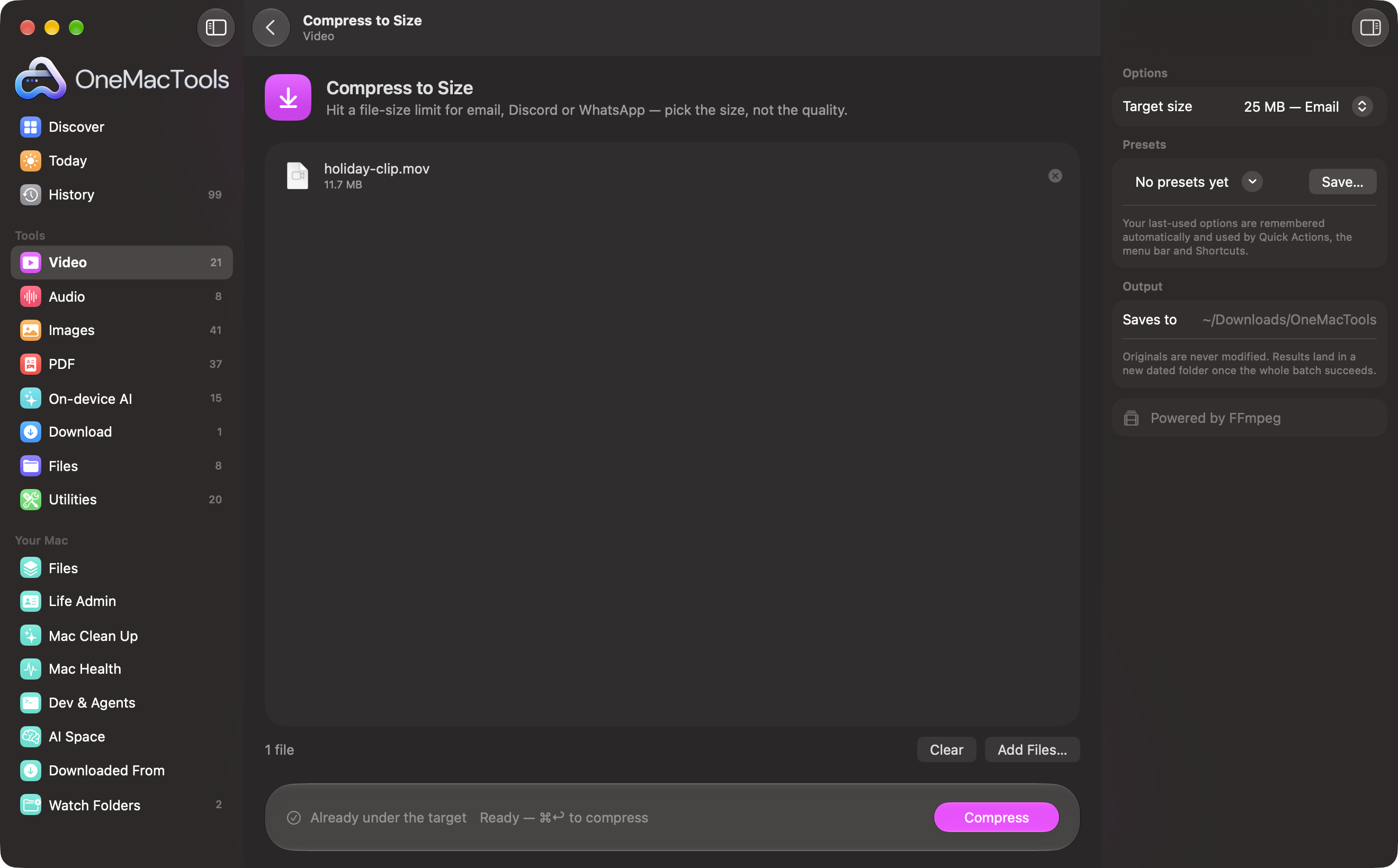
Video to a size limit. Compress to Size asks for the size you need, like 25 MB for email, and works out the quality for you. Convert Video saves MP4, MOV, WebM or MKV, and Video to GIF makes looping GIFs.
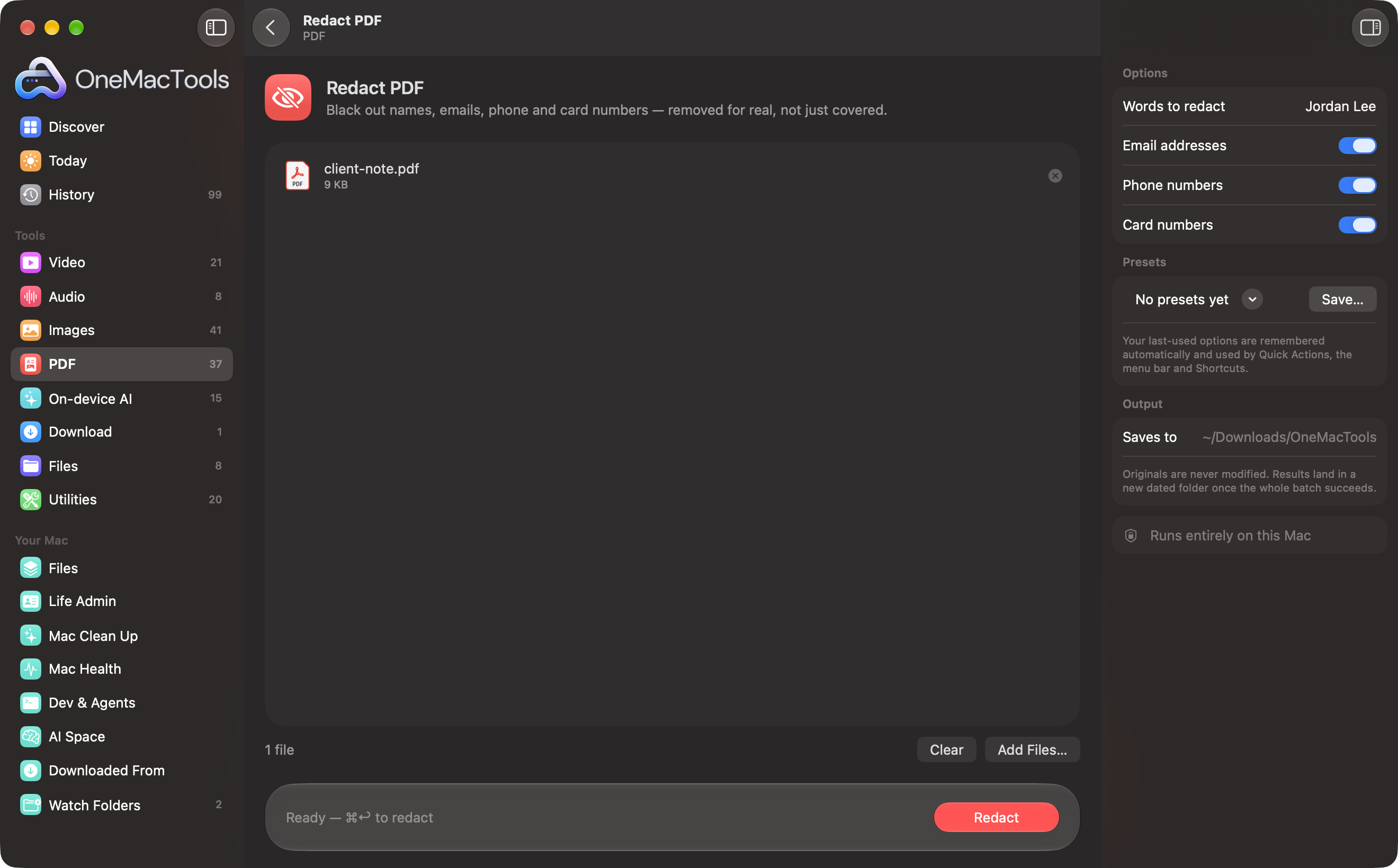
PDFs. Compress PDF shrinks image-heavy PDFs for email. Redact PDF blacks out names, emails, phone and card numbers and removes the text underneath, instead of covering it. Make PDF Searchable adds a hidden text layer to scans, so Spotlight and Preview can search them.
Recordings. Transcribe turns audio or video into text or subtitles with Apple's on-device speech recognition. Meeting Notes adds a summary, decisions and action items.
Images. Compress Image to Exact KB hits a size limit for upload forms. Remove Metadata strips location and camera details before you share.
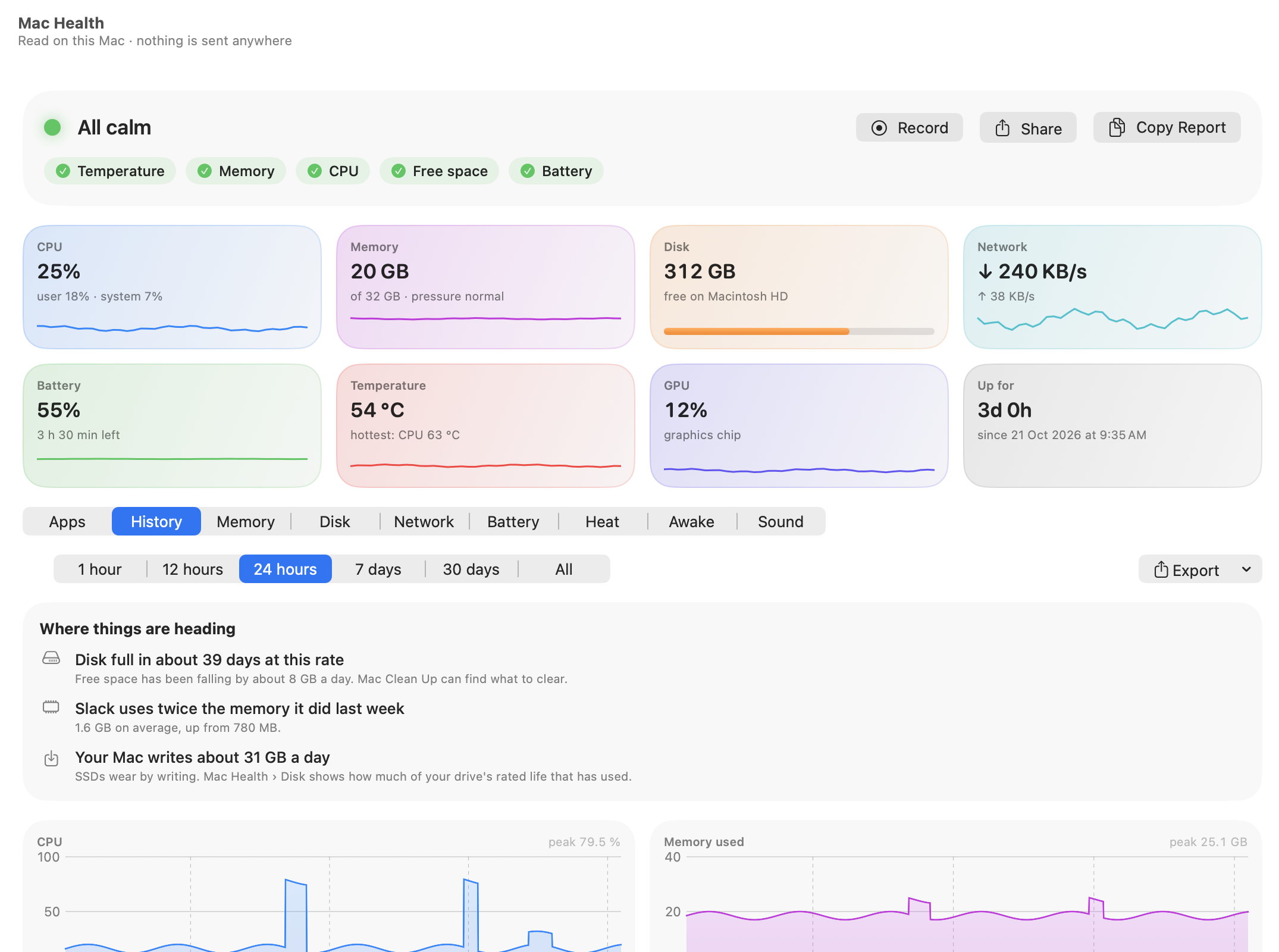
Your Mac. Mac Health keeps a history of CPU, memory, battery and heat, so you can see what happened yesterday, not just now. Mac Clean Up explains what's inside System Data and moves what you choose to the Trash, where you can put it back.
The short version
- Keep using the built-in apps for single files and simple jobs: combining a few PDFs, signing, renaming, trimming a clip, quick screenshots, copying text from a photo.
- Reach for a specialist tool when you need an exact file size, a format Apple doesn't make, real redaction, searchable scans, transcripts, or history for your Mac's health.
- Watch where your files go. Many "free" converters are websites that upload your file. For contracts, IDs and anything personal, use tools that run on your Mac.
OneMacTools is a free download for macOS 26, and a licence is a one-time payment with no subscription. You can browse all 151 tools to see whether the job you keep hitting is on the list.
Tools in this post
More on the blog and in the guides.
More from the blog
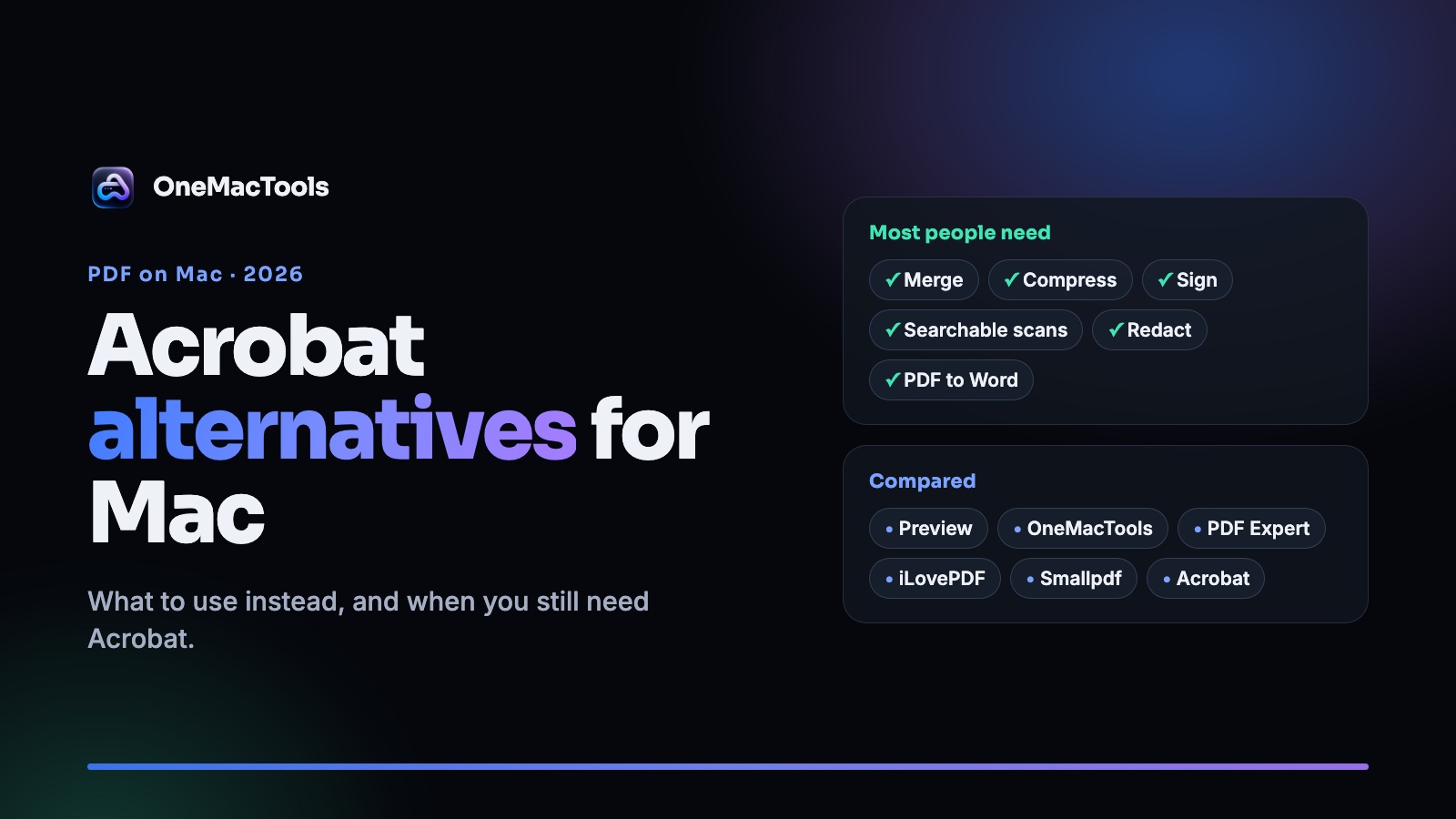
Adobe Acrobat alternatives for Mac in 2026: what to use instead, and when you still need Acrobat
An honest look at Acrobat alternatives on the Mac, from free Preview to PDF Expert, iLovePDF and OneMacTools, with prices, privacy and what each one can't do.
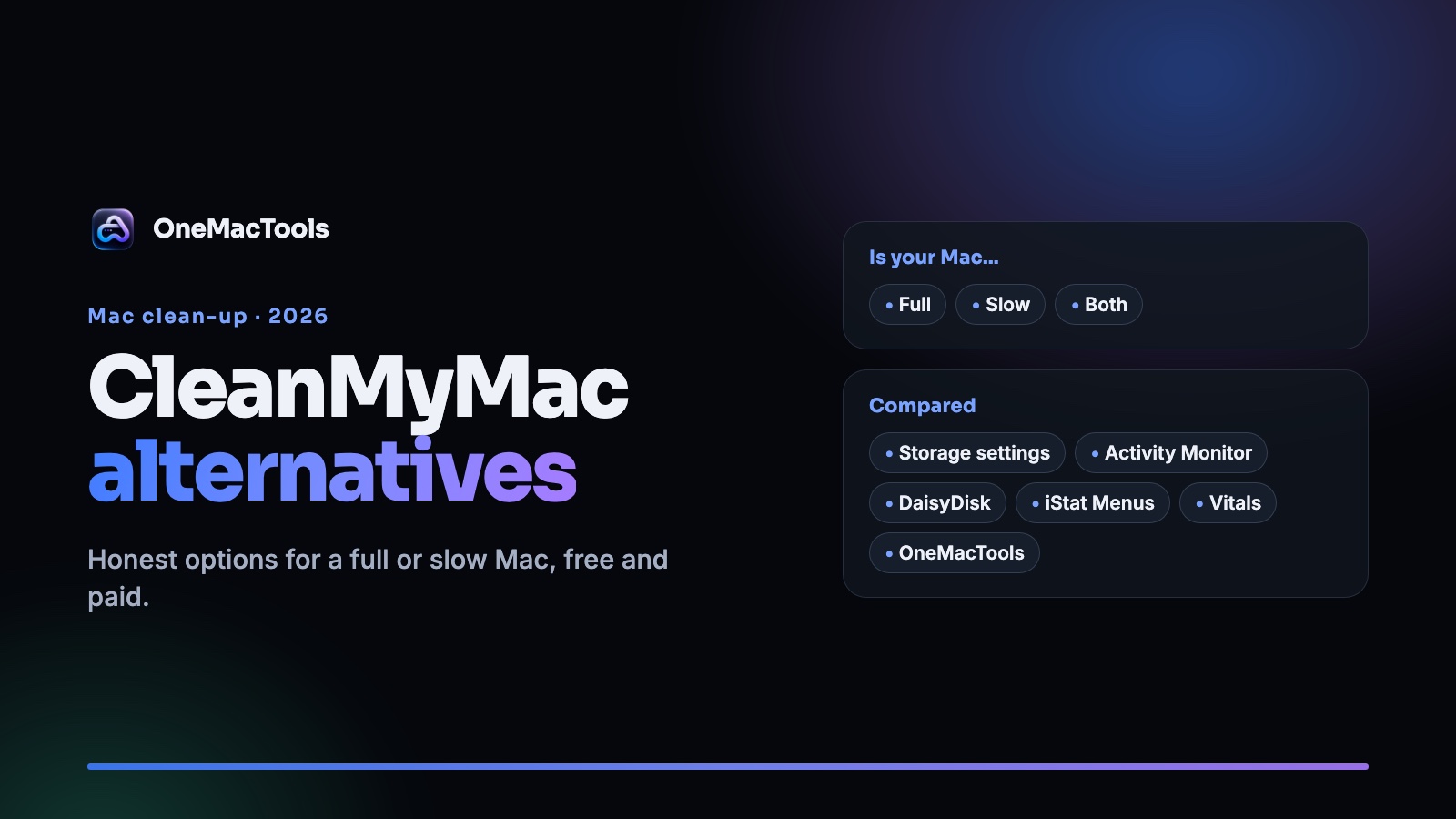
CleanMyMac alternatives in 2026: honest options for a full or slow Mac
CleanMyMac isn't the only way to free up space or speed up a Mac. We compare the built-in tools, DaisyDisk, iStat Menus, Vitals and OneMacTools, with prices and what each is best at.
