
Compress an image to 20 KB, 50 KB or 100 KB on Mac
Hit a limit like 20 KB, 50 KB or 200 KB on the first try, or land inside a range like 20–50 KB.
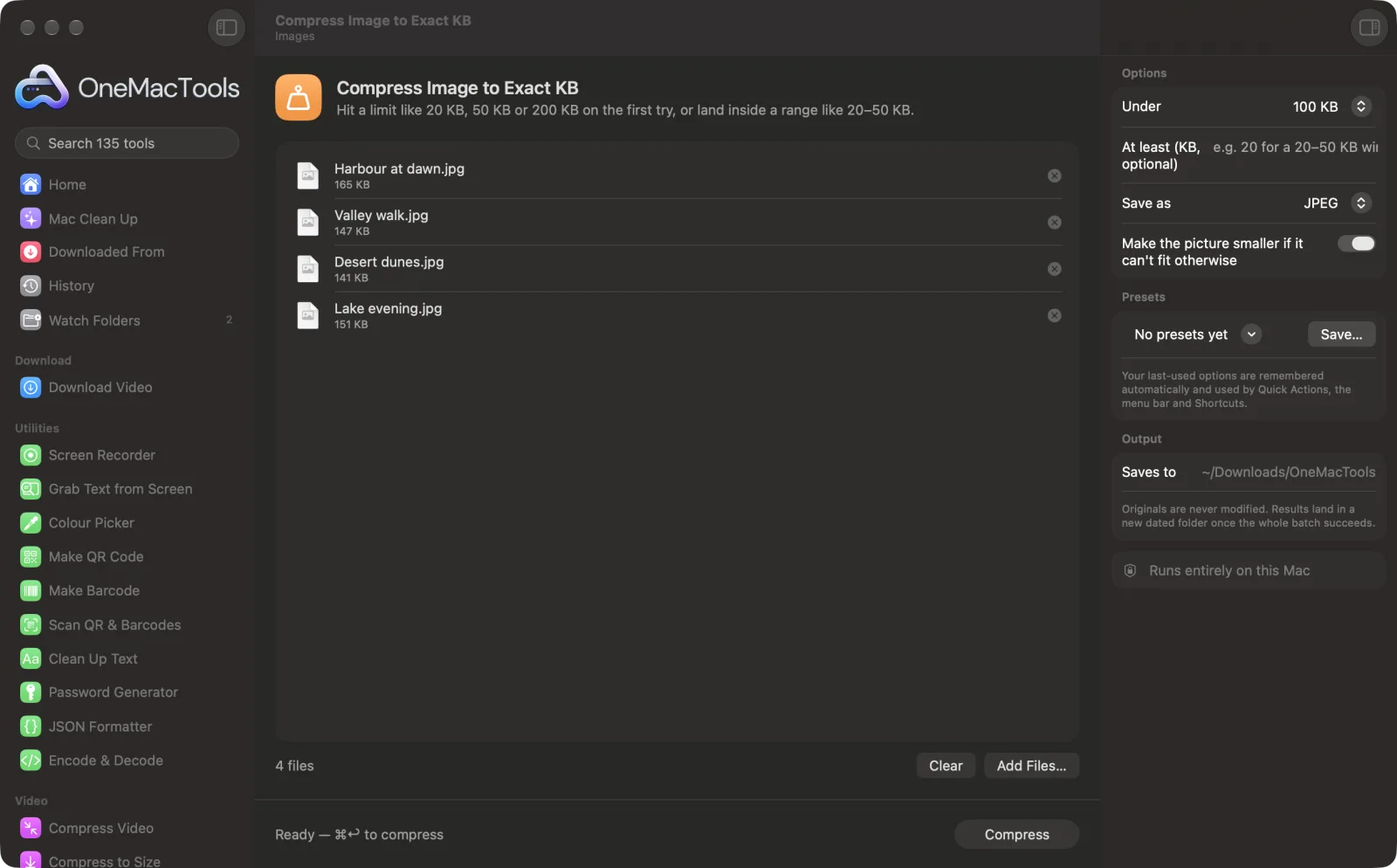
Compress Image to Exact KB on a Mac
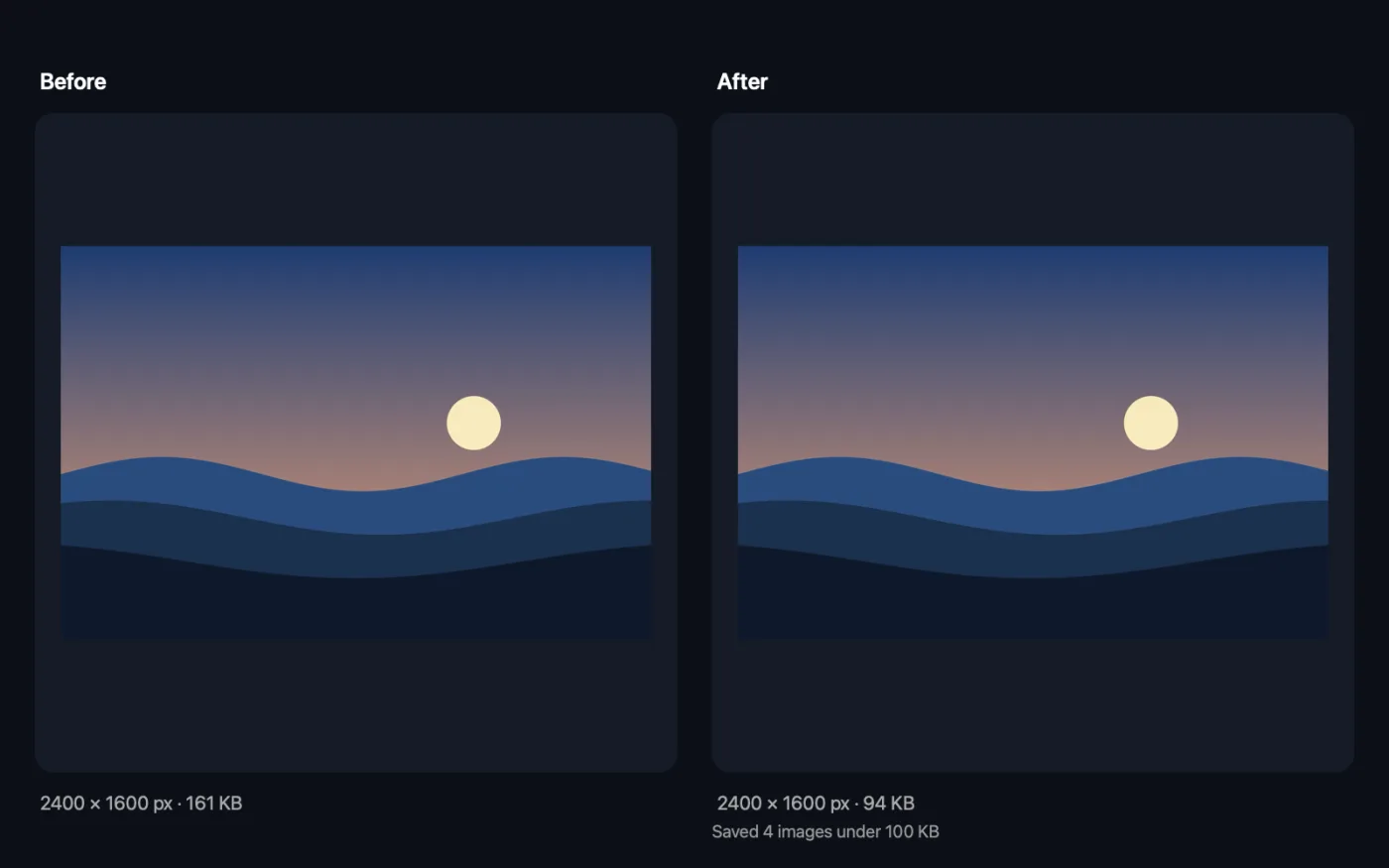
Screenshots from the app, using sample files.
How to use Compress Image to Exact KB
- 1
Drop your photos
One photo or a whole batch: each is compressed to the same limit.
- 2
Choose the limit
Pick 10 KB to 2 MB or type your own. Add a minimum if your form also rejects files that are too small, such as 20–50 KB.
- 3
Choose the format
JPEG for forms and portals, which almost always ask for it, or HEIC or AVIF for the smallest files.
- 4
Click Compress
Each file is saved at the best quality that fits, with the limit in its name, such as “50 KB”.
- 5
Upload with confidence
The files are saved in a new dated folder in Downloads › OneMacTools. Use the Preview (eye) button to check them or Show in Finder to find them for your upload.
What Compress Image to Exact KB does
Pick a target and OneMacTools searches for the highest quality that still fits, so you get the best-looking file under the limit instead of guessing. Set a minimum too, for forms that reject files that are too small. If a photo can't fit even at low quality, it can scale the picture down until it does.
Great for
- Upload a photo to a form with a 50 KB limit
- Meet a visa or government portal's size rules
- Email photos under a size cap
Options explained
- Under
- The most each file may weigh: 10 KB, 20 KB, 50 KB (the default), 100 KB, 200 KB, 500 KB, 1 MB, 2 MB, or Custom.
- Maximum (KB)
- Shown for Custom: type the limit in KB, such as 75. You can also type a size in MB, such as 1.5 MB.
- At least (KB, optional)
- For forms that also reject files that are too small. Type 20 with a 50 KB limit and every file lands between 20 and 50 KB. It must be lower than the maximum.
- Save as
- JPEG, HEIC or AVIF. Most upload forms and government portals only accept JPEG.
- Make the picture smaller if it can't fit otherwise
- On by default. If a photo is still too big at the lowest quality, it's scaled down step by step until it fits. Turn it off to keep the pixel size; a photo that can't fit is then saved at the smallest size it can manage and you're told which ones missed.
Best practices
- Crop and resize first if the form asks for set pixels too. Use Resize Images, then compress here, so the quality goes into what's actually shown.
- Very small limits like 10 or 20 KB suit passport-style photos and signatures, not large landscape photos. Expect the picture to be scaled down to fit.
- Leave Save as on JPEG for official forms. HEIC and AVIF are often rejected even when they're under the limit.
- Use the minimum when a portal says something like 20–50 KB. Files that are too small get rejected just like files that are too big.
- For Indian exam portals with fixed pixels and a KB window, Exam Photo Resizer handles both in one step.
Works with
- In
- Any image macOS can open, including HEIC, JPEG, PNG and screenshots.
- Out
- JPEG, HEIC or AVIF files under your limit, with the limit in the file name.
- Transparent areas become white when saving as JPEG.
- If a target can't be reached, the closest result is saved and the app names the files that missed it.
Questions about Compress Image to Exact KB
How do I reduce a photo to 50 KB or 20 KB?
Choose the limit and click Compress. OneMacTools searches the quality setting in up to eight steps to find the highest one that still fits, so you get the best-looking file rather than an over-squashed one.
What if the photo still can't fit?
With “Make the picture smaller if it can't fit otherwise” on, it also scales the photo down until it does. If a target is impossible, you get the closest result and a note saying so.
Why isn't PNG offered?
PNG has no quality setting to tune, so it can't be aimed at an exact size. Use JPEG, HEIC or AVIF here, or Compress PNG for graphics.
How do I get a photo between 20 and 50 KB?
Choose 50 KB under Under and type 20 in At least. If a photo would come out under 20 KB even at full quality, it's enlarged slightly so it lands inside the window.
How do I compress a photo to 100 KB or 200 KB for a form?
Pick 100 KB or 200 KB, leave Save as on JPEG and click Compress. The file name shows the limit it meets, so you can find it quickly.
Can I type a limit that isn't in the list?
Yes. Choose Custom and type the number in KB, such as 75, or a size like 1.5 MB.
Does Compress Image to Exact KB upload my files?
No. Compress Image to Exact KB runs entirely on your Mac, so your files never leave it and it works offline.
Will Compress Image to Exact KB change my original files?
No. Results are saved as new files in a dated folder in Downloads › OneMacTools, and your originals are left exactly as they were unless you turn on an option that says otherwise.
What does Compress Image to Exact KB need?
Just a Mac with macOS 26 or later. There's nothing else to install.
Do this next
Photos, thumb impressions and declarations for exam and job forms: exact pixels, inside the KB window.
Resize ImagesResize by longest edge, exact pixels, percentage, or print size in cm, mm or inches at the DPI you need.
Image Info & EXIF ViewerSee size, dimensions, format and DPI, plus the camera, date and location hidden in a photo.
Related Images tools
Convert between PNG, JPEG, HEIC, AVIF and TIFF. Reads WebP, RAW and more.
Compress ImagesShrink photos for email and the web, with a live before-and-after preview.
Convert to WebPMake small, web-ready WebP images, lossy or lossless, with transparency kept.
Crop ImagesCrop to an aspect ratio or an exact area, or trim plain borders automatically — one photo or a whole folder.
Rotate & Flip ImagesTurn or mirror photos in one go.
Screenshot BeautifierPut screenshots on a gradient with padding, rounded corners and a soft shadow.

Compress Image to Exact KB, plus 134 more.
One app. One price.
All 135 tools for $29, once. 14-day money-back guarantee.