
Check image size, dimensions and EXIF on Mac
See size, dimensions, format and DPI, plus the camera, date and location hidden in a photo.
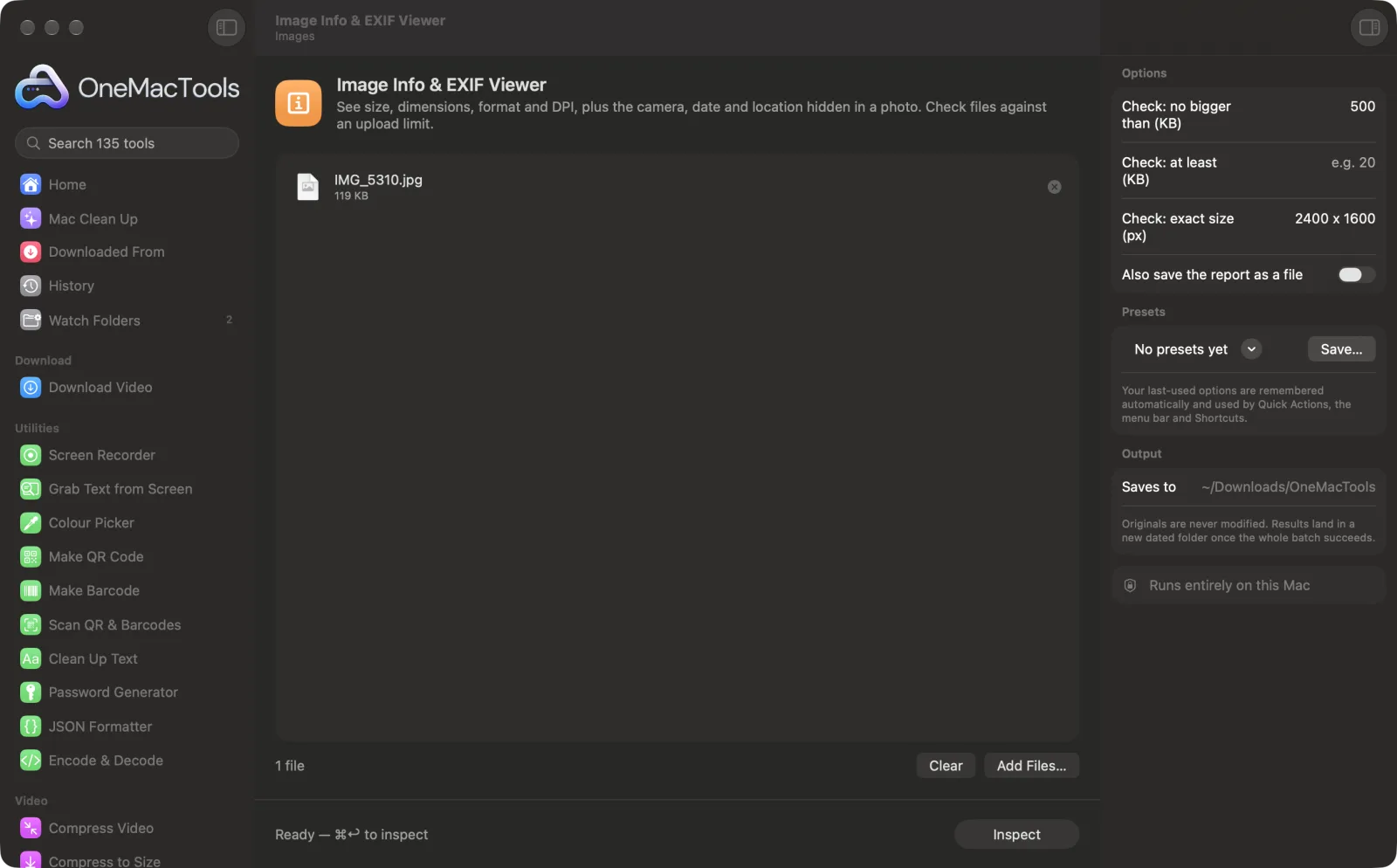
Image Info & EXIF Viewer on a Mac
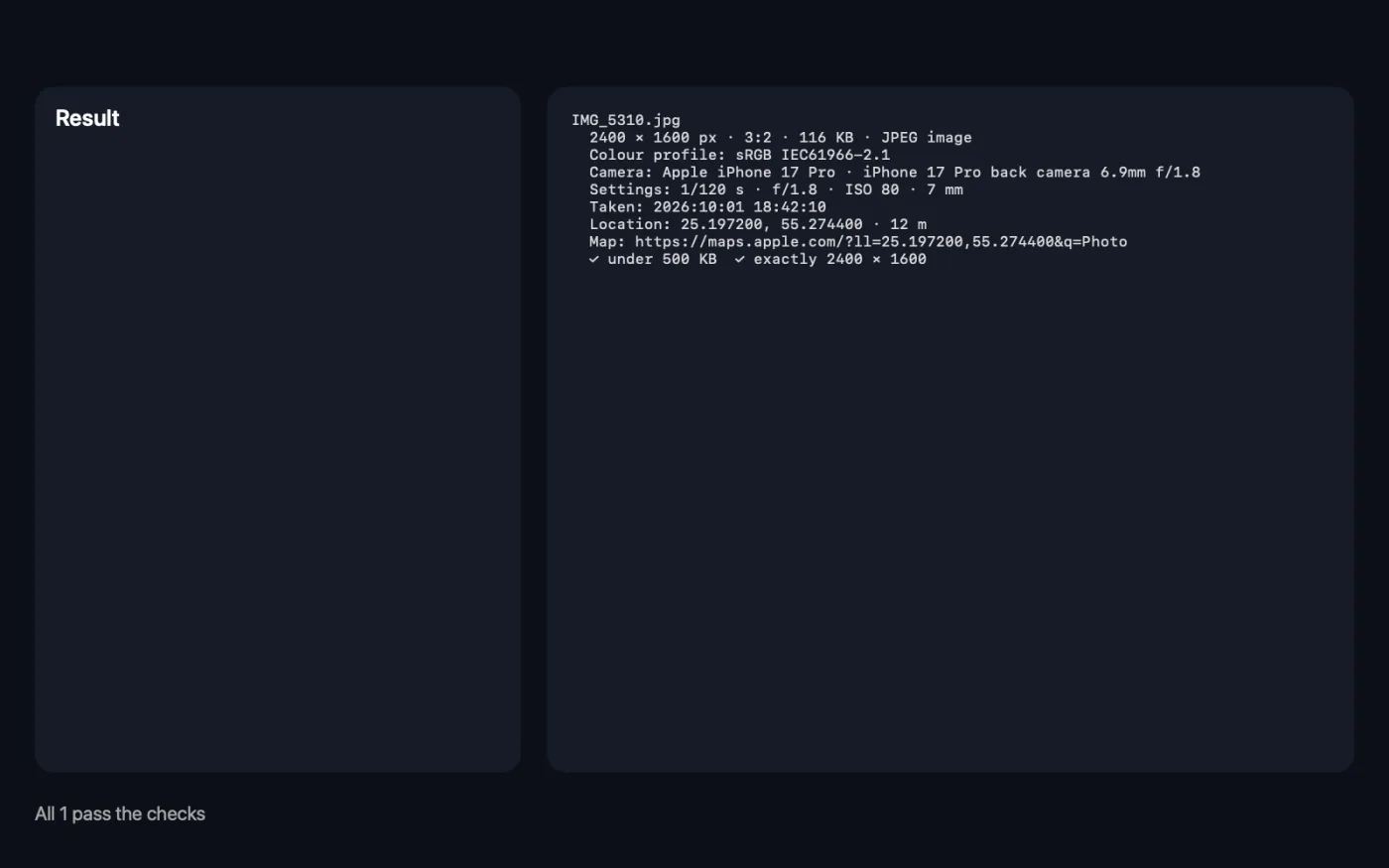
Screenshots from the app, using sample files.
How to use Image Info & EXIF Viewer
- 1
Drop your images
Add one image or many. Each gets its own block in the report.
- 2
Add limits if you're uploading somewhere
Type the form's rules in the right-hand panel: a maximum KB, a minimum KB, or an exact pixel size.
- 3
Click Inspect
The report appears in the app straight away: pixels, aspect ratio, file size, format, DPI, colour profile, camera and location where present.
- 4
Read the checks
With limits set, each image gets a tick or a cross for each rule, and the summary says how many don't meet them.
- 5
Save the report if you need it
Turn on “Also save the report as a file” to keep it as a text file in a dated folder in Downloads › OneMacTools.
What Image Info & EXIF Viewer does
Drop images to see their real format, pixel size, aspect ratio, file size, DPI and print size, colour profile, camera and lens, exposure settings, date taken and location with a map link. Set limits — maximum or minimum KB, exact pixels — and every file gets a clear pass or fail before you upload it anywhere.
Great for
- Check a photo meets an upload form's rules
- See where and when a photo was taken
- Check print size before printing
Options explained
- Check: no bigger than (KB)
- Optional. Type the largest file size allowed, such as 50, and each image is marked as under or over it. You can also type values like 1 MB.
- Check: at least (KB)
- Optional. The smallest file size allowed, such as 20. Many exam and government portals reject files below a minimum.
- Check: exact size (px)
- Optional. The exact width and height required, such as 200 x 230. Each image is marked as matching or not.
- Also save the report as a file
- Off by default. Saves the full report as a text file as well as showing it in the app.
Best practices
- Check before you upload. Typing an exam or job portal's KB and pixel limits tells you in seconds which files will be rejected.
- Look at the print size line before printing. If an image has a DPI set, the report shows how big it prints in centimetres at that DPI.
- Check where a photo was taken before you share it. If a location line appears, anyone with the original file can see it too.
- Width and height are reported the way the photo displays, with the camera's rotation already applied, so portrait phone photos read as portrait.
- If a photo shows no camera details, it was probably a screenshot or passed through a messaging app that removed them.
Works with
- In
- JPEG, PNG, HEIC, TIFF, WebP, GIF and other images your Mac can open. Drop as many as you like.
- Out
- A report shown in the app. Optionally also a text file called “Image Info”.
- Camera, settings, date and location only appear when the file contains them.
- Your images are only read; nothing about them is changed.
Questions about Image Info & EXIF Viewer
How do I check a photo's size and dimensions before uploading?
Drop it on Image Info & EXIF Viewer to see the pixels, KB, format and DPI. Type your form's limits, like at most 50 KB or exactly 200 × 230 px, and each file gets a pass or fail.
How do I see where a photo was taken on a Mac?
Drop it in and click Inspect. If the photo has location data, the report shows the coordinates, the altitude if recorded, and an Apple Maps link.
How do I find out which camera or phone took a photo?
The report lists the camera make and model, the lens, and the settings used: shutter speed, aperture, ISO and focal length, along with the date it was taken.
Why is there no camera or location data?
Screenshots never have any, and many apps, especially messaging apps, strip it when you share. A missing result just means there was nothing to read.
How big will my photo print?
If the file has a DPI value, the report shows the print size in centimetres at that DPI. For a sharp print, 300 DPI is a common target.
How do I remove the location instead?
Use Remove Metadata, which saves clean copies without the location, camera and other hidden details.
Does Image Info & EXIF Viewer upload my files?
No. Image Info & EXIF Viewer runs entirely on your Mac, so your files never leave it and it works offline.
Will Image Info & EXIF Viewer change my original files?
No. Results are saved as new files in a dated folder in Downloads › OneMacTools, and your originals are left exactly as they were unless you turn on an option that says otherwise.
What does Image Info & EXIF Viewer need?
Just a Mac with macOS 26 or later. There's nothing else to install.
Do this next
Strip location, camera and other EXIF data before sharing.
Compress Image to Exact KBHit a limit like 20 KB, 50 KB or 200 KB on the first try, or land inside a range like 20–50 KB.
Photo GPS ExtractorPull the locations out of many photos at once, with map links, and export CSV, GPX or KML.
Related Images tools
Convert between PNG, JPEG, HEIC, AVIF and TIFF. Reads WebP, RAW and more.
Compress ImagesShrink photos for email and the web, with a live before-and-after preview.
Convert to WebPMake small, web-ready WebP images, lossy or lossless, with transparency kept.
Resize ImagesResize by longest edge, exact pixels, percentage, or print size in cm, mm or inches at the DPI you need.
Crop ImagesCrop to an aspect ratio or an exact area, or trim plain borders automatically — one photo or a whole folder.
Rotate & Flip ImagesTurn or mirror photos in one go.

Image Info & EXIF Viewer, plus 134 more.
One app. One price.
All 135 tools for $29, once. 14-day money-back guarantee.