
Resize photos for IBPS, SBI, SSC and UPSC forms on Mac
Photos, thumb impressions and declarations for exam and job forms: exact pixels, inside the KB window.
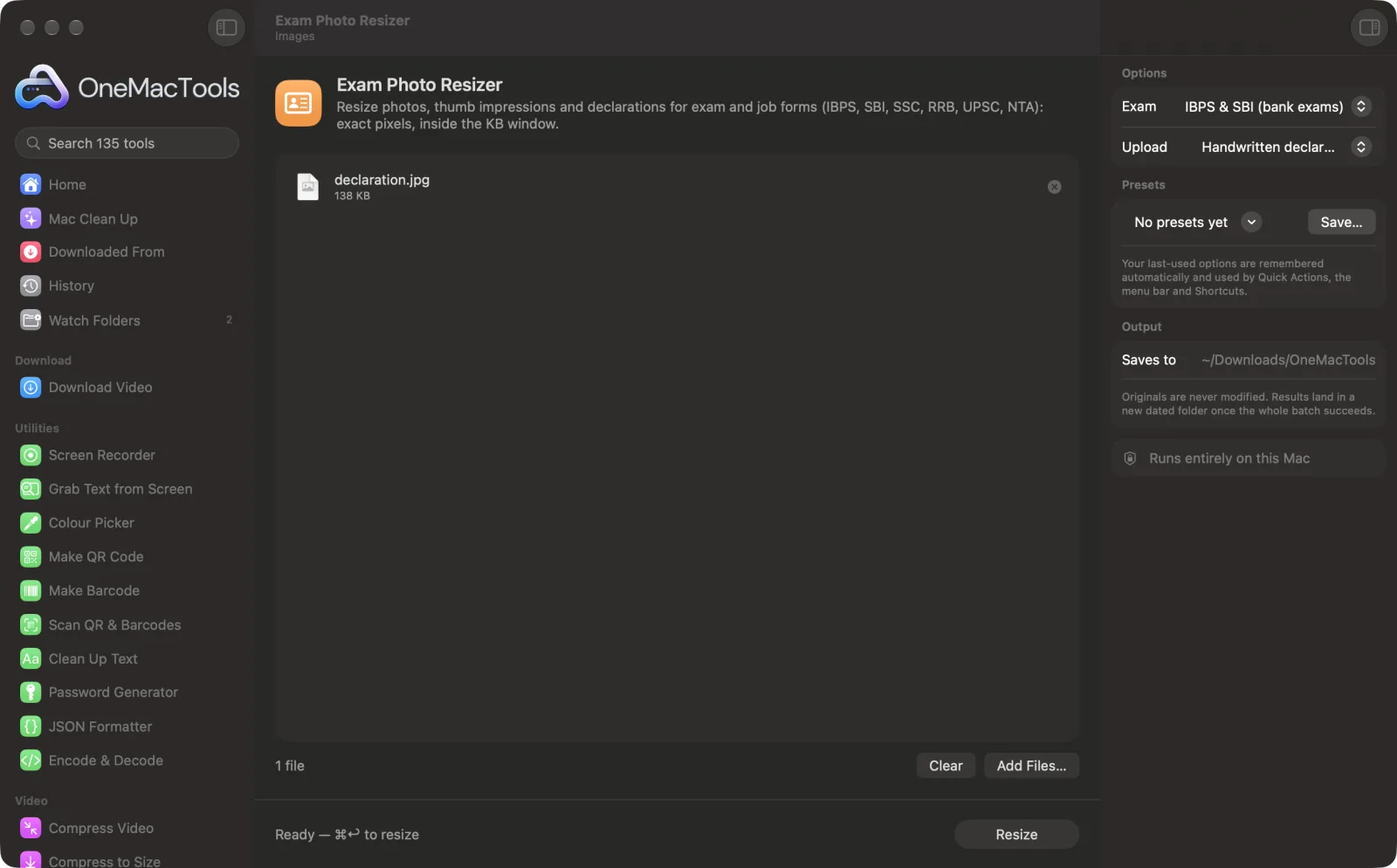
Exam Photo Resizer on a Mac
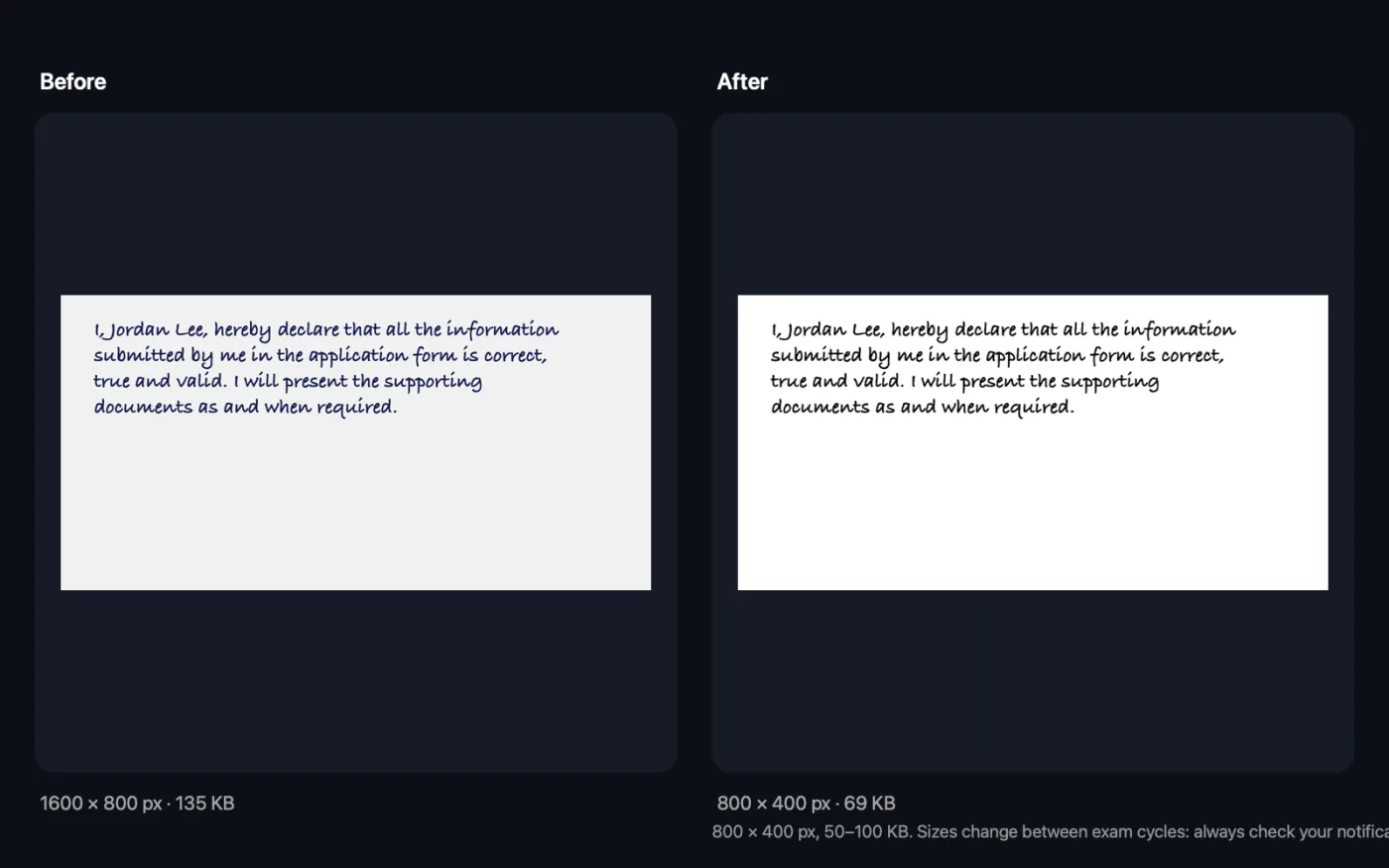
Screenshots from the app, using sample files.
How to use Exam Photo Resizer
- 1
Choose your exam
IBPS & SBI, SSC, RRB, UPSC or NTA (NEET, JEE, CUET), or Custom to type the size from your notification.
- 2
Choose what you're uploading
Photograph, Left thumb impression or Handwritten declaration. For signatures, use Signature Resizer.
- 3
Set the photo options
For a photograph, choose whether to frame the face automatically, make the background white, or add your name and date underneath.
- 4
Click Resize
Each file is saved as a JPEG at the exact pixels and inside the KB range for that exam.
- 5
Check, then upload
Open the results in a dated folder in Downloads › OneMacTools with the Preview (eye) button or Show in Finder. Compare the size with your exam's notification before you upload.
What Exam Photo Resizer does
Pick the exam — IBPS and SBI, SSC, RRB, UPSC, NTA (NEET, JEE, CUET) or Custom — and what you're uploading: a photograph, left thumb impression or handwritten declaration. OneMacTools frames the face, makes the background white if you like, adds your name and date if the form asks, and saves a JPEG at the exact pixels and inside the KB range, including forms that reject files that are too small. Sizes change between cycles, so check your notification.
Great for
- Upload a photo to an IBPS or SBI application
- Meet SSC's photo rules
- Prepare a thumb impression and declaration
Options explained
- Exam
- IBPS & SBI (bank exams), SSC (CGL, CHSL, MTS, GD), RRB (Railways), UPSC, NTA (NEET, JEE, CUET) or Custom. The presets are common sizes from recent notifications; they change between cycles, so check yours and use Custom if it differs.
- Upload
- Photograph, Left thumb impression or Handwritten declaration. Not every exam preset asks for every document; if yours doesn't, the app says so and suggests Custom.
- Size (px)
- Only shown when Exam is Custom. The exact width and height from your notification, such as 200 x 230.
- At least (KB)
- Only shown when Exam is Custom. The smallest file size the portal accepts. Leave it empty if there's no minimum.
- At most (KB)
- Only shown when Exam is Custom. The largest file size the portal accepts. Required for Custom.
- Frame the face automatically
- Only shown when Upload is Photograph. On by default. Finds your face and sizes and centres it in the frame. Turn it off to fill the frame from the centre of the photo instead.
- Make the background white
- Only shown when Upload is Photograph. Off by default. Replaces the background behind you with plain white, for notifications that ask for a light or white background.
- Add name and date below the face
- Only shown when Upload is Photograph. Off by default. Adds a white strip at the bottom of the photo with your name and the date, as some forms ask. The photo is fitted above it so the total size still matches.
- Name
- Only shown when Upload is Photograph. The name printed in the strip when “Add name and date below the face” is on.
- Date
- Only shown when Upload is Photograph. The date printed in the strip, such as the day the photo was taken.
Best practices
- Read the current notification first. Pixel sizes and KB limits change between cycles, and Custom lets you match any of them exactly.
- Use a recent, front-facing photo in good light with your full face visible. The face framing needs to see your whole head.
- Scan or photograph your thumb impression and declaration on plain white paper, filling most of the frame, so they're legible at the small upload size.
- Do the photograph and the thumb impression in separate runs, since the Upload choice applies to every file you drop.
- Check the finished file with Image Info & EXIF Viewer and the same limits if you want a second opinion before uploading.
Works with
- In
- Photos and scans as JPEG, HEIC, PNG and other formats your Mac can open.
- Out
- A JPEG named with the document and its pixel size, for example “me photograph 200x230.jpg”.
- If an image is too small to reach the portal's minimum KB even at full quality, the JPEG is padded with an invisible comment inside the file. The picture and its pixel size stay exactly as required; only the file size changes.
- If a file can't be brought inside the range, the closest result is saved and the app tells you.
- Presets are common sizes from recent notifications, not official rules. Always check your exam's current notification; no tool can promise a form will accept a file.
Questions about Exam Photo Resizer
What size is an IBPS photo?
Recent IBPS and SBI notifications have asked for about 200 × 230 pixels and 20–50 KB, with a left thumb impression of 240 × 240 pixels and 20–50 KB and a handwritten declaration of 800 × 400 pixels and 50–100 KB. Sizes change between cycles, so check your notification and use Custom if they differ.
What size is an SSC photo?
The SSC preset uses 276 × 354 pixels and 20–50 KB, a common size in recent notifications. Check the current SSC notice, as requirements change, and switch to Custom if yours is different.
Why does the portal say my file is too small?
Many portals reject files under a minimum, such as 20 KB, and a small photo can't reach that even at full quality. OneMacTools pads the JPEG with an invisible comment so the file lands inside the range, while the picture and pixel size stay exactly as required.
How do I resize a photo to 20–50 KB for an exam form?
Choose your exam, or Custom with the pixel size and 20 and 50 in the KB fields, drop your photo and click Resize. The app finds the best JPEG quality that fits inside the range.
Can it add my name and date on the photo?
Yes. Turn on “Add name and date below the face” and type them; they're printed in a white strip under the photo, as some forms ask.
Can I resize my signature here too?
Use Signature Resizer for signatures. It cleans the paper to white and the ink to dark before resizing, which keeps small signature files crisp.
What if the app says a file couldn't land inside the KB range?
The closest result is saved anyway. This can happen with very large pixel sizes and tight limits; check the numbers you typed in Custom, or try a cleaner, less detailed scan.
Does Exam Photo Resizer upload my files?
No. Exam Photo Resizer runs entirely on your Mac, so your files never leave it and it works offline.
Will Exam Photo Resizer change my original files?
No. Results are saved as new files in a dated folder in Downloads › OneMacTools, and your originals are left exactly as they were unless you turn on an option that says otherwise.
What does Exam Photo Resizer need?
Just a Mac with macOS 26 or later. There's nothing else to install.
Do this next
Clean up a scanned signature — white paper, dark ink — and fit your form's pixels and KB limit without it going grey.
Photo & Signature JoinerCombine your photo and signature into one image for bank and exam forms, under the KB limit.
Image Info & EXIF ViewerSee size, dimensions, format and DPI, plus the camera, date and location hidden in a photo.
Related Images tools
Convert between PNG, JPEG, HEIC, AVIF and TIFF. Reads WebP, RAW and more.
Compress ImagesShrink photos for email and the web, with a live before-and-after preview.
Convert to WebPMake small, web-ready WebP images, lossy or lossless, with transparency kept.
Resize ImagesResize by longest edge, exact pixels, percentage, or print size in cm, mm or inches at the DPI you need.
Crop ImagesCrop to an aspect ratio or an exact area, or trim plain borders automatically — one photo or a whole folder.
Rotate & Flip ImagesTurn or mirror photos in one go.

Exam Photo Resizer, plus 134 more.
One app. One price.
All 135 tools for $29, once. 14-day money-back guarantee.