
Join photo and signature into one image on Mac
Combine your photo and signature into one image for bank and exam forms, under the KB limit.
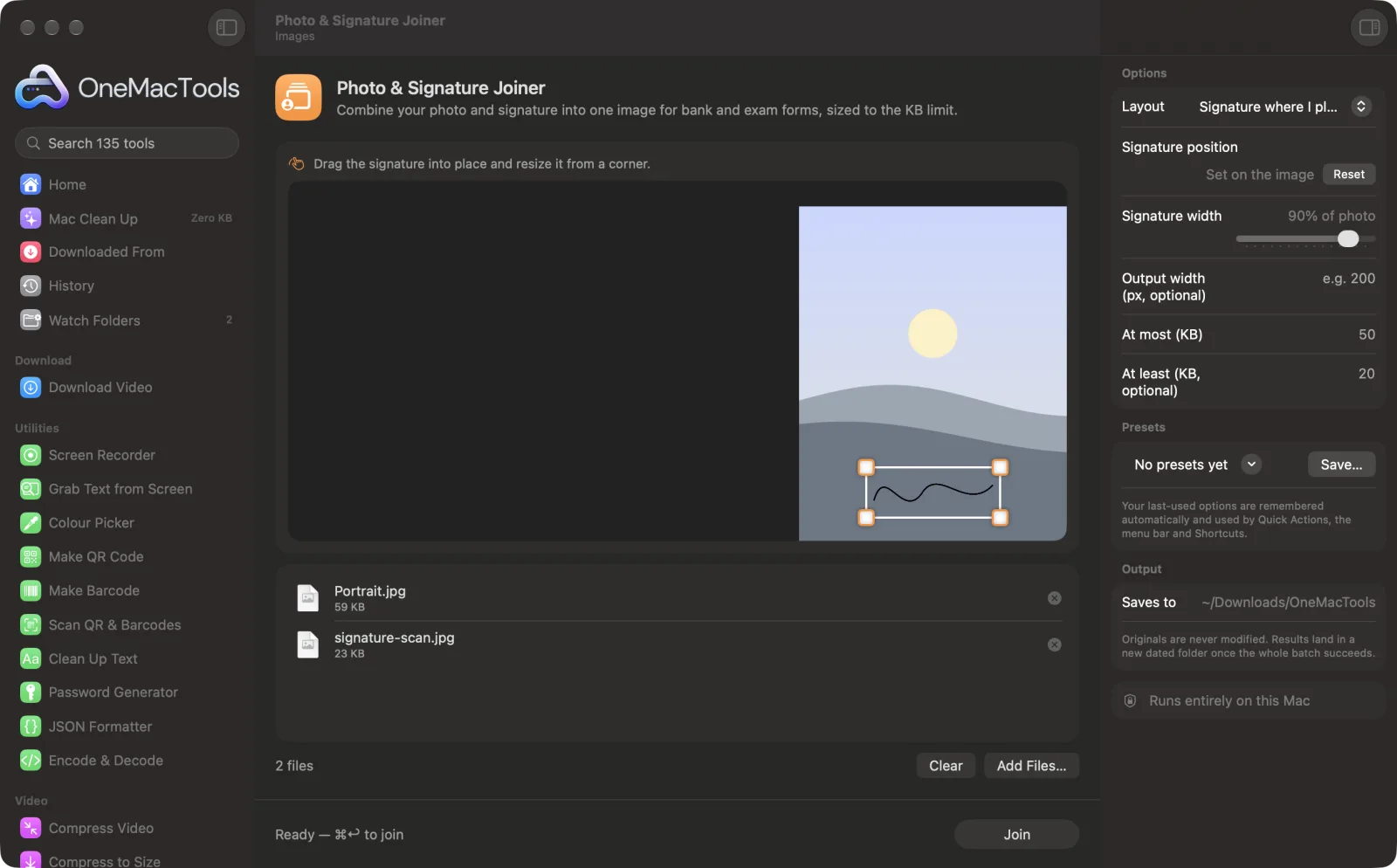
Photo & Signature Joiner on a Mac
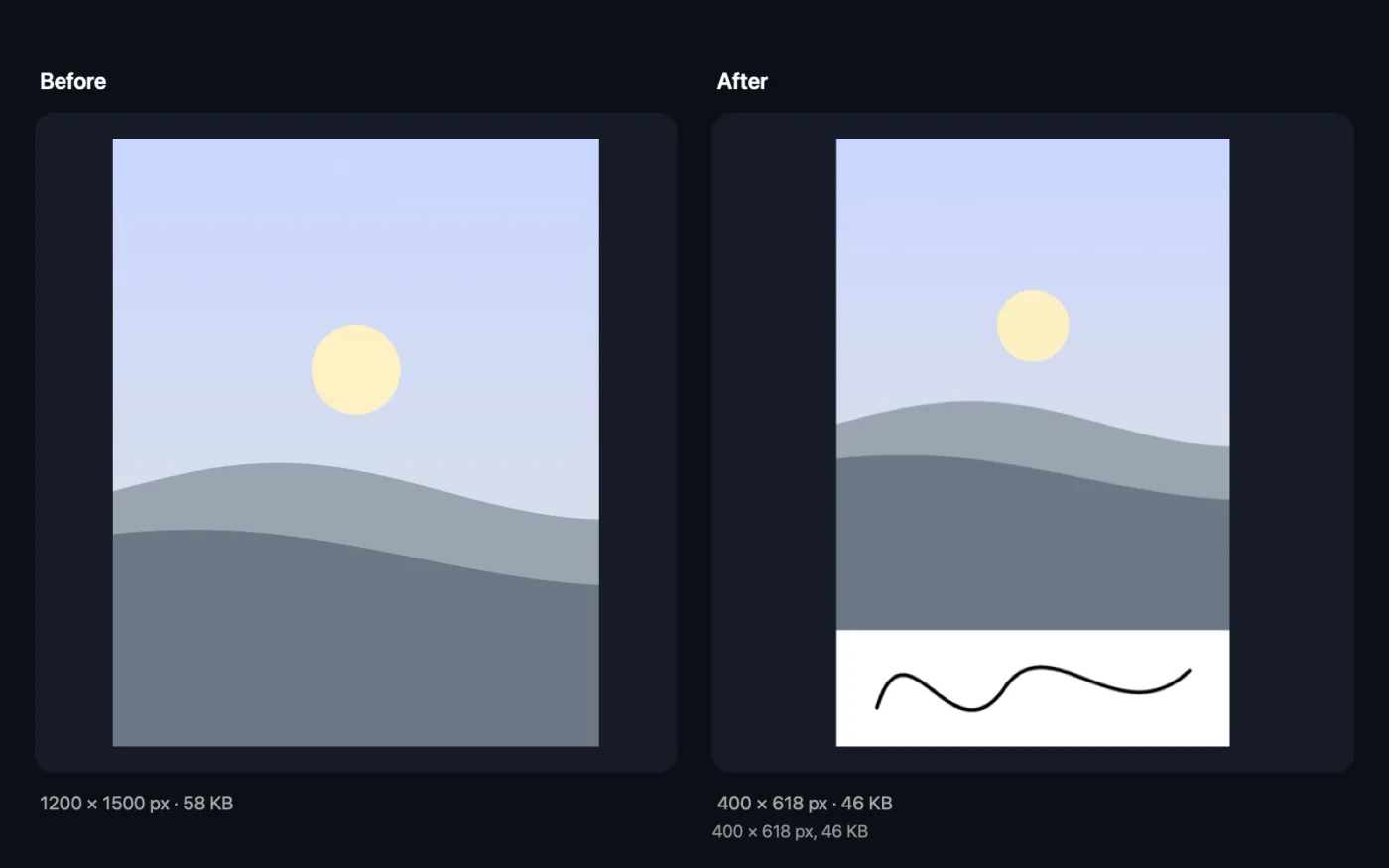
Screenshots from the app, using sample files.
How to use Photo & Signature Joiner
- 1
Drop your photo and signature
Add exactly two images: your photo and a scan or photo of your signature. The wider of the two is treated as the signature.
- 2
Choose the layout
Put the signature in a white band under the photo, or over the bottom of the photo.
- 3
Set the size
Choose how wide the signature is, an output width in pixels if your form gives one, and the KB limit.
- 4
Click Join
The signature is cleaned automatically and combined with the photo into one JPEG.
- 5
Check it
The result, “Photo and signature”, is saved in a dated folder in Downloads › OneMacTools. The app shows its pixel size and KB so you can compare them with the form.
What Photo & Signature Joiner does
Add your photo and your signature. OneMacTools cleans the signature, places it under the photo or over the bottom of it at the width you choose, and saves one JPEG at your pixel width and under the KB limit.
Great for
- Forms that ask for photo and signature in one file
- Admit-card and ID applications
- Keep a ready-made combined image
Options explained
- Layout
- “Signature under the photo” adds a white band below the photo with the signature in it. “Signature on the photo (bottom)” places the signature, on a transparent background, over the lower part of the photo.
- Signature width
- From 30 to 100% of the photo's width; the default is 90%. With the signature on the photo, it's drawn smaller than this so it doesn't cover the face.
- Output width (px, optional)
- Scales the photo to this width, such as 200, and the height follows. Leave it empty to keep the photo's own width. Values under 50 are ignored.
- At most (KB)
- The largest file size allowed. If you leave it empty, 50 KB is used.
- At least (KB, optional)
- The smallest file size allowed, for portals that reject files that are too small. If the image can't reach it at full quality, the JPEG is padded with an invisible comment; the picture stays the same.
- Signature position (Where I place it)
- Choose Signature where I place it under Layout. The cleaned signature appears on your photo in the window; drag it into place and resize it from a corner. It keeps its shape, and the photo isn't extended with a strip.
Best practices
- Crop your photo first if it's landscape. The app picks the signature as the wider image, so a wide photo could be mistaken for it.
- Set the output width your form asks for. A full-size phone photo is thousands of pixels wide, which makes reaching a small KB limit much harder.
- Sign on plain white paper with a dark pen; the signature is cleaned to dark ink on white either way, but a clean original gives sharper strokes.
- Use the under-the-photo layout unless your form specifically shows the signature over the photo.
- Check the form's total pixel size: with the signature underneath, the image is taller than the photo alone.
Works with
- In
- Exactly two images: a photo and a signature, as JPEG, HEIC, PNG or another format your Mac can open.
- Out
- One JPEG called “Photo and signature”, inside your KB limit.
- If the result can't be brought inside the KB range, the closest result is saved and the app tells you.
- Form requirements change, so check the current rules for the form you're filling in.
Questions about Photo & Signature Joiner
How do I combine a photo and signature into one image?
Drop both onto Photo & Signature Joiner, choose whether the signature goes under or on the photo, set the KB limit and click Join. You get one JPEG ready to upload.
Which forms ask for photo and signature in one image?
Some bank, recruitment and admit-card forms want both in a single JPEG. Check your form's instructions for the layout and size it expects.
Do I need to clean the signature first?
No. The signature is cleaned automatically: white paper, dark ink, cropped to the strokes.
How do I keep the combined image under 50 KB?
Type 50 in “At most (KB)”, or leave it empty since 50 KB is the default. Setting a small output width, such as 200 px, makes it much easier to fit.
How does it know which image is the signature?
It treats the wider of the two images as the signature, since signatures are usually much wider than tall. If yours gets mixed up, crop the photo to portrait first.
Can the combined image have an exact width?
Yes. Type it into “Output width (px, optional)”. The height follows from the photo's shape plus the signature band.
Can I put the signature exactly where the form wants it?
Yes. Set Layout to Signature where I place it and drag the signature on the photo in the window, resizing it from a corner. The result is saved at the photo's size, under your KB limit.
Does Photo & Signature Joiner upload my files?
No. Photo & Signature Joiner runs entirely on your Mac, so your files never leave it and it works offline.
Will Photo & Signature Joiner change my original files?
No. Results are saved as new files in a dated folder in Downloads › OneMacTools, and your originals are left exactly as they were unless you turn on an option that says otherwise.
What does Photo & Signature Joiner need?
Just a Mac with macOS 26 or later. There's nothing else to install.
Do this next
Photos, thumb impressions and declarations for exam and job forms: exact pixels, inside the KB window.
Signature ResizerClean up a scanned signature — white paper, dark ink — and fit your form's pixels and KB limit without it going grey.
Image Info & EXIF ViewerSee size, dimensions, format and DPI, plus the camera, date and location hidden in a photo.
Related Images tools
Convert between PNG, JPEG, HEIC, AVIF and TIFF. Reads WebP, RAW and more.
Compress ImagesShrink photos for email and the web, with a live before-and-after preview.
Convert to WebPMake small, web-ready WebP images, lossy or lossless, with transparency kept.
Resize ImagesResize by longest edge, exact pixels, percentage, or print size in cm, mm or inches at the DPI you need.
Crop ImagesCrop to an aspect ratio or an exact area, or trim plain borders automatically — one photo or a whole folder.
Rotate & Flip ImagesTurn or mirror photos in one go.

Photo & Signature Joiner, plus 134 more.
One app. One price.
All 135 tools for $29, once. 14-day money-back guarantee.