
Tag photos automatically on Mac
Recognise what's in photos and add Finder tags, so Spotlight and Ask can find them.
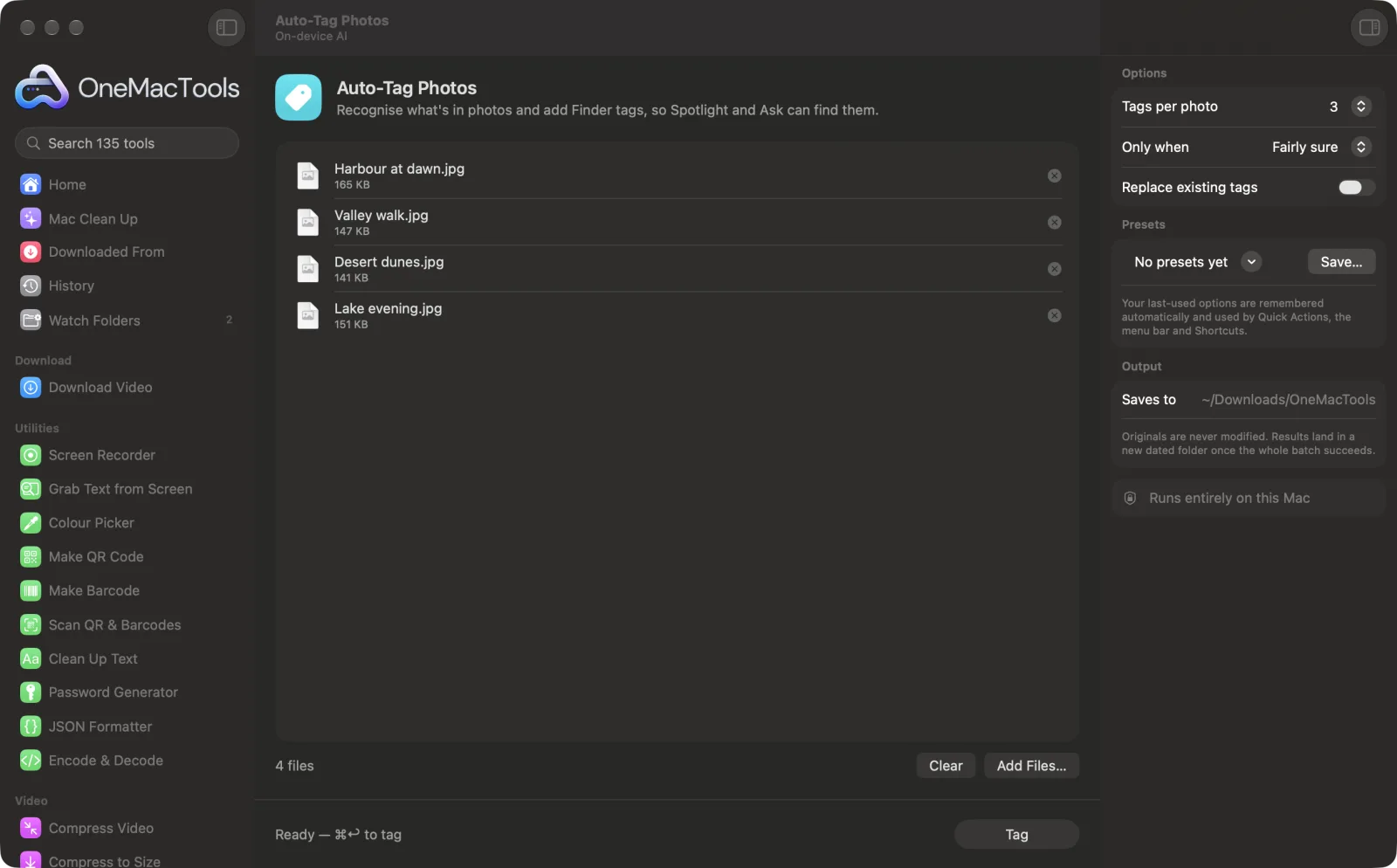
Auto-Tag Photos on a Mac
Screenshots from the app, using sample files.
How to use Auto-Tag Photos
- 1
Drop your photos
Add a batch of photos, screenshots or other images onto Auto-Tag Photos.
- 2
Choose how many tags
In the right-hand panel, set Tags per photo to 1, 3 or 5.
- 3
Choose how sure it must be
Set Only when to Very sure for fewer, safer tags, or Fairly sure for more.
- 4
Click Tag
Each photo is recognised on your Mac, and the words, such as Beach, Food or Dog, are added to the photo's Finder tags. The window shows how many photos were tagged and the most common tags.
- 5
Search by what they show
Type a tag into Spotlight or a Finder search, click it under Tags in the Finder sidebar, or use OneMacTools' Ask (⌘K) to find the photos.
What Auto-Tag Photos does
OneMacTools recognises what's in each photo on your Mac (a beach, food, a dog, a document) and adds those words as Finder tags. Then Spotlight, Finder and OneMacTools' Ask (⌘K) can find them by what they show. The pictures themselves aren't changed.
Great for
- Find every receipt photo in your Downloads
- Organise a folder of holiday pictures
- Make screenshots searchable by what they show
Options explained
- Tags per photo
- 1, 3 (the default) or 5. This is the most a photo gets; it gets fewer when fewer things are recognised clearly enough.
- Only when
- Fairly sure, the default, tags anything recognised with reasonable confidence. Very sure only tags what's recognised with high confidence, so you get fewer tags but fewer odd ones.
- Replace existing tags
- Off by default, so new tags are added next to any tags the photo already has, without duplicates. Turn it on to remove the existing tags first, including colour tags you added yourself.
Best practices
- Try the defaults on a small folder first, then run it on the rest once you like the tags.
- Use Very sure on a large collection to keep tags reliable.
- Leave Replace existing tags off if you use Finder colour tags such as Red or Work, or they'll be removed.
- Very broad labels, such as “outdoor”, “people” or “pattern”, are skipped because they don't help you find anything.
- Finder tags stay with the files on your Mac, but they're usually lost when a photo is emailed or uploaded.
Works with
- In
- Photos and images macOS can open: JPEG, HEIC, PNG, TIFF, camera RAW and more.
- Out
- Finder tags on the photos you dropped. No new files are made, and the pictures themselves aren't changed.
- Tags are added to the files you drop, not to copies.
- Photos where nothing is recognised clearly enough are left untagged.
- Tag names are in English.
Questions about Auto-Tag Photos
How do I tag photos automatically on a Mac?
Drop the photos onto Auto-Tag Photos and click Tag. Each one is recognised on your Mac and gets Finder tags for what it shows, such as Beach, Food or Document.
How do I find photos by their tags?
Type the tag into Spotlight or a Finder search window, or click it under Tags in the Finder sidebar. OneMacTools' Ask (⌘K) can find them too.
What kinds of things does it recognise?
Scenes, objects, animals, food, documents and more, using the image recognition built into macOS. It doesn't identify people by name.
Will it remove the tags I already have?
No, unless you turn on Replace existing tags. By default new tags are added alongside your own, and a tag the photo already has isn't added twice.
Does it work with my Photos library?
It works on image files in Finder. To tag pictures from Photos, export them to a folder first. Finder tags don't appear as keywords inside Photos.
How do I remove tags it added?
Select the photos in Finder, right-click and untick the tags, or remove them in Get Info. The pictures themselves were never changed.
Does Auto-Tag Photos upload my files?
No. Auto-Tag Photos runs entirely on your Mac, so your files never leave it and it works offline.
Will Auto-Tag Photos change my original files?
It adds Finder tags to the original photos; the pictures themselves aren't changed and no new files are made. You can remove tags in Finder at any time.
What does Auto-Tag Photos need?
Just a Mac with macOS 26 or later. There's nothing else to install.
Do this next
Give scans, screenshots and photos real names from what's inside them.
Duplicate FinderFind identical files and look-alike photos, and clear the extras safely.
Alt Text & CaptionsWrite accessible descriptions for images, for websites, documents and social posts.
Related On-device AI tools
Read text out of photos, screenshots and scanned PDFs with Apple's Vision framework.
Ask a DocumentAsk a question about PDFs, scans or documents and get an answer from what they say.
Receipts to SpreadsheetRead receipts and invoices into a spreadsheet of dates, vendors, tax and totals.
TranscribeTurn speech in audio or video into text or subtitles with Apple's on-device speech recognition.
Meeting NotesTurn a meeting recording into a transcript plus notes with decisions and action items.
SummarizeGet the short version of long documents from Apple Intelligence's on-device model.

Auto-Tag Photos, plus 134 more.
One app. One price.
All 135 tools for $29, once. 14-day money-back guarantee.