
Welcome to the OneMacTools blog
What OneMacTools is, why every tool runs on your Mac, and what we'll write about here.
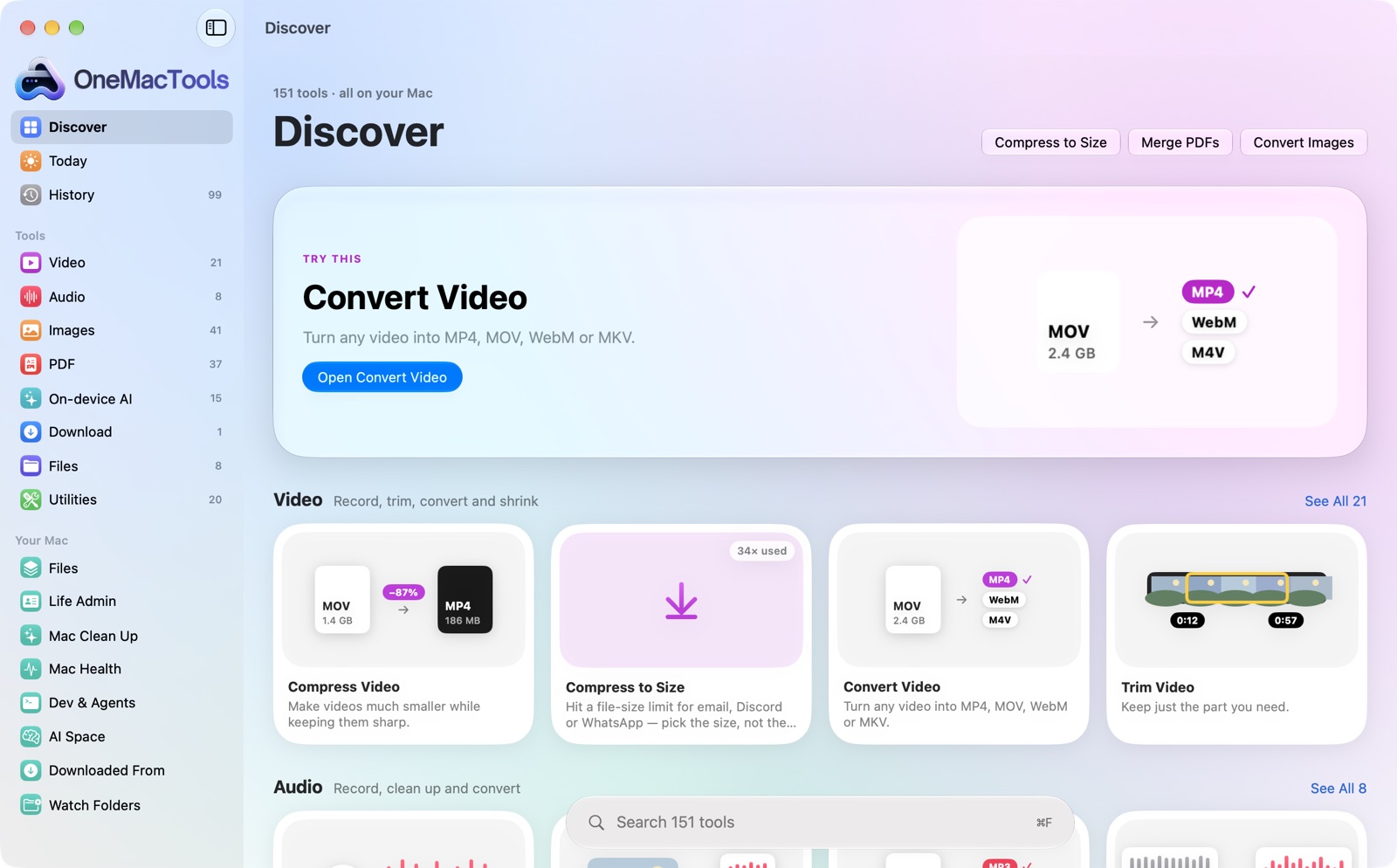
This is the new home for news from OneMacTools: new tools and releases, tips for getting more out of your Mac, and the thinking behind how the app works. The guides stay the place for short, step-by-step answers. The blog is for everything that's better told as a story.
What OneMacTools is
OneMacTools is one native Mac app with 151 tools for the small jobs that usually send you hunting for a website or another app. You can compress a video for email, merge PDFs, turn HEIC photos into JPEGs, pull the text out of a scan or transcribe a meeting. The tools are grouped the way you'd look for them:
| Category | Tools |
|---|---|
| Video | 21 |
| Audio | 8 |
| Images | 41 |
| 37 | |
| On-device AI | 15 |
| Files | 8 |
| Utilities | 20 |
| Download | 1 |
Next to the tools sit the Your Mac screens. Files searches every cloud in one list, Life Admin tracks papers that expire, and Mac Clean Up, Mac Health and Dev & Agents look after the Mac itself.
Your files stay on your Mac
Every tool runs on your Mac. There's no OneMacTools server, no account and no upload step. The only tools that go online are Download Video and Web Page to PDF, and they fetch just the link you give them. The AI tools use what Apple builds into macOS, such as Vision, Speech, Translation and Apple Intelligence's on-device model. The on-device AI page explains which tool uses which.
Your originals are never changed. Results go into a new dated folder in ~/Downloads/OneMacTools, and the History screen keeps track of everything you've made.
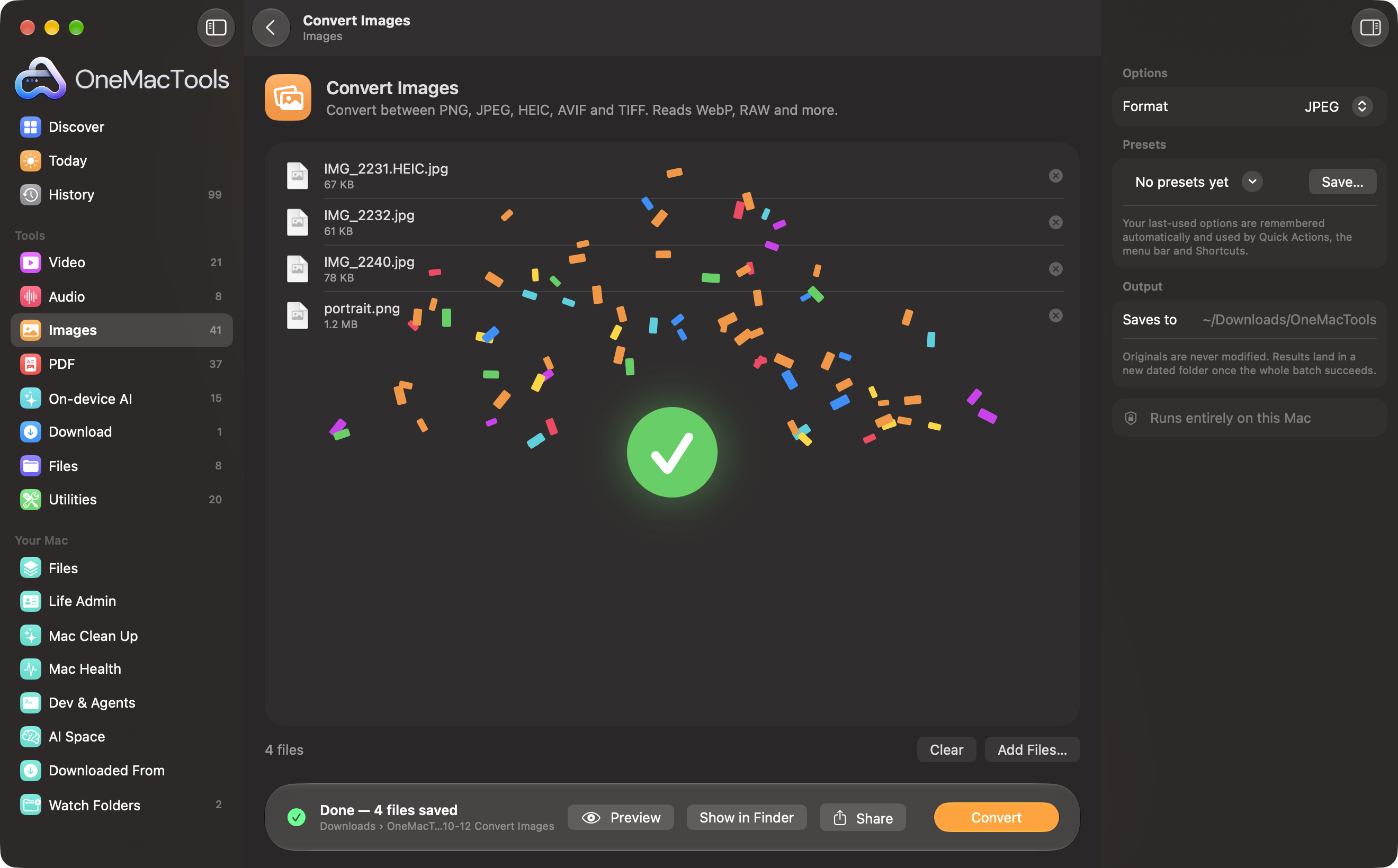
You don't even need to open the app for the jobs you do most. Right-click files in Finder and choose Quick Actions › OMT: … to run a tool in the background.
Pay once
OneMacTools is a free download. A licence is a one-time payment with no subscription, and if it doesn't work on your Mac you can get a refund within 14 days. See pricing for the current plans.
What's coming on the blog
- Release notes, explained. The changelog lists what changed. Here we'll show why, with pictures.
- Mac tips. Ways to free up space, read a slow Mac and handle everyday files without uploading them anywhere.
- Behind the scenes. How a tool is built to run fully on your Mac, and what we learn along the way.
You can follow along with the RSS feed. If there's something you'd like us to write about, tell us.
Tools in this post
More on the blog and in the guides.
More from the blog
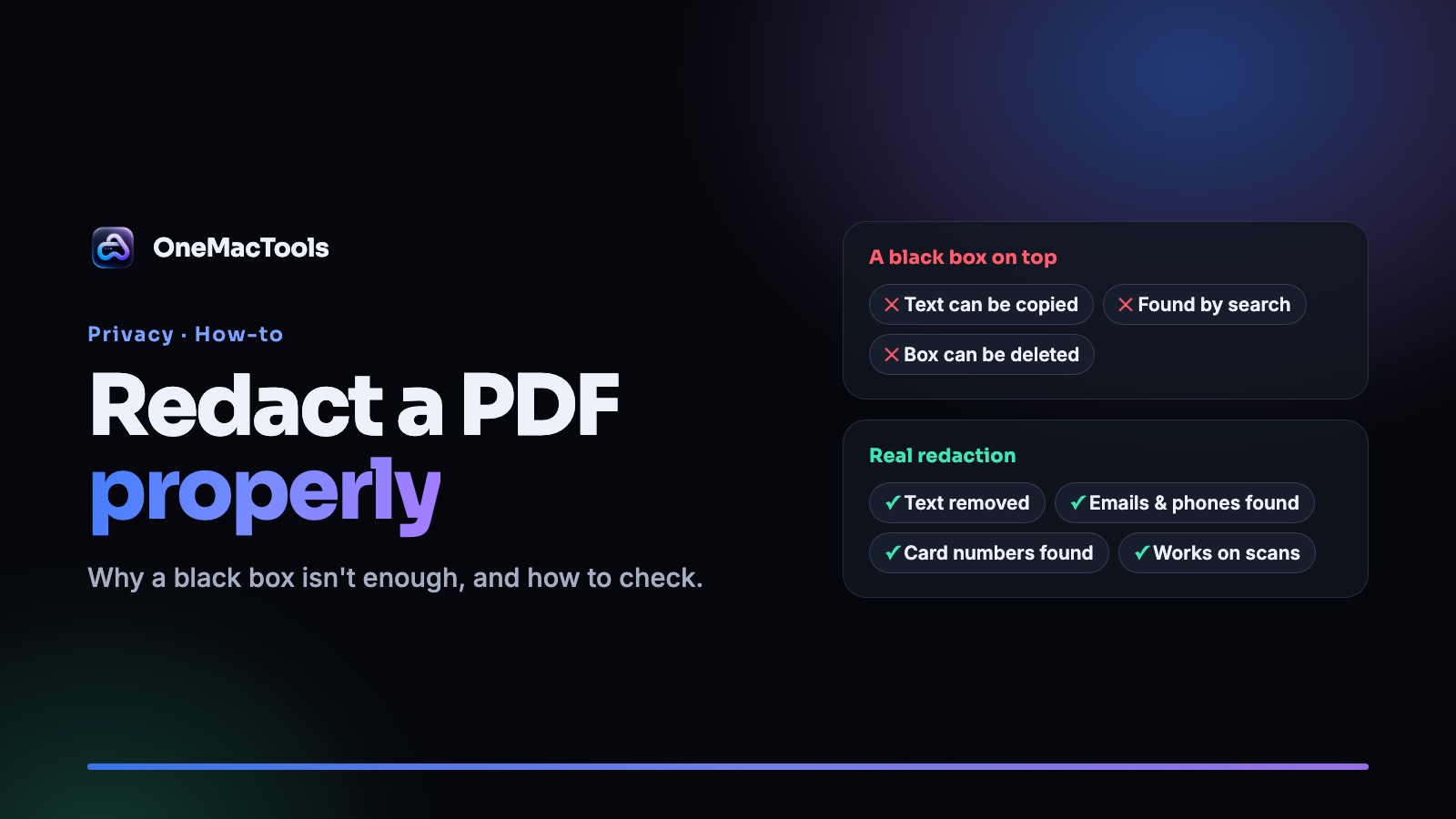
How to redact a PDF on a Mac properly (and why a black box isn't enough)
Drawing a black rectangle over text in a PDF often leaves the text underneath. Here's how to redact names, emails, phone and card numbers on a Mac so they're really gone, and how to check.
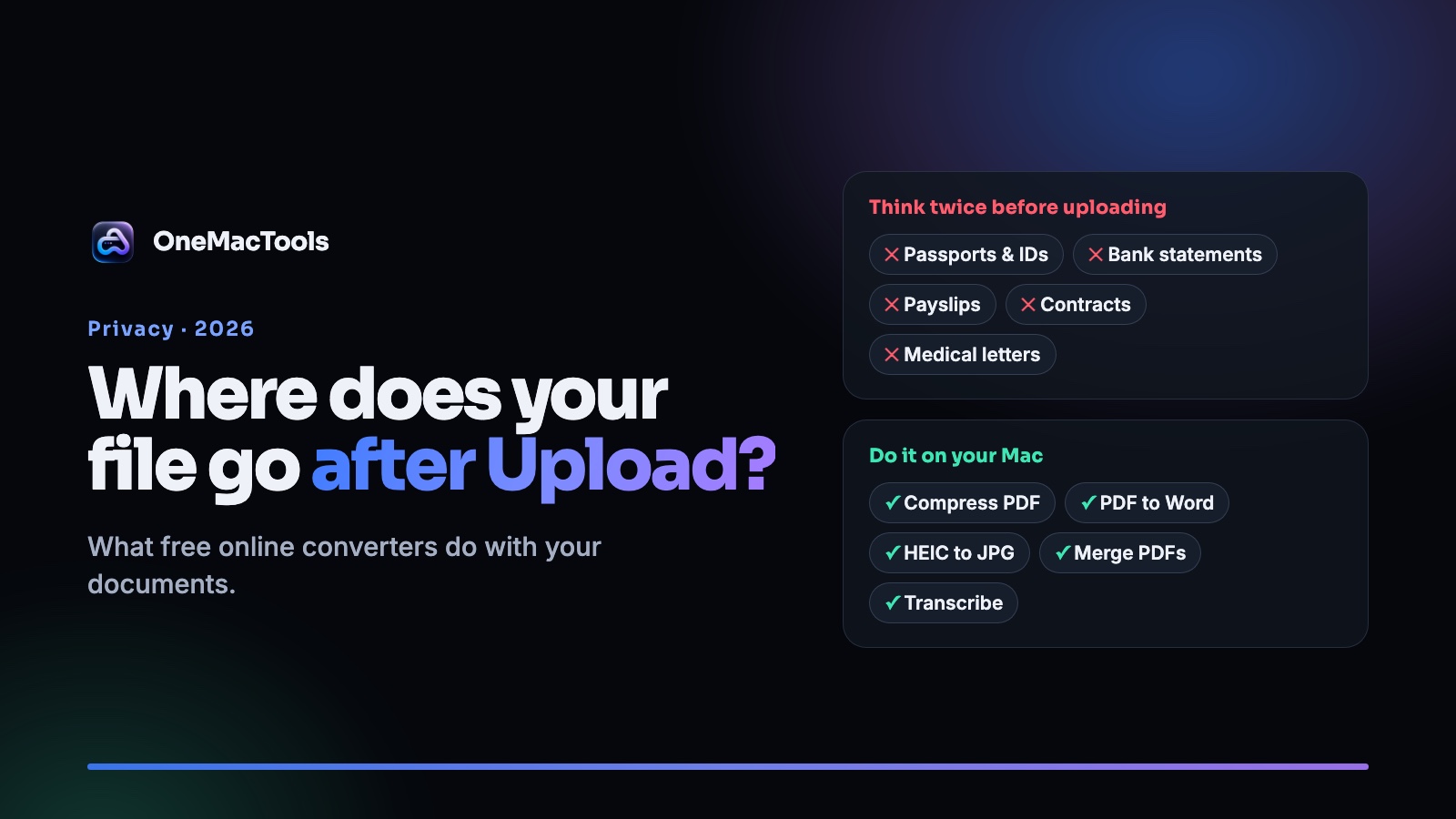
What happens to your file when you use a free online PDF converter?
Free converters are convenient, but every one of them has to receive your file first. What that means, five questions to ask before uploading, and how to do the same jobs on your Mac.
