
Scan a business card into Contacts on Mac
Turn a photo or scan of a business card into a contact card for Contacts.
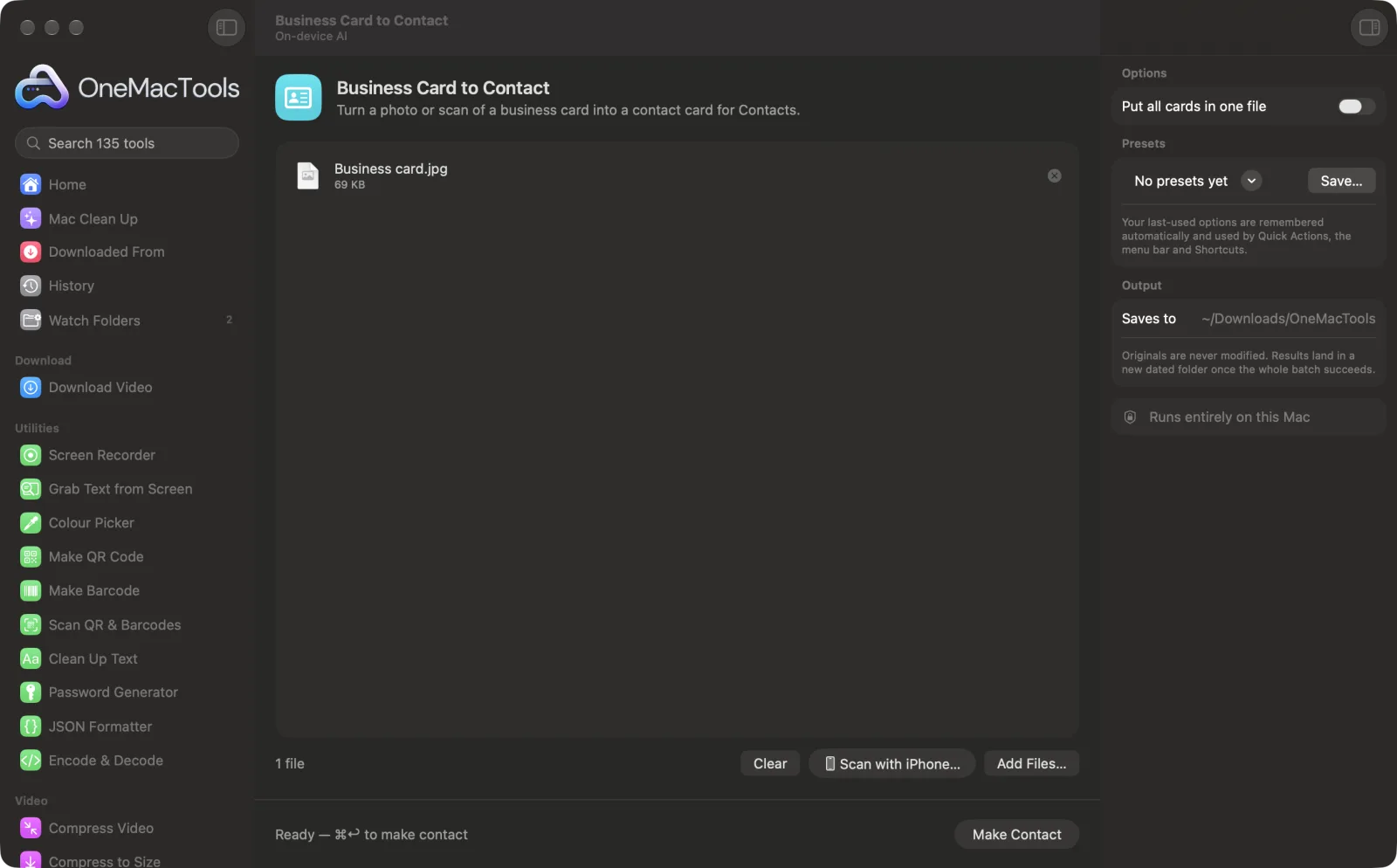
Business Card to Contact on a Mac
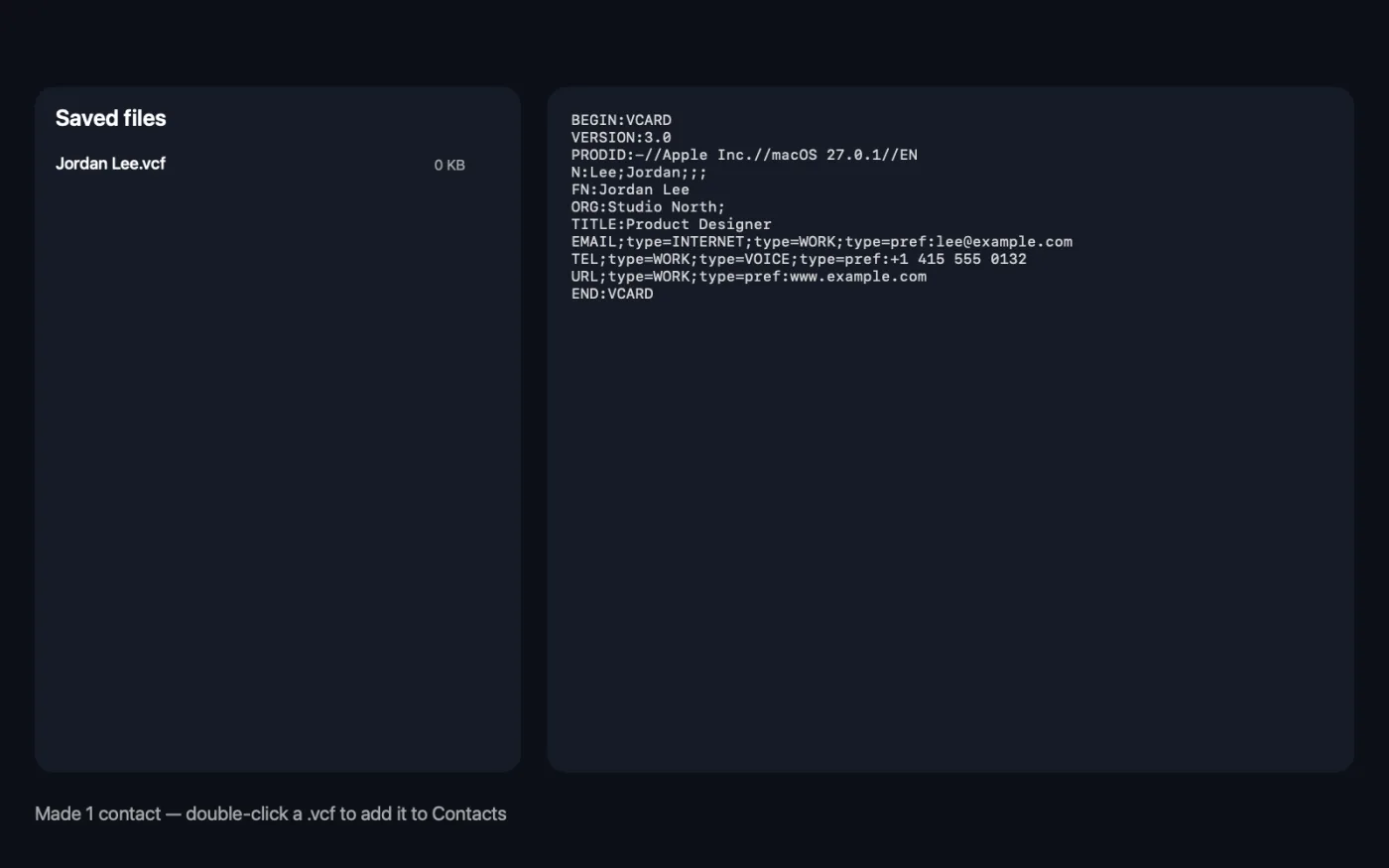
Screenshots from the app, using sample files.
How to use Business Card to Contact
- 1
Add the cards
Drop photos or scans of business cards, one card per image or PDF. Or click Scan with iPhone… to photograph a card with your iPhone.
- 2
Choose the files
In the right-hand panel, decide whether each card gets its own contact file or they all go in one.
- 3
Click Make Contact
Each card is read on your Mac. Emails, phone numbers, websites and the address are found by the data detection built into macOS, and Apple Intelligence picks out the name, job title and company.
- 4
Add to Contacts
Contact cards (.vcf) are saved in a new dated folder in Downloads › OneMacTools. Double-click one to add it to Contacts.
What Business Card to Contact does
Photograph a card or scan it with your iPhone. OneMacTools reads it on your Mac, finds the name, job title, company, email, phone, website and address, and saves a contact card (.vcf). Double-click it to add it to Contacts. With Apple Intelligence it tells names from company names even more reliably.
Uses Apple Intelligence on-device when it's on, and falls back to on-device text recognition when it's off.
Great for
- Add the cards from a conference in one go
- Keep a client's details without typing them
- Share a contact card by email
Options explained
- Put all cards in one file
- Off by default, so each card gets its own .vcf, named after the person. Turn it on to get a single Contacts.vcf holding every card, which adds them all to Contacts in one go.
Best practices
- Photograph cards flat, filling the frame, in even light. Tilt glossy cards slightly to avoid glare across the text.
- For a two-sided card, put the front and back in one two-page PDF. The first two pages of a PDF are read as one card.
- Keep one card per photo. Several cards in one picture end up muddled into a single contact.
- Check the new contact in Contacts and fix anything that was misread, especially the spelling of names.
- The whole address goes into the street field. Split it into city and postcode in Contacts if you need to.
Works with
- In
- Photos and scans of business cards (JPEG, HEIC, PNG and other images) and PDFs.
- Out
- Contact cards (.vcf), one per card or all in one file, that open in Contacts.
- Phone numbers, emails and websites are saved as work details.
- The address is saved as a single line in the street field.
- Without Apple Intelligence, the name, job title and company are picked by simple rules, which work best on cards with a clear layout.
Questions about Business Card to Contact
How do I scan a business card into Contacts on a Mac?
Drop a photo of the card onto Business Card to Contact and click Make Contact. Double-click the .vcf it saves, and Contacts adds the person.
Can I scan a business card with my iPhone?
Yes. Click Scan with iPhone…, choose your iPhone and photograph the card. The picture comes straight into the tool.
Can I add a stack of cards at once?
Yes. Drop all the photos in, one card per photo. Turn on Put all cards in one file to import them all into Contacts with a single double-click.
What details does it pick up?
The name, job title, company, email addresses, phone numbers, websites and postal address, when they're printed on the card.
Why is the name or company wrong?
Unusual layouts, logos made of text or stylised fonts can confuse it. Edit the contact in Contacts; with Apple Intelligence on, names and company names are told apart more reliably.
Does it read both sides of a card?
Yes, if both sides are in one two-page PDF. Separate photos of the front and back are treated as two cards.
How do I import a .vcf file into Contacts?
Double-click it, or open Contacts and choose File › Import, then pick the .vcf file.
Does Business Card to Contact upload my files?
No. Business Card to Contact runs entirely on your Mac, so your files never leave it and it works offline.
Will Business Card to Contact change my original files?
No. Results are saved as new files in a dated folder in Downloads › OneMacTools, and your originals are left exactly as they were unless you turn on an option that says otherwise.
Does Business Card to Contact need Apple Intelligence?
It uses Apple Intelligence's on-device model when it's turned on, for the best results. When it's off, OneMacTools falls back to on-device text recognition and rules, and tells you.
Do this next
Scan paper with your iPhone or iPad camera, or combine photos of documents, into one searchable PDF.
Extract TextRead text out of photos, screenshots and scanned PDFs with Apple's Vision framework.
Scan QR & BarcodesRead QR codes and barcodes from photos, screenshots and PDFs.
Related On-device AI tools
Ask a question about PDFs, scans or documents and get an answer from what they say.
Smart RenameGive scans, screenshots and photos real names from what's inside them.
Receipts to SpreadsheetRead receipts and invoices into a spreadsheet of dates, vendors, tax and totals.
Alt Text & CaptionsWrite accessible descriptions for images, for websites, documents and social posts.
TranscribeTurn speech in audio or video into text or subtitles with Apple's on-device speech recognition.
Meeting NotesTurn a meeting recording into a transcript plus notes with decisions and action items.

Business Card to Contact, plus 134 more.
One app. One price.
All 135 tools for $29, once. 14-day money-back guarantee.