
Convert an image to Base64 on Mac
Turn images into Base64 data URIs, ready to paste into HTML, CSS or JSON.
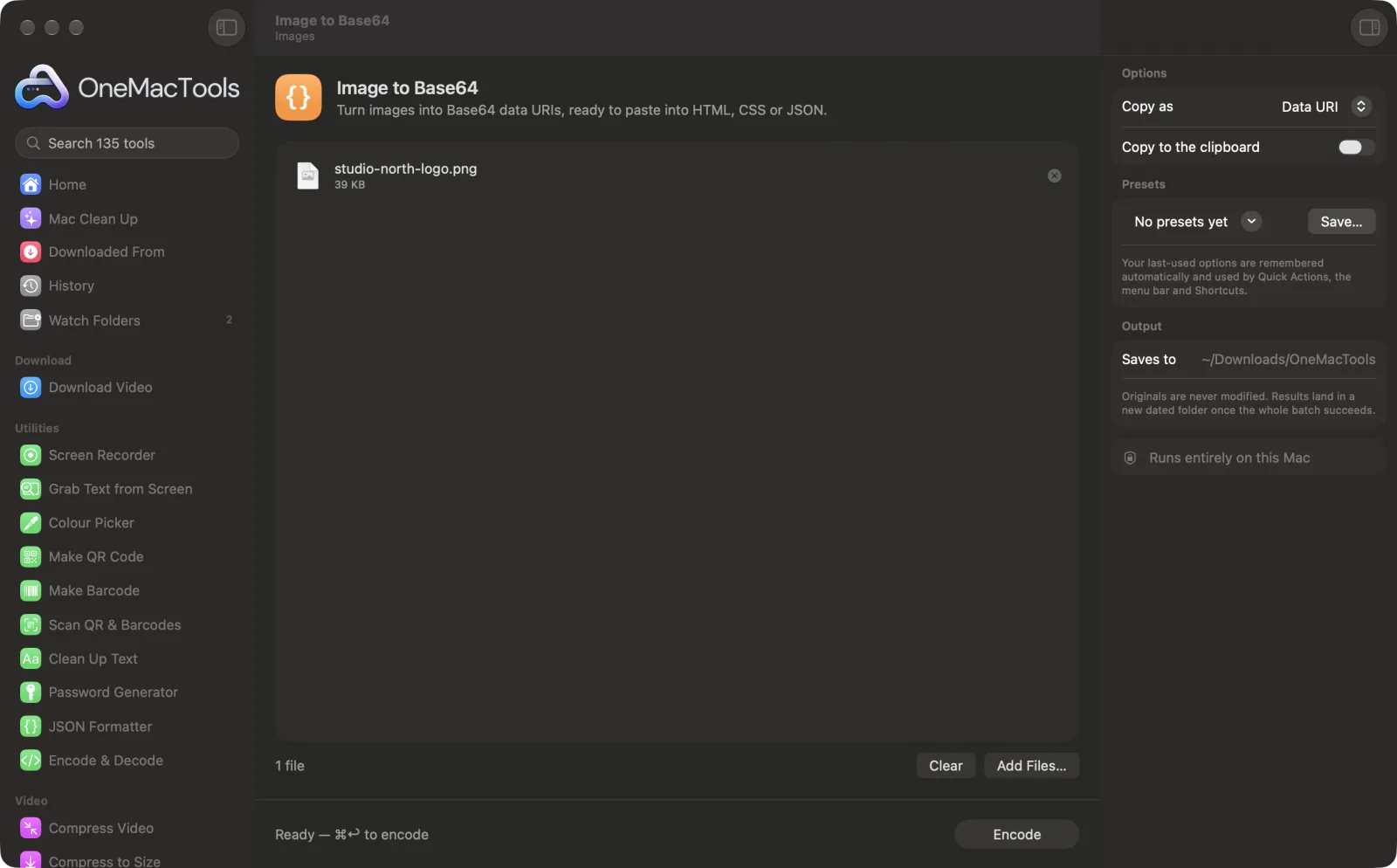
Image to Base64 on a Mac
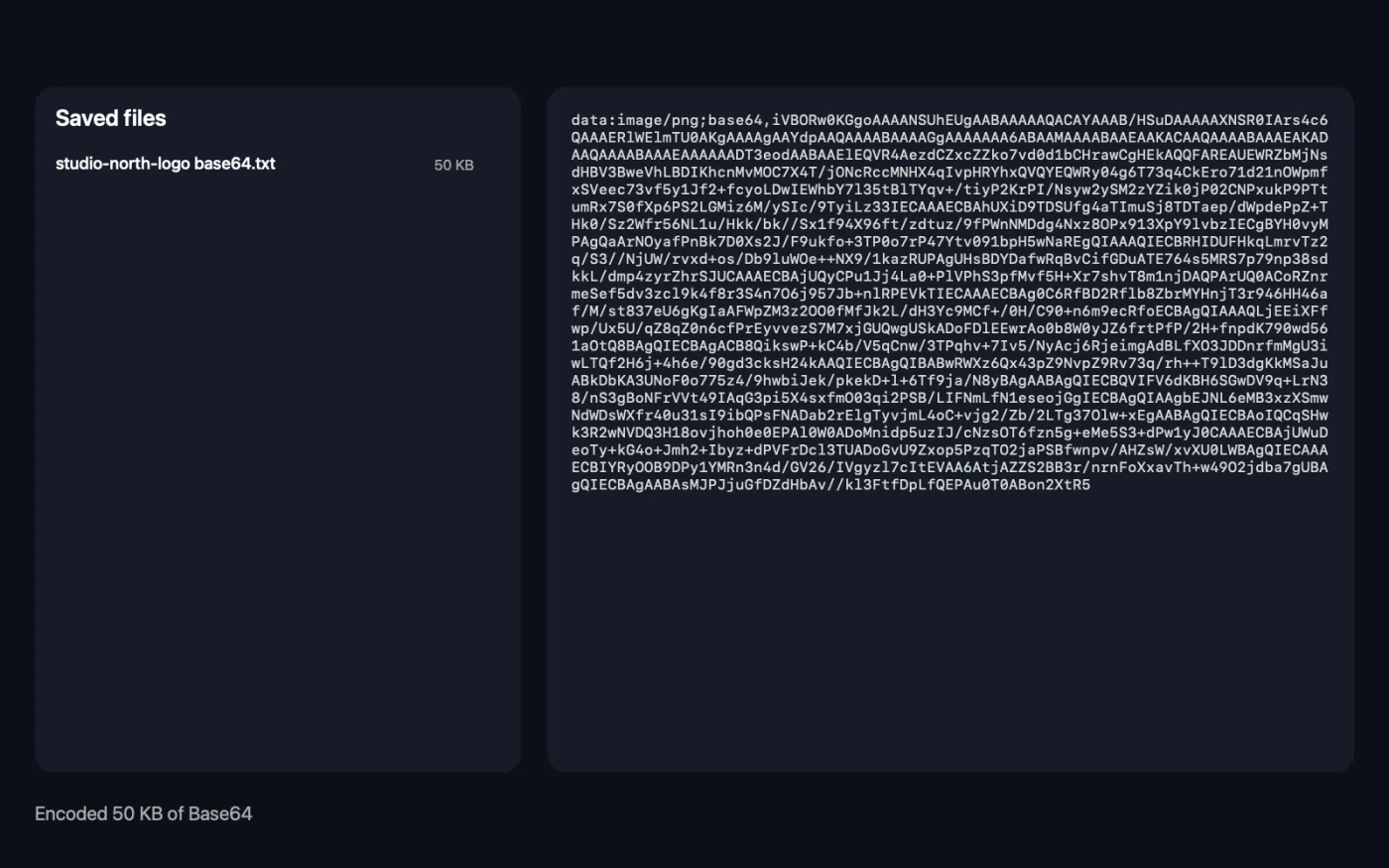
Screenshots from the app, using sample files.
How to use Image to Base64
- 1
Drop your images
Add one or more images, including SVGs.
- 2
Choose what to copy
A data URI, a CSS background rule, an HTML <img> tag, or plain Base64.
- 3
Click Encode
Each image is encoded exactly as it is, byte for byte.
- 4
Paste it
With “Copy to the clipboard” on, the result is ready to paste. Each image's text is also saved as a file named with “base64” in a dated folder in Downloads › OneMacTools.
What Image to Base64 does
Get a data URI, a CSS background rule, an HTML <img> tag or plain Base64 for each image, copied to the clipboard and saved as text. The bytes are encoded exactly as they are, with no quality loss. It warns you when an image is large, since data URIs suit small images.
Great for
- Inline a small icon in CSS
- Embed an image in an HTML email
- Put an image in JSON or a config file
Options explained
- Copy as
- Data URI, CSS background, HTML <img> or Plain Base64. Data URI is the general-purpose form; CSS background wraps it in a background-image rule; HTML <img> wraps it in an image tag with the file name as alt text; Plain Base64 is just the encoded data.
- Copy to the clipboard
- On by default. Copies the result so you can paste it straight away. With several images, they're copied together, separated by blank lines.
Best practices
- Use data URIs for small images only, ideally under about 10 KB. Large ones bloat your HTML or CSS and can't be cached separately.
- Shrink the image first: optimise SVGs with SVG Optimiser and PNGs with Compress PNG before encoding.
- SVGs make good data URIs for icons in CSS, since they're small and stay sharp at any size.
- Edit the alt text in the HTML <img> output to describe the image, rather than leaving the file name.
- Use a format browsers support, such as PNG, JPEG, WebP or SVG. A HEIC data URI won't show in most browsers.
Works with
- In
- PNG, JPEG, GIF, WebP, SVG and other image files.
- Out
- A text file per image with the encoded result, and the clipboard if that option is on.
- The image isn't re-compressed, so there's no quality loss.
- Base64 is about a third larger than the original file. The app warns you when the result is large.
- Very long results aren't displayed in the app, but are complete in the saved files and on the clipboard.
Questions about Image to Base64
How do I convert an image to Base64 on a Mac?
Drop the image onto Image to Base64, choose Data URI and click Encode. The result is copied to your clipboard and saved as a text file.
How do I use a Base64 image in CSS?
Choose CSS background. You get a complete background-image rule with the data URI inside, ready to paste into a stylesheet.
How do I embed an image in HTML without a separate file?
Choose HTML <img>. You get an image tag with the picture inside its src, which works anywhere HTML does.
Why is the Base64 text bigger than my image?
Base64 turns every 3 bytes into 4 text characters, so it's about a third larger. That's why it suits small images.
Does converting to Base64 reduce quality?
No. The file's bytes are encoded exactly as they are, so decoding gives back the identical image.
Can I convert SVG to a data URI?
Yes. SVG files are accepted and encoded with the image/svg+xml type, ready for CSS or HTML.
Does Image to Base64 upload my files?
No. Image to Base64 runs entirely on your Mac, so your files never leave it and it works offline.
Will Image to Base64 change my original files?
No. Results are saved as new files in a dated folder in Downloads › OneMacTools, and your originals are left exactly as they were unless you turn on an option that says otherwise.
What does Image to Base64 need?
Just a Mac with macOS 26 or later. There's nothing else to install.
Do this next
Strip editor leftovers from Figma, Illustrator and Inkscape SVGs and round coordinates — smaller files that look the same.
Compress PNGShrink PNGs by 60–80% by reducing colours, keeping transparency — ideal for screenshots, logos and icons.
Placeholder GeneratorMake BlurHash strings, tiny blurred thumbnails and average colours to show while images lazy-load.
Related Images tools
Convert between PNG, JPEG, HEIC, AVIF and TIFF. Reads WebP, RAW and more.
Compress ImagesShrink photos for email and the web, with a live before-and-after preview.
Convert to WebPMake small, web-ready WebP images, lossy or lossless, with transparency kept.
Resize ImagesResize by longest edge, exact pixels, percentage, or print size in cm, mm or inches at the DPI you need.
Crop ImagesCrop to an aspect ratio or an exact area, or trim plain borders automatically — one photo or a whole folder.
Rotate & Flip ImagesTurn or mirror photos in one go.

Image to Base64, plus 134 more.
One app. One price.
All 135 tools for $29, once. 14-day money-back guarantee.