
Compress PNG images on Mac
Shrink PNGs by 60–80% by reducing colours, keeping transparency — ideal for screenshots, logos and icons.
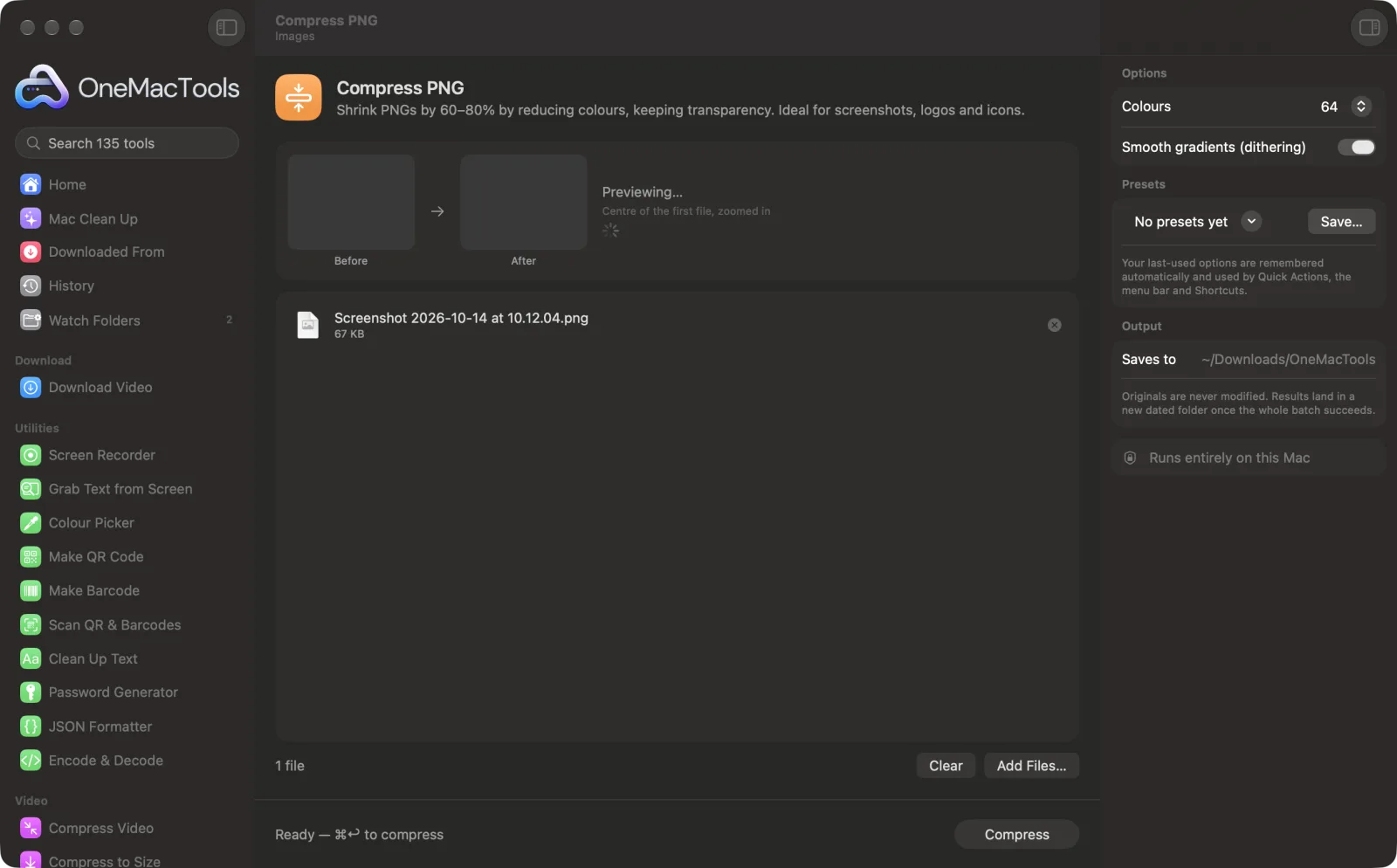
Compress PNG on a Mac
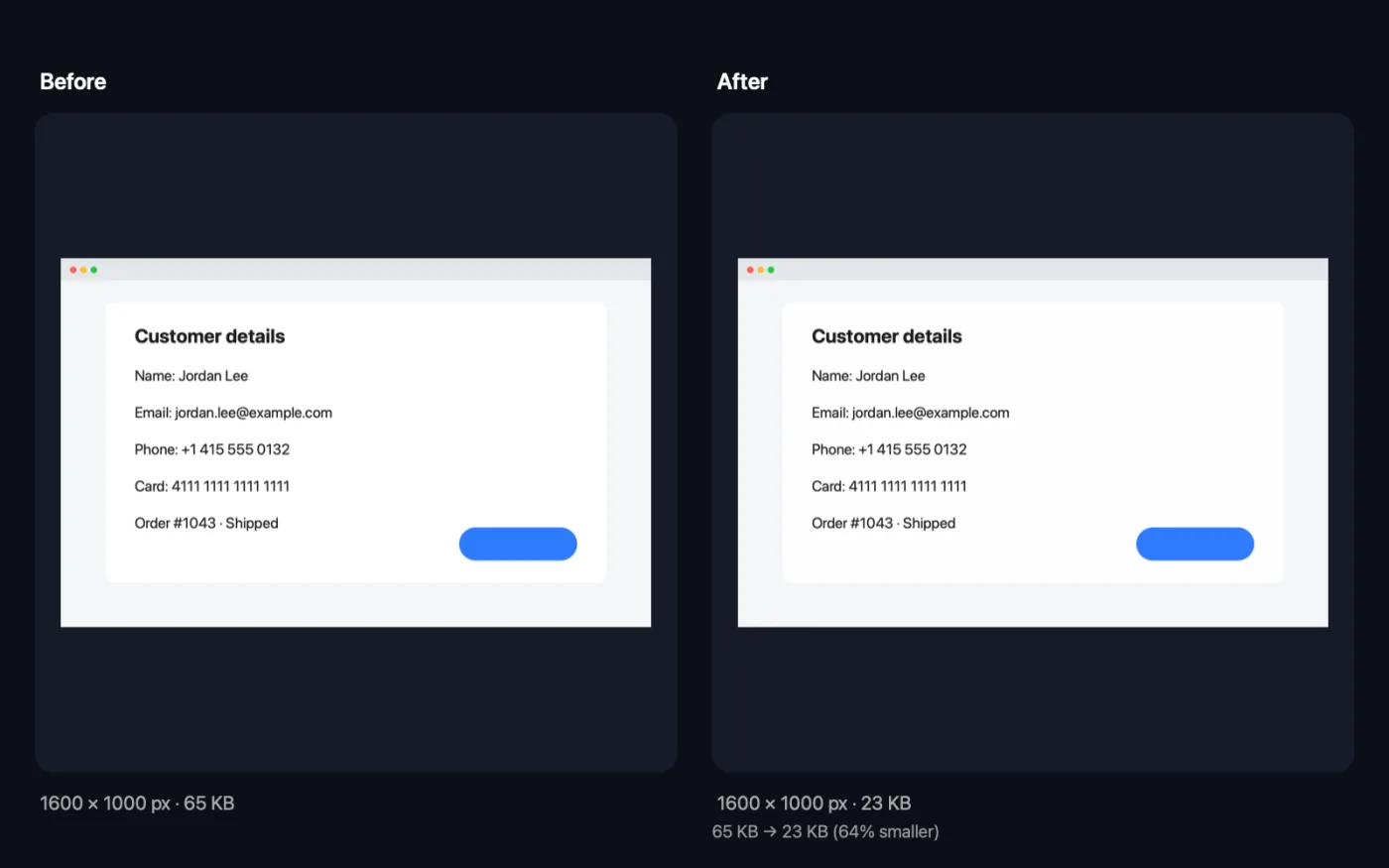
Screenshots from the app, using sample files.
How to use Compress PNG
- 1
Drop your PNGs
Add screenshots, logos, icons or interface images, as many as you like.
- 2
Choose the colours
256 colours is a safe default. Fewer colours make smaller files; watch the live preview for the new size and any visible change.
- 3
Decide on smoothing
Leave Smooth gradients on for shadows, gradients and photos inside the image; turn it off for flat graphics.
- 4
Click Compress
Each PNG is saved with “compressed” in its name, and you see the total saving.
- 5
Use the smaller files
They're saved in a new dated folder in Downloads › OneMacTools. Check them with the Preview (eye) button or Show in Finder.
What Compress PNG does
Re-saving a PNG rarely makes it smaller. Compress PNG reduces the image to a palette of 256, 128, 64, 32 or 16 colours with optional smoothing for gradients, the technique behind popular PNG compressors, and keeps transparency. It never hands back a bigger file: if a palette wouldn't help, it saves the smallest lossless version instead. A live preview shows the result and the new size before you start.
Great for
- Shrink app and website screenshots
- Make logos and icons load faster
- Fit a PNG under an upload limit
Options explained
- Colours
- 256, 128, 64, 32 or 16 colours, or Lossless (keep every colour). A palette of 256 colours is usually indistinguishable from the original for screenshots and graphics. Lossless re-saves the PNG without changing a pixel, which helps less but is completely safe.
- Smooth gradients (dithering)
- On by default, shown when you reduce the colours. Mixes nearby palette colours in a fine pattern to avoid visible bands in gradients and shadows. Turn it off for flat logos and icons, where it can add speckles and makes files slightly bigger.
Best practices
- Start at 256 colours and only go lower if you need a smaller file and the preview still looks right.
- Flat icons and simple logos often look perfect at 32 or 16 colours, with dithering off.
- For photos, save as JPEG or WebP instead. They're made for smooth colour and will be much smaller than any PNG.
- Resize oversized screenshots first. A Retina screenshot shown at half size on a website carries four times the pixels it needs.
Works with
- In
- PNG images, including ones with transparency.
- Out
- Compressed PNGs with “compressed” in the name, keeping transparency.
- If a palette wouldn't make a PNG smaller, the smallest lossless version is saved instead.
- A PNG that's already as small as it gets is copied unchanged, and the app tells you how many.
Questions about Compress PNG
How does it make PNGs so much smaller?
It reduces the image to a palette of up to 256 colours and stores each pixel as a small index into it, the technique popular PNG compressors use. Screenshots, logos and icons usually look identical at a fraction of the size.
Will it work on photos?
Less well: smooth gradients need many colours and can show banding. Keep 256 colours with smoothing on, or use Compress Images to save photos as JPEG.
Is transparency kept?
Yes. Transparent and semi-transparent pixels are kept in the palette.
How do I compress a PNG without losing quality?
Choose Lossless (keep every colour). Every pixel stays exactly the same; the saving is smaller, but nothing changes.
Can the file get bigger?
No. If a palette or re-saving wouldn't make a PNG smaller, the original is copied as it is.
How many colours should I use?
256 for screenshots and anything with gradients or photos, 64 to 128 for simple interfaces, and 16 to 32 for flat icons and logos. The live preview shows the result before you start.
Does Compress PNG upload my files?
No. Compress PNG runs entirely on your Mac, so your files never leave it and it works offline.
Will Compress PNG change my original files?
No. Results are saved as new files in a dated folder in Downloads › OneMacTools, and your originals are left exactly as they were unless you turn on an option that says otherwise.
What does Compress PNG need?
Just a Mac with macOS 26 or later. There's nothing else to install.
Do this next
Make small, web-ready WebP images, lossy or lossless, with transparency kept.
Resize ImagesResize by longest edge, exact pixels, percentage, or print size in cm, mm or inches at the DPI you need.
Compress ImagesShrink photos for email and the web, with a live before-and-after preview.
Related Images tools
Convert between PNG, JPEG, HEIC, AVIF and TIFF. Reads WebP, RAW and more.
Crop ImagesCrop to an aspect ratio or an exact area, or trim plain borders automatically — one photo or a whole folder.
Rotate & Flip ImagesTurn or mirror photos in one go.
Screenshot BeautifierPut screenshots on a gradient with padding, rounded corners and a soft shadow.
Watermark ImagesAdd your name, © notice or logo to photos — in a corner or tiled across the whole image.
Text on Image & Meme MakerAdd captions, quotes or labels with your font, colour, outline and shadow — or make a classic meme.

Compress PNG, plus 134 more.
One app. One price.
All 135 tools for $29, once. 14-day money-back guarantee.